How to Bulk Create Pages in WordPress in 4 Free Steps (Tested)

Updated
Part of the guide: Programmatic SEO and local landing pages in WordPress
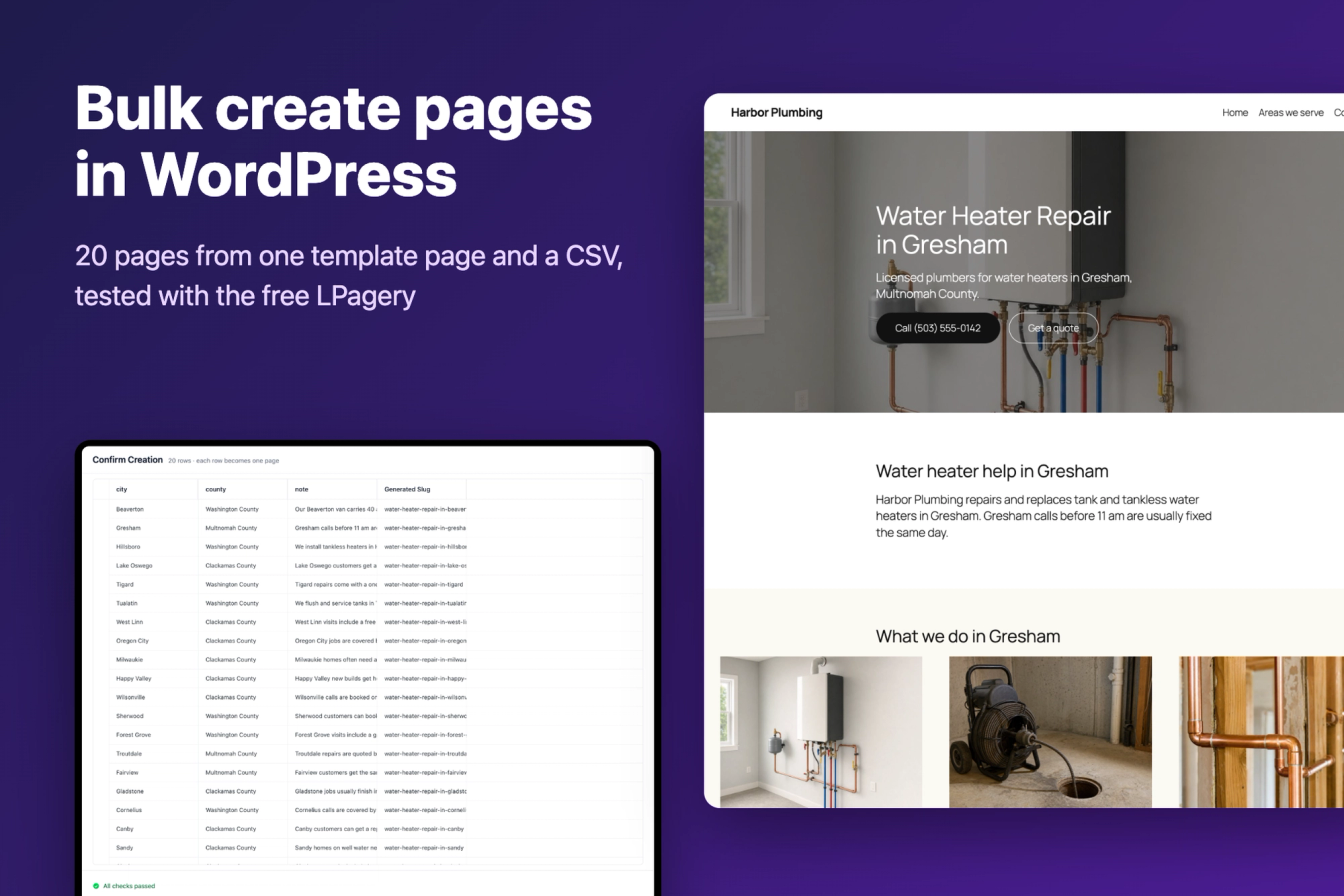
To bulk create pages in WordPress, you build one template page with placeholders such as {city}, put one row per page in a CSV, Excel file or Google Sheet, and let a plugin make a page from every row. This guide does it with the free LPagery plugin from WordPress.org, step by step, and then shows how to change the pages later, how to delete them again, and how to make them different enough to be worth indexing.
The screenshots come from WordPress 7.1.3 with the Twenty Twenty-Five theme, Yoast SEO 28.7 and LPagery 3.1.1, the free version from WordPress.org.
In our test, four steps made 20 published pages, each with its own title, H1 and meta description, in 24.5 seconds from opening Create Pages to the success message. Every step below works on the free plan. The free version has two limits you may run into, 3 placeholder columns and 100 pages per run, and we say where each one matters and which paid plan removes it.
We make LPagery. Jonas Lindemann from the LPagery team ran every step in our WordPress lab on 15 October 2026, on Harbor Plumbing, a made-up plumbing company with 20 service cities around Portland, Oregon.
Quick overview: bulk create pages in 4 steps
- Install the free LPagery plugin from Plugins > Add Plugin.
- Build a template page with placeholders such as {city} in the title, the text and the SEO fields.
- Make a source file with one column per placeholder and one row per page, and save it as CSV or XLSX.
- In LPagery > Create Pages, choose the template, upload the file, check the rows and create the pages.
Then check the pages as a visitor would (the section after Step 4). The sections after the steps cover updating, deleting and the uniqueness test.
What you need
- A WordPress site where you can install plugins
- The free LPagery plugin from WordPress.org
- Excel, Google Sheets or any program that saves CSV or XLSX files
- Optional: an SEO plugin such as Yoast SEO, for a meta description per page
If you only need a handful of copies of one page, a duplicate plugin is enough; our guide on how to duplicate a post or page in WordPress covers it. This guide is for 20, 200 or 2,000 pages that share one layout.
Step 1: Install LPagery (free)
- In your WordPress dashboard, go to Plugins > Add Plugin and search for LPagery.
- Click Install Now on Bulk Page Generator – LPagery.
- Click Activate.
After activation, LPagery opens with an opt-in screen that asks to share usage data. You can skip it, and the plugin works the same. The first time you open Create Pages, a short onboarding starts, and Skip Onboarding closes it.
Step 2: Build the template page with placeholders
The template page is a normal WordPress page that every generated page copies. Design it once, with the block editor or a page builder, and write a placeholder in curly braces wherever a value changes from page to page. Each placeholder name matches a column header in your source file, so {city} is filled from the city column. Upper and lower case do not matter.
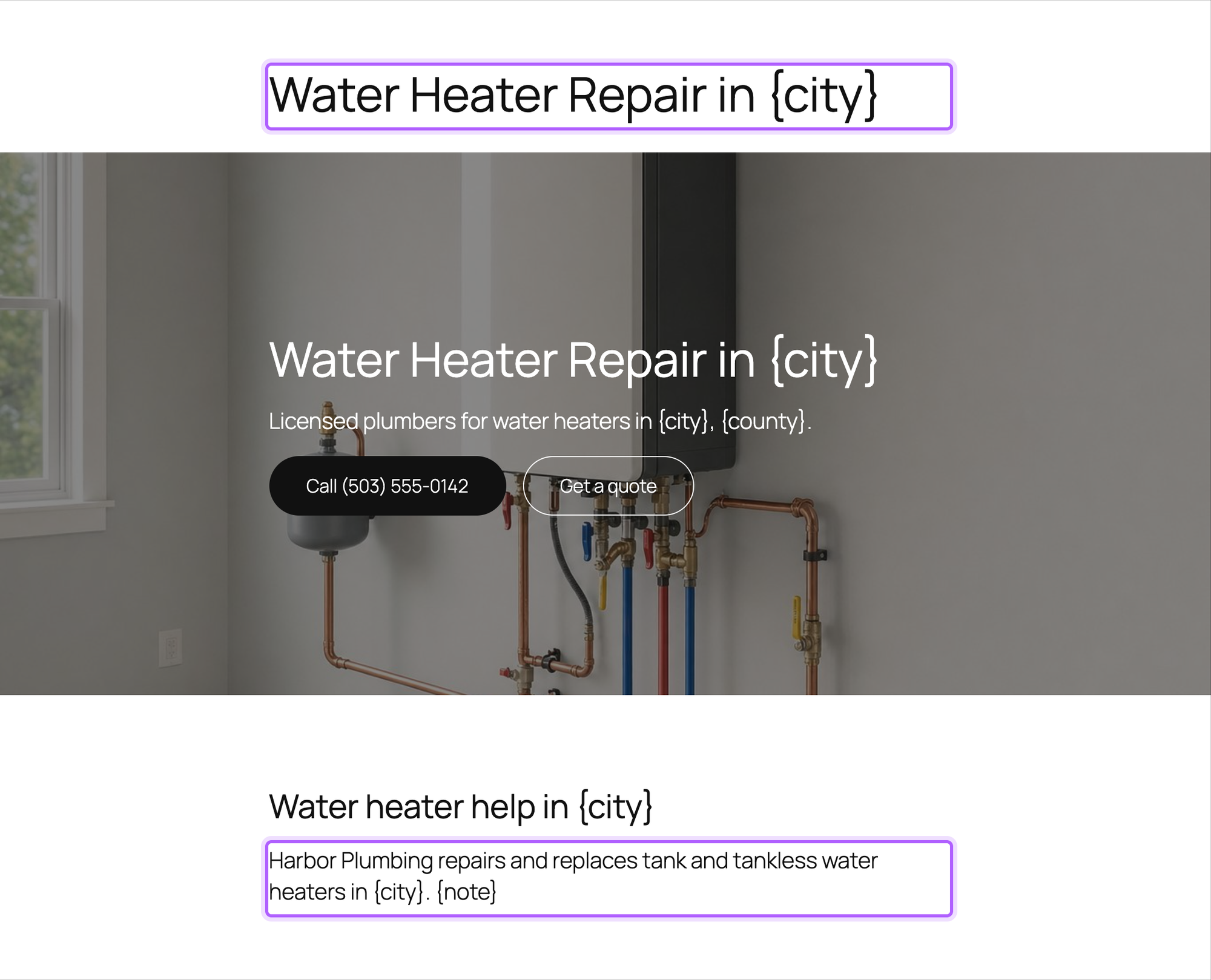
Our template has a hero with the heading Water Heater Repair in {city}, a line naming {city} and {county}, an intro paragraph that ends in {note}, three service cards and a call to action. Its page title is Water Heater Repair in {city}. Put at least one placeholder in the title: on the free plan LPagery makes each page's URL from the title, so a title without one would give every page the same name.
We left the template as a draft. LPagery lists drafts as templates, and a draft never shows to visitors.
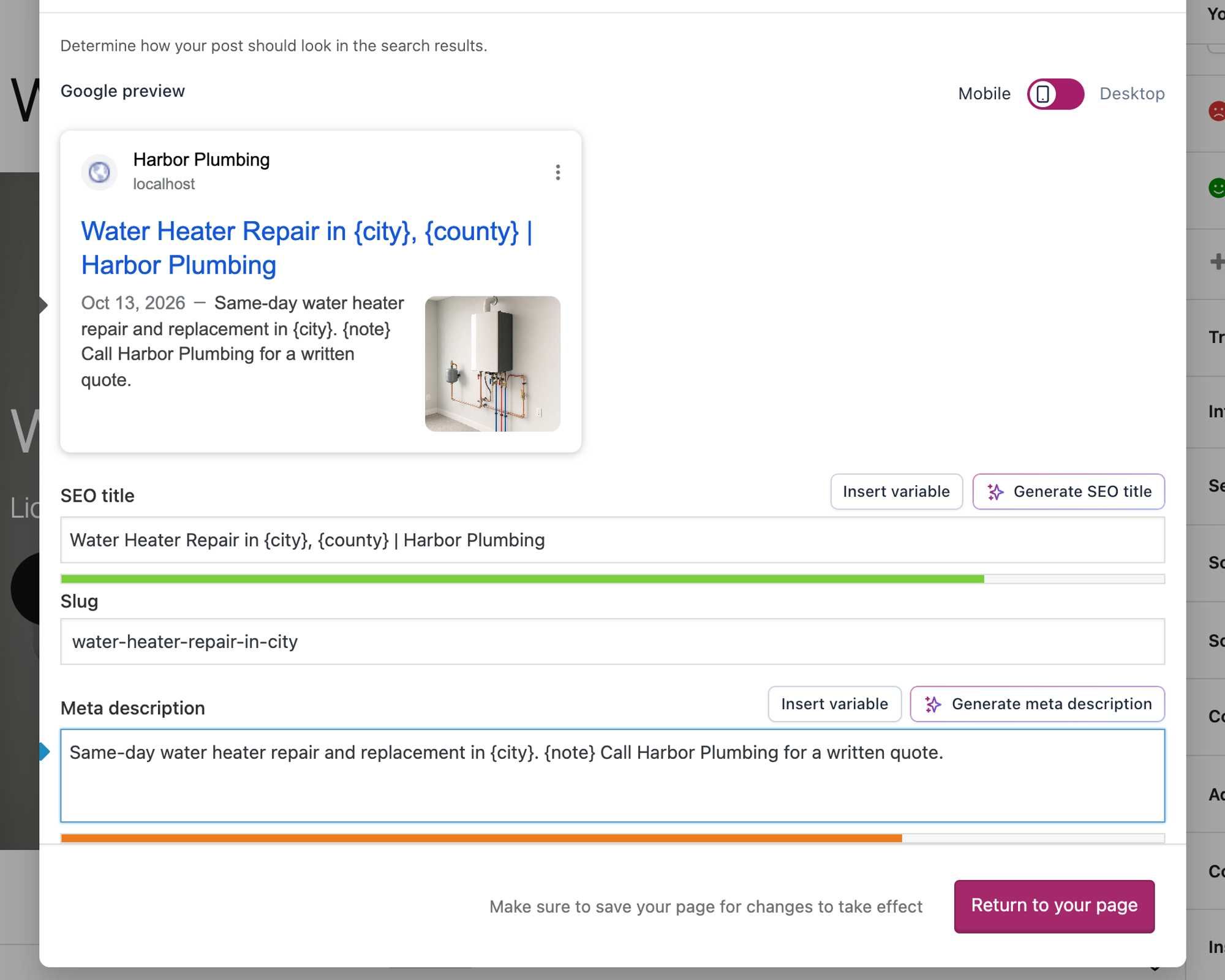
Placeholders work in SEO fields too. We wrote Water Heater Repair in {city}, {county} | Harbor Plumbing as the Yoast SEO title and a meta description with {city} and {note}, so every page got its own.
Elementor templates work the same way: you write the placeholders into the widgets. Our guide to bulk creating pages with Elementor shows that setup.
Step 3: Make the source file (CSV, Excel or Google Sheet)
The source file has one header row and one row per page. Each header is a placeholder name without the braces. Ours has three columns, city, county and note, and 20 rows. The first four:
city | county | note |
|---|---|---|
Beaverton | Washington County | Our Beaverton van carries 40 and 50 gallon tanks. |
Gresham | Multnomah County | Gresham calls before 11 am are usually fixed the same day. |
Hillsboro | Washington County | We install tankless heaters in Hillsboro homes and shops. |
Lake Oswego | Clackamas County | Lake Oswego customers get a two-hour arrival window. |
Save it as CSV or XLSX. If your data lives in Google Sheets, download it as a CSV (File, then Download) and upload that file. Reading the sheet directly from its link needs the Standard plan, and keeping the pages in step with the sheet needs Extended; our guide on syncing Google Sheets with WordPress covers that. For planning the columns, such as one row per service and city, see create WordPress pages from a spreadsheet.
The free version uses 3 columns
When we uploaded a file with a fourth column, crew, the review showed The free version uses up to 3 placeholder columns and ignores the rest. and marked the crew column Pro. Any paid plan removes the limit.
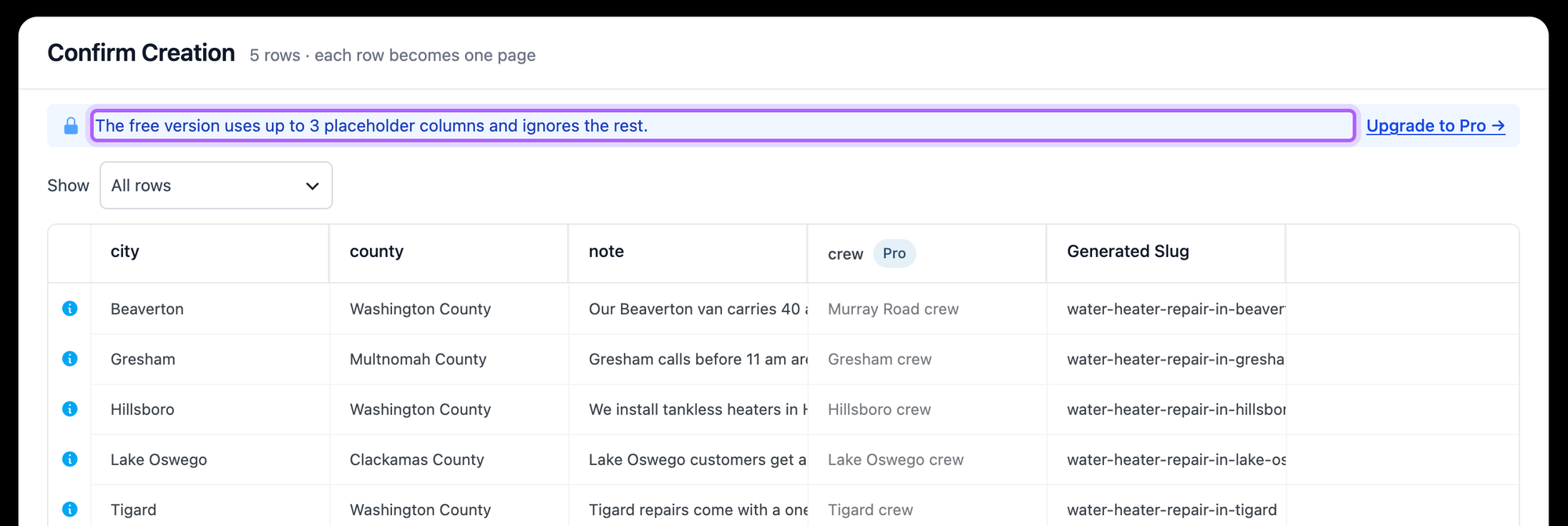
Three columns is less tight than it sounds, because one column can hold a whole paragraph. That is how we got the pages furthest apart in the uniqueness test further down.
Step 4: Create the pages
Go to LPagery > Create Pages. The screen has two parts, the settings and the input, and a review at the end.
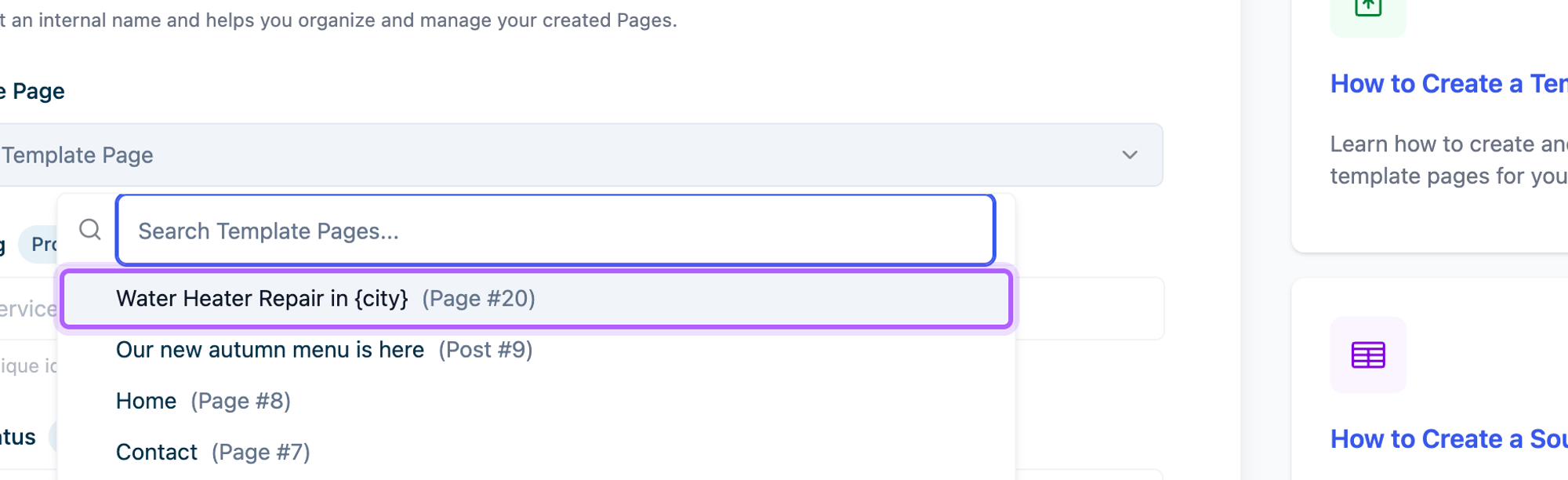
Choose the template page
Under Template Page, open the list and choose your template. The other settings can stay as they are; on the free plan, URL Slug, Page Status and Parent Page are fixed and marked Pro.
Upload the source file
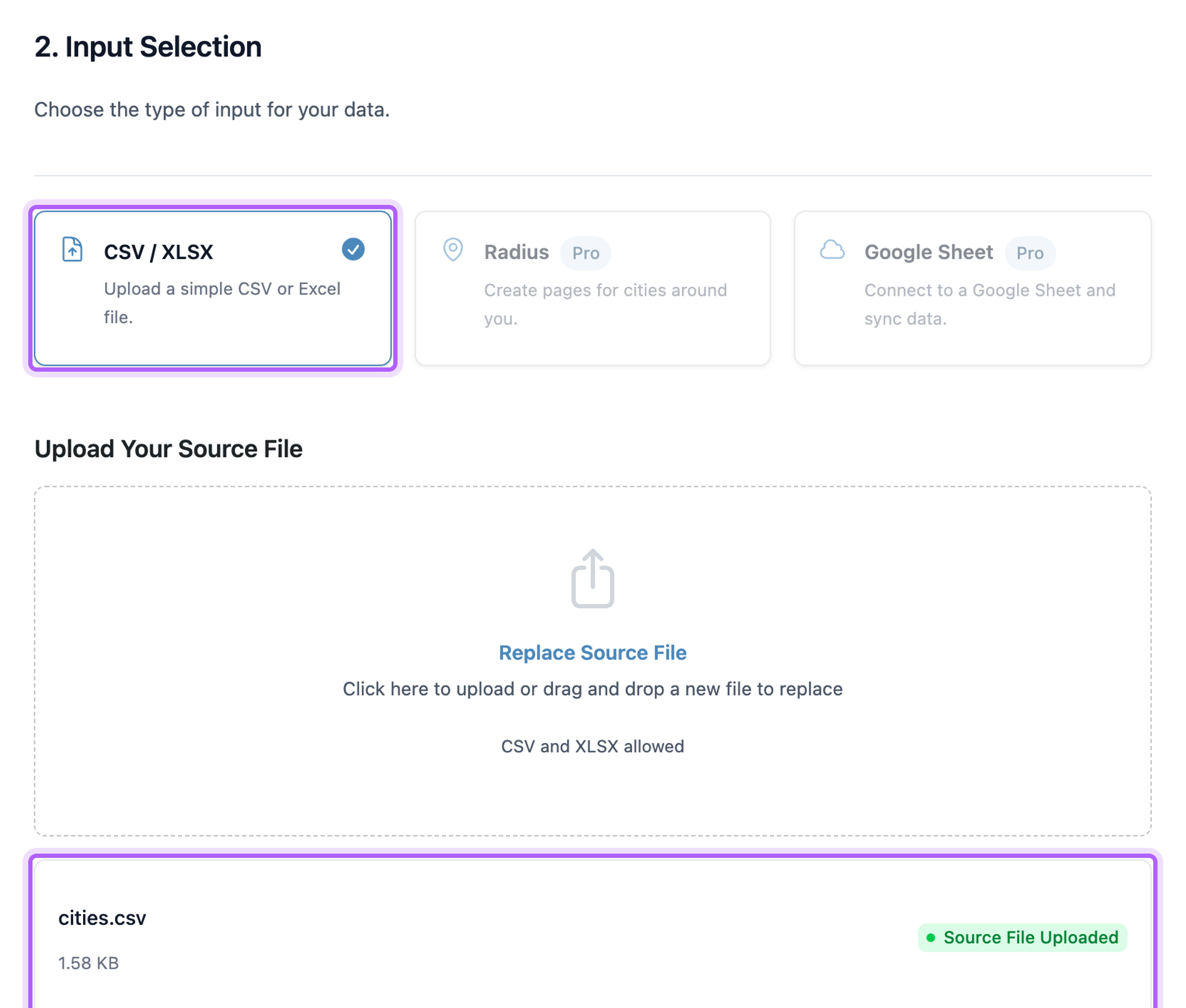
Under 2. Input Selection, keep CSV / XLSX and upload your file. LPagery shows it with Source File Uploaded.
Review and create
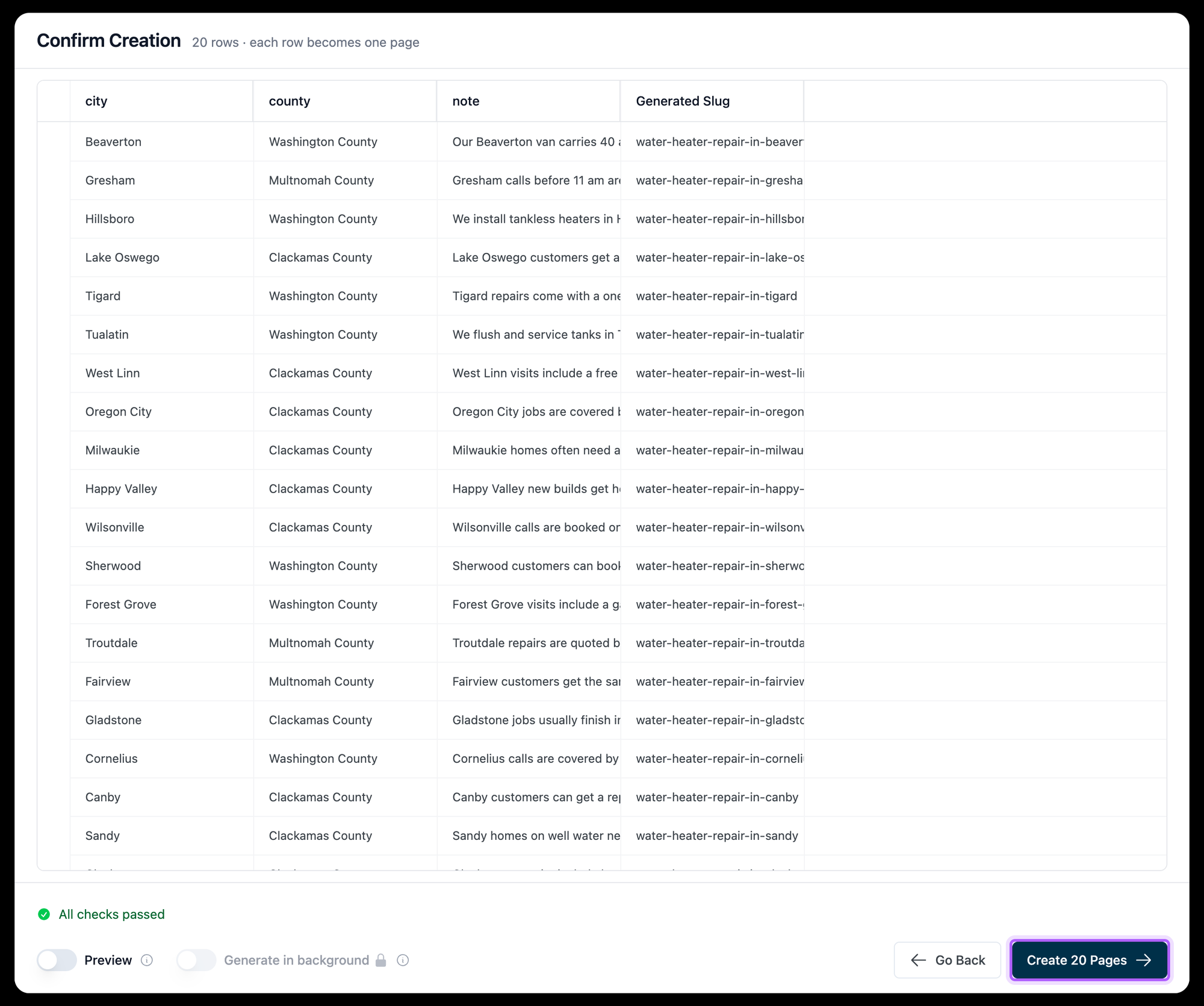
Click Review & Create Pages. The Confirm Creation table shows every row and, under Generated Slug, the URL each page will get. Click Create 20 Pages (the number is your row count) and confirm.
Pages Created Successfully! means the pages are live. Our 20 pages took 4.7 seconds after the confirmation.

On the free plan the URL comes from the page title, for example /water-heater-repair-in-gresham/, and the pages are published at the top level. Your own URL pattern, such as /gresham/water-heater-repair/, and a parent page, such as Areas we serve, need the Standard plan.
Making hundreds or thousands of pages
The free version creates up to 100 pages per run. With a 200-row file, the review says The free version creates the first 100 of 200 pages. and the button reads Create 100 Pages (of 200).
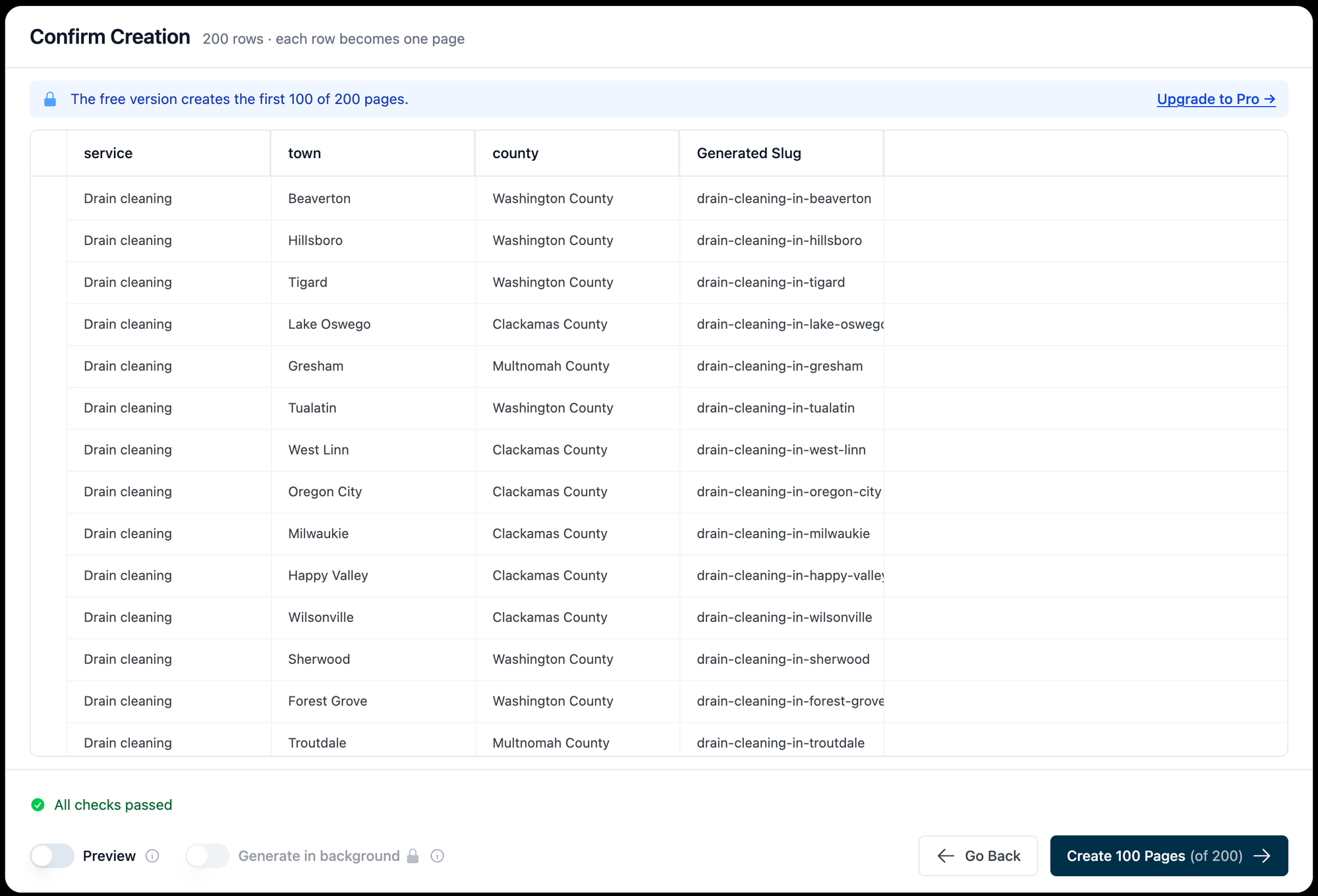
On the free plan you can split a bigger file into files of 100 rows and run them one after the other, so 1,000 pages take ten runs. Each file must hold new rows only: a row whose page already exists makes a copy with -2 in the URL (see below). Paid plans have no limit per run; Generate in background is locked on the free plan.
Whether you should make a thousand pages is a different question. Each page needs facts of its own, or it is the kind of page Google's spam policies describe; the uniqueness test below shows what that means in numbers.
Check the pages as a visitor
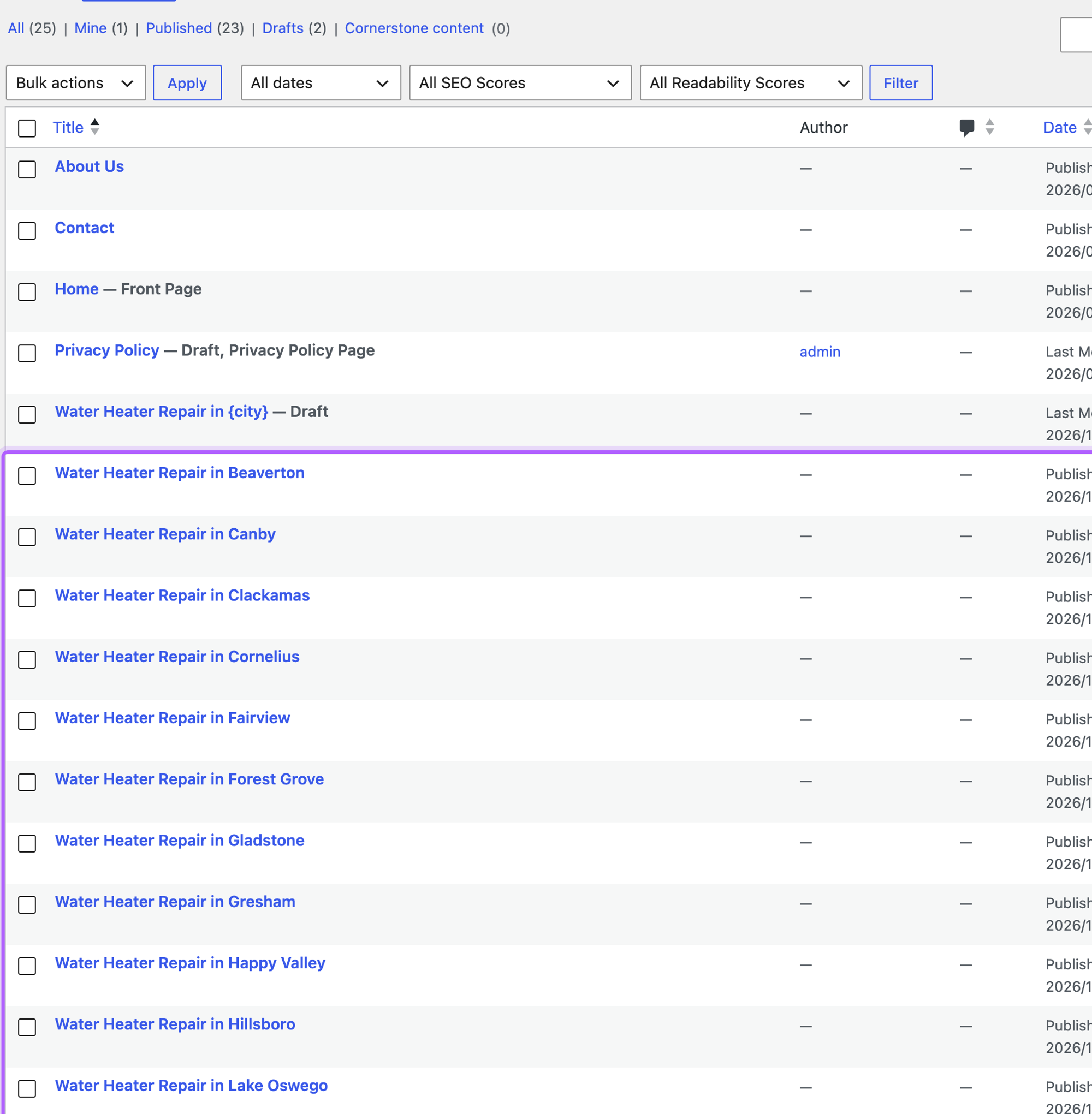
Open Pages in WordPress. The 20 new pages are published, and the template is still a draft.
Then open one page in a private window, logged out, as a visitor sees it.
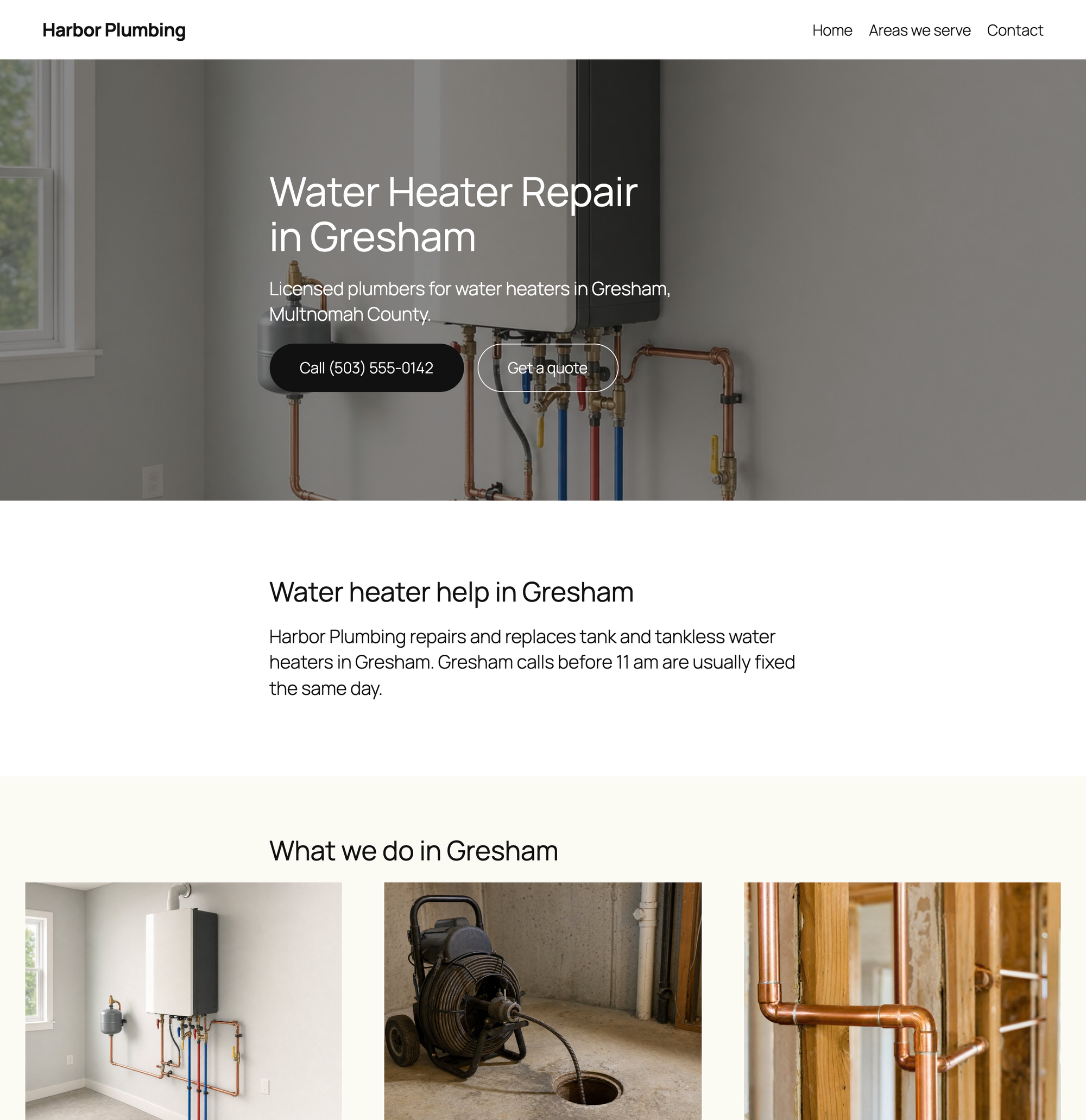
We fetched all 20 pages logged out. All 20 loaded, with 20 different titles, 20 different meta descriptions, one H1 each and no leftover placeholders. Gresham's title read Water Heater Repair in Gresham, Multnomah County | Harbor Plumbing.
Generated pages are ordinary WordPress pages. When we deactivated LPagery, the Gresham page still loaded. Before you publish a set like this for real, read the next section: these 20 pages were 86% identical to each other.
For the same steps with a different niche, see our walkthroughs on service area pages and on location pages for a plumbing business, which also covers the Pro features.
How to make the pages different enough
Google's spam policies describe the risk of this method directly. "Scaled content abuse is when many pages are generated for the primary purpose of manipulating search rankings and not helping users." Under doorway abuse, the examples include "Having multiple domain names or pages targeted at specific regions or cities that funnel users to one page" and "Creating substantially similar pages that are closer to search results than a clearly defined, browseable hierarchy".
So we measured how similar the pages are. We made the same ten city pages three times from the same template, changing only the source file, and compared the visible text of every pair of pages (45 pairs per set) with Python's difflib: the share of words that appear in the same order on both pages.
Source file | Placeholder columns | Words per page (median) | Identical text (median) | Range |
|---|---|---|---|---|
City name only | 1 | 107 | 92% | 89 to 94% |
City, county and a one-sentence note | 3 | 119 | 85% | 83 to 89% |
City, county and a paragraph of local facts | 3 | 176 | 62% | 59 to 68% |
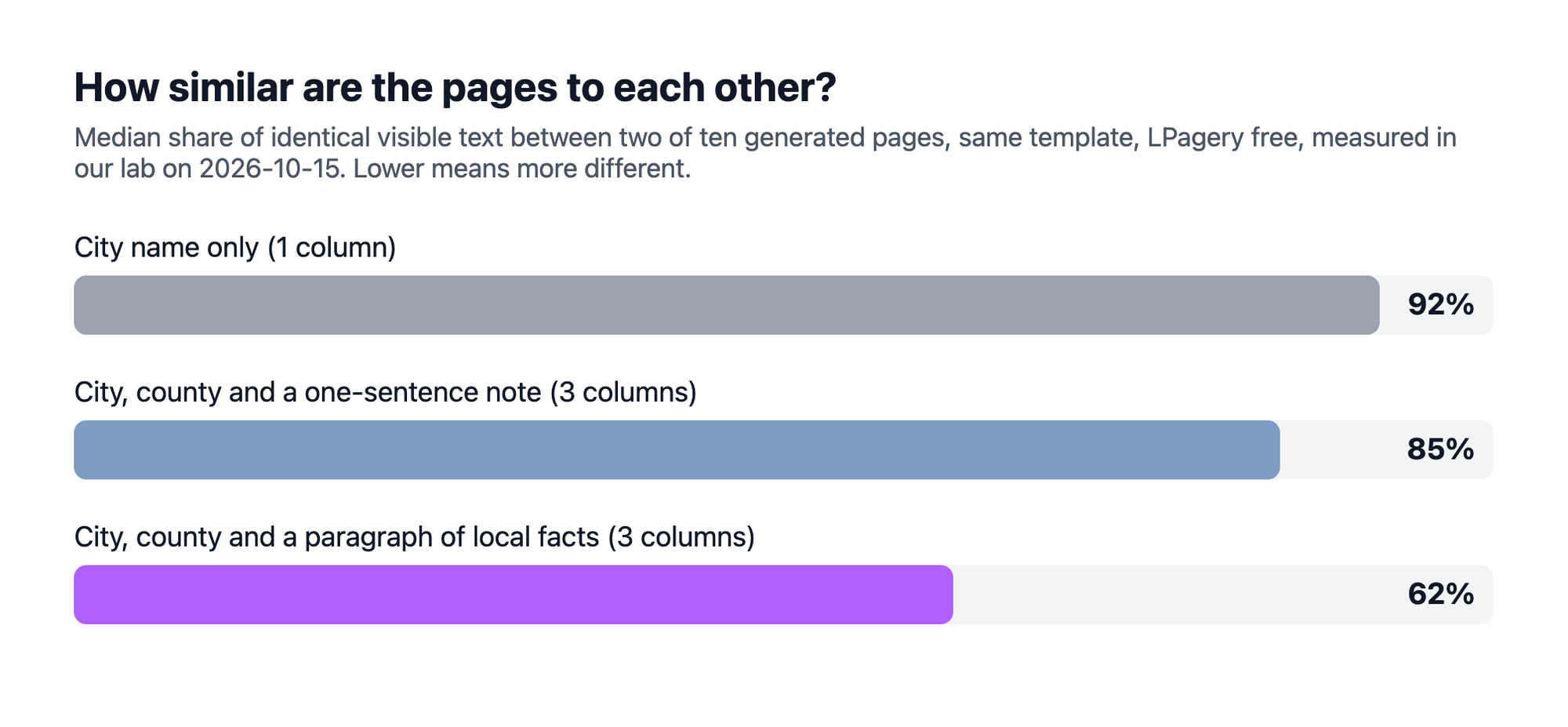
Swapping the city name barely changes a page: 92% of the text stayed the same, and with the city name only all ten pages also shared one meta description. A one-sentence note brought it to 85%. A paragraph of facts that only apply to that city brought it to 62%, with the same three columns and the free version. In a smaller earlier test in the same lab, 5 pages made with LPagery Pro from 12 columns of their own text, plus spintax for the stock phrases, were 57% identical.
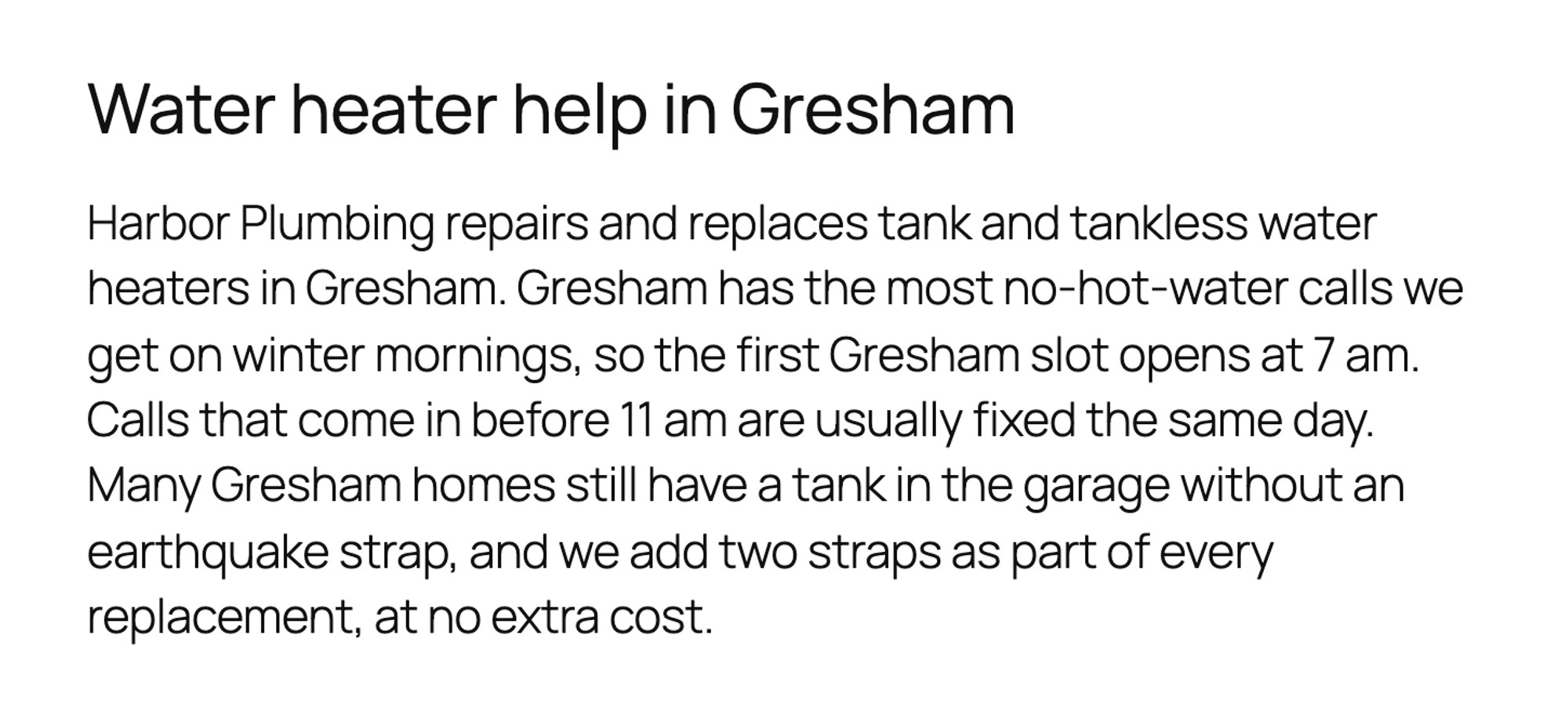
Good data for that column is what a customer in that city would want to know: how fast you get there, which crew covers it, the jobs you do most there, prices, reviews and photos from that area. If you have nothing specific to say about a city, leave it out of the file. Link the pages from one hub page, such as Areas we serve, so they form a browseable section of your site. Our guides to local SEO for multiple locations and programmatic SEO in WordPress cover what to put on such pages.
How to manage hundreds of pages in WordPress
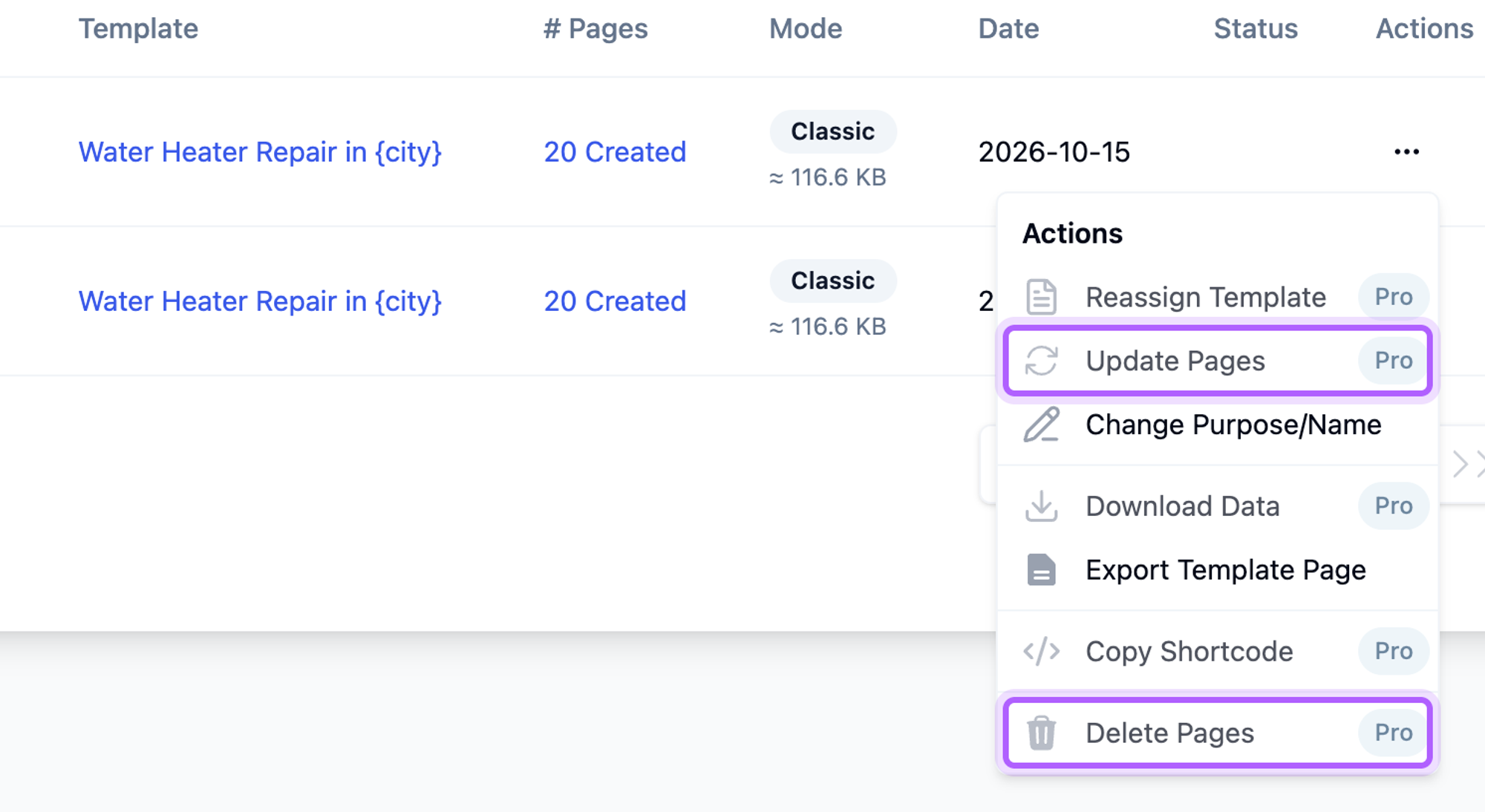
Every run is saved as a page set under LPagery > Manage Pages, with its template, the number of pages, the mode and the date. In WordPress's Pages screen you find a set by searching for the part of the title all its pages share, and Screen Options sets how many pages one screen shows (20 by default).
The page set's menu in Manage Pages lists the bulk actions. On the free plan, Update Pages, Delete Pages, Download Data and Reassign Template carry a Pro badge, and our plugin code puts all four on the Extended plan.
How to update the pages later
Changing the template does not change pages that already exist. In Classic mode, which the free version uses, each page gets its own copy of the content: when we edited the template's call to action, the Gresham page kept the old text.
Uploading the changed file again makes copies
We changed three notes in the file and ran it again with the same template. The review showed a note, 20 in other page sets: "Duplicate pages detected with matching parent and slug in other LPagery page set. New pages will be created with "-2" suffix."
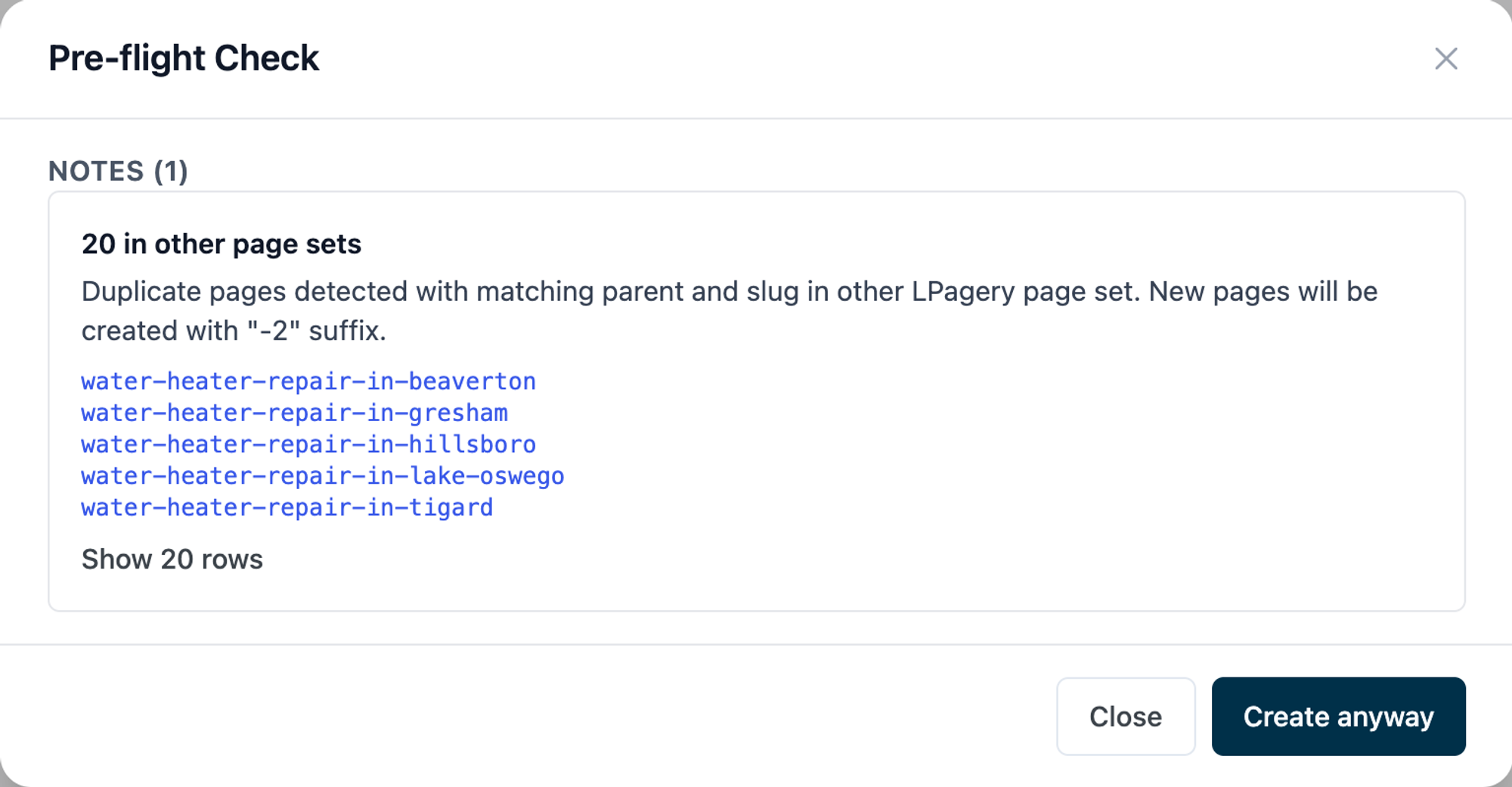
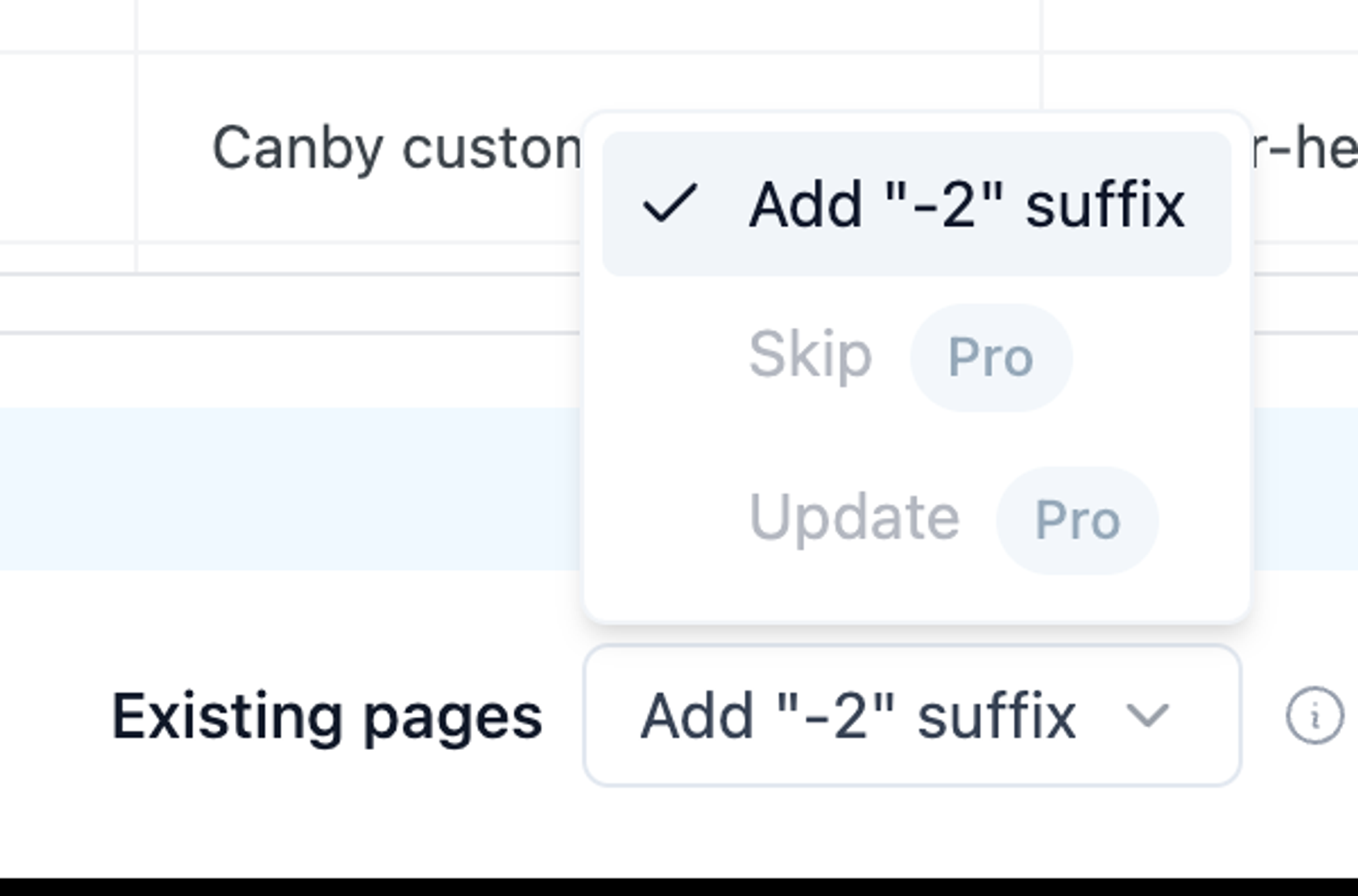
Under Existing pages, Skip and Update carry a Pro badge, so the free version can only Add "-2" suffix. Creating anyway left us with 40 pages: the 20 old ones unchanged, and 20 new ones at URLs such as /water-heater-repair-in-beaverton-2/.
The free way: delete the pages, then create them again
To change a whole set on the free plan, delete the old pages for good (next section), then create them again from the changed file. In our test the new pages got the old URLs back, without -2, and the Beaverton page showed its new note. They are new WordPress pages, so edits you made by hand to single pages are gone, and the publish date is the day you create them again.
With LPagery Pro
On the Extended plan, Update Pages changes the existing pages from the changed template or file and keeps their URLs, and the review can update or skip pages that exist instead of copying them. Extended also adds Google Sheet Sync, which creates, updates and deletes pages when rows change in the sheet.
How to delete or undo a page set
The free version has no undo button for a run, and Delete Pages in Manage Pages needs Extended. You can still remove a set in two ways.
With WordPress's bulk actions
WordPress's own Pages screen can trash many pages at once:
- Go to Pages and search for the part of the title the pages share, such as Water Heater Repair in.
- If the set has more than 20 pages, open Screen Options and raise Number of items per page so they fit on one screen.
- Tick the box in the header row to select all, then untick your template page.
- Choose Move to Trash under Bulk actions and click Apply.
- Open Trash and click Empty Trash to delete the pages for good.
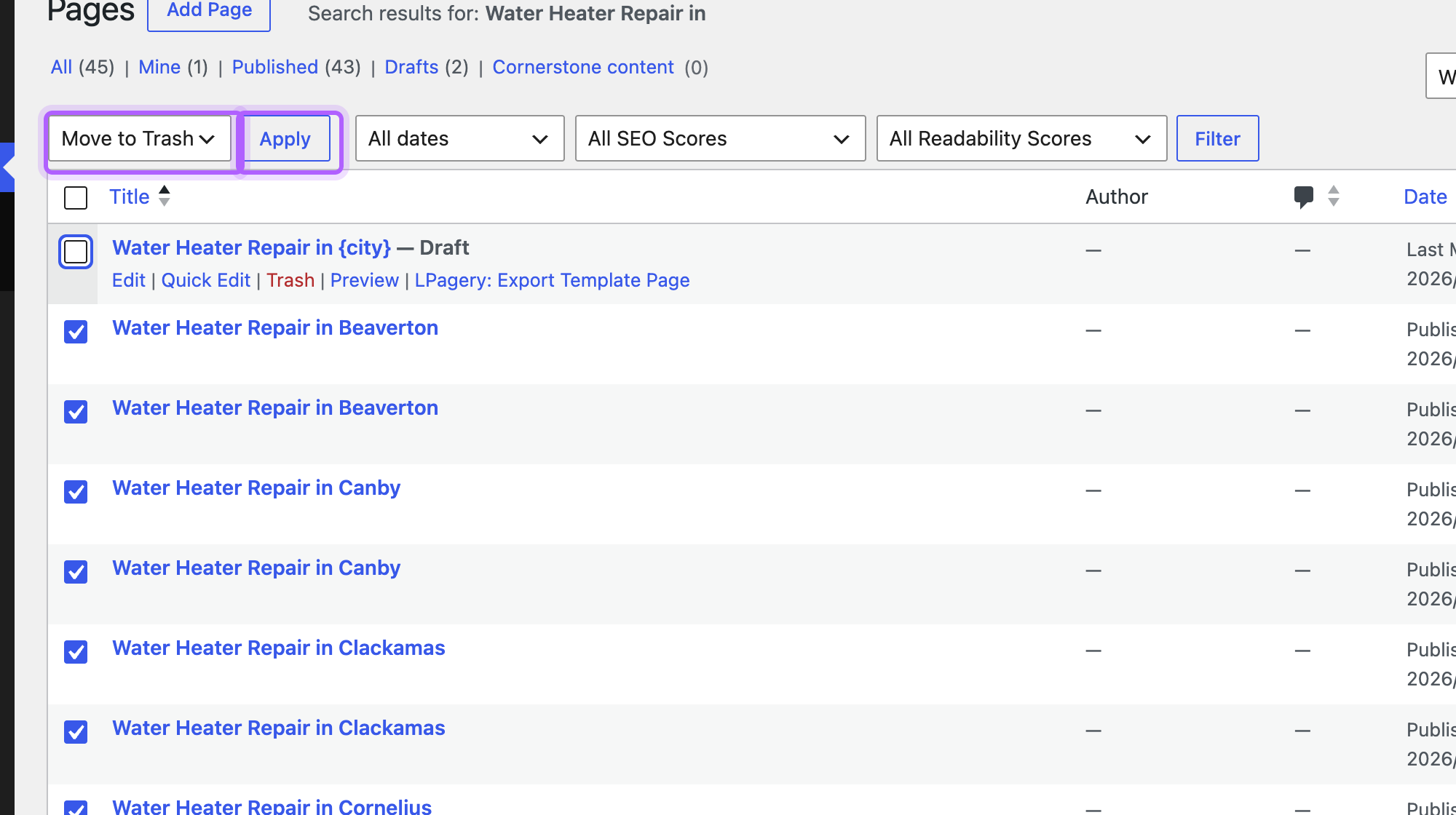
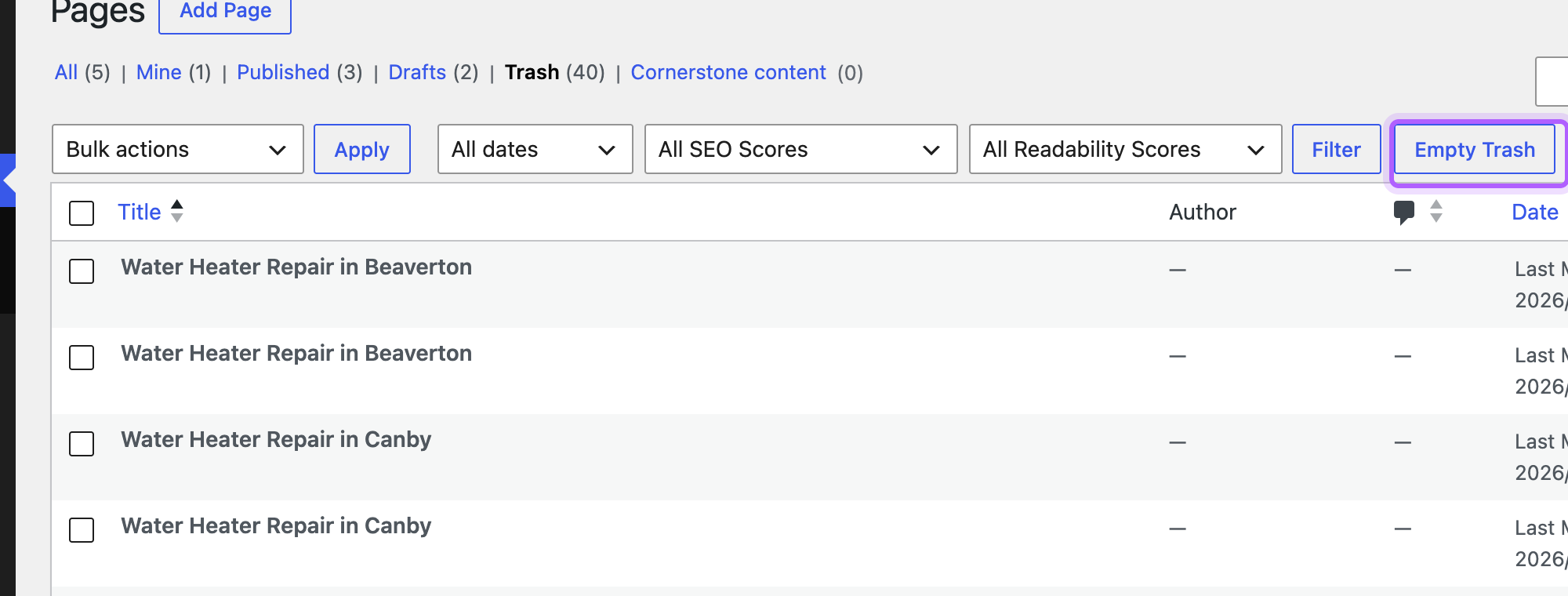
Removing the 40 pages (the 20 originals and the 20 copies) this way took 11.8 seconds in our test. Until you empty the trash, you can restore pages from Trash.
With Reset All Data, when you want to start over
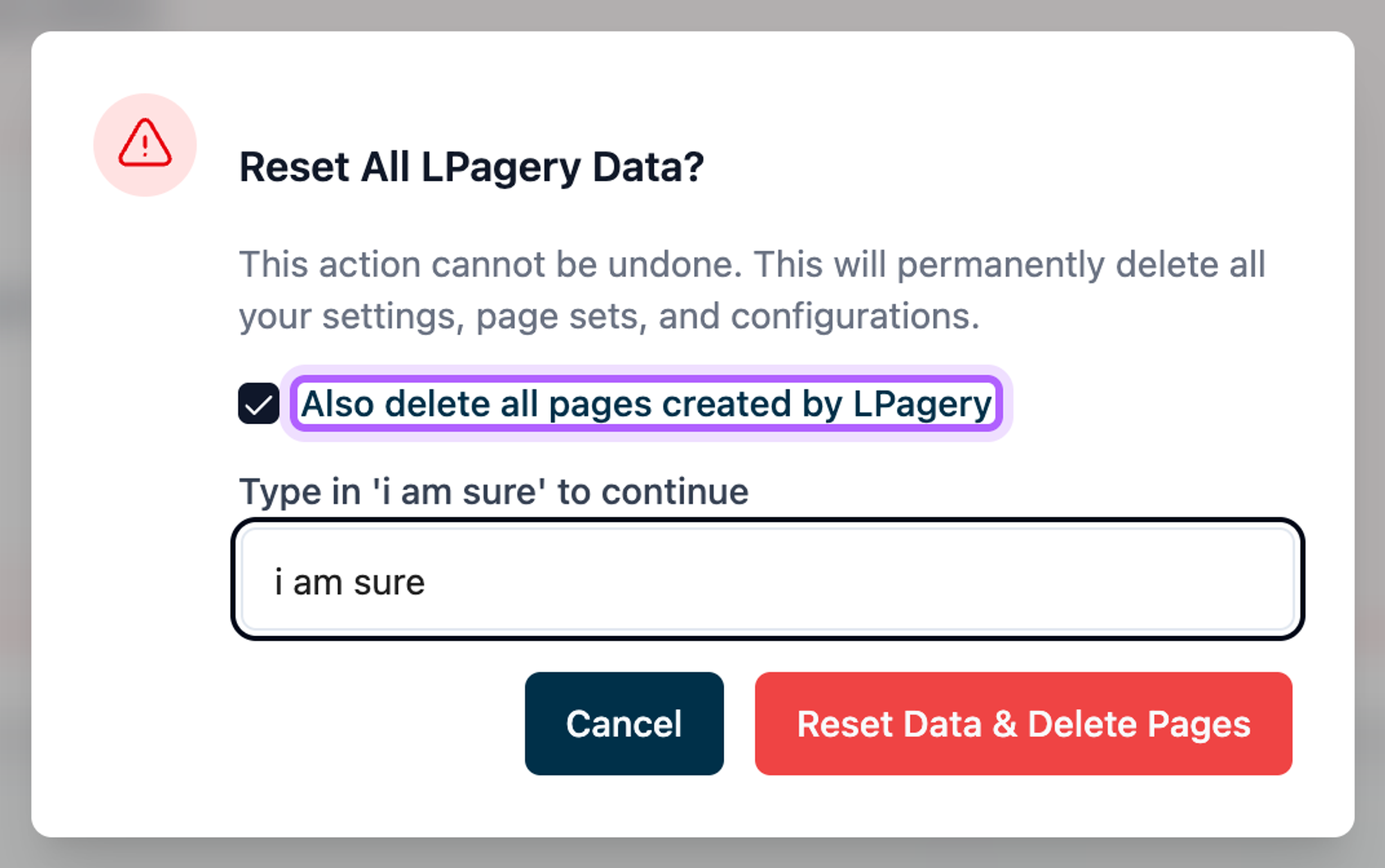
LPagery > Settings > Advanced has Reset All Data. Its dialog has a box, Also delete all pages created by LPagery. With it ticked and i am sure typed in, our 20 pages were gone in about 8 seconds, and the template page stayed as a draft. It also deletes every page set and your LPagery settings, and the dialog says it cannot be undone, so use it only when you want to remove everything LPagery made.
Where the free version stops
Everything in the four steps is free. These are the limits we met, with the plan our plugin code requires for each:
What you want | Free version | Plan that adds it |
|---|---|---|
More than 3 placeholder columns | Up to 3, the rest are ignored | Standard |
More than 100 pages in one run | First 100 rows per run | Standard |
Your own URL pattern and a parent page | URL from the page title, top level | Standard |
Google Sheet read from its link | Download the sheet as CSV | Standard |
Google Sheet Sync | No | Extended |
Update existing pages from a changed file or template | Copies with -2 | Extended |
Delete Pages for a whole set | WordPress bulk actions or Reset All Data | Extended |
Standard costs $19 a month and Extended $27 a month, read on lpagery.io/pricing on 15 October 2026, less with yearly billing. The Bulk Page Generator page lists what each plan does.
Other ways to bulk create pages
LPagery is one of several tools for this job. A duplicate plugin such as Yoast Duplicate Post copies existing pages, and you edit each copy by hand, which is fine for five pages and slow for fifty. Title-list plugins such as Mass Pages/Posts Creator make pages from a list of names, all with the same content. WP All Import imports a CSV into pages and can put them under a parent page, though its free version fills no SEO fields. Multiple Pages Generator (MPG) builds pages from a CSV or Google Sheet as virtual URLs that do not appear in your Pages list.
We gave seven free plugins the same 25 and 200 page jobs in best WordPress mass page generators, with the steps, limits and results for each. For bulk content creation with posts instead of pages, see how to bulk create posts in WordPress.
Questions about bulk creating pages
Can I bulk create pages in WordPress for free?
Yes. WordPress itself has no bulk create feature, and the free LPagery plugin adds one: a template page, a CSV or XLSX file and one run per 100 pages, with up to 3 placeholder columns. Every step in this guide was done on the free version.
How do I generate thousands of landing pages in bulk?
With one template page and a source file with a row per landing page. On the free version of LPagery that means runs of 100 rows; paid plans make all rows in one run. The harder part is the data: thousands of pages need thousands of rows of facts that differ, or the pages are close copies of each other.
Do the pages disappear if I deactivate LPagery?
No. In our test the generated pages still loaded after we deactivated the plugin. They are ordinary WordPress pages with their own content.
Will Google treat the pages as duplicate content?
Pages that only swap the city name are close copies: ours were 92% identical. Google's spam policies name pages for many cities that are substantially similar as doorway abuse. Give every page facts of its own; a paragraph of local facts per city brought our pages to 62%.
Why does my site not show the 100-page limit?
LPagery applies the 100-page limit to sites where it was first installed on or after 19 September 2025, and the 3-column limit to sites first installed after 4 September 2023. Older installs keep the limits they started with.
Sources
- Lab test: WordPress 7.1.3, Twenty Twenty-Five, Yoast SEO 28.7, LPagery 3.1.1 (free, WordPress.org), 15 October 2026
- LPagery on WordPress.org
- Google Search Central: spam policies, scaled content abuse and doorway abuse
- Google Search Central: creating helpful, reliable, people-first content
- WordPress documentation: Pages screen
- Plan requirements: LPagery's plugin code; prices: lpagery.io/pricing, read on 15 October 2026
I've worked in SEO for more than ten years and helped over 100 businesses rank higher, mostly local businesses, e-commerce stores and SaaS companies. As co-founder of LPagery I work on local SEO, programmatic SEO and AI search visibility, and I test the strategies in these articles on our own sites and with our customers.
I've worked in SEO for more than ten years and helped over 100 businesses rank higher, mostly local businesses, e-commerce stores and SaaS companies. As co-founder of LPagery I work on local SEO, programmatic SEO and AI search visibility, and I test the strategies in these articles on our own sites and with our customers.