Create WordPress Pages From a Spreadsheet or Excel File

Updated
Part of the guide: Programmatic SEO and local landing pages in WordPress

To create WordPress pages from a spreadsheet, you need a sheet with one row per page and a plugin that turns the rows into pages. There are two kinds. A template plugin, such as LPagery, takes one page you designed, with placeholders like {city} where the text changes, and makes a copy for every row with that row's values filled in. An import plugin, such as WP All Import, maps each column to a field of a new post, for example the title or the content.
This guide is about the spreadsheet: how to lay it out, what to put in the columns so the pages are worth publishing, and what happens when your data changes. For the clicks in WordPress, follow how to bulk create pages in WordPress.
Template or import: which one do you need?
Template plugin | Import plugin | |
|---|---|---|
How a row becomes a page | Fills the placeholders in one page you designed | Each column goes into a field you pick, such as title or content |
Design | Every page gets the template's design, built in your editor or page builder | The content of each post comes from the columns |
Good for | Location, service and landing pages that share one layout | Moving existing records into WordPress, such as products or listings |
Free example | LPagery on wordpress.org | WP All Import on wordpress.org |
We make LPagery, so the rest of this guide uses it. WP All Import has more than 100,000 active installs on wordpress.org and reads CSV, XML, Excel and Google Sheets files, so it's worth a look if your rows are records, such as products or listings.
How the spreadsheet maps to pages
The first row holds the column names, and each name becomes a placeholder. A column called city fills {city} wherever it appears in the template page, in the title, the text, the SEO fields or a page builder widget. Upper and lower case don't matter. Every row below the names becomes one page, so 40 rows give you 40 pages.
Here is a sheet for a plumbing company with a page per town:
city | service | phone | local_note |
|---|---|---|---|
Beaverton | Water heater repair | (503) 555-0142 | Most of our Beaverton calls are tank replacements in homes built before 1990. |
Gresham | Water heater repair | (503) 555-0157 | We keep spare parts for the common Gresham models on the van. |
Tigard | Water heater repair | (503) 555-0163 | Same-day visits north of Highway 217. |
With a template titled "{service} in {city}", the first row becomes a page called "Water heater repair in Beaverton" with its own phone number and note. You can build the sheet in Excel, Google Sheets or any program that saves CSV or XLSX files.
Set up the columns
Name each column after its placeholder
Use short names without spaces, such as city, service or phone. The name is what you type between the braces in the template, so a short name is easier to get right. Keep every placeholder in the template spelled exactly like a column.
Put a placeholder in the page title
In the free version of LPagery, the page title also becomes the page's URL, so the title needs at least one placeholder. Without one, every page would get the same title and address. Paid plans add a URL Slug field, where you can build the address from any column, such as {service}-{city}.
Give every page facts of its own
A page that only swaps the town name reads like a copy of every other page. Google's spam policies describe scaled content abuse as many pages generated mainly to manipulate rankings and not to help users. Give each row facts in their own columns: the jobs you do most in that town, a local phone number, opening hours, prices, a note from a customer there. The local_note column above is that kind of column.
One row for each service in each town
For a page per service and town, list every combination as its own row: 4 services in 10 towns are 40 rows. In Excel or Google Sheets, you can paste your town list once per service and fill the service column next to it.
Columns that set page settings
A few column names are reserved for page settings. With LPagery's Extended plan, lpagery_parent sets the parent page of each row, lpagery_status its status (publish, draft, private or future), lpagery_publish_date its publish date, lpagery_author its author, lpagery_categories and lpagery_tags its terms, and lpagery_template a different template page for that row. An empty cell uses the setting from the Create screen.
A column called lpagery_ignore works in every version: a row with true in it is skipped.
Image columns
With the Extended plan, a column named after an image on the template page, such as plumbing-hero.jpg, swaps that image on each page for the file named in the row. The image processing feature page explains the options.
Create the pages
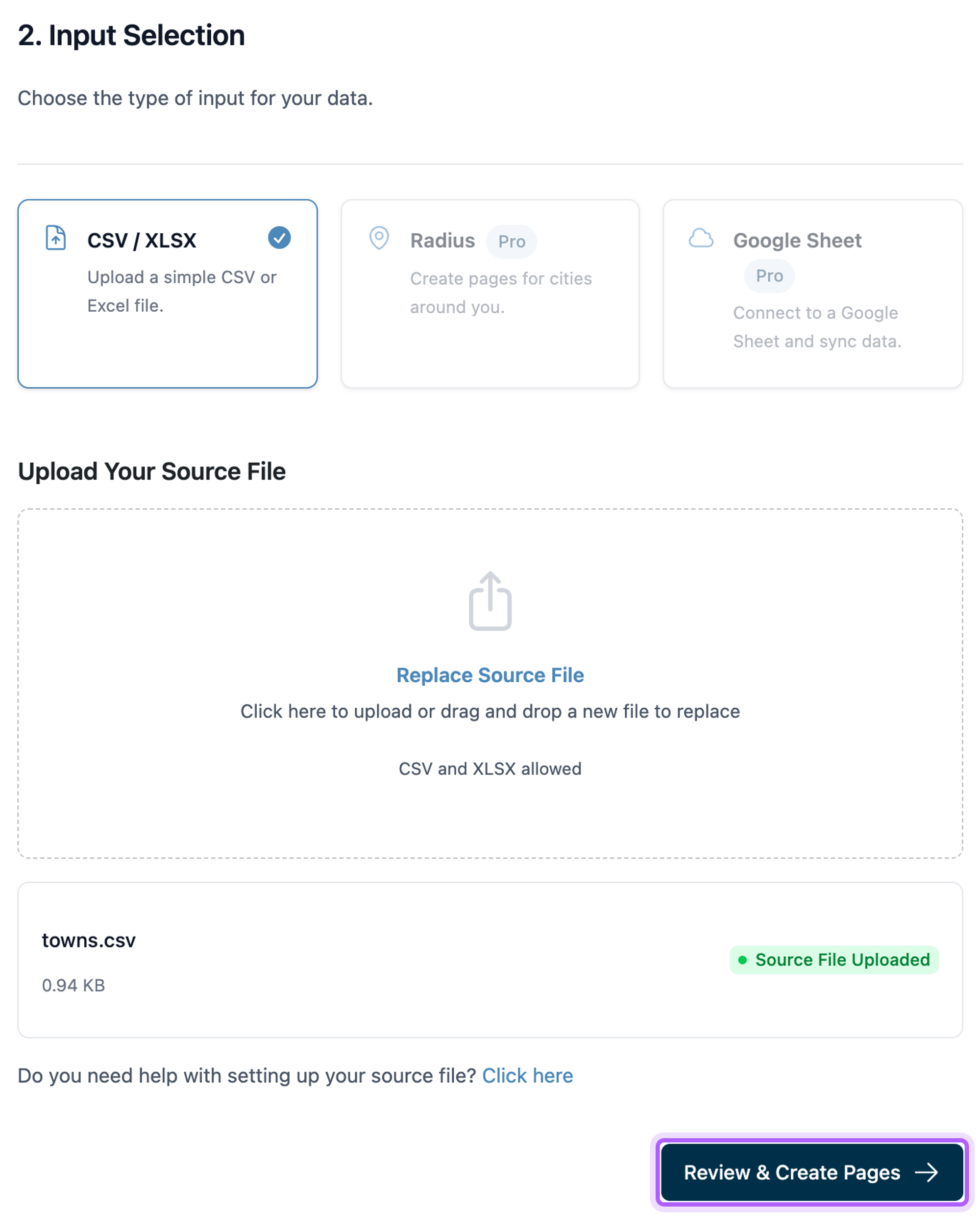
Build the template page with your placeholders and save it as a draft. Then go to LPagery > Create Pages, select it under Template Page, choose CSV / XLSX under 2. Input Selection, upload the file and click Review & Create Pages.
Before anything is created, LPagery runs a Pre-flight Check on your sheet and template. It lists Problems, such as a title without a placeholder, a row with an empty title value, or a placeholder that looks like a misspelled column name (with a "did you mean" suggestion). It also lists Notes about what the run will do, such as settings columns your plan ignores. You can fix the sheet and upload it again, or click Create anyway. The button at the bottom shows the number of pages, such as Create 40 Pages.
The free version creates up to 100 pages per run and uses up to three placeholder columns; it ignores the others. For every screen of the run, with screenshots, see how to create service area pages in WordPress.
When the spreadsheet changes
LPagery creates normal WordPress pages, so in the free version you change a page by editing it in WordPress. If you upload a sheet whose pages already exist, LPagery shows the existing pages in the review and creates new copies with "-2" at the end of the URL. The other choices for existing pages, Skip and Update, need the Extended plan.
With Extended, the Update screen has an Update Content option that updates the pages from a changed sheet and creates pages for new rows. Google Sheet Sync, also on Extended, goes one step further: LPagery checks your Google Sheet every hour by default, creates pages for new rows, updates the pages whose rows changed and, if you allow it, deletes the pages of removed rows. On the Standard plan, you can create pages from a Google Sheet link without the automatic sync. Our guide on syncing Google Sheets with WordPress covers the setup, and the plans are on the pricing page.
Some pages show {city} instead of the town
The template uses a placeholder that no column fills, often a typo such as {cty}, or the column has a different name, such as town. When the placeholder is close to a column name, the Pre-flight Check lists it under Problems with a "did you mean" suggestion; other placeholders without a column show up under Notes. Rename the column or fix the placeholder so they match, then upload the file again.
A column's values are missing on the pages
The free version uses up to three placeholder columns and ignores the rest, and the review shows a line that says so. Put the three columns that matter most first, or move to a paid plan, which has no column limit.
Only 100 pages were created
The free version creates up to 100 pages per run. Split the sheet into files of 100 rows and run each one, or create them all in one run with a paid plan.
FAQ
Can I use an Excel file?
Yes. Save it as XLSX or CSV and upload it under CSV / XLSX. Google Sheets works too, either downloaded as a file or, on a paid plan, as a link.
Can I create posts instead of pages?
Yes. Pick a post as the template and the new entries are posts. Custom post types need the Extended plan.
Do the pages stay if I deactivate the plugin?
Pages created in the default Classic Mode are regular WordPress pages with their own content, so they stay. Pages in Live Mode, a beta on the Extended plan, are rendered by LPagery when someone opens them.
To plan a whole set of location or service pages, read our programmatic SEO guide for WordPress. The plugin itself is on the LPagery Bulk Page Generator page.
I've worked in SEO for more than ten years and helped over 100 businesses rank higher, mostly local businesses, e-commerce stores and SaaS companies. As co-founder of LPagery I work on local SEO, programmatic SEO and AI search visibility, and I test the strategies in these articles on our own sites and with our customers.
I've worked in SEO for more than ten years and helped over 100 businesses rank higher, mostly local businesses, e-commerce stores and SaaS companies. As co-founder of LPagery I work on local SEO, programmatic SEO and AI search visibility, and I test the strategies in these articles on our own sites and with our customers.