How to Create Service Area Pages in WordPress (One Page per Town)

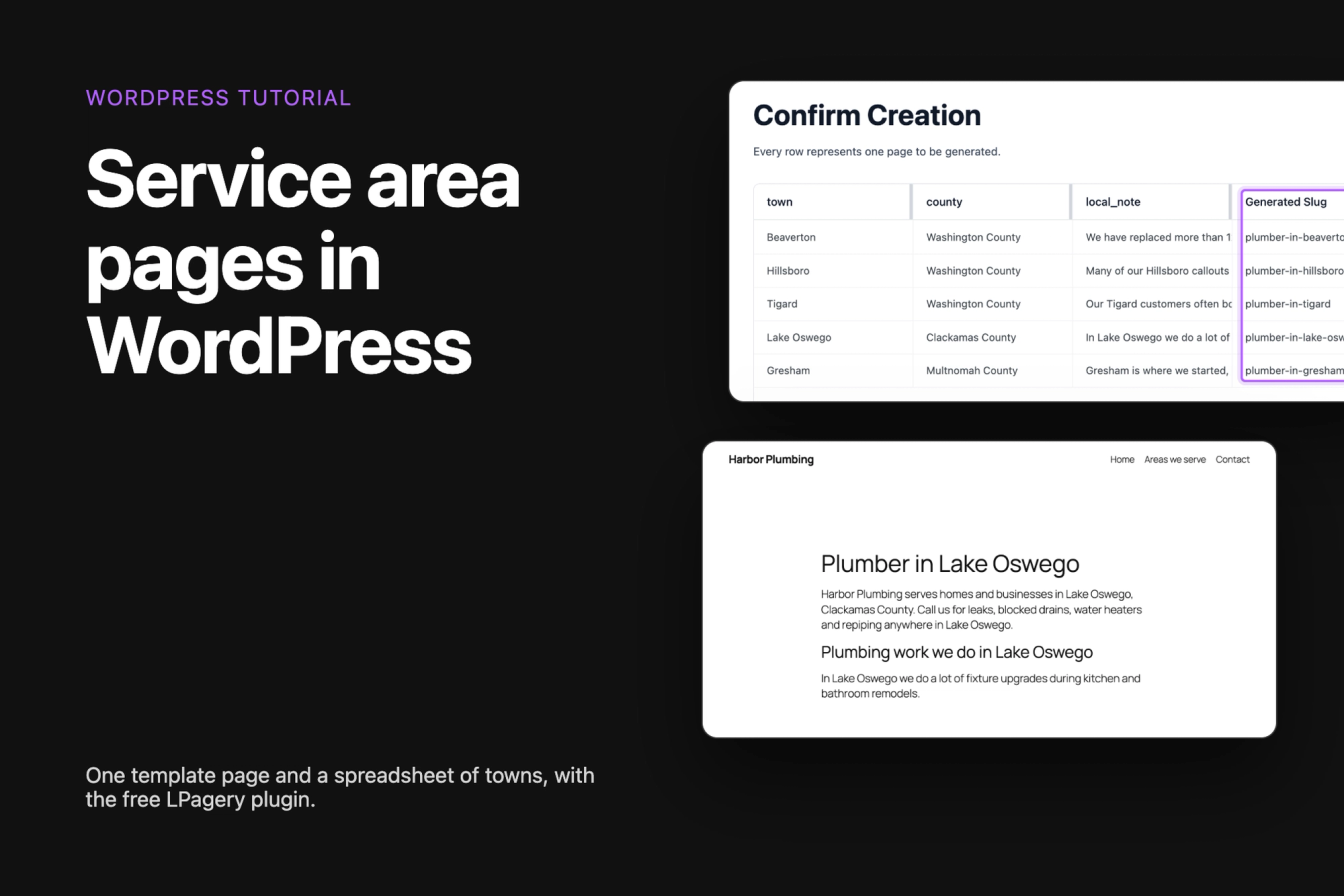
A service area page tells people searching in one town that you work there. This guide shows how to build one template page in WordPress and turn a spreadsheet of towns into a published page for each town with the free LPagery plugin.
The screenshots come from WordPress 7.1 with LPagery 3.0.0, the free version from wordpress.org. The example is a plumbing company, Harbor Plumbing, that works in five towns around Portland, Oregon.
What goes on a service area page?
Each page needs the town in its title and URL, the services you offer there, and a way to contact you. It also needs something only that town's page says, such as the job you do most often there or a note from a local customer. A page that only swaps the town name reads like a copy of every other page, to visitors and to search engines.
In this example, the town-specific text sits in its own column of the spreadsheet, so every page gets its own sentence. For the bigger picture, see how to do local SEO for plumbers and local SEO for multiple locations.
Step 1: Install LPagery
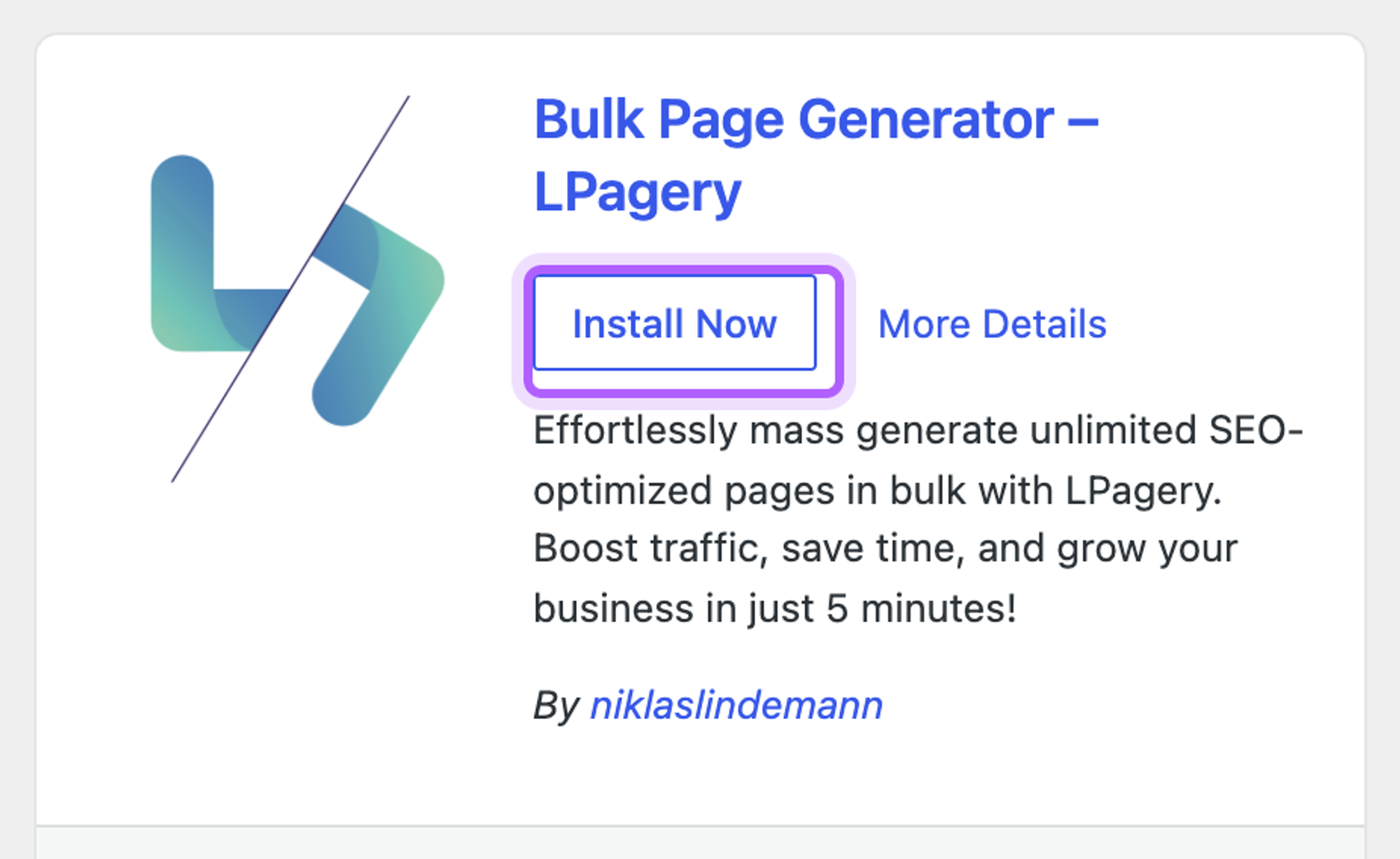
Go to Plugins > Add Plugin, search for LPagery and click Install Now, then Activate.
The first time you open LPagery in the admin menu, it asks whether you want to opt in to update emails and sharing some environment data. You can click Skip; the plugin works the same either way.
Step 2: Build the template page
Go to Pages > Add Page and write the page the way every town page should look. Wherever the text changes from town to town, type a placeholder in curly braces, such as {town}. Put at least one placeholder in the title, because that's what gives every page its own title and URL.
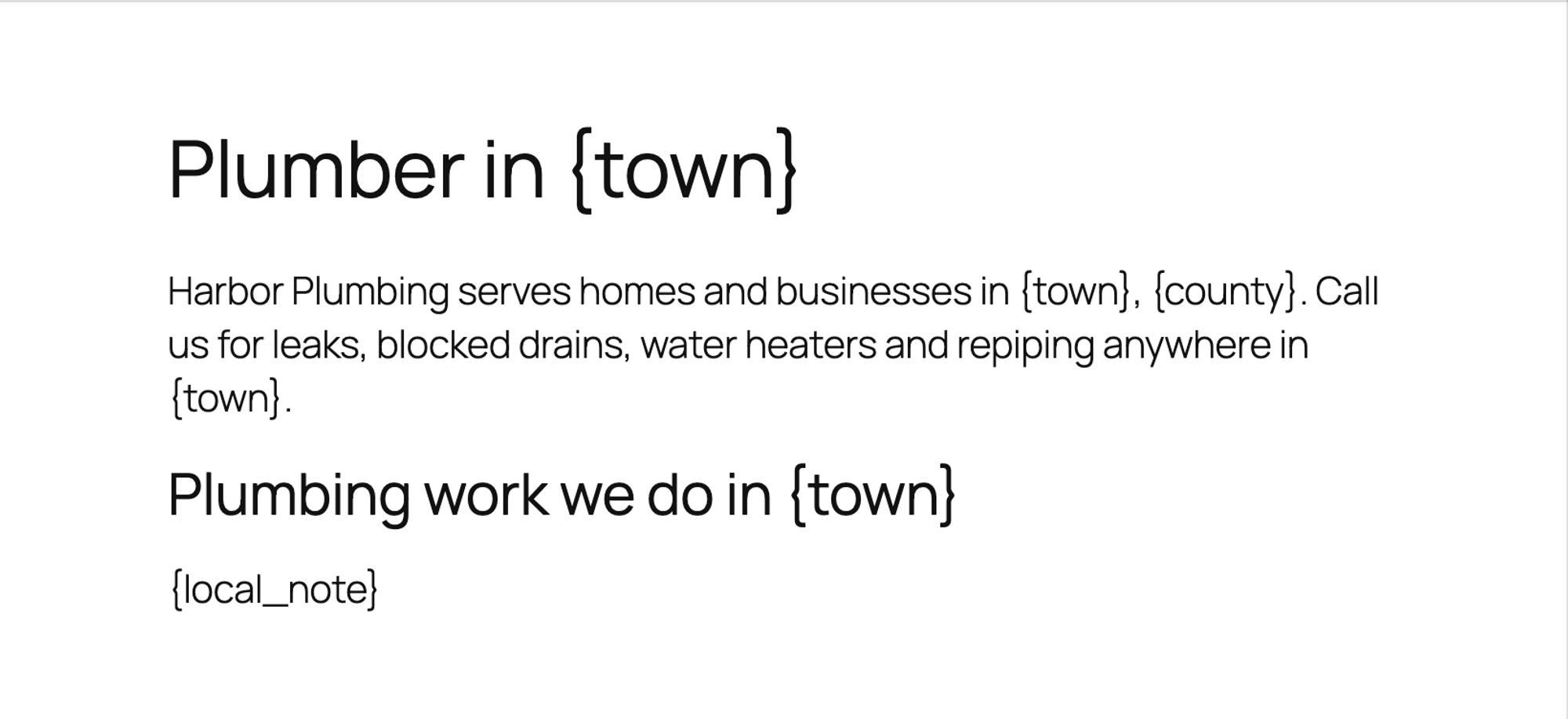
Save the template as a draft. LPagery publishes the pages it creates, and the template itself stays a draft, so a page with raw placeholders never shows up on your site.
Step 3: Prepare the source file
The source file is a spreadsheet with one row per town. The column headers are the placeholder names without the braces. You can make it in Excel or Google Sheets and save it as a CSV or XLSX file.
1town,county,local_note
2Beaverton,Washington County,We have replaced more than 120 water heaters in Beaverton homes since 2019.
3Hillsboro,Washington County,Many of our Hillsboro callouts are for sump pumps in basements after heavy rain.
4Tigard,Washington County,Our Tigard customers often book us to repipe older homes.
5Lake Oswego,Clackamas County,In Lake Oswego we do a lot of fixture upgrades during kitchen and bathroom remodels.
6Gresham,Multnomah County,"Gresham is where we started, and it is still where we answer the most emergency calls."
The free version uses up to three placeholder columns and ignores any extra columns. LPagery Pro has no limit.
Step 4: Create the pages
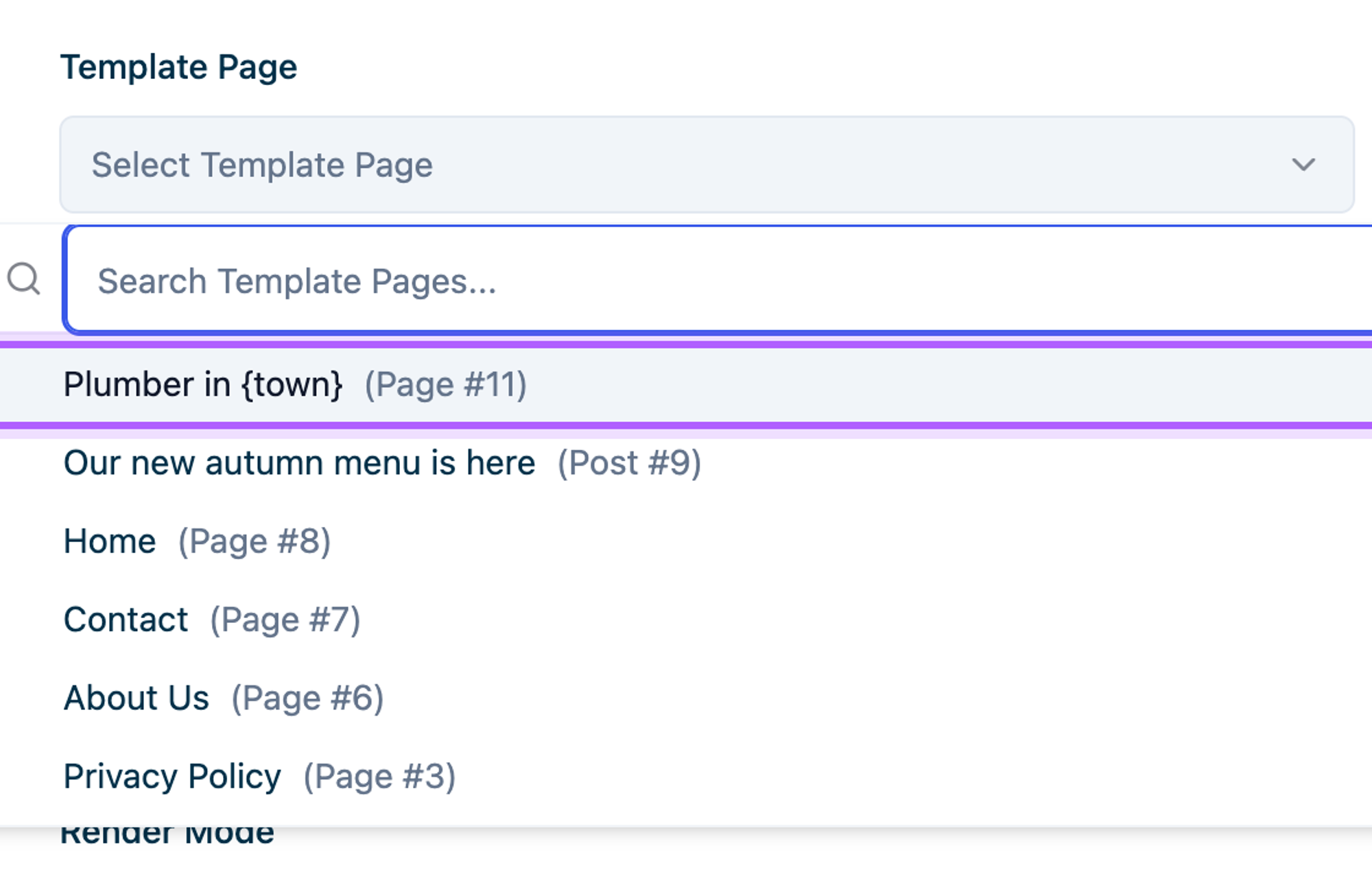
Go to LPagery > Create Pages. The first time, LPagery shows a short introduction, and Skip Onboarding takes you straight to the form. Under Template Page, select your template.
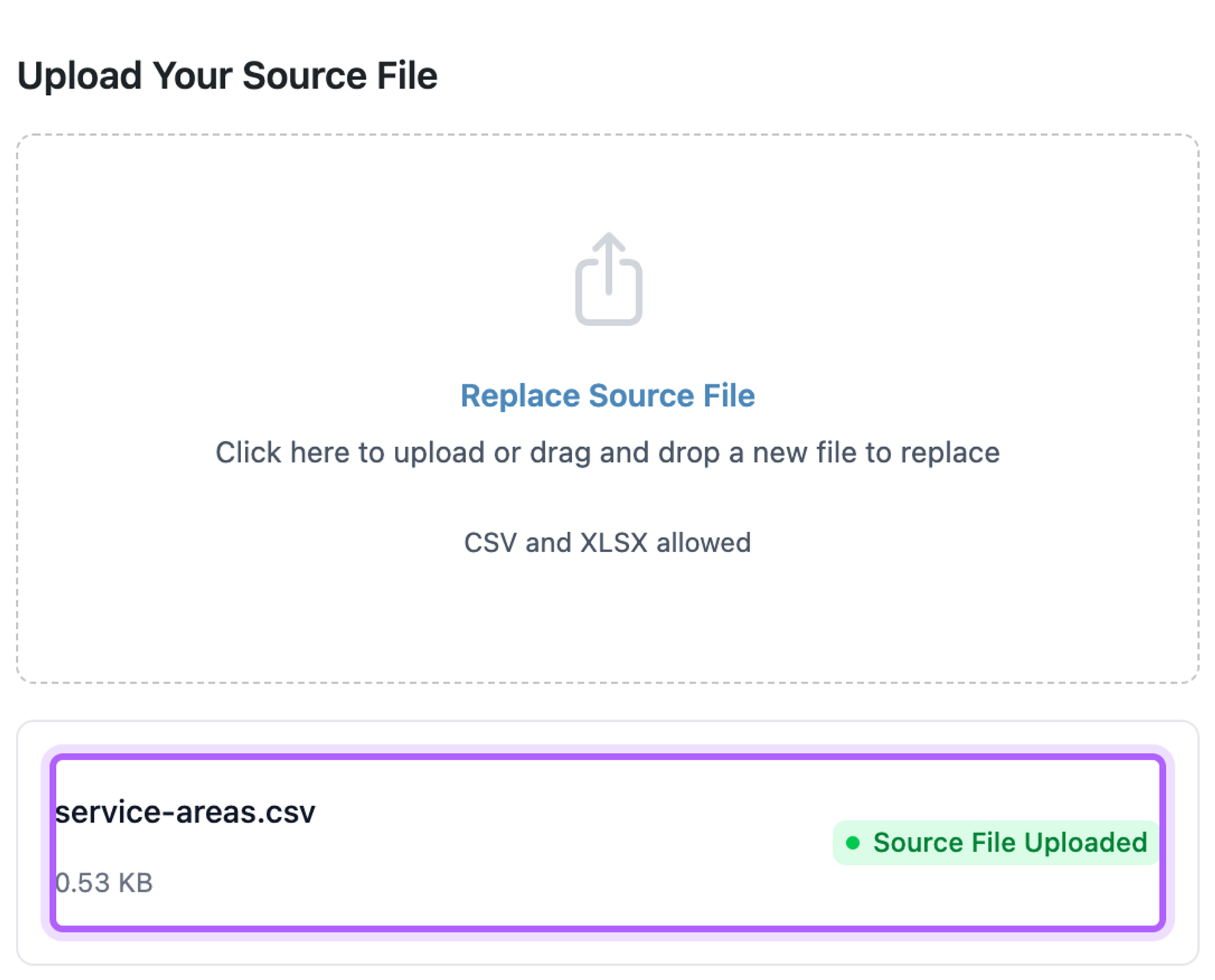
Upload the source file under Upload Your Source File. When LPagery shows Source File Uploaded, click Review & Create Pages.
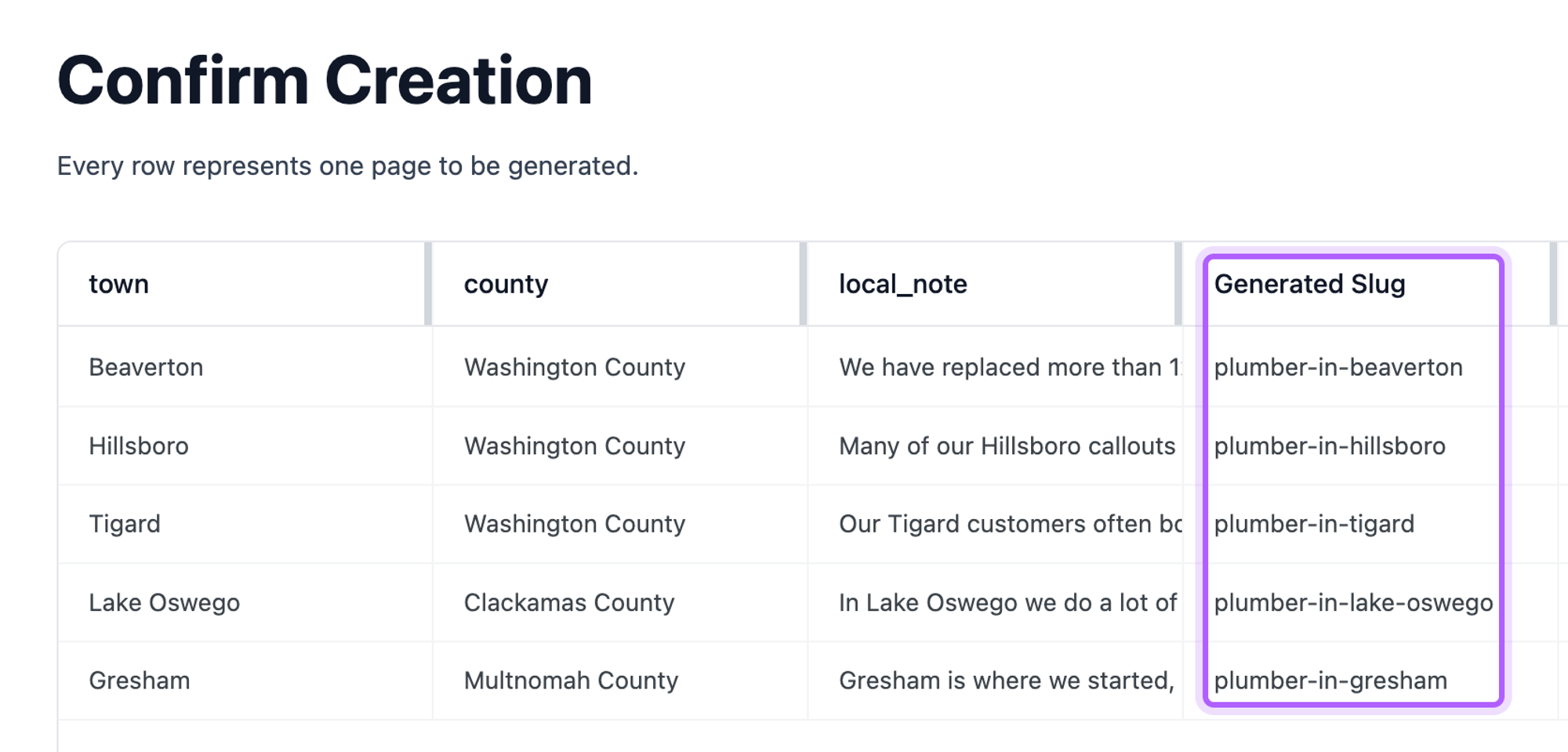
The review lists every page LPagery is about to create, with the URL slug it takes from the page title. Check the slugs here, since they become the addresses of your town pages.
Click Create 5 Pages and confirm with Create Pages. LPagery shows Pages Created Successfully! when it's done.
Step 5: Check the pages
The new pages are listed under Pages like any other page, and you can edit each one in the editor. LPagery creates them as regular pages with their own content, so they stay on your site if you deactivate the plugin later.
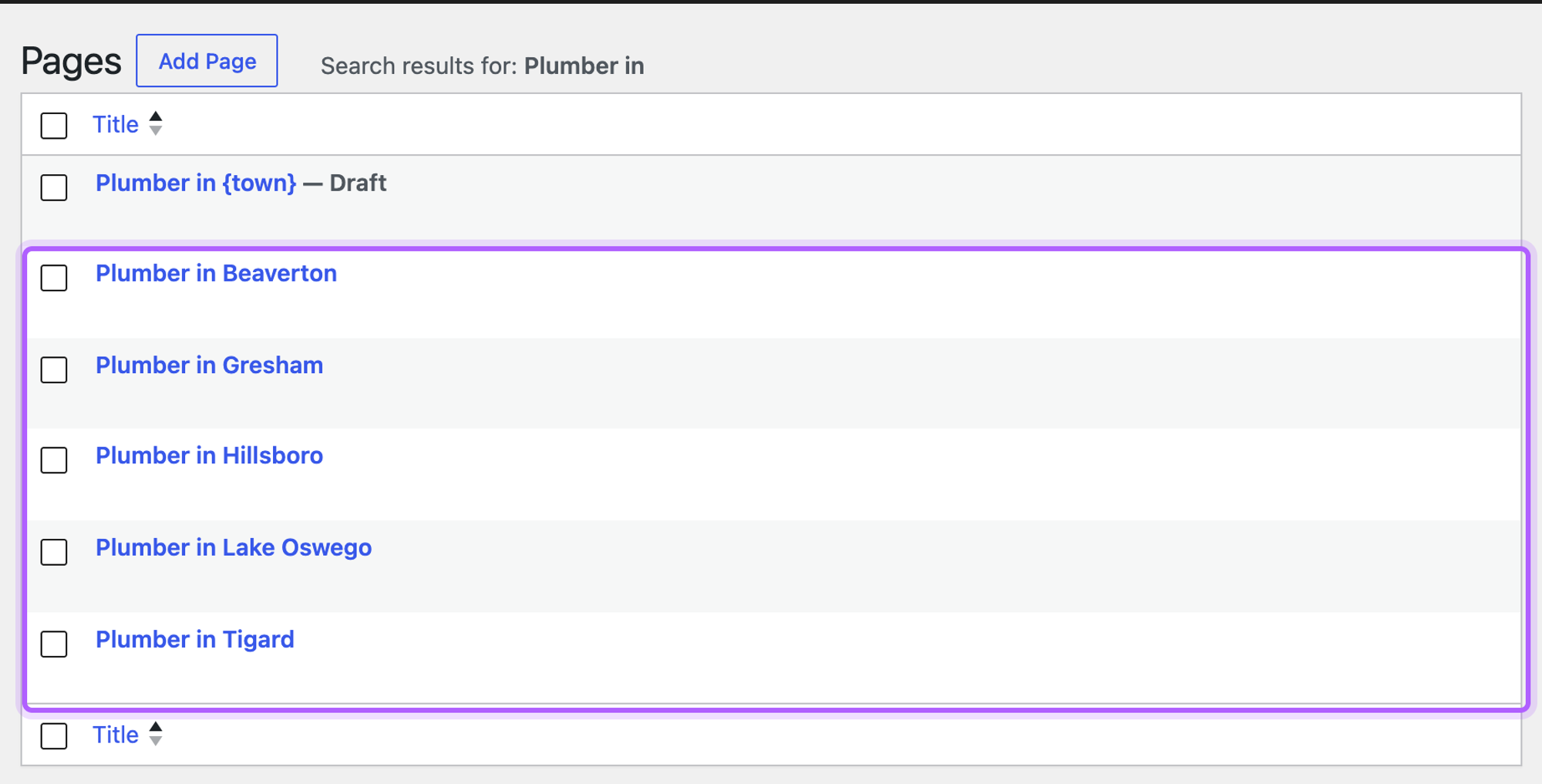
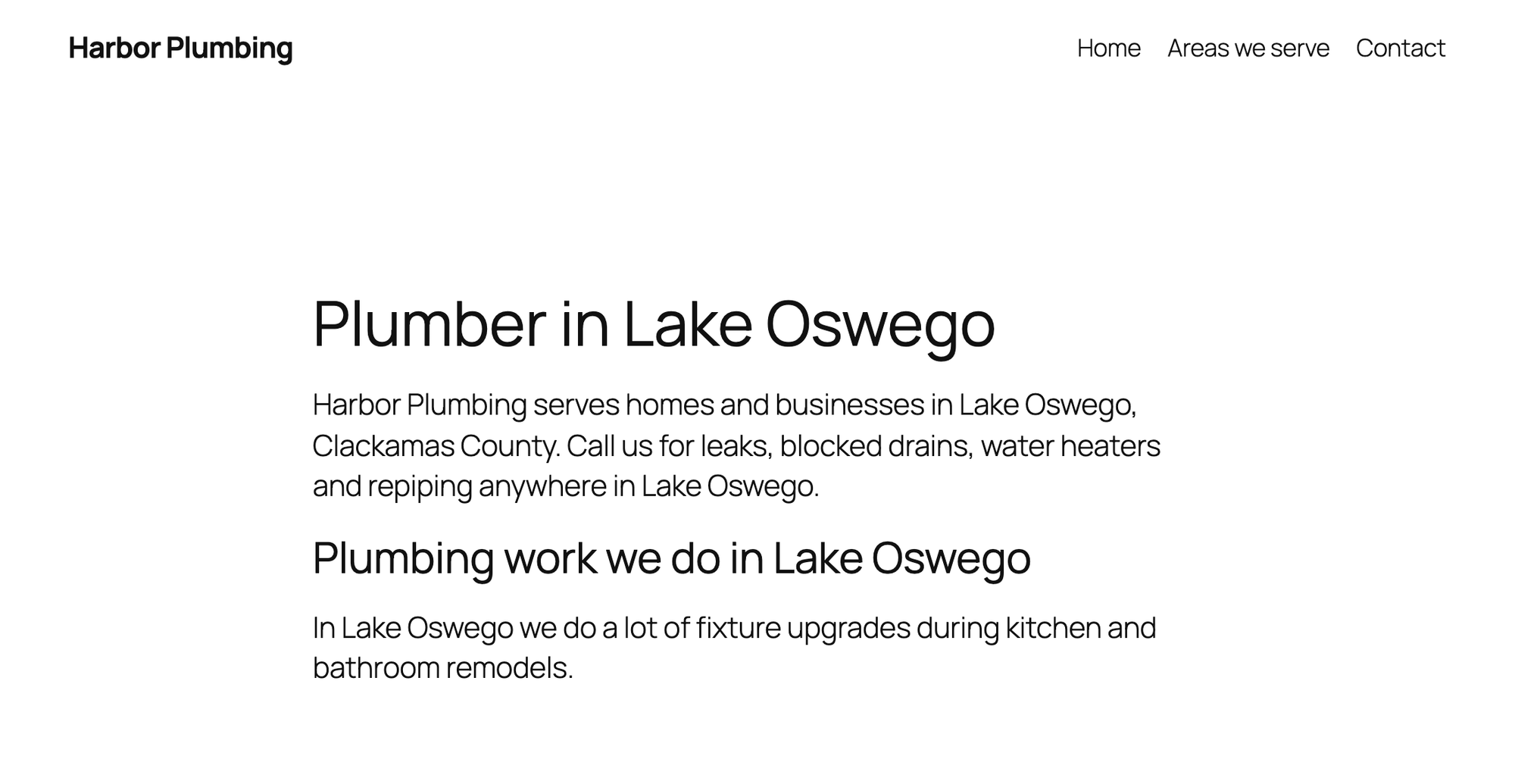
Open one of them in a private browser window to see it as a visitor would, and check that every placeholder was filled in.
Link the pages from an Areas we serve page
Visitors and search engines need a way to reach the town pages. Create a page such as Areas we serve, add a List block with a link to each town page, and put the page in your site menu.
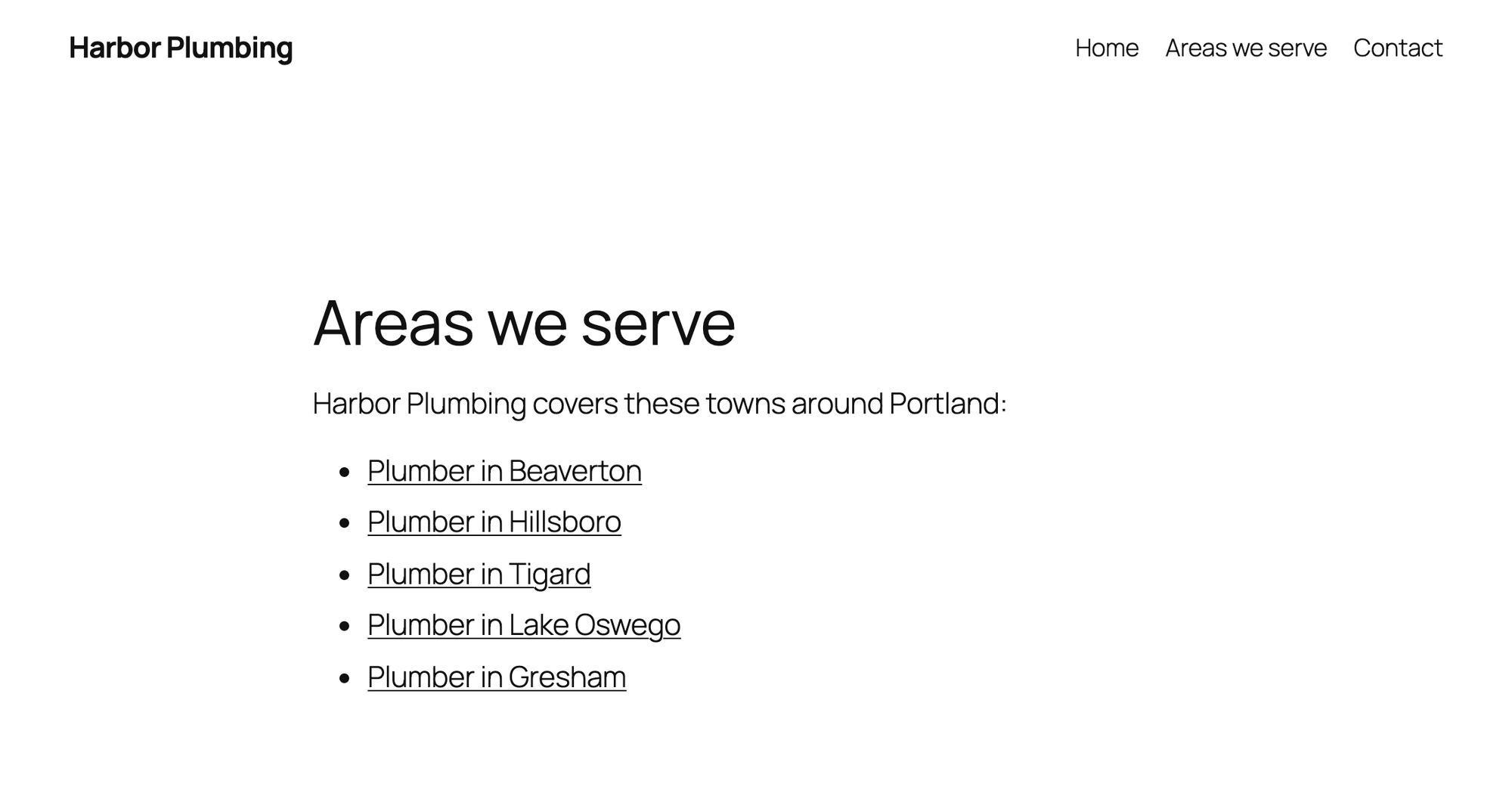
The free version doesn't link the pages to each other. LPagery Pro includes an Interlink Pages feature for that.
Changing the pages later
In the free version, you change a generated page by editing it in WordPress. LPagery Pro can update every page of a set at once from a changed template or source file, sync the source file from Google Sheets, and find the towns around your location for you. You can read more about it on the Bulk Page Generator page.
The review shows Issues Detected
This warning appears when the page title has no placeholder that matches a column in your source file, for example when the column is called city and the title uses {town}. If you create the pages anyway, every page gets the same title with a literal {town} in it.

Click Go Back, rename the column or the placeholder so they match, and upload the file again. Upper and lower case don't matter, so a column called Town fills {town}.
The new URLs end in -2
If you upload a source file whose pages already exist, LPagery warns under Before you continue that the new pages will be created with a -2 suffix. Creating them gives you two pages per town, the original and a copy.
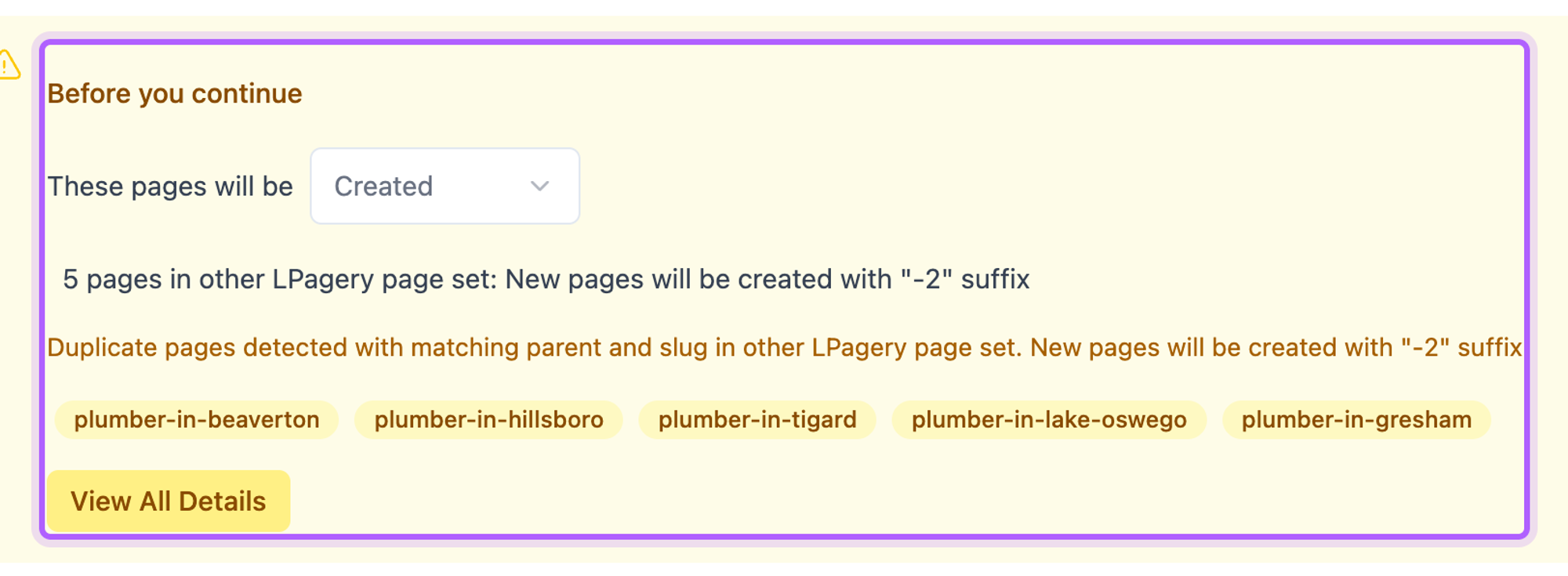
Click Go Back unless you want the copies. To change pages that already exist, edit them in WordPress, or use the bulk update in LPagery Pro.
I've worked in SEO for more than ten years and helped over 100 businesses rank higher, mostly local businesses, e-commerce stores and SaaS companies. As co-founder of LPagery I work on local SEO, programmatic SEO and AI search visibility, and I test the strategies in these articles on our own sites and with our customers.