How to Bulk Create Pages With Elementor From One Template

Updated
Part of the guide: Programmatic SEO and local landing pages in WordPress

Elementor can't create pages in bulk. You can save a page as a template and insert it into new pages, but you still create and edit each page by hand. To make dozens of Elementor pages at once, design one page in Elementor with placeholders such as {city} where the text changes, list the values in a spreadsheet, and let a page generator create one page per row.
This guide shows that with LPagery, the WordPress plugin we make, using the free version from wordpress.org. It also covers what happens to Elementor's styles, how to change the design of every page later, and the problems people run into with Elementor templates.
What Elementor can do on its own
Elementor's templates are for reusing a design. You save a page as a template from the arrow next to the Publish button, then insert it on another page from the template library under My Templates. That copies the layout, and every heading, phone number and town name still has to be changed by hand on each page.
Elementor Pro adds the Theme Builder and dynamic content, which control how existing posts and pages look and which fields they show. They don't create new pages. So for 20, 200 or 2,000 pages the job splits in two: Elementor designs one page, and a generator makes the pages from your data.
Step 1: Design the template page in Elementor
Go to Pages > Add Page, give the page a title and click Edit with Elementor. Design it the way every generated page should look. Wherever the text changes from page to page, type a placeholder in curly braces, such as {city}, {service} or {phone}.
LPagery copies the page's Elementor layout to each new page and fills in the placeholders inside it, so they work in the widgets that hold text: headings, text editor, buttons and their links, icon lists, and image alt text you typed in. You can also put a placeholder in the Location field of the Google Maps widget, which gives every page a map of its own town (see how to embed Google Maps).
Put at least one placeholder in the page title, such as "Electrician in {city}". In the free version, the title also becomes each page's URL. Save the template as a draft: LPagery publishes the pages it creates, and the template stays a draft, so a page with raw placeholders never shows on your site.
If your design is saved in Elementor's template library, insert it into a new page first and use that page as the template.
Step 2: Prepare the spreadsheet
Make a spreadsheet with one row per page and one column per placeholder. The first row holds the column names without the braces, and upper and lower case don't matter:
city | service | phone |
|---|---|---|
Beaverton | Panel upgrades | (503) 555-0142 |
Gresham | Panel upgrades | (503) 555-0157 |
Tigard | Panel upgrades | (503) 555-0163 |
Save it as CSV or XLSX. The free version uses up to three placeholder columns. Our guide on how to create WordPress pages from a spreadsheet covers the layout in detail, including columns that give each page facts of its own.
Step 3: Create the pages with LPagery
- Install LPagery: go to Plugins > Add Plugin, search for LPagery, click Install Now and then Activate.
- Go to LPagery > Create Pages and select your Elementor page under Template Page.
- Under 2. Input Selection, choose CSV / XLSX and upload your file.
- Click Review & Create Pages. LPagery's Pre-flight Check lists any Problems, such as a placeholder that looks like a misspelled column name, and the table shows every page with its URL.
- Click the create button, which shows the number of pages, such as Create 12 Pages.
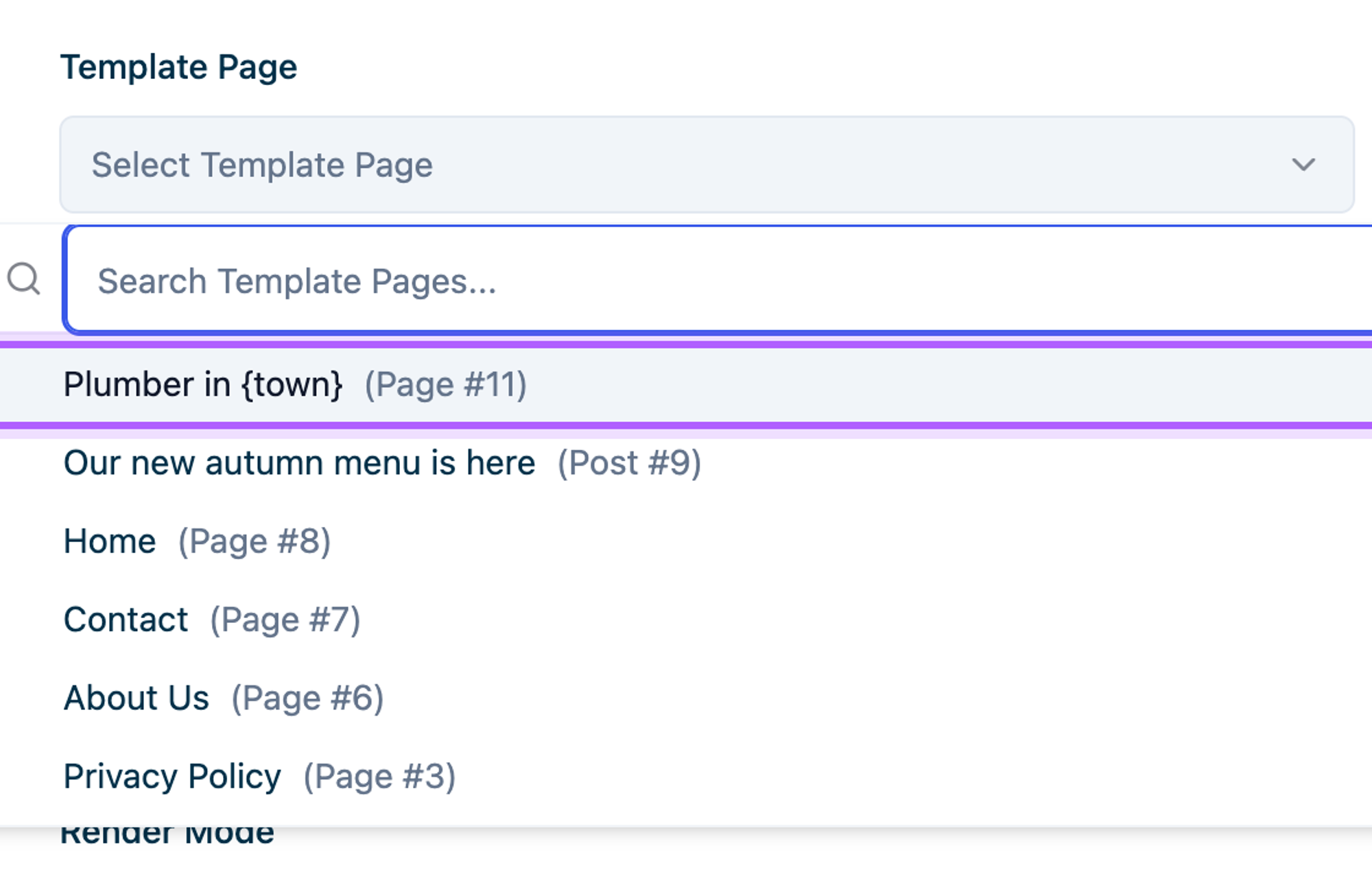
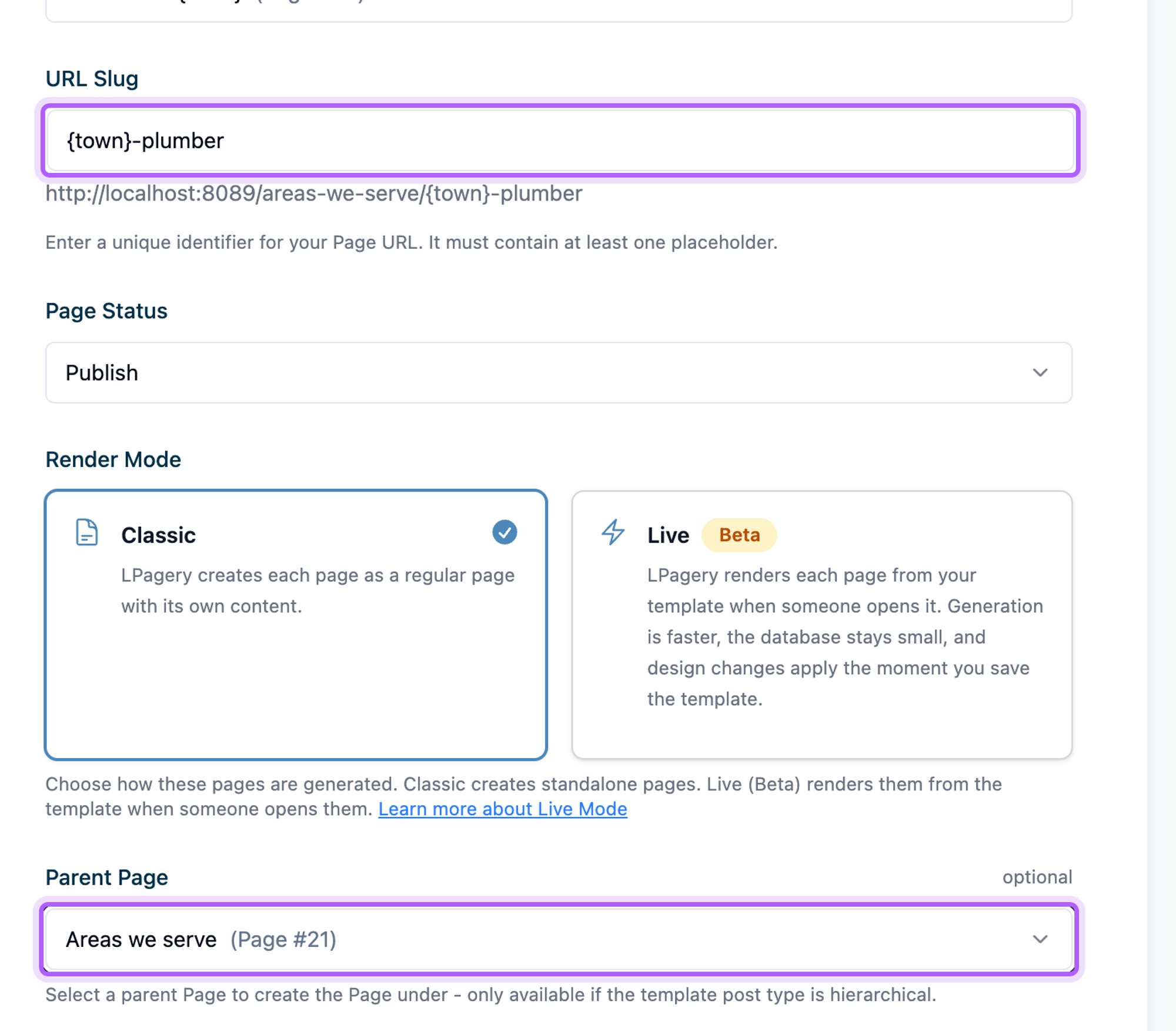
Paid plans, from Standard, add the URL Slug, Page Status and Parent Page fields on the same screen. With them, the pages can live under a parent such as Areas we serve and get short URLs like {city}-electrician.
The free version creates up to 100 pages per run. For every screen of a run with screenshots, see how to create service area pages in WordPress.
What LPagery does with Elementor's data
Elementor stores a page's layout in the page's custom fields and builds a CSS file for each page. LPagery recognises a template built with Elementor, copies its custom fields to every new page and fills in the placeholders. It then has Elementor save each new page, so Elementor builds that page's CSS, and after the last page of a run it clears Elementor's CSS cache.
In the default Classic Mode, each generated page is a normal Elementor page with its own copy of the layout. You can open any of them with Edit with Elementor and change it like any other page.
Change the design of every page later
In Classic Mode, a change to the template doesn't reach the pages already created. After you save the template in Elementor, open LPagery's Update screen and choose Update Look & Static Content to apply the change to all pages created from it. Pages you edited by hand show up as manually edited, and you can Preserve or Overwrite them. The Update screen needs the Extended plan.
Live Mode, a beta on the Extended plan, works the other way round: LPagery renders each page from the template when someone opens it, so a saved change shows on every page straight away and the database stores only a small stub per page. Live Mode works with templates built in Elementor, Gutenberg or the classic editor, and you choose it under Render Mode when you create the pages. The flexible templates feature page compares the two.
The pages show {city} instead of the town name
The placeholder in the template and the column name in the sheet don't match, for example {town} in a heading and a column called city. When the placeholder is close to a column name, the Pre-flight Check lists it under Problems with a "did you mean" suggestion. Rename the column or fix the placeholder, then upload the file again.
The generated pages look unstyled
Elementor loads each page's styles from CSS files. If a caching plugin, your host or a CDN serves an older copy of the page, clear that cache first. If the styles are still missing, open Elementor > Tools and use the option that clears and rebuilds Elementor's CSS files. Elementor has renamed that button between versions, so its label depends on the version you run.
The header or footer shows the same text on every page
LPagery fills in placeholders in the template page itself. A header, footer or other part that comes from Elementor Pro's Theme Builder is a separate template, so LPagery doesn't change it. Keep text that changes from page to page in the page content.
Which plan do you need?
The free version creates Elementor pages with up to three placeholder columns and 100 pages per run. Standard removes both limits and adds the URL slug, page status, parent page and Google Sheet links. Extended adds design updates, Live Mode, Google Sheet Sync and spintax. The details are on the pricing page, and the plugin is on the LPagery Bulk Page Generator page.
FAQ
Does this work with the free version of Elementor?
Yes. LPagery recognises an Elementor page by Elementor's own data on the page, which free Elementor writes too. Elementor Pro is only needed for Elementor's Pro widgets in your design.
Can I edit one generated page without changing the others?
Yes. In Classic Mode, every page has its own copy of the layout, so a change to one page stays on that page. When you later run Update Look & Static Content, you choose whether to keep or overwrite those hand edits.
Is there a way to do this without a plugin?
Only by hand: save the page as an Elementor template, insert it on each new page and change the text. That works for a handful of pages. For more, a generator saves the copying. For other ways to create many pages in WordPress, see how to bulk create pages in WordPress.
I've worked in SEO for more than ten years and helped over 100 businesses rank higher, mostly local businesses, e-commerce stores and SaaS companies. As co-founder of LPagery I work on local SEO, programmatic SEO and AI search visibility, and I test the strategies in these articles on our own sites and with our customers.
I've worked in SEO for more than ten years and helped over 100 businesses rank higher, mostly local businesses, e-commerce stores and SaaS companies. As co-founder of LPagery I work on local SEO, programmatic SEO and AI search visibility, and I test the strategies in these articles on our own sites and with our customers.