How to Create Location Pages for a Plumbing Business in WordPress (Free and Pro)

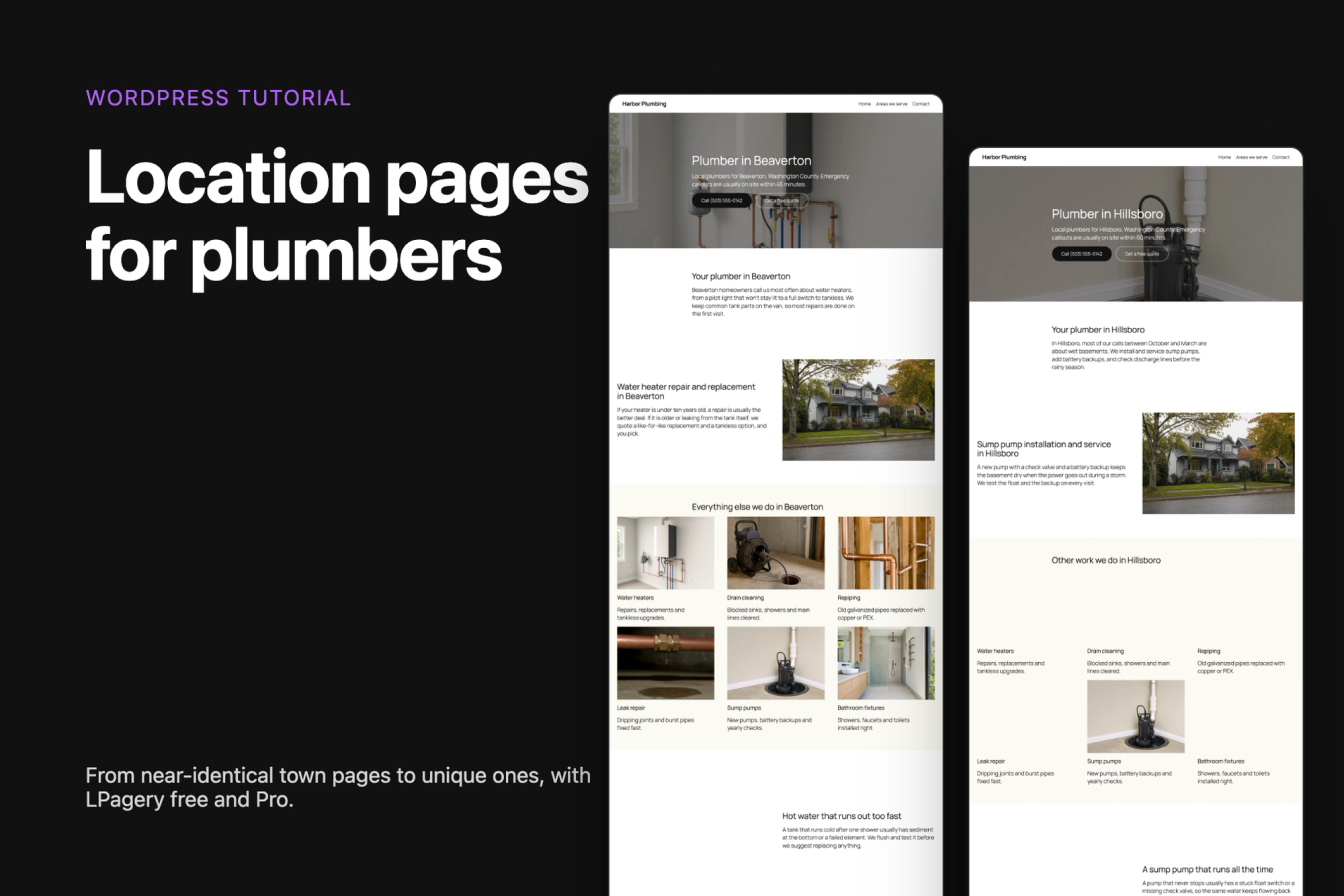
This tutorial builds location pages for a plumbing company twice. First the basic version with the free LPagery plugin, then a version where every page carries its own information, photos and links, with LPagery Pro.
The screenshots come from WordPress 7.1 with LPagery 3.0.0, the free version from wordpress.org and LPagery Pro. The example company, Harbor Plumbing, is fictional. The towns are real places around Portland, Oregon, and everything the pages say about the company's work there is example data.
What makes a location page worth publishing?
Google's spam policies describe doorway pages with two examples that fit location pages directly: "Having multiple domain names or pages targeted at specific regions or cities that funnel users to one page" and "Creating substantially similar pages that are closer to search results than a clearly defined, browseable hierarchy".
A plumber's town page avoids that when it tells someone in that town something the page for the next town doesn't: the jobs you do most there, how fast you get there, the problems local homes have. Swapping the town name doesn't do it, and neither does rewording the same sentences. The same policies list "synonymizing" as a way of disguising scaled content, which matters once you reach for spintax.
No plugin can promise that Google ranks your pages or never acts against them. What you control is whether each page is useful. For the wider picture, see local SEO for plumbers and local SEO for multiple locations.
Part 1: the basic version with LPagery free
The free plugin creates one page per row of a spreadsheet and fills up to three placeholder columns, up to 100 pages per run. How to create service area pages in WordPress walks through installing it and every click of the create flow. Here the focus is on what the result looks like.
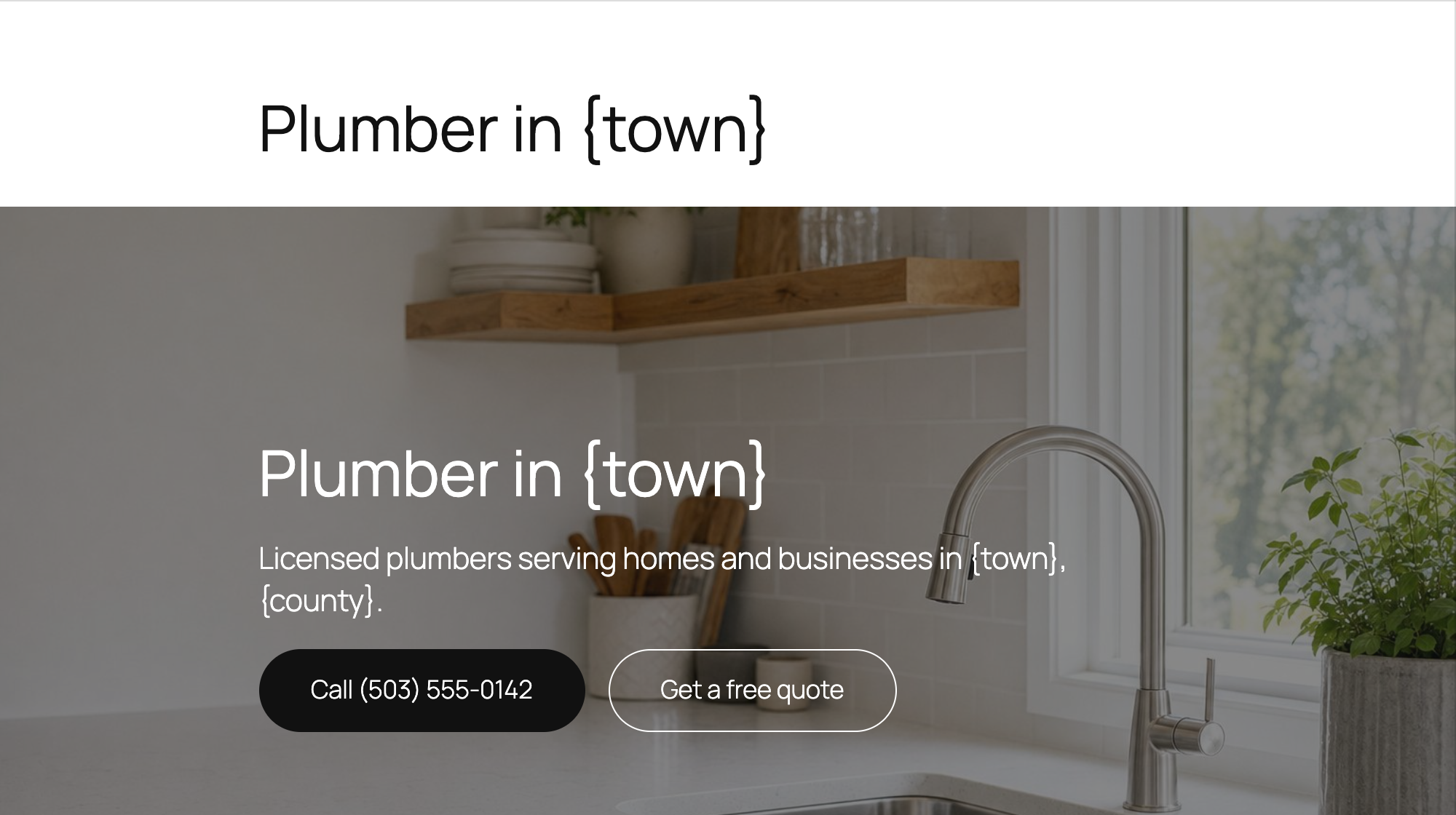
The template page is a full plumbing page: a hero photo, a list of services with photos, a section about the town, questions and answers, and a call to action. Three placeholders change per town: {town}, {county} and {local_note}.
1town,county,local_note
2Beaverton,Washington County,We have replaced more than 120 water heaters in Beaverton homes since 2019.
3Hillsboro,Washington County,Many of our Hillsboro callouts are for sump pumps in basements after heavy rain.
4Tigard,Washington County,Our Tigard customers often book us to repipe older homes.
5Lake Oswego,Clackamas County,In Lake Oswego we do a lot of fixture upgrades during kitchen and bathroom remodels.
6Gresham,Multnomah County,"Gresham is where we started, and it is still where we answer the most emergency calls."
LPagery turns this into five good-looking pages. Put two of them side by side, though, and they are almost the same page. We compared the visible text of the Beaverton and Gresham pages word by word: they share 89% of it. The only differences are the town, the county and one sentence.
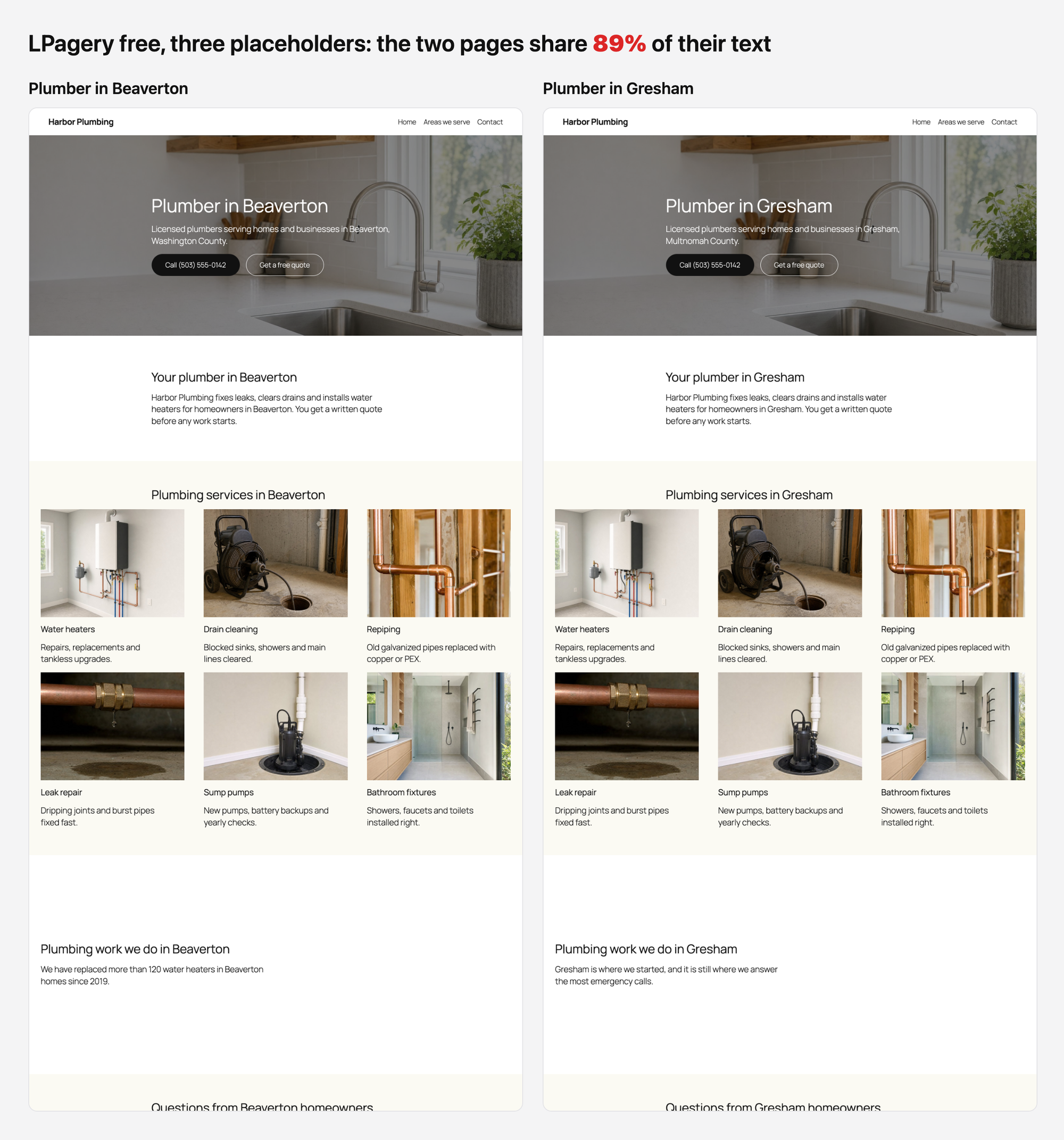
For five towns with one real sentence each, that may be enough. For a plumber who covers twenty towns, it's the pattern the doorway policy describes. Part 2 fixes it by giving every page its own content.
Part 2: unique pages with LPagery Pro
LPagery Pro removes the three-column limit and adds the features used below. URL slugs and parent pages are part of every Pro plan. Spintax, image processing and bulk updates need the Extended plan or higher.
Step 1: Put every town-specific fact in its own column
Instead of one note per town, the Pro source file has a column for each thing that really differs between towns: the response time, an introduction, the service people there book most, a common local problem, and a question homeowners there ask. The last two columns pick the photos, which step 3 explains.
town,county,response_time,intro,focus_service,focus_text,local_issue,local_issue_text,faq_question,faq_answer,plumbing-hero-kitchen-sink.jpg,plumbing-house-exterior.jpgThe Beaverton row's introduction, for example, reads: "Beaverton homeowners call us most often about water heaters, from a pilot light that won't stay lit to a full switch to tankless. We keep common tank parts on the van, so most repairs are done on the first visit."
This is where the real work is. Write each row from what you know about the town: jobs you have done there, how long it takes to get there, questions customers asked. If you can't fill a row, that town probably doesn't need a page yet.
Step 2: Build the template
The template uses a placeholder wherever a column fills in, and spintax for a few stock phrases around them. {Licensed|Local|Family-run} plumbers picks one option per page. LPagery stores the choice per page, so later updates keep the same wording.
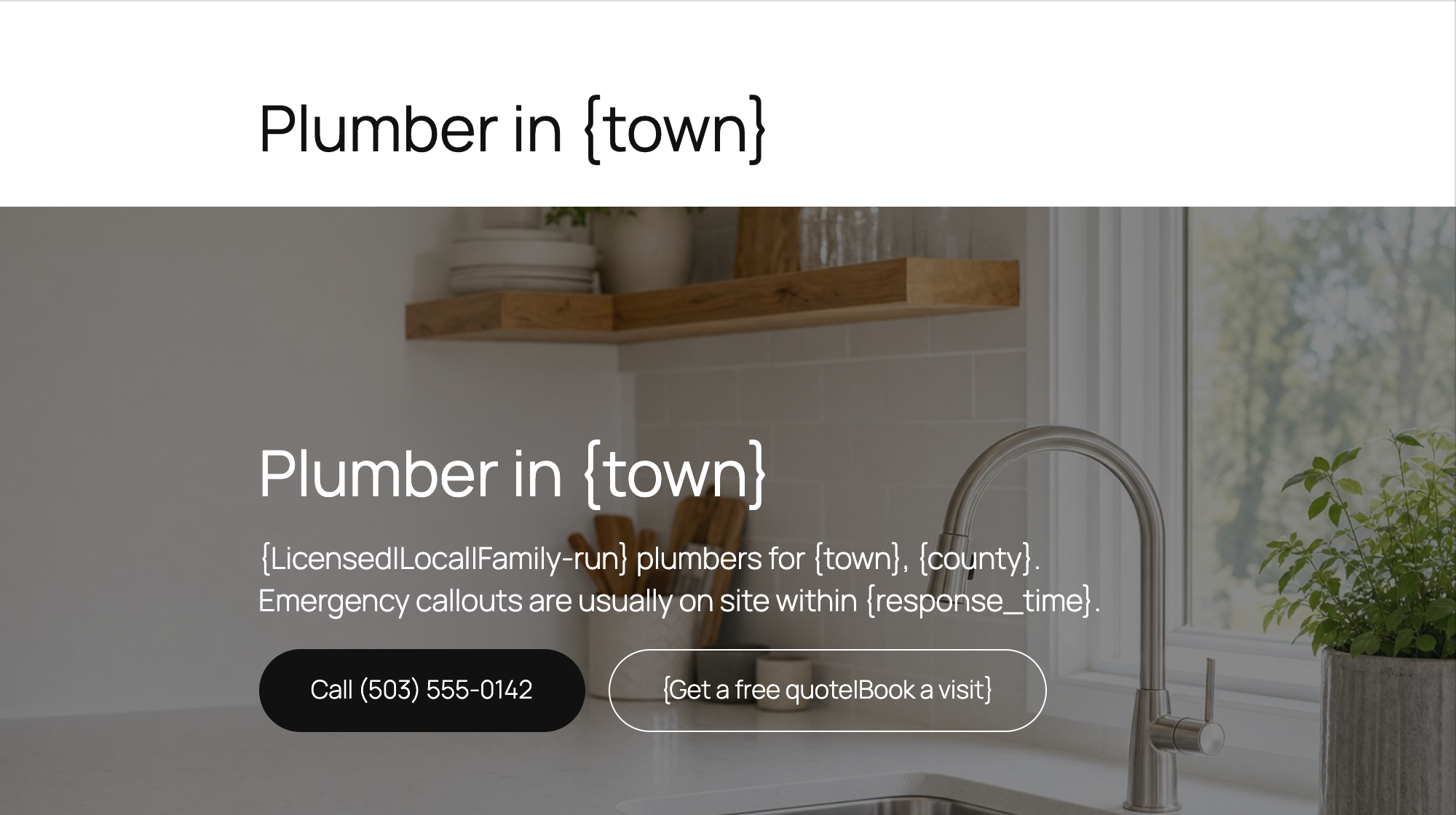
Further down, the main-service section is built only from placeholders, so its heading and text come from the town's row.
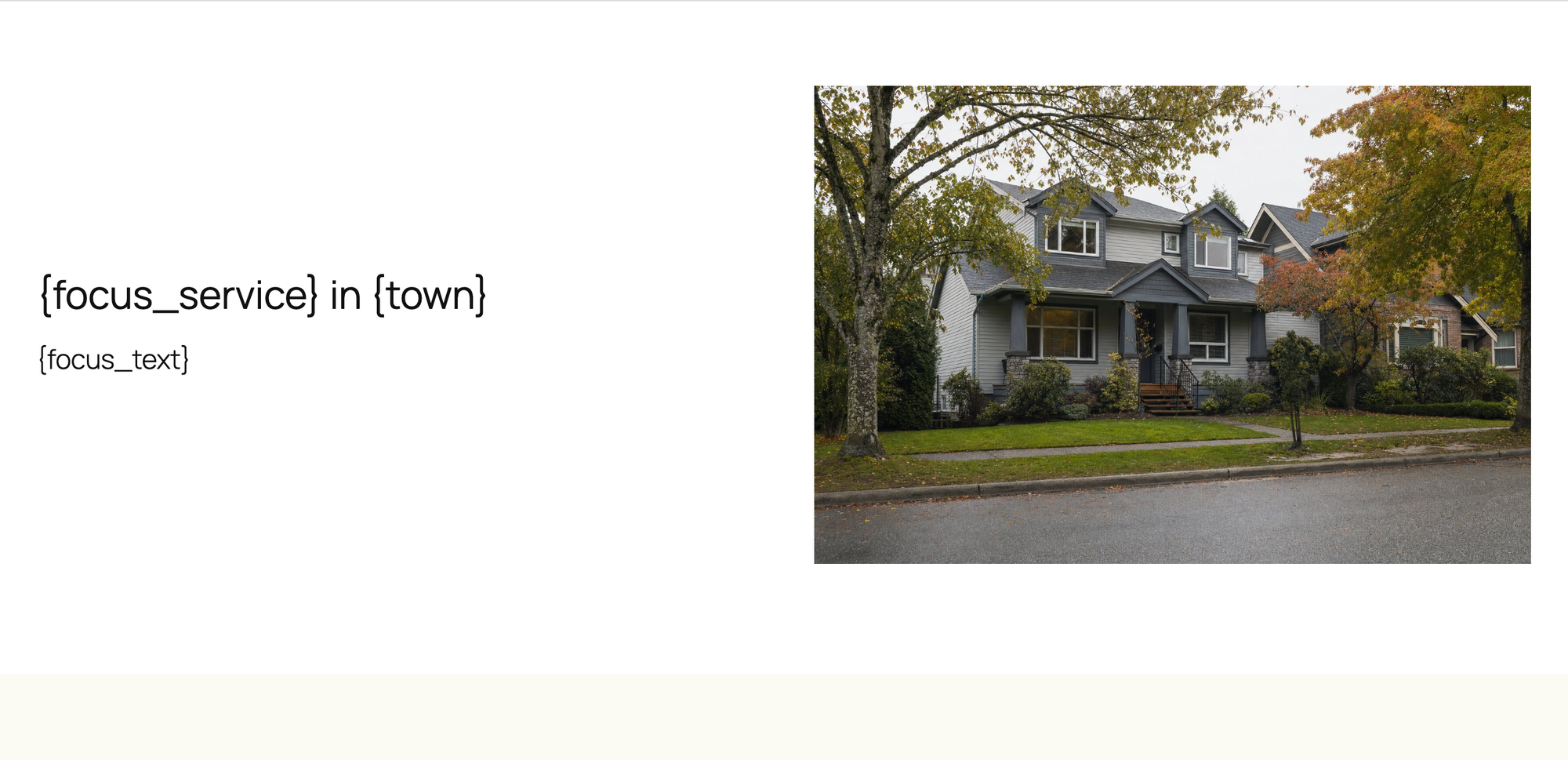
The services grid and the call to action stay the same on every page. That's fine: they describe the business, not the town.
Step 3: Give every page its own photo
With image processing, a column named after an image in your template swaps that image on each page. The template's hero uses plumbing-hero-kitchen-sink.jpg, so the column with that name lists a different image from the media library for each town: the water heater photo for Beaverton, the sump pump for Hillsboro.
A value with a placeholder makes a renamed copy instead. The column plumbing-house-exterior.jpg holds plumber-{town}-home.jpg, so each page gets its own file, such as plumber-beaverton-home.jpg, with alt text filled from the source image's alt text, "Plumbing service for homes in {town}". It's the same photo under a new name, which helps in image search but doesn't make the page more unique.
Use each source image only once in the template, because LPagery replaces every place that image appears.
Step 4: Turn on spintax
Spintax is off by default. Go to LPagery > Settings, open the Generation tab, switch on Spintax and click Save changes. Image processing is already on.
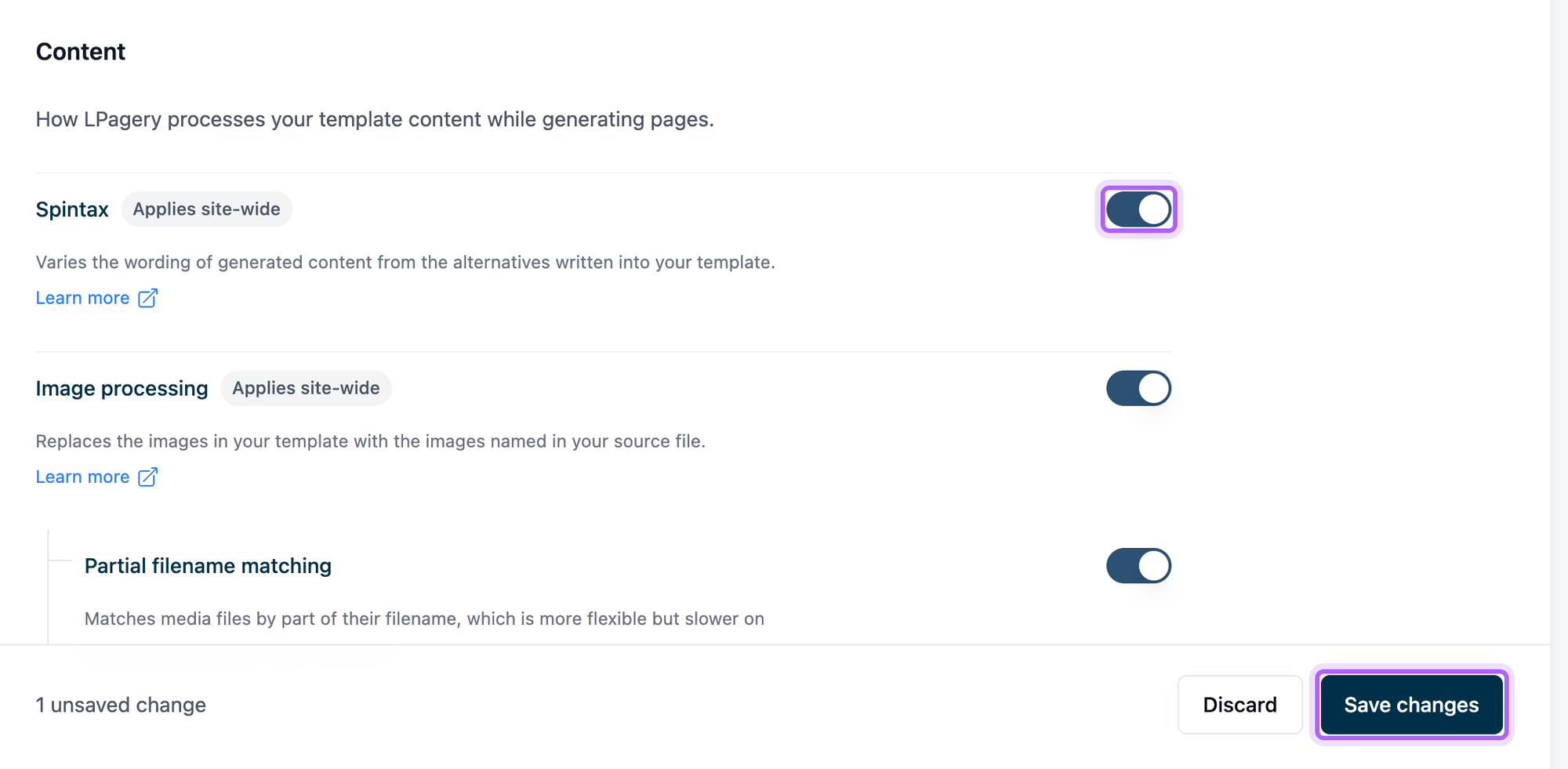
Step 5: Set the URL and the parent page
Create an Areas we serve page first. It becomes the parent of the town pages. Then go to LPagery > Create Pages, select the template and fill in two settings:
- URL Slug:
{town}-plumber - Parent Page: Areas we serve
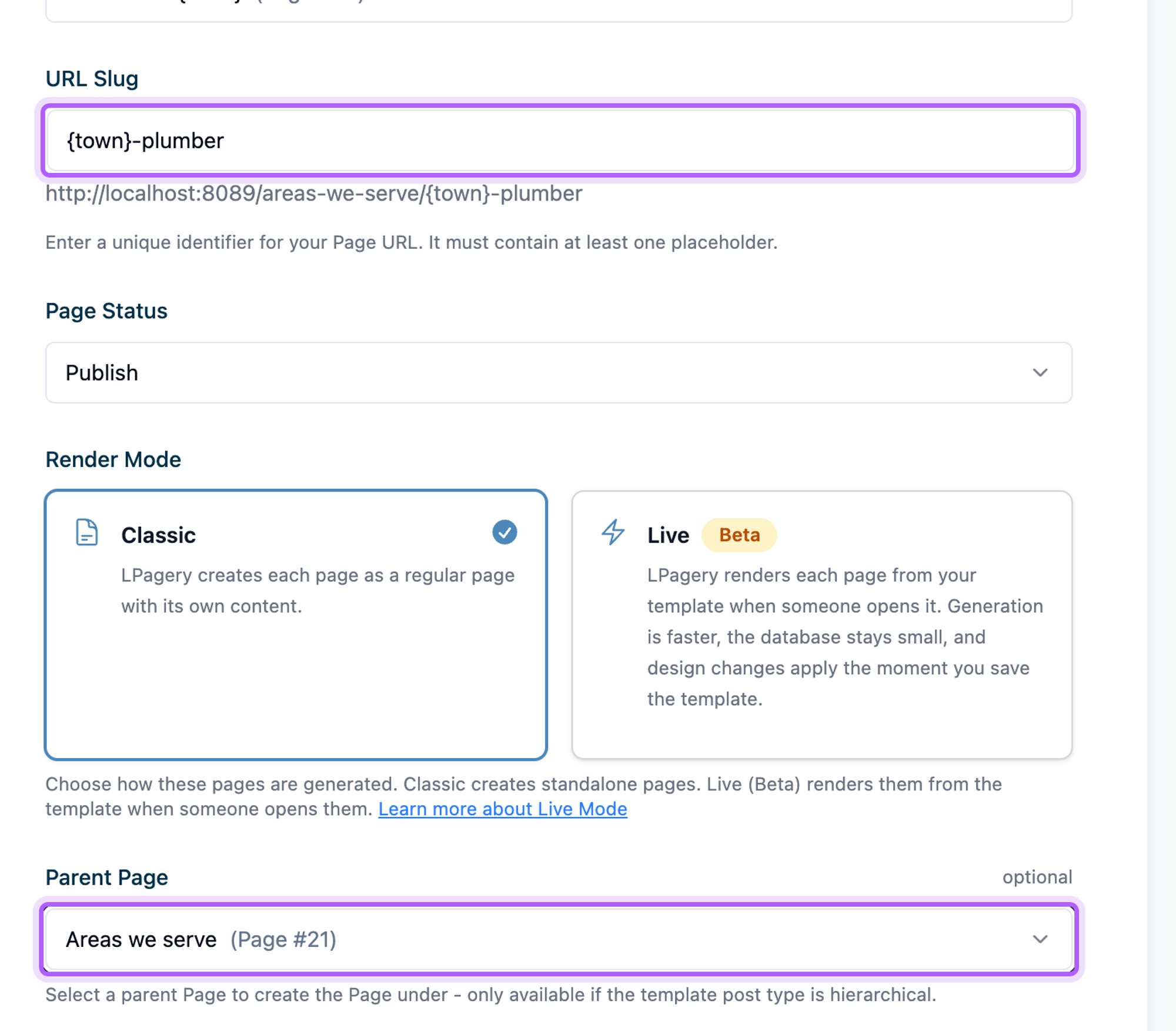
The town pages then live under one address, such as /areas-we-serve/beaverton-plumber/, which gives visitors and search engines a clear hierarchy. Upload the source file, click Review & Create Pages, then Create 5 Pages.
Step 6: Link the pages to each other
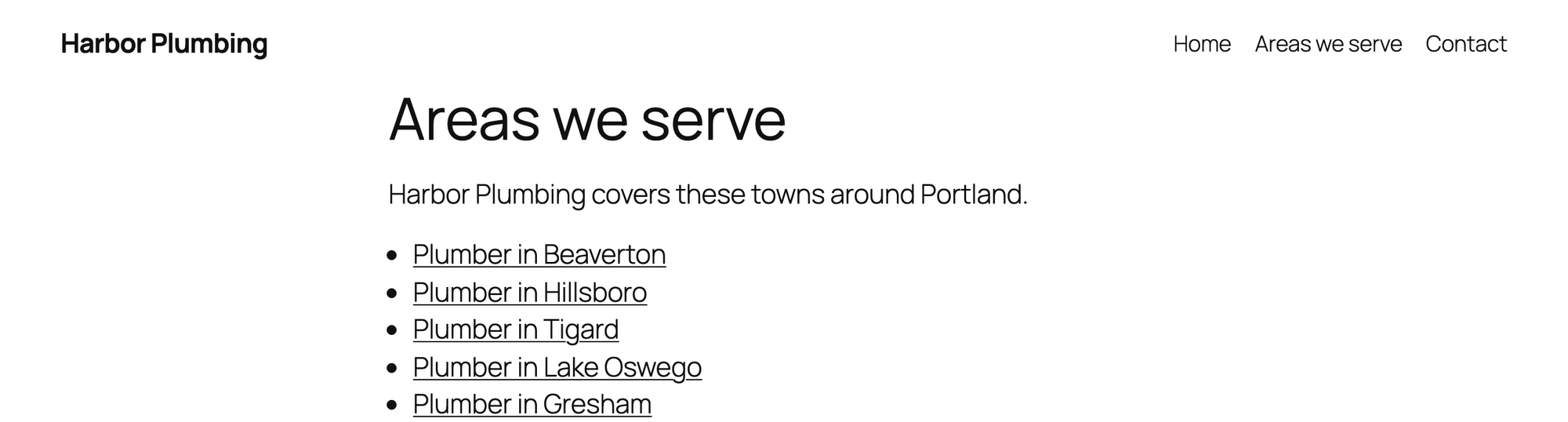
The template's Other areas we serve section uses two shortcodes, [lpagery_link position="PREV" circle="true"] and [lpagery_link position="NEXT" circle="true"]. Each links to the neighbouring page in the page set, and circle="true" makes the last page link back to the first.
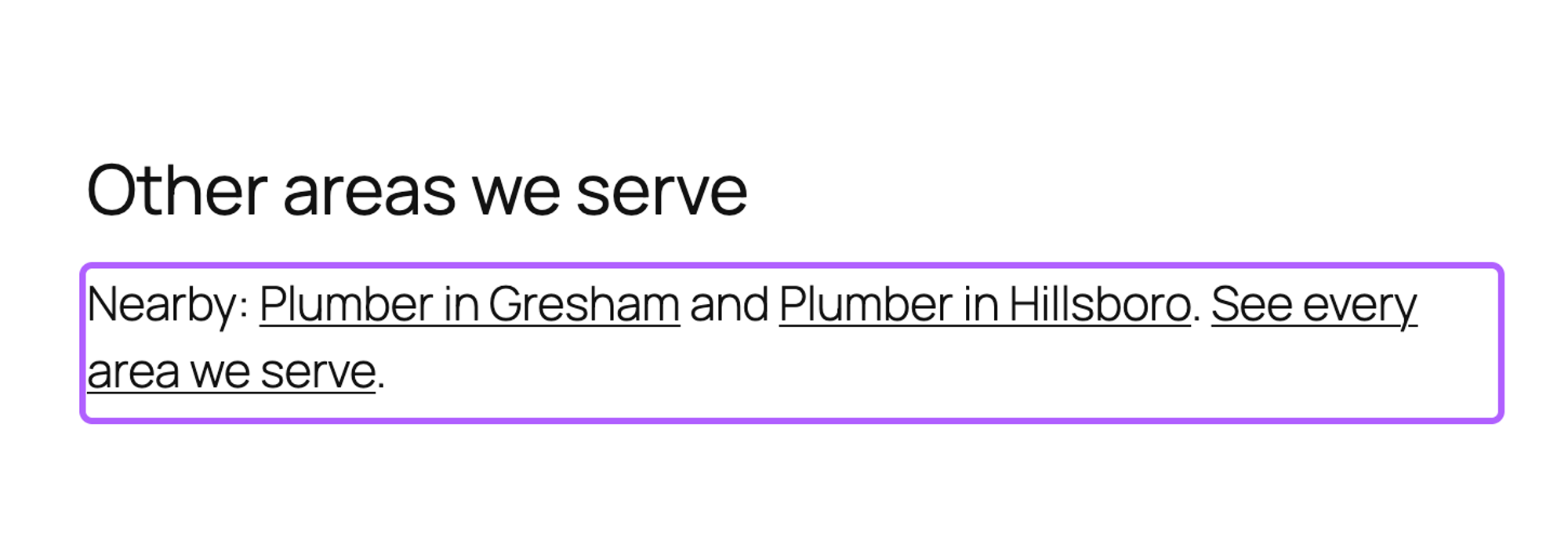
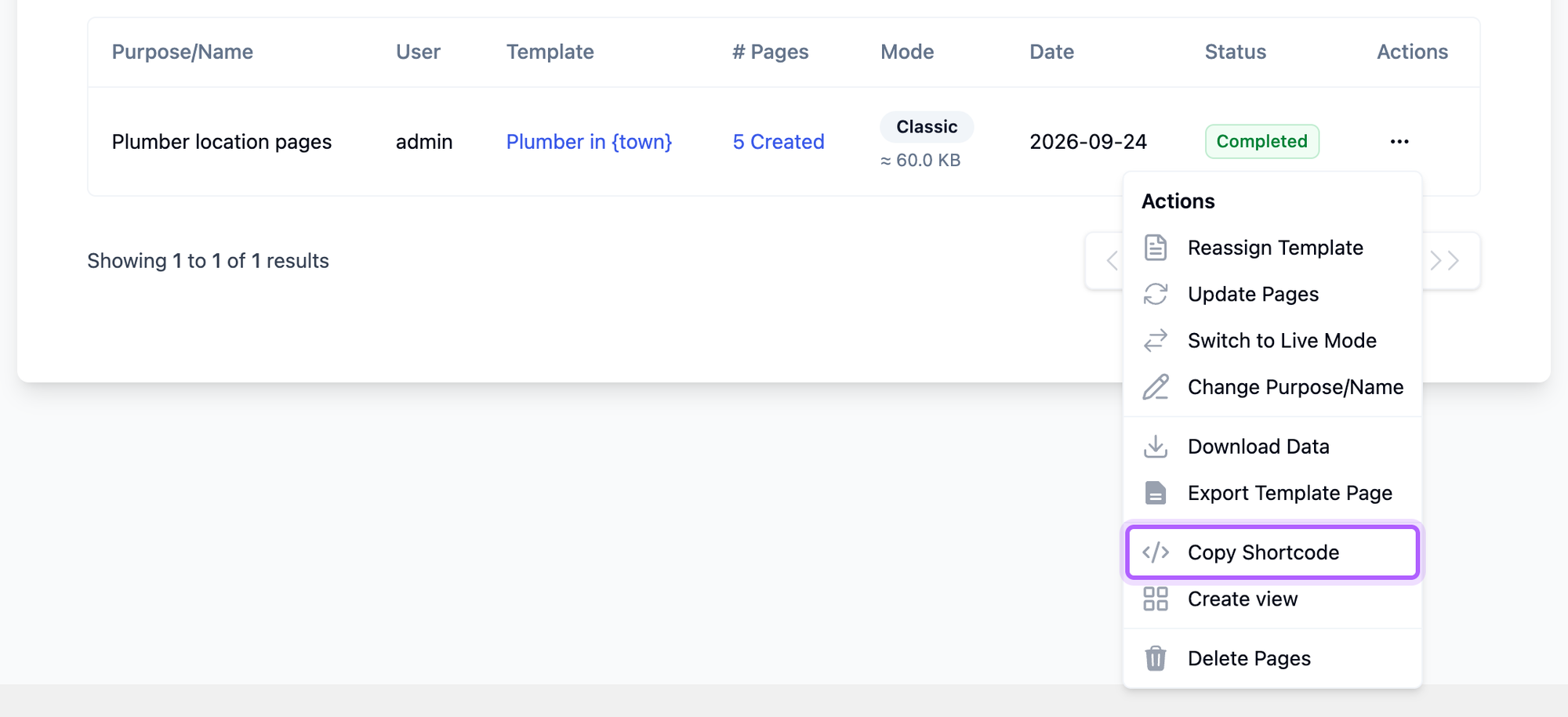
For the Areas we serve page, go to LPagery > Manage Pages, open the menu of your page set and click Copy Shortcode. Paste the shortcode into the Areas we serve page, and it lists every published page of the set.
The result
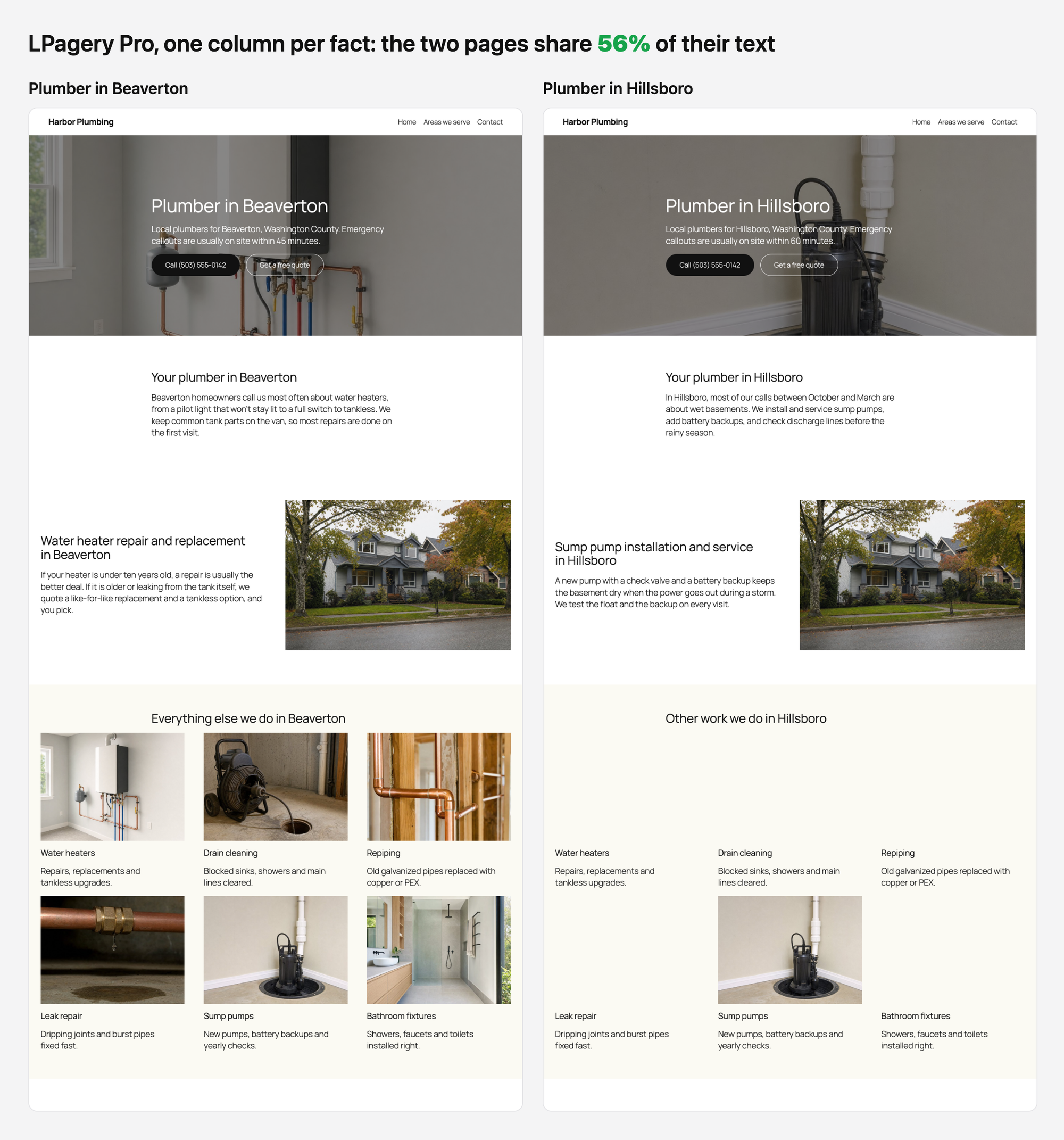
Compared the same way as before, the Beaverton and Hillsboro pages now share 56% of their text, down from 89%. What they still share is what should be the same: the list of services, the second question and the call to action. The hero photo, the introduction, the main service, the local problem and the first question differ on every page.
The pages are regular WordPress pages. In our test they stayed online with all their content after LPagery was deactivated.
Keep the pages up to date
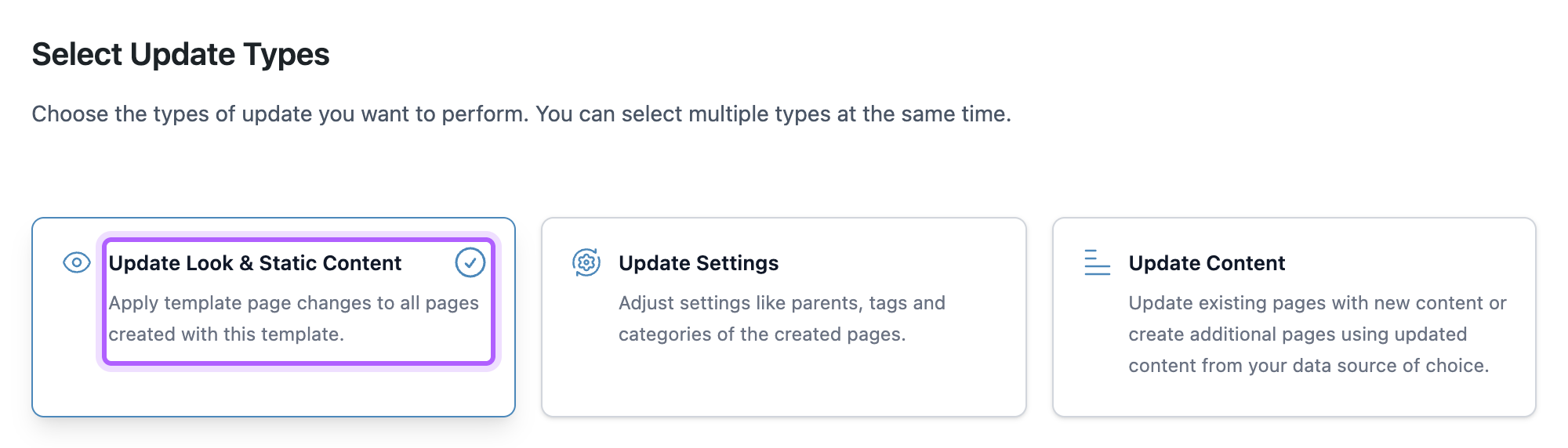
When you change the template, LPagery Pro can update every page of the set at once. Go to LPagery > Update Pages, select the template, click Next and choose Update Look & Static Content. Then click Next, Review & Update Pages and Update 5 Pages. Each page keeps its own row data, photos and spintax wording.
Pages you have edited by hand are kept as they are unless you choose to overwrite them. Pro can also keep the source file in sync with a Google Sheet and find the towns around your location with its Radius input. Both connect to LPagery's servers, so this tutorial doesn't show them. You can read more on the Bulk Page Generator page.
Curly braces with | show up on the page
If a page shows text like {Licensed|Local|Family-run}, spintax was off when the pages were created or last updated.
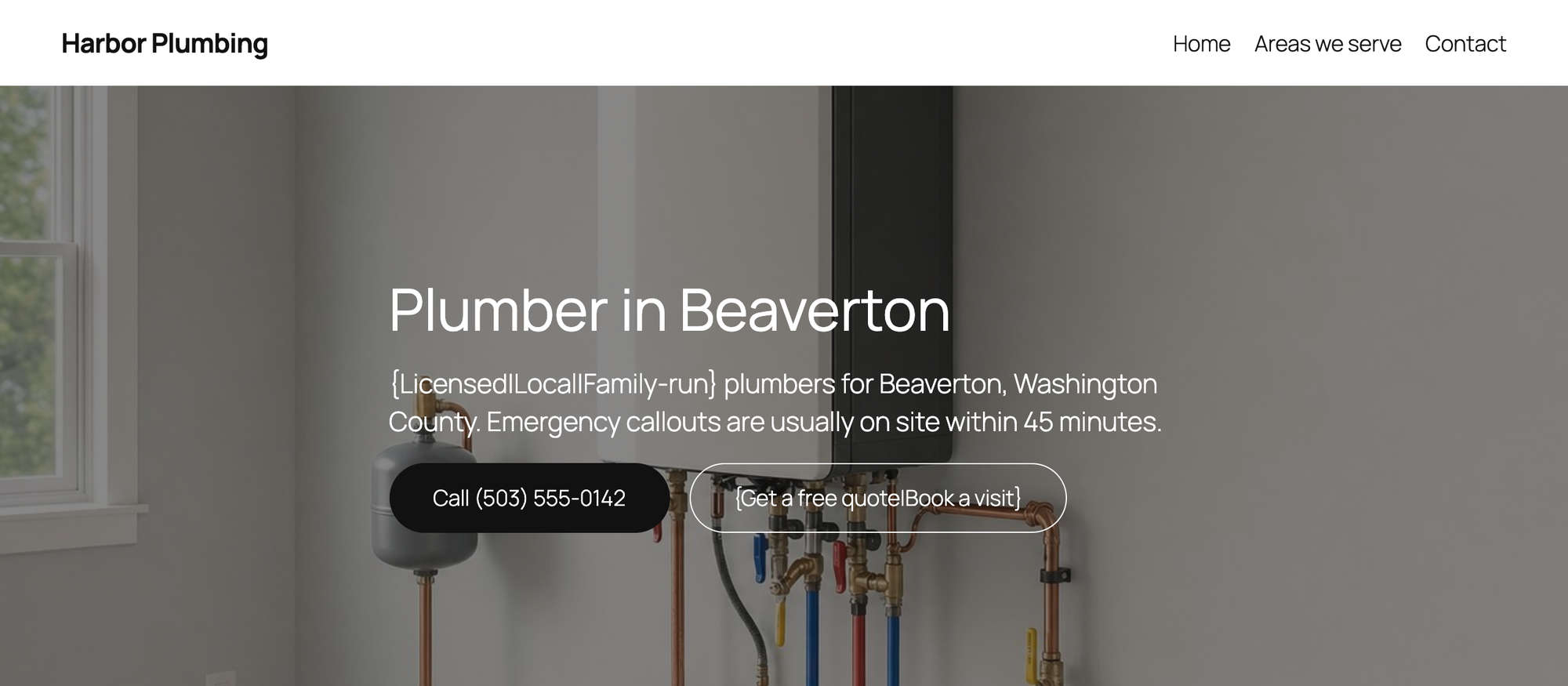
Switch on Spintax under LPagery > Settings > Generation and click Save changes. A switched toggle alone isn't saved. Then run an Update Look & Static Content update as described above, and the braces are replaced on every page.
I've worked in SEO for more than ten years and helped over 100 businesses rank higher, mostly local businesses, e-commerce stores and SaaS companies. As co-founder of LPagery I work on local SEO, programmatic SEO and AI search visibility, and I test the strategies in these articles on our own sites and with our customers.