
An AI WordPress plugin can write a draft, answer visitors in a chat window, fill in meta descriptions and alt text, translate a page or make an image, all without leaving wp-admin. We installed the free versions of 17 AI plugins from wordpress.org in a test WordPress site, ran 10 of them through the tasks and opened the other 7 up to the account they ask for. Every plugin in a job family got the same task: the same blog brief for the writers, the same five questions for the chatbots, the same page for SEO meta and translation, and the same nine photos for alt text.
Best all-rounder: AI Engine, which wrote the brief with all five facts in 34 seconds and ran the chatbot that answered 5 of 5 questions after we pasted the business facts into its instructions. Best for alt text, meta descriptions and translation: the AI plugin from the WordPress.org team, which wrote alt text for all nine photos in one bulk action. Lightest chatbot that reads your pages: Hyve Lite, which adds 105.2 KB to each page.
Last tested 13 October 2026 on WordPress 7.1.3. We make LPagery, which is described in its own section after the list and not ranked, because we could not test its AI. We are not affiliated with any other plugin here, and nobody paid to be included.
Plugin | Best for | Own API key needed | What the free version blocked | Page weight added | Active installs |
|---|---|---|---|---|---|
AI Engine | Writing, chatbot and images in one plugin | Yes | Chatbot reading your pages (Content Aware, embeddings) | +631.9 KB (471.2 KB from the plugin's own files) | 90k+ |
AI (WordPress.org) | Alt text, meta descriptions, translation | Yes | Nothing; all features are free | +1.5 KB of HTML (the meta description tag and translated text), no files | 60k+ |
AI Puffer | Posts with SEO fields filled in | No (Cloud credits after email sign-up) | Bulk alt text for nine images | nothing | 10k+ |
Hyve Lite | A chatbot that answers from your pages | No (Hyve Connect hosted messages) | Crawling URLs, sitemaps, documents | +105.2 KB (68.7 KB from the plugin's own files) | 7k+ |
MxChat | Chatbot with a knowledge base | Yes | Extensions such as forms and multi-bot | +380.3 KB (267.4 KB from the plugin's own files) | 2k+ |
ThinkRank | SEO titles and meta descriptions | Yes | Applying the metadata to a post | +3.8 KB (0.6 KB from the plugin's own files) | 10k+ |
AI Alt Text Generator | Alt text without a key or account | No | More than 50 images a month | nothing | 2k+ |
From us: LPagery
If you need AI content on many pages at once, such as a heading, intro and meta description for every town or service page, that is a different job from the plugins below. LPagery, which we make, builds those pages from one template and a sheet, and its AI columns in the LPagery app write the text for each row. We did not test that AI part hands-on; the LPagery section after the list says what we ran and what we read in the code. See the Bulk Page Generator for how it works.
How we tested the AI plugins
Jonas Lindemann ran every test on 13 October 2026 in a local WordPress lab: WordPress 7.1.3, PHP 8.3.35, the Twenty Twenty-Five theme, Apache in Docker, driven by a script in headless Chrome. We installed 17 plugins, ran 10 through the tasks, opened 7 up to their sign-up screens and list 7. Each plugin started from a fresh copy of the same example site, a plumbing company called Harbor Plumbing in Portland, Oregon, with a service page, an About page and nine photos.
Plugins that need an API key got the same OpenAI key. Where a plugin let us pick the model, text tasks ran on GPT-5.6 Luna, a low-cost OpenAI model most of these plugins list; otherwise we kept the plugin's default and say so. We did not sign up for any plugin's own account, so features behind an account are described up to the sign-up screen.
The tasks, one per job family:
- Writing: the same brief for a 600-word post, "How to Fix a Leaking Kitchen Faucet", with five facts it must contain (shut-off valves, cartridge or O-ring, the phone number, same-day visits, a one-year guarantee). We counted the words, the facts found, the subheadings, and any phone numbers or prices the AI made up.
- Chatbot: five questions asked by a logged-out visitor on the About page. Four have an answer on the page (same-day visits, phone number, guarantee, Beaverton in the service area); the fifth asks about car engine repair, which the business does not do.
- SEO meta: a title and meta description for the Plumber in Portland page. We checked the length (title up to 60 characters, description 120 to 160), that both mention Portland and plumbing, and whether the result reached the page's HTML.
- Alt text: nine photos imported without alt text and with neutral titles (photo-01 to photo-09). We checked that each alt text names the subject of the photo and does not start with "image of".
- Translation: the Plumber in Portland page into German, checked for German text and for the phone number staying intact.
- Images: the same prompt, a plumber fixing a pipe under a kitchen sink, at the plugin's lowest quality setting.
For every plugin we also counted the steps from activation to the first result and measured how much the page a visitor loads grows, as the whole page against the same page without any plugin, with the part served from the plugin's own folder in brackets (1,505.5 KB in 15 files). Times are single runs and AI response times vary, so read them as rough figures. Lab numbers are uncompressed and only comparable between plugins in this lab.
1. AI Engine
AI Engine is the plugin to pick when you want one AI plugin for writing, a chatbot and images, and you are fine with paying OpenAI for your own key.
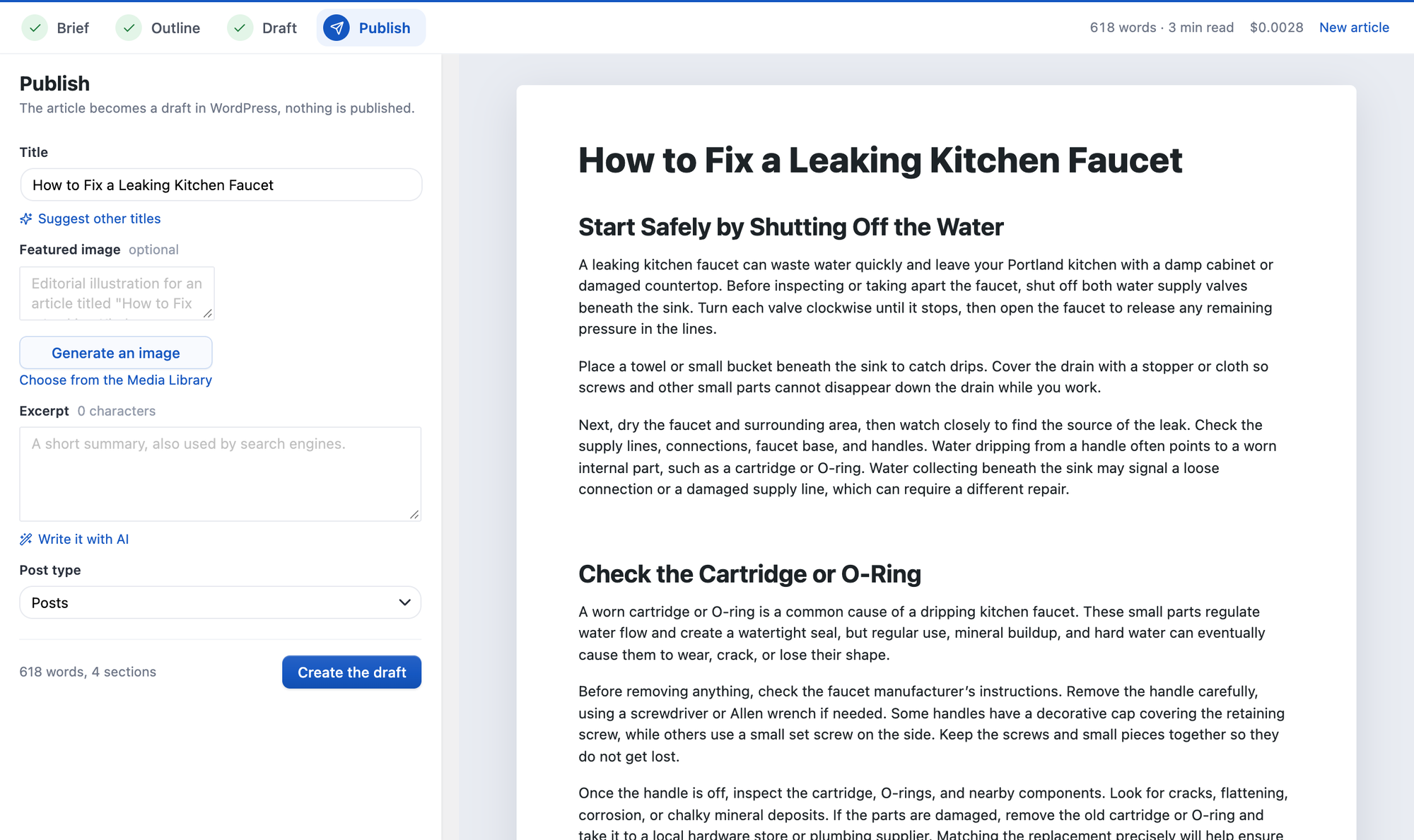
Setup took three steps: activate, open Meow Apps > AI Engine > Settings, paste the key. The field saves on its own. The writer lives under Tools > Generate Content and works in four stages: Brief, Outline, Draft and Publish. We typed the title as the topic, the audience, picked Short ~600 words and pasted the brief into Notes for the writer. The outline took 8.9 seconds and the draft 25.5 seconds. The result had 644 words, 4 subheadings and all five facts, and Create the draft saved it as a draft post. The Publish step showed what the run cost on our key: $0.0028.
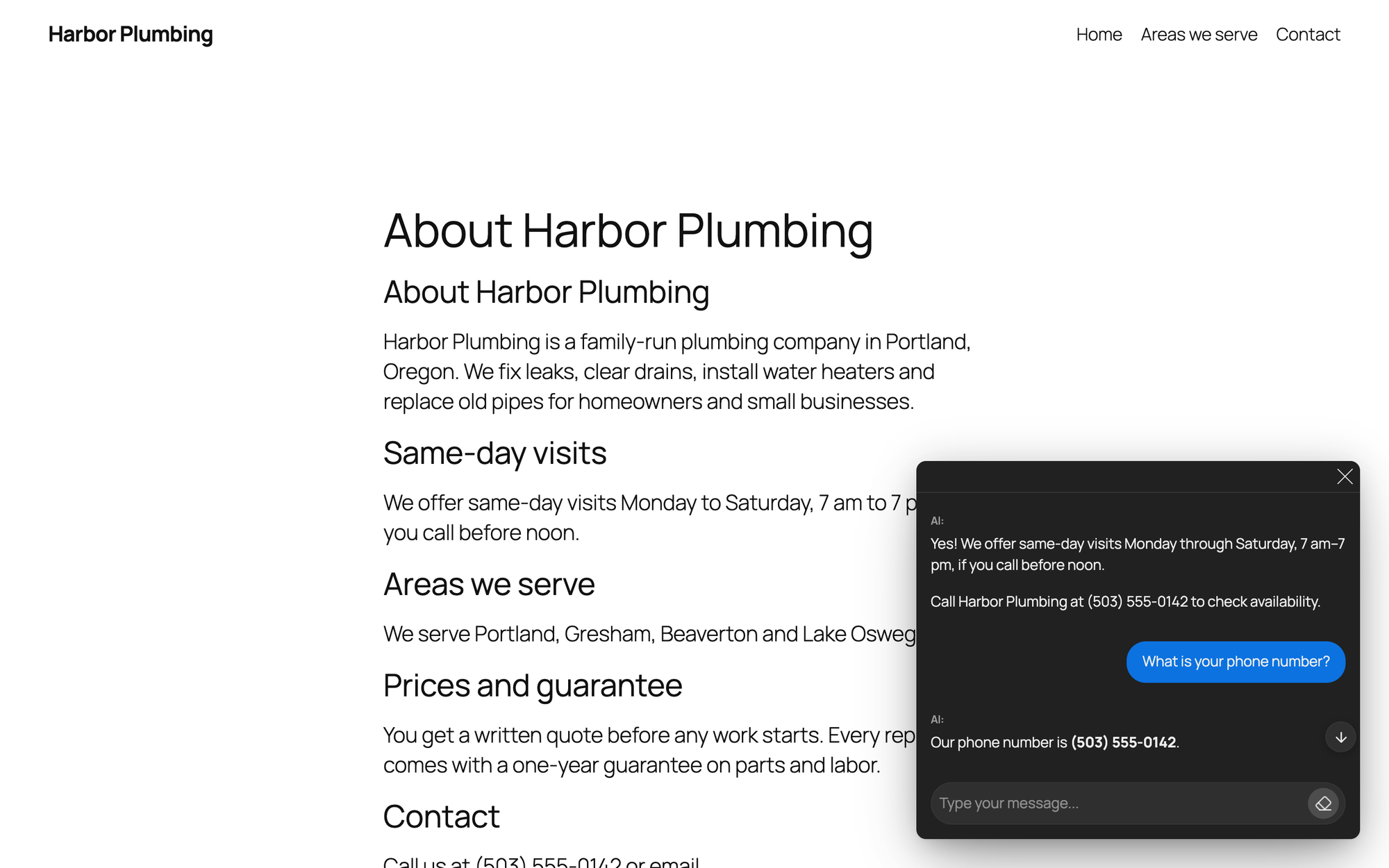
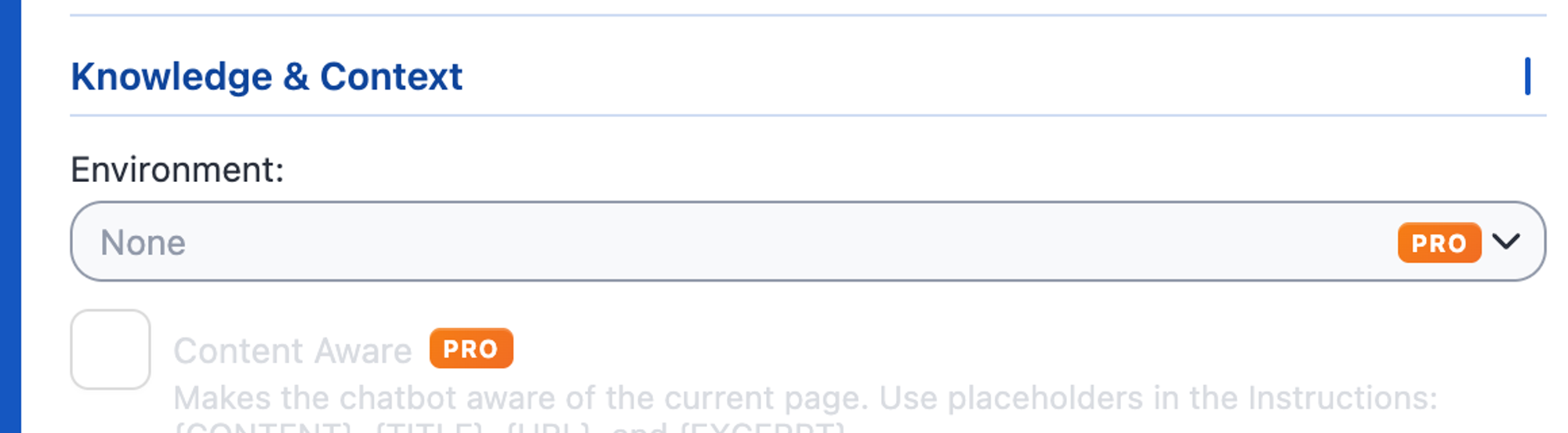
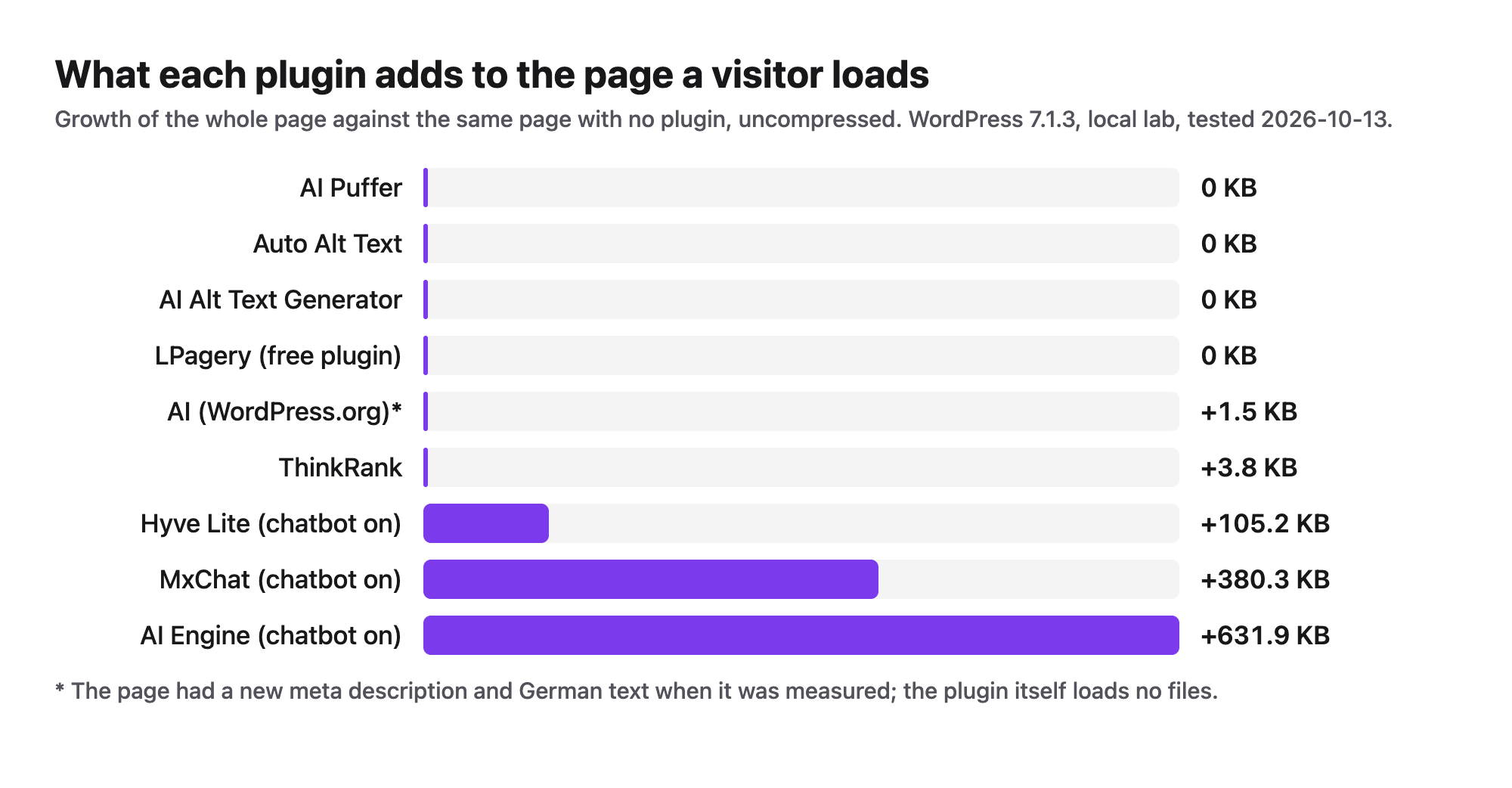
The chatbot was the weak spot of the free version. Content Aware and the embeddings environment are marked PRO, so the bot cannot read your pages. We pasted the About page facts into the bot's Instructions and set Site-Wide Chatbot to Default; it then answered 5 of 5 questions correctly, with a median reply time of 7.2 seconds. With the chat window on, every page grew by 631.9 KB (471.2 KB of it from the plugin's own files), the most in this test.
Image generation under Tools > Generate Images made our test image in 16.3 seconds at quality Low, 1024 by 1024 pixels, and showed an estimated cost of $0.006. The alt text field stayed empty until we clicked Write with AI.
- Setup: 3 steps, own OpenAI key (also Anthropic, Google and others).
- Writing: 644 words, 5 of 5 facts, 4 subheadings, 34.4 seconds, $0.0028 on our key.
- Chatbot: 5 of 5 correct, only after we pasted the facts into its instructions by hand.
- Image: 16.3 seconds, 1,282 KB PNG, no alt text until you ask for it.
- Adds to every page with the chatbot on: +631.9 KB (471.2 KB from the plugin's own files).
Pros
- The writer works in clear stages and shows the cost of each article.
- Writer, chatbot, images and a playground in one plugin.
- Lets you pick the model for each task.
Cons
- Free chatbot cannot read your pages; you paste facts by hand.
- The chatbot adds 631.9 KB to every page.
- Several controls are custom dropdowns, which took a few clicks to find.
AI Engine Pro starts at $79 a year for one site (read on meowapps.com on 13 October 2026). It adds Content Aware chatbots, embeddings, forms and the editor assistant, and still uses your own key.
AI Engine on WordPress.org and Meow Apps.
2. AI by the WordPress.org team
The AI plugin from the WordPress.org team is the pick for alt text, meta descriptions and translation inside the block editor, with every feature free.
The plugin is built on the AI Client that WordPress 7 ships with, so the key goes into Settings > Connectors, a screen shared by every plugin that uses that AI Client. We installed the AI Provider for OpenAI connector, clicked Set up, pasted the key and clicked Save. Then Settings > AI lists every feature as a switch, and we turned on alt text, meta descriptions, translation, titles and images. That is seven steps, the most of any plugin here, but each one is plain.
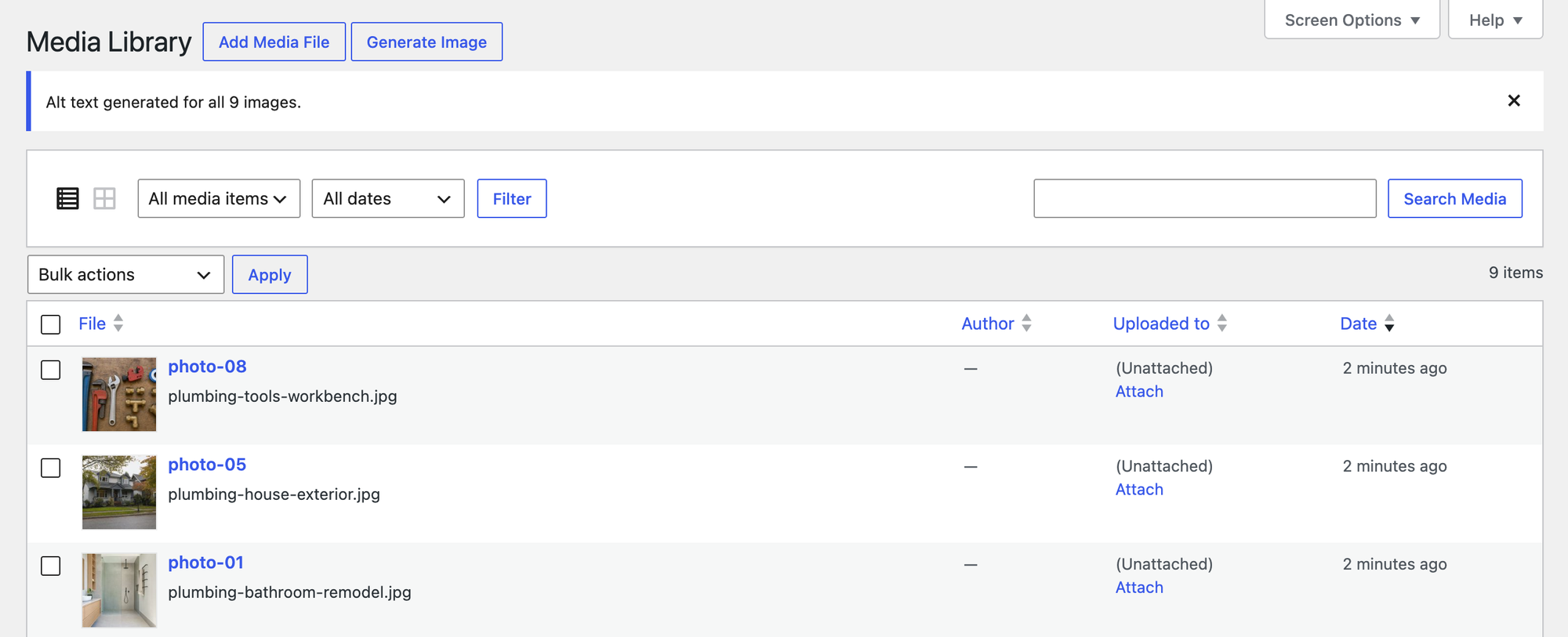
Alt text is where it stood out. In Media > Library (list view) we ticked all nine photos and picked Generate Alt Text from the bulk actions. All 9 photos got alt text that named the subject, 84 characters on average, none starting with "image of", in about 36 seconds. One example: "Black sump pump installed in a basement floor pit with a white discharge pipe".
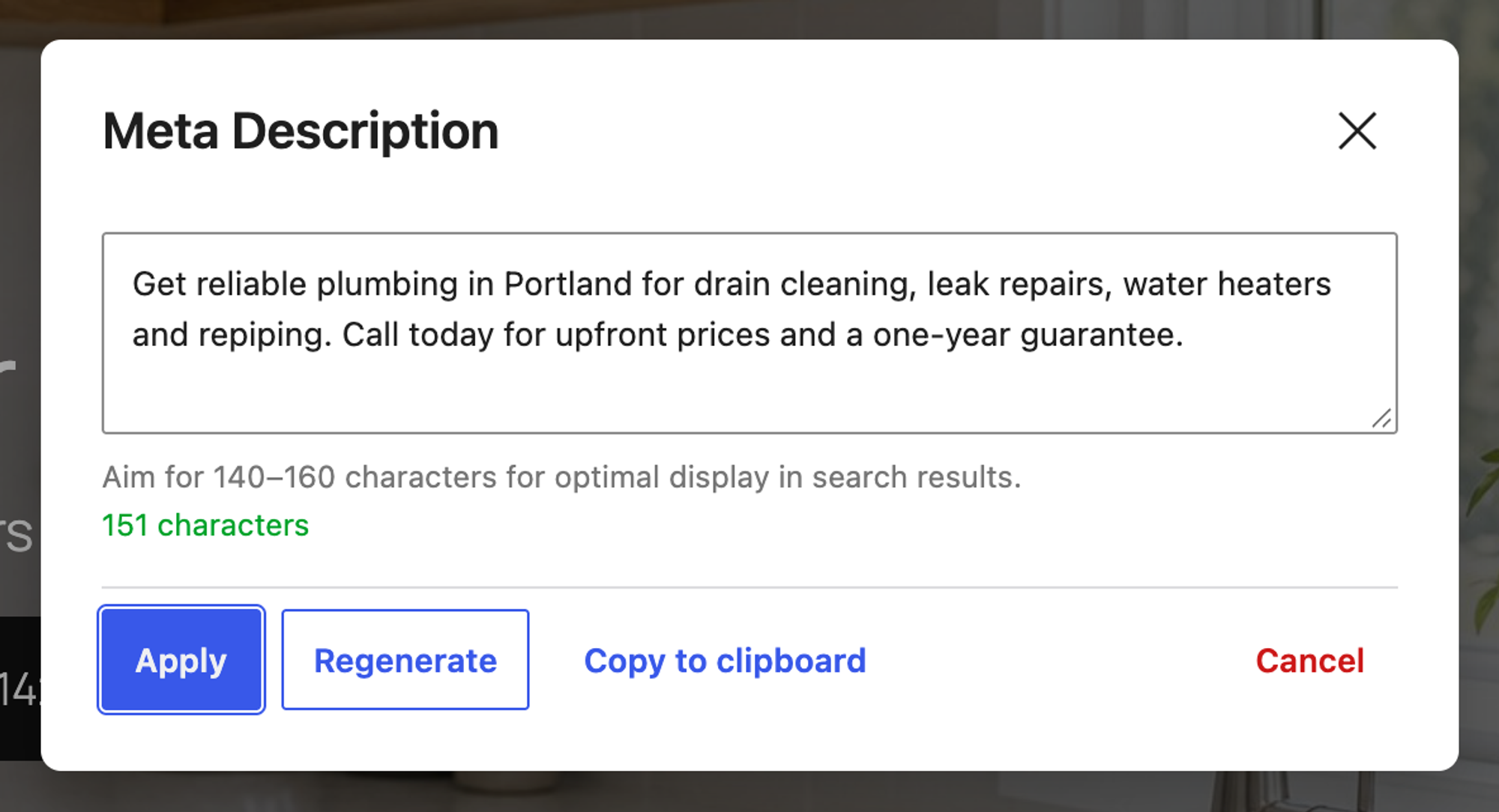
In the editor, Generate Meta Description wrote a 151-character description in 11.6 seconds, and after Apply and Save it appeared in the page's HTML as the meta description. The plugin does not write SEO titles; Title Generation suggests post titles.
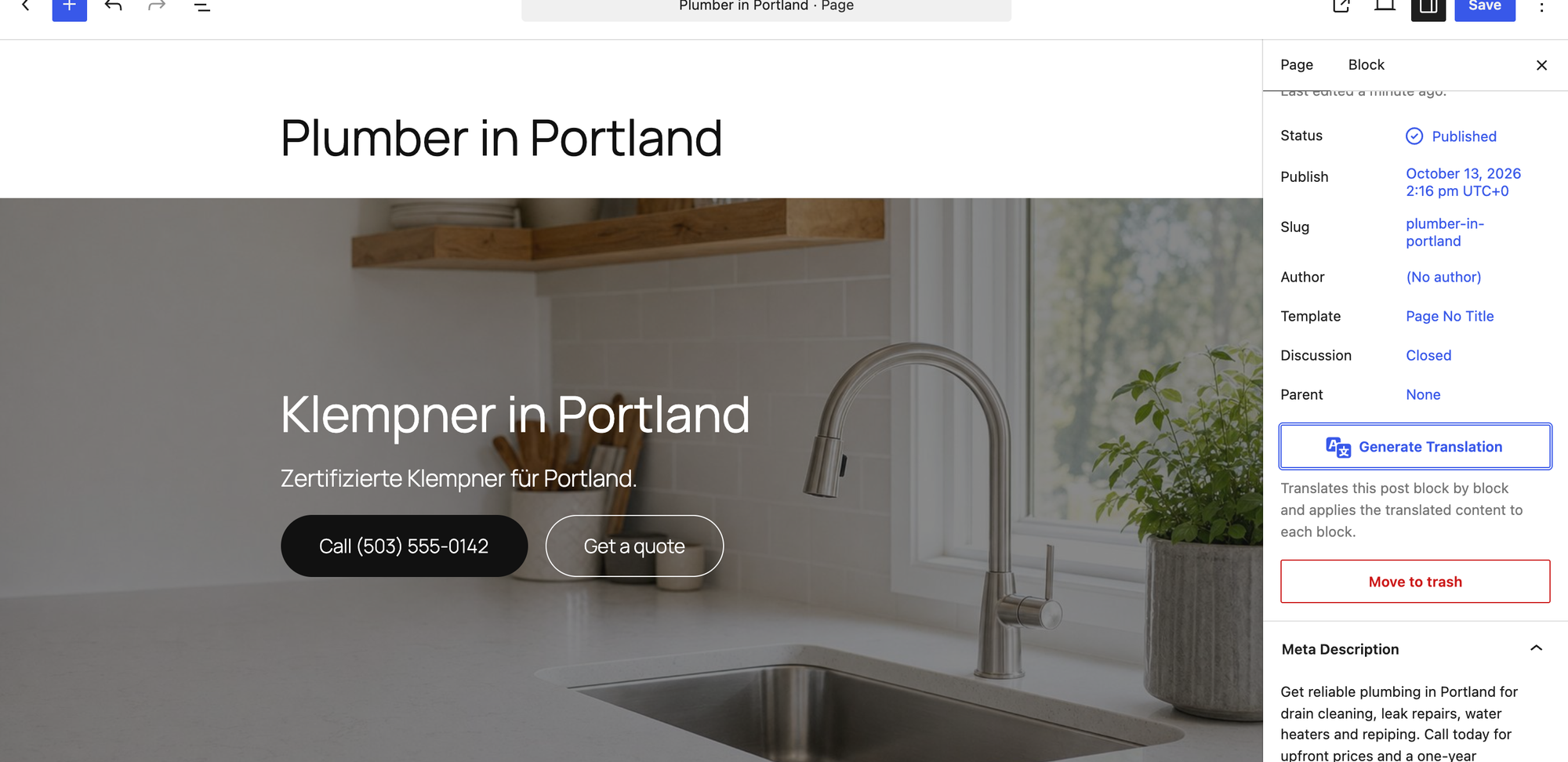
Generate Translation turned the page into German in 30.6 seconds, block by block. It replaces the English text on the same page; for a site in two languages you need a multilingual plugin as well. The two buttons stayed in English, and "Repiping" became "Neuverkabelung", which means rewiring. Generate Image under Media made a 1536 by 1024 image in 17.4 seconds and was the only one of the two image tools that filled in alt text and a descriptive file name on its own. To use it as a post's main image, see how to add a featured image.
- Setup: 7 steps, own key through Settings > Connectors (OpenAI, Anthropic, Google and other connectors).
- Alt text: 9 of 9 filled, 9 of 9 name the subject, bulk action, about 36 seconds.
- Meta description: 151 characters, mentions Portland and plumbing, output in the page HTML.
- Translation: 30.6 seconds, phone number kept, buttons left in English, one wrong trade term.
- Adds to the page: +1.5 KB of HTML (the meta description tag and translated text), no files.
Pros
- Every feature is free, and you turn on only the ones you want.
- Bulk alt text from the Media Library.
- Uses the key you store once in Settings > Connectors, which other plugins can share.
Cons
- Labelled experimental; features and labels can change between releases.
- No SEO title, only post title suggestions.
- Translation overwrites the page instead of adding a language version.
There is no paid version; you pay only your AI provider.
AI on WordPress.org and the OpenAI connector.
3. AI Puffer (formerly AI Power)
AI Puffer is the writer to pick when you want the post to arrive with its excerpt, focus keyword, meta description and tags already filled in.
The setup wizard asks what you want to do, then how to connect: Free every month (25 credits, but it needs an email and a verified account), I have my own API key, or later. We used our key, clicked Check key and skipped the chatbot the wizard had already built for us.
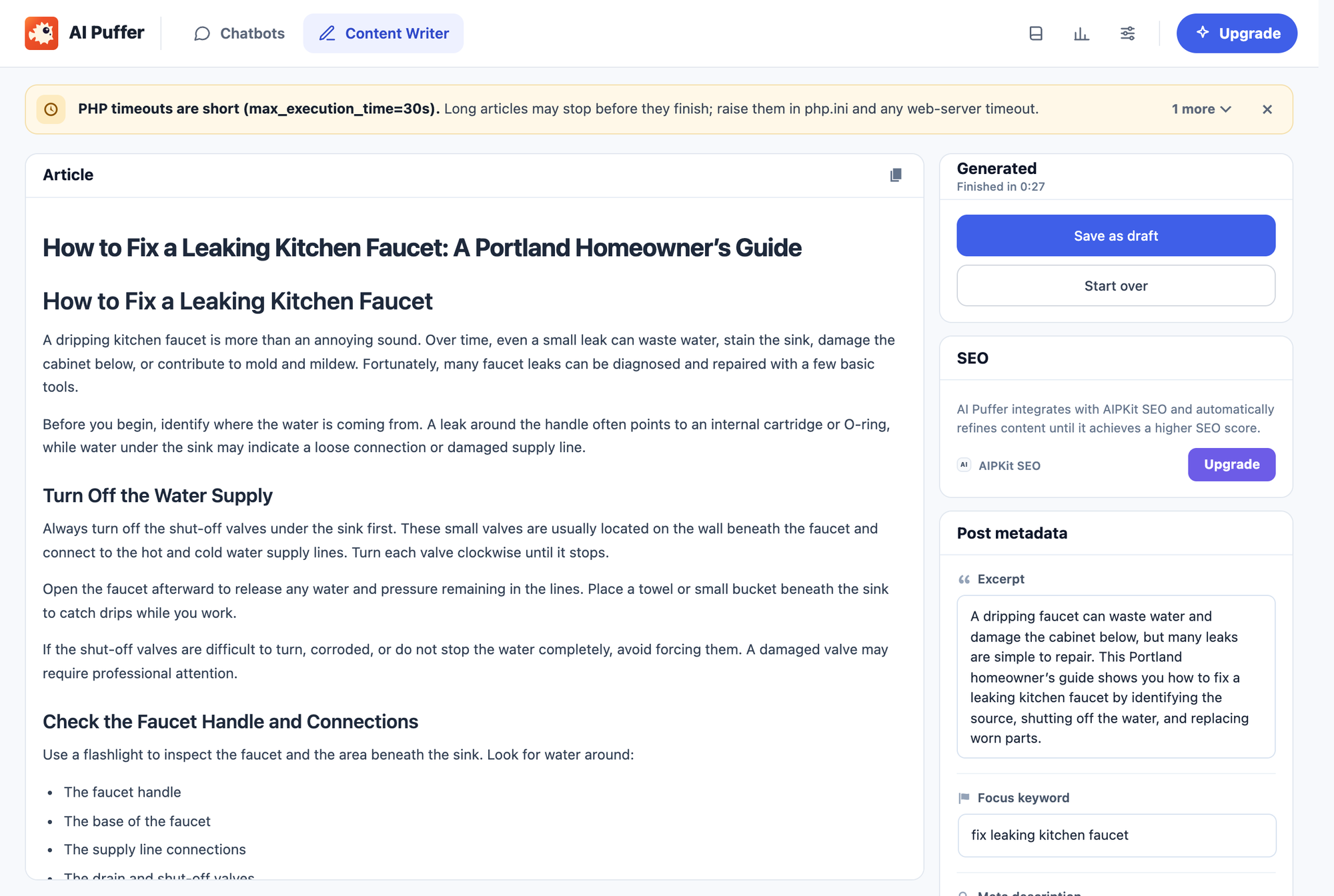
In Content Writer the Topic field takes a description of the article, so the whole brief went in there. The defaults were already right (gpt-5.6-luna, Short, status Draft), and Generate finished in 27 seconds. The post had 716 words, 6 subheadings and all five facts, plus a meta description and ten tags. It changed the title to "How to Fix a Leaking Kitchen Faucet: A Portland Homeowner’s Guide".
Alt text works from the same screen under Image alt text, one image at a time. With all nine photos selected the Update button turned into Upgrade; one photo took 6.4 seconds and got "Plumbing tools and brass pipe fittings arranged on a rustic wooden workbench". The free version can also create posts from a CSV file, while RSS, URL and Google Sheets sources are Pro (checked in the plugin's code; for a sheet that stays in sync with your pages, see syncing Google Sheets with WordPress). Our guide to bulk creating posts in WordPress covers the non-AI ways to do the same.
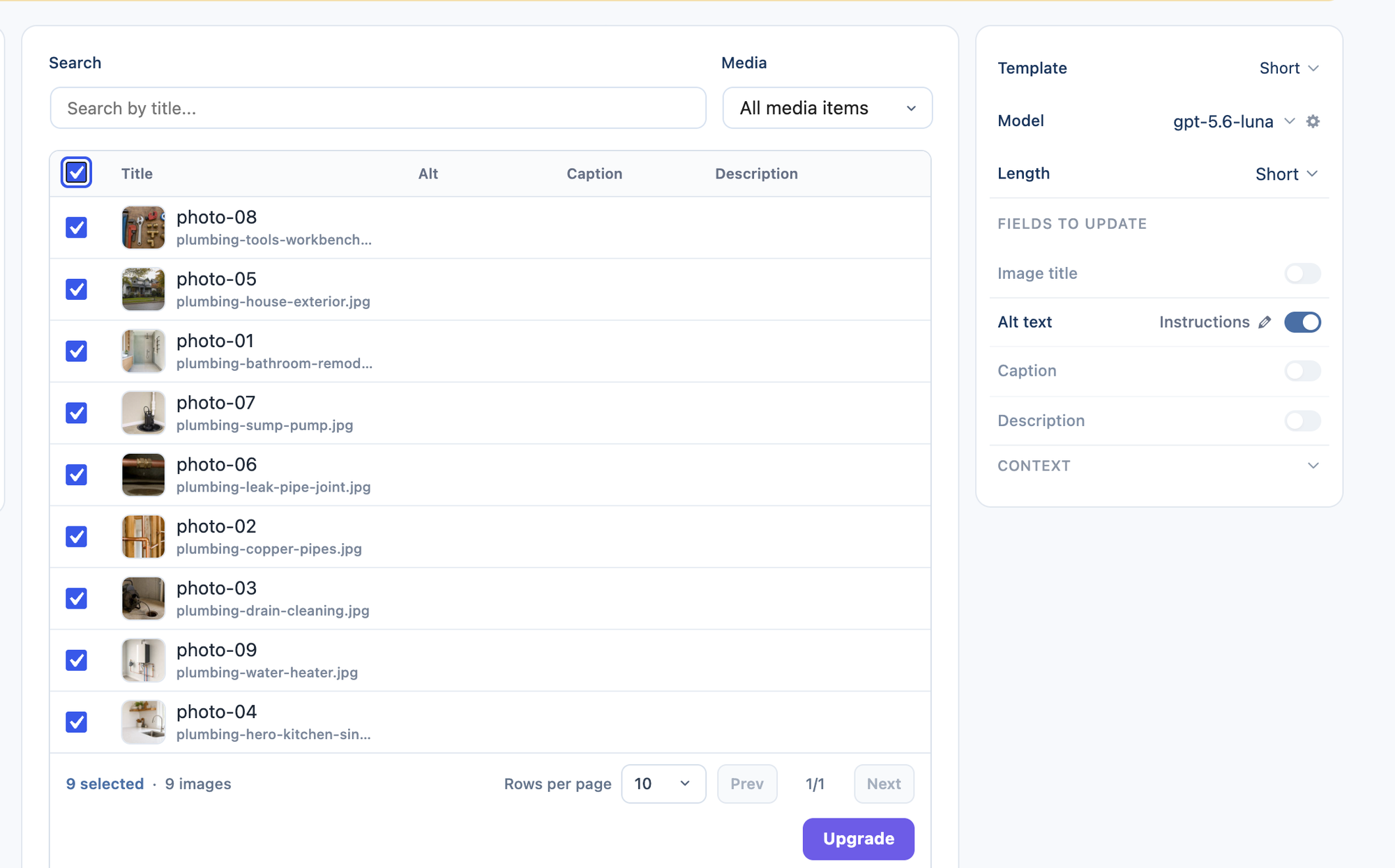
- Setup: 7 steps through the wizard; own key, or Cloud credits after an email sign-up.
- Writing: 716 words, 5 of 5 facts, 6 subheadings, 27 seconds, SEO fields filled.
- Alt text: one image at a time in the free version; bulk is Pro.
- Adds to the page: nothing.
Pros
- The best-prepared draft in the test: excerpt, focus keyword, meta description and tags.
- Sensible defaults; nothing to change for a short post.
- CSV import for many posts in the free version.
Cons
- Changed the title the brief asked for.
- Bulk alt text needs Pro.
- The free Cloud credits need an account with a verified email.
AI Puffer Pro costs $7.99 a month or $95.88 a year for one site (read on aipower.org on 13 October 2026), with 1,000 Cloud credits a month.
AI Puffer on WordPress.org and aipower.org.
4. Hyve Lite
Hyve Lite is the chatbot to pick when it should answer only from your own pages and stay light on the front end.
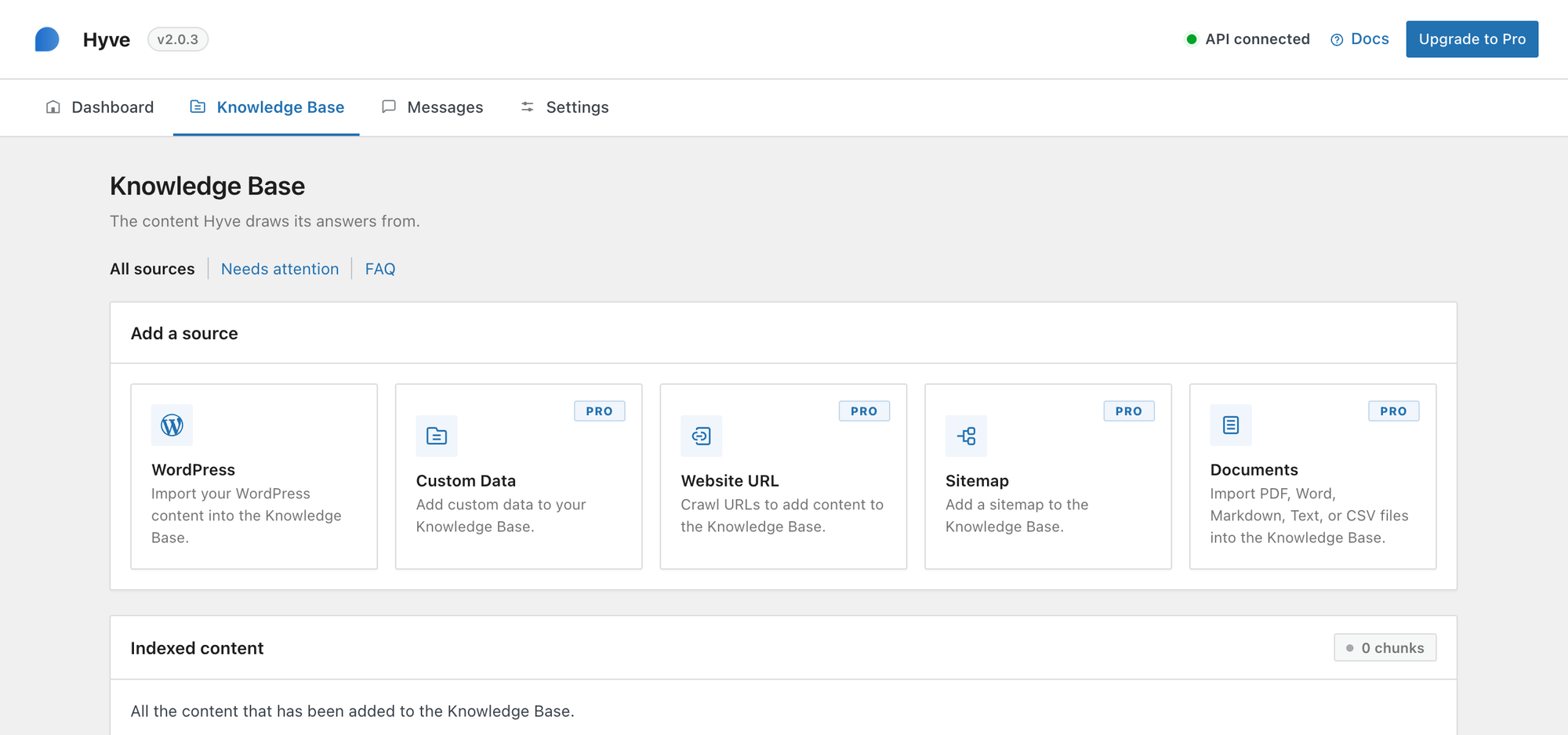
After activation Hyve opens on a dashboard that offers Hyve Connect (500 free messages a month) or Use your own API key instead. We pasted the key, picked GPT-5.6 Luna and saved. In Knowledge Base > WordPress every page has an Add button; we added the About page, and Hyve indexed it as one chunk.
The chat bubble was already on the site. It answered 5 of 5 questions correctly with a median reply time of 5.6 seconds, and declined the car engine question with "Sorry, I'm not able to help with that.", because the answer is not in the knowledge base. Each page grew by 105.2 KB (68.7 KB from the plugin's own files), the least of the three chatbots.
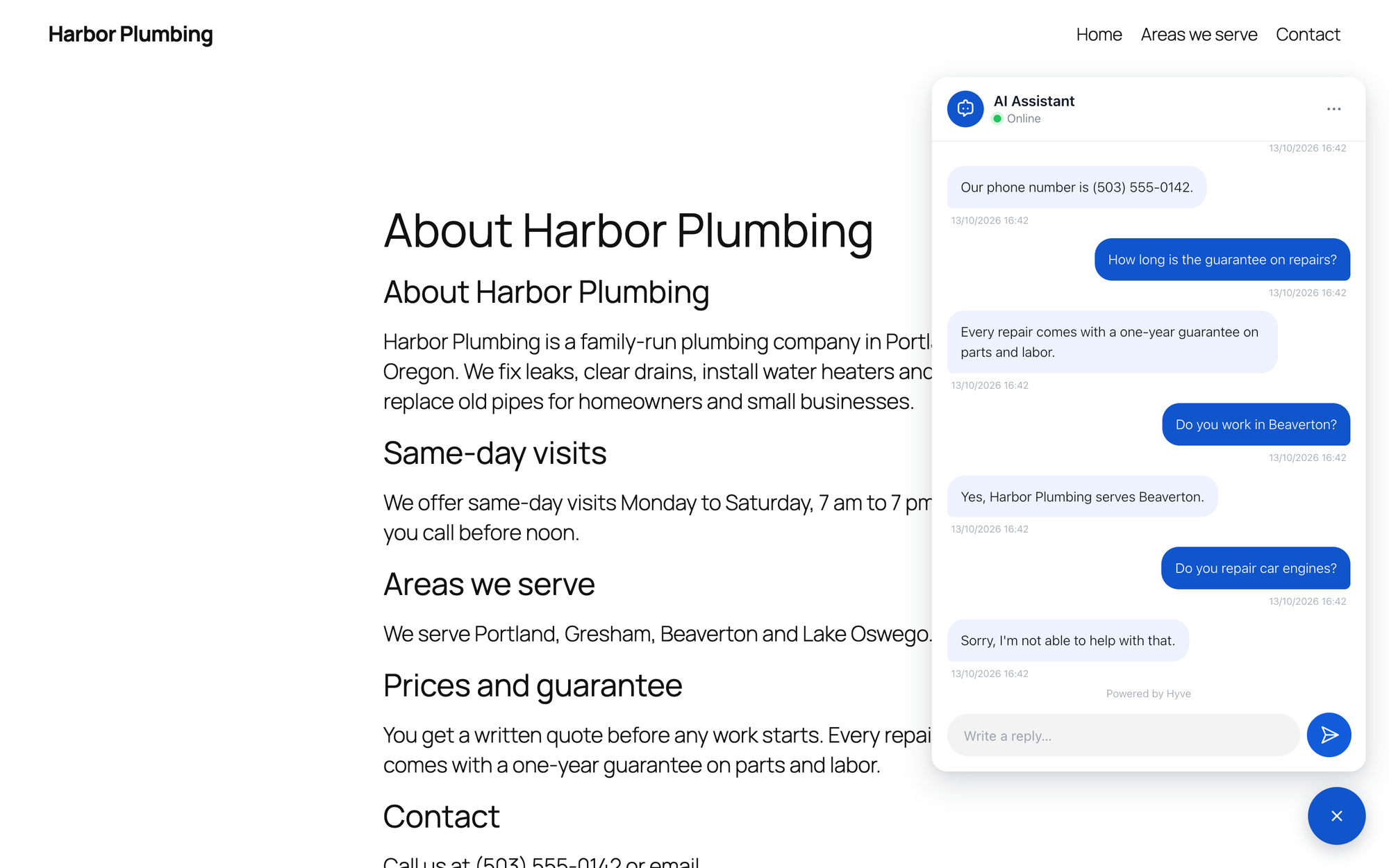
- Setup: 5 steps, own key or Hyve Connect.
- Chatbot: 5 of 5 correct, with the facts read from the About page we added.
- Adds to every page: +105.2 KB (68.7 KB from the plugin's own files).
Pros
- Reads your posts and pages in the free version.
- Refuses questions it has no source for.
- The lightest chatbot we tested.
Cons
- Crawling URLs, sitemaps and documents are Pro.
- Only a chatbot; no writing or SEO tools.
Hyve Pro starts at $79 one-time for one site (read on themeisle.com on 13 October 2026).
Hyve Lite on WordPress.org and Themeisle.
5. MxChat
MxChat is the pick when you want a chatbot with a free knowledge base and support for many AI providers.
A six-step onboarding asks for the provider and model, the key, a behavior preset, the embedding model, knowledge and actions. Knowledge is added under Knowledge > WordPress Content: we ticked the About page and clicked Process Selected Content. The chatbot only appeared on the site after we switched on Auto-Display Chatbot under Settings > Display, a step the onboarding does not mention.
It answered 5 of 5 questions correctly, each in about 7.1 seconds, and said plainly that the company does not repair car engines. MxChat also has a content generator under MxChat > Content. From our brief it wrote 1,798 words, three times the 600 we asked for, with all five facts, and it put an 8.8 KB style block of layout CSS at the top of the post content.
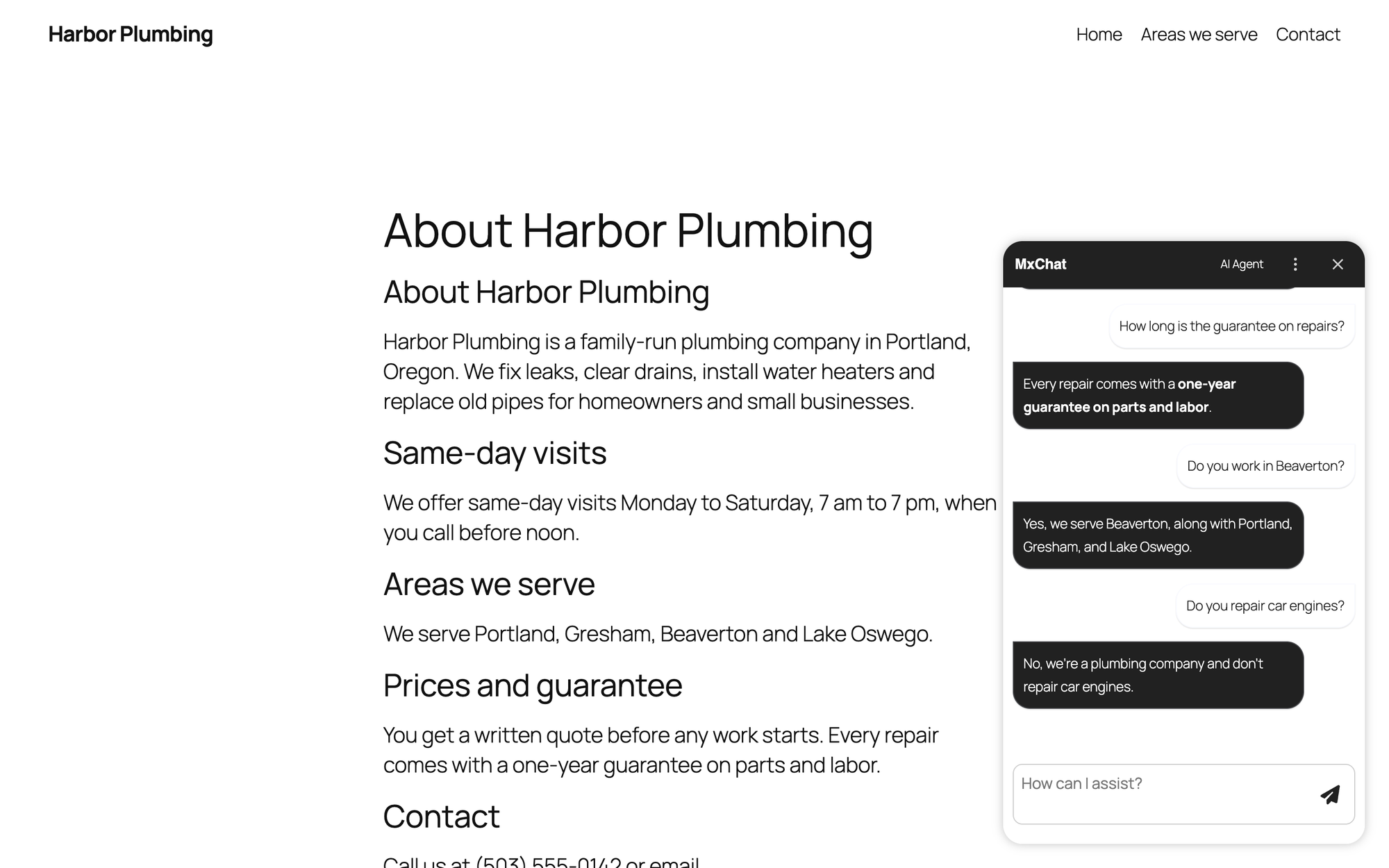
- Setup: 7 setup steps plus 2 to show the bot, own key.
- Chatbot: 5 of 5 correct, with the facts read from the About page we imported.
- Writing: 1,798 words for a 600-word brief, 5 of 5 facts, CSS saved into the post.
- Adds to every page: +380.3 KB (267.4 KB from the plugin's own files).
Pros
- Knowledge base from your pages in the free version.
- Many providers and models to choose from.
Cons
- The bot stays hidden until you find Auto-Display Chatbot.
- The writer ignored the length and adds CSS to the post.
- 380.3 KB more on every page.
MxChat Pro costs $69.97 one-time (read on mxchat.ai on 13 October 2026); paid extensions add forms, multi-bot and an MCP server.
MxChat on WordPress.org and mxchat.ai.
6. ThinkRank
ThinkRank is the pick when you want AI SEO titles and descriptions from your own key inside a full SEO plugin.
ThinkRank opens a setup wizard on activation, which we skipped. Under Settings > AI Provider you choose OpenAI, Anthropic, Gemini, OpenRouter or a custom endpoint and paste the key; it shows the key in a plain text field, so take care when you share your screen. The default model is GPT-5-nano.
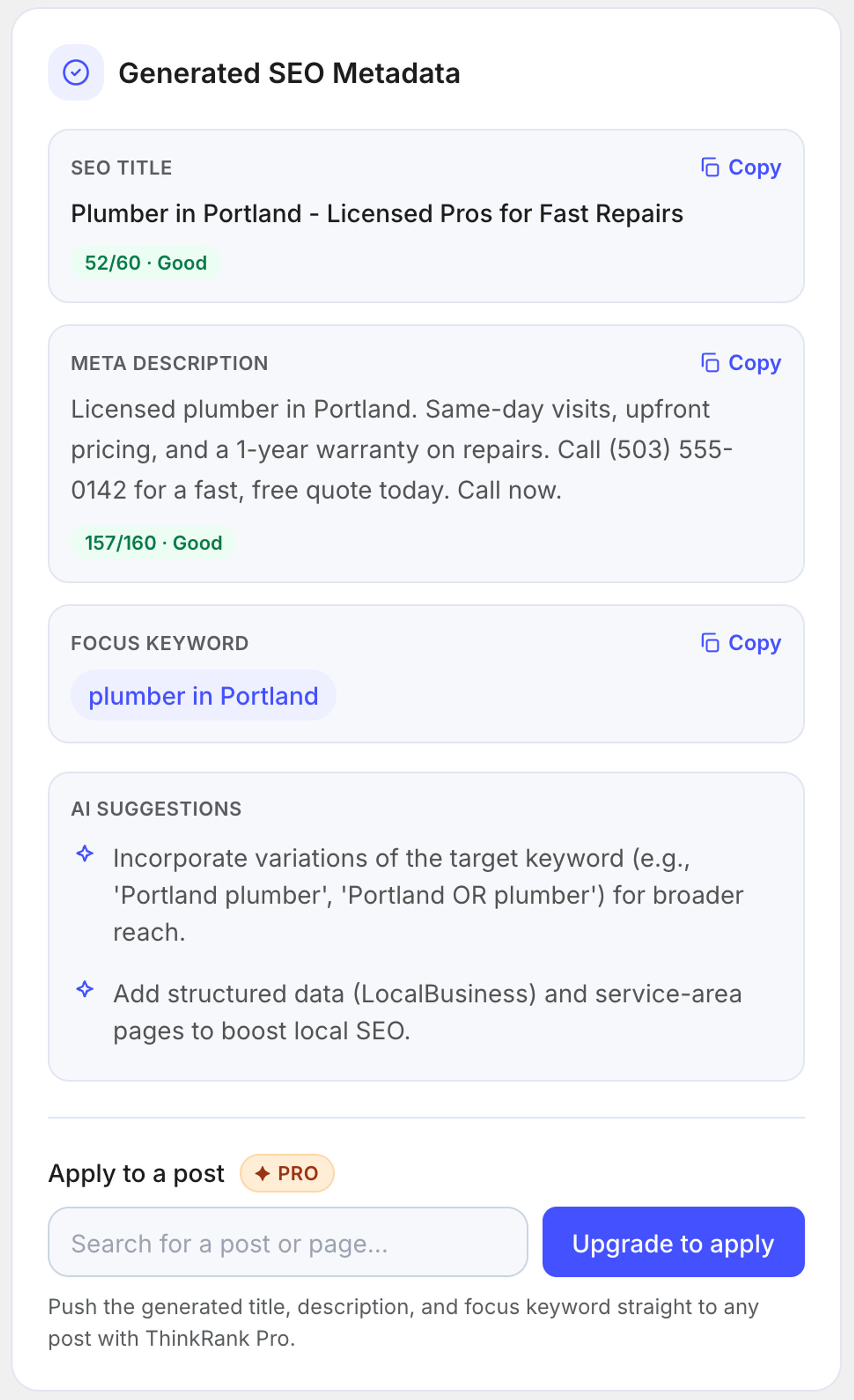
The Metadata Generator under AI Tools works on text you paste, not on the page itself. We pasted the page text, typed "plumber in Portland" as the keyword and picked Landing Page. In 24.4 seconds it returned a 52-character title, "Plumber in Portland - Licensed Pros for Fast Repairs", and a 157-character description that also promised a free quote, which the page does not offer. Apply to a post is marked PRO, so in the free version you copy both into the page's ThinkRank fields yourself.
- Setup: 6 steps, own key.
- SEO meta: title 52 characters, description 157, both within limits.
- Applying the result to a post is Pro.
- Adds to the page: +3.8 KB (0.6 KB from the plugin's own files).
Pros
- Title and description in one run, with length checks.
- Works with several AI providers and your own key.
Cons
- Copy and paste in the free version.
- Added a claim (free quote) that is not on the page.
- API key shown in plain text in settings.
ThinkRank Pro starts at $49.50 a year for one site (read on thinkrank.ai on 13 October 2026).
ThinkRank on WordPress.org and thinkrank.ai.
7. AI Alt Text Generator
AI Alt Text Generator is the pick when you want alt text for a small site without an API key or an account.
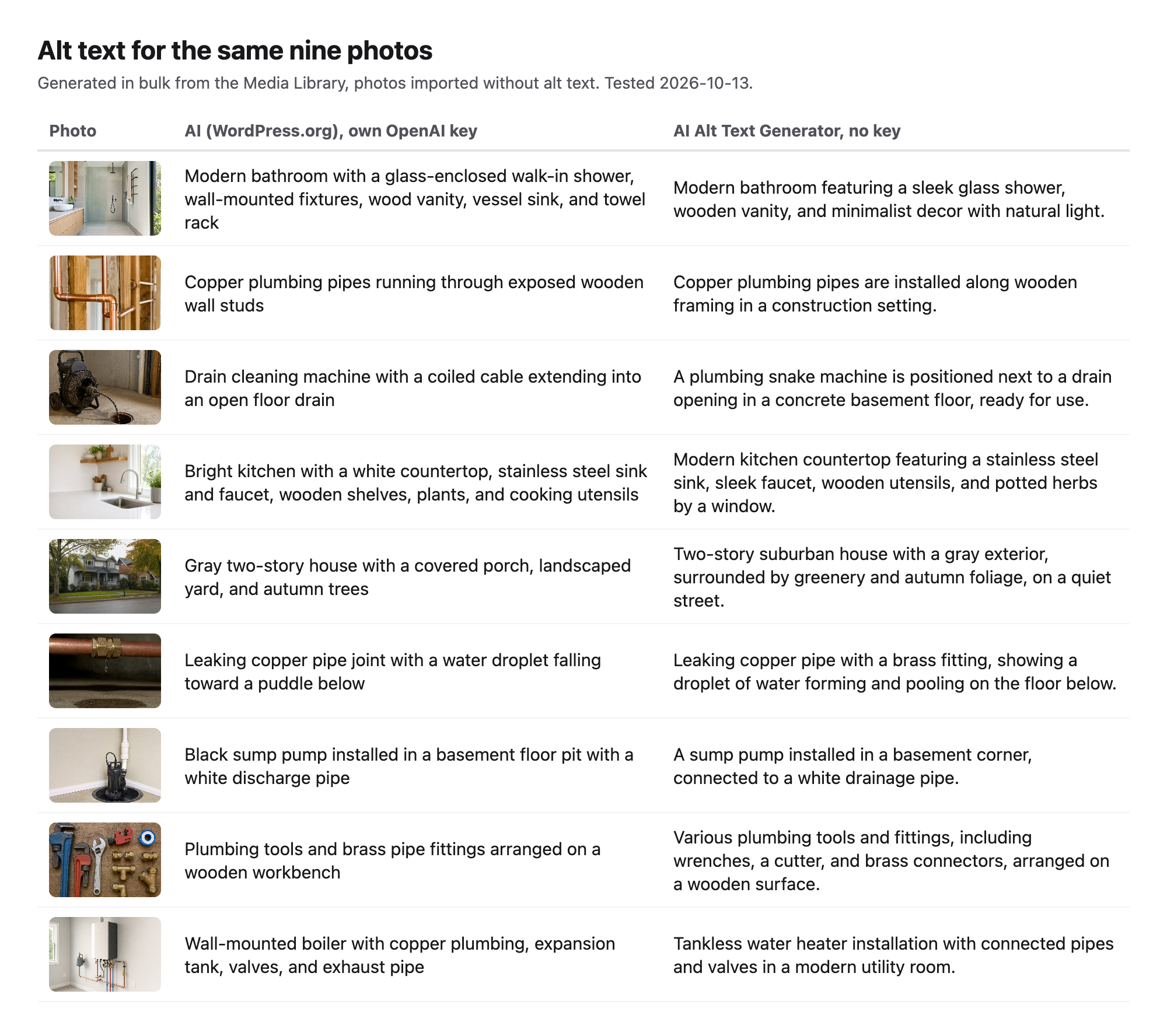
The plugin works out of the box with managed credits: 50 images a month per site, no key and no sign-up (the settings screen says so, and the plugin sends each image inline, so it also works on a site that is not public). In Media > Library we used its Generate Alt Text bulk action on all nine photos. 9 of 9 got alt text, 9 of them named the subject, 102 characters on average, in about 42 seconds. One example: "A sump pump installed in a basement corner, connected to a white drainage pipe".
Its texts were a little longer than the WordPress.org plugin's and read like full sentences. On the water heater photo it was the more accurate of the two: it wrote "tankless water heater", where the WordPress.org plugin called the same unit a "wall-mounted boiler".
- Setup: activate it; no key and no account (managed credits).
- Alt text: 9 of 9 filled, 9 of 9 name the subject, 0 start with "image of".
- Adds to the page: nothing.
Pros
- No key, no account, 50 images a month free.
- Bulk action in the Media Library.
- Can also use your own OpenAI or Anthropic key.
Cons
- Only does alt text.
- The free monthly quota covers small sites; a big library needs credits.
Paid credits start at $29 a year for 3,000 images on one site, or $15 once for 5,000 images (read on lessbutmore.ai on 13 October 2026).
AI Alt Text Generator on WordPress.org.
LPagery AI for many pages at once (not tested hands-on, described from the code)
LPagery is not one of the ranked picks above, because we could not test its AI part. We make LPagery, so read this section as our description of our own product. It is not a test result.
Every writer above makes one post per run. LPagery works the other way round: you build one template page with placeholders such as {town}, keep one row per page in a sheet, and the plugin creates or updates all pages in one run. What we did run is the free plugin from wordpress.org, which has no AI: on the task of creating Harbor Plumbing service-area pages from one template and a 5-row CSV file, it created 5 town pages in 7 steps, counted from activation to the success message, and added no files to the pages a visitor loads. Our guides on bulk creating pages in WordPress and creating pages from a spreadsheet show those steps.
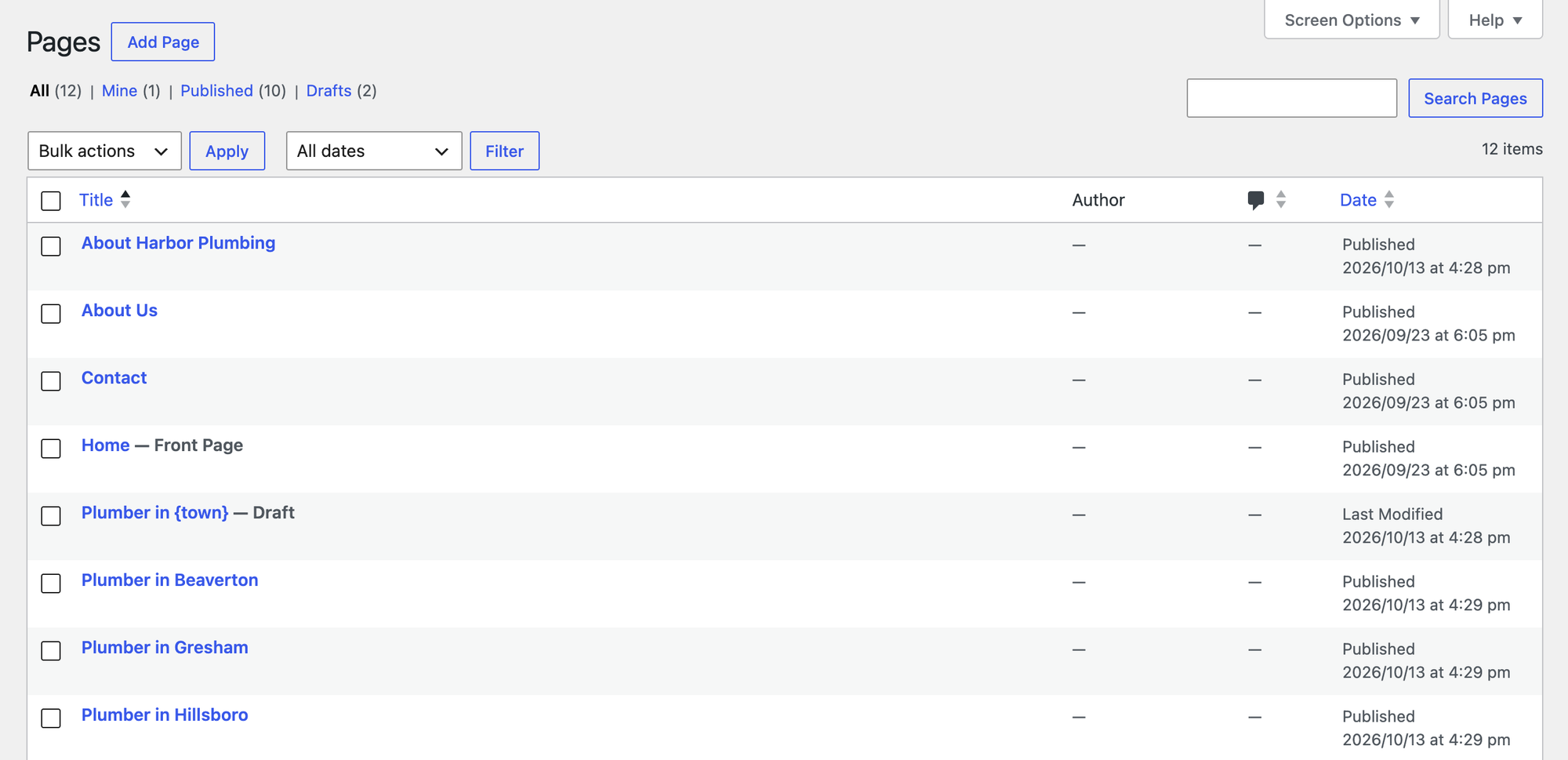
The AI part, LPagery AI, runs in the LPagery app at app.lpagery.io, which connects to your site through the plugin. In the app you add an AI column next to your data and write one instruction, for example a heading or intro for {service} in {city}; the app then writes that text for every row, and can add meta titles, meta descriptions and an AI image with alt text, before it syncs the pages to WordPress. From the app's code: the models on offer are GPT-4o Mini, GPT-4.1 Mini, GPT-5 Mini, GPT-5.4 Mini, Gemini 2.0 Flash and Gemini 2.5 Flash, a text costs 1 credit and an image 10 credits, and the paid plans refill 100 (Standard), 500 (Extended) or 1,000 (Ultimate) credits a month, with no API key. The free plugin gets no AI credits. We did not run LPagery AI, because the lab has no LPagery app account, so there are no output, time or quality numbers for it here.
LPagery Standard costs $19 a month, or $14.25 a month billed yearly, for one site, with 100 AI credits a month (read on our pricing page on 13 October 2026). LPagery on WordPress.org and LPagery AI.
Test results side by side
The same brief went to every writer that could take it. The AI blog post generator guide goes deeper on writing posts with AI; these are the numbers from our run.
Writer | Words (asked: about 600) | Facts found (of 5) | Subheadings | Time | Saved as |
|---|---|---|---|---|---|
AI Engine | 644 | 5 | 4 | 34 s | Draft post |
AI Puffer | 716 | 5 | 6 | 27 s | Draft post |
MxChat | 1,798 | 5 | 8 | not measured (our script error) | Draft post |
We have no time for MxChat because our script waited on the wrong post, so compare the other columns there. None of the three invented a phone number or a price. All three kept the brief's facts; the difference was length, the title and what else came with the draft.
Chatbot | Correct answers (of 5) | How it got the facts | Median reply | Whole page grew by |
|---|---|---|---|---|
Hyve Lite | 5 | Read the About page we added to its knowledge base | 5.6 s | 105.2 KB |
MxChat | 5 | Read the About page we imported as knowledge | 7.1 s | 380.3 KB |
AI Engine | 5 | Facts pasted by hand into its instructions; reading pages is Pro | 7.2 s | 631.9 KB |
Every chatbot got all five answers right once it had the facts, including the trap question. Hyve Lite and MxChat read them from the About page in their free versions; AI Engine only knew them because we typed them into its instructions, so its 5 of 5 shows how it handles facts you give it, and says nothing about reading your site.
Job | Plugin | Result | Time | Free version |
|---|---|---|---|---|
Alt text, 9 photos | AI (WordPress.org) | 9 of 9, 9 name the subject | 36 s | Bulk, free |
Alt text, 9 photos | AI Alt Text Generator | 9 of 9, 9 name the subject | 42 s | Bulk, 50 images a month, no key |
Alt text, 9 photos | AI Puffer | 1 at a time | 6.4 s per image | Bulk is Pro |
Alt text, 9 photos | Auto Alt Text | 0 of 9 (OpenAI could not fetch local image URLs) | - | Free, own key |
Meta description | AI (WordPress.org) | 151 characters, in the page HTML | 11.6 s | Free |
SEO title and description | ThinkRank | 52 and 157 characters | 24.4 s | Apply to a post is Pro |
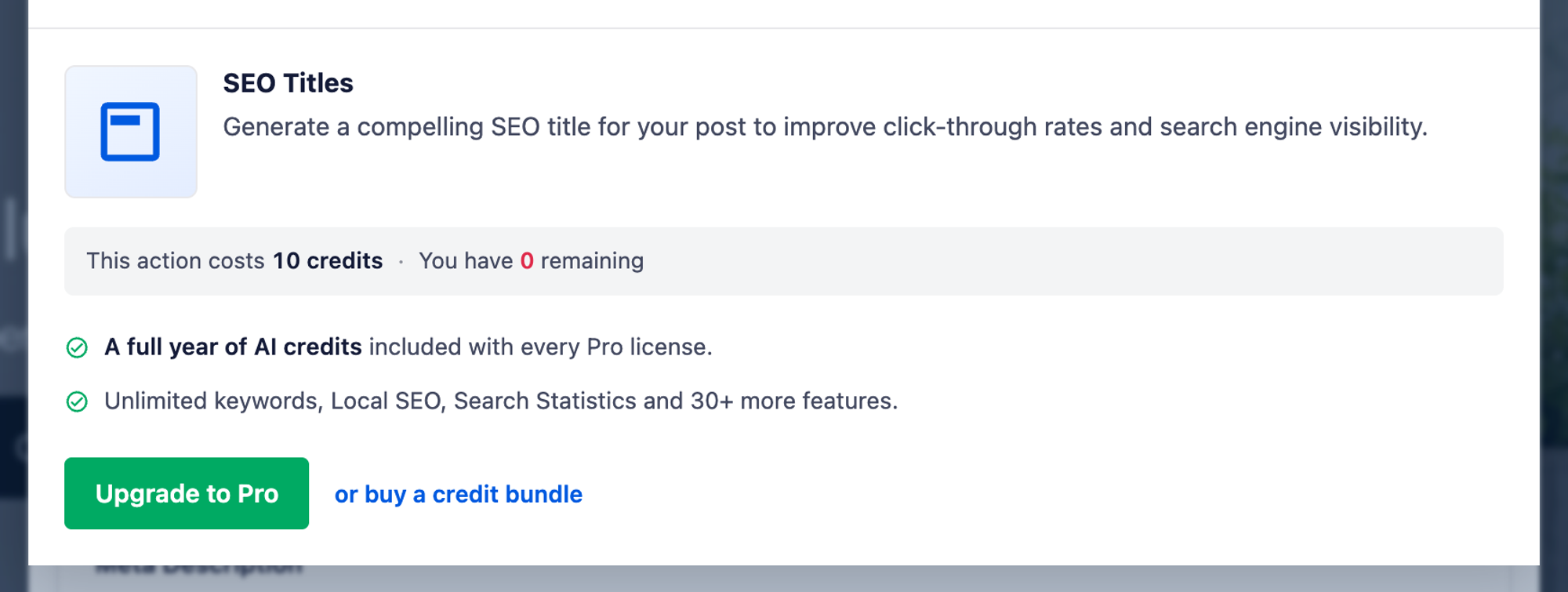
SEO title | AIOSEO | Blocked: 0 credits remaining | - | Needs credits |
German translation | AI (WordPress.org) | Paragraphs and headings translated, buttons left in English | 30.6 s | Free |
Image | AI Engine | 1024x1024 PNG, no alt text | 16.3 s | Free, own key |
Image | AI (WordPress.org) | 1536x1024 PNG with alt text | 17.4 s | Free, own key |
Which AI plugin for WordPress should you choose?
Most sites need two or three WordPress AI tools, one per job, and an admin-only tool costs you nothing in page speed. Start from the job:
- Choose AI Engine if you want one plugin for drafts, images and a simple chatbot, and you are fine with your own OpenAI bill.
- Choose the AI plugin from WordPress.org if your main jobs are alt text, meta descriptions and quick translations, and you want every feature free.
- Choose AI Puffer if your drafts should arrive with excerpt, focus keyword, meta description and tags filled in.
- Choose Hyve Lite for a chatbot that answers only from your pages and adds the least weight.
- Choose MxChat if you want a chatbot with a free knowledge base and many AI providers.
- Choose ThinkRank if you want an SEO plugin whose AI titles and descriptions run on your own key.
- Choose AI Alt Text Generator if you only need alt text and do not want an API key or an account.
If your job is many similar pages built from one template, one per town or service, the LPagery section above describes our own tool for it. AI Puffer's free CSV import also makes many posts, each written from its own row.
If you would rather build a small AI feature yourself, our tutorial on creating an AI text generator plugin for WordPress walks through one with the OpenAI API.
AI plugins we tested but left out
- Auto Alt Text: it sends OpenAI the image's URL, so on our local lab all nine images failed with "No Alt Text has been set". It should work on a public site, but we could not show it working.
- All in One SEO (AIOSEO): the free version has AI buttons for titles and descriptions, but the lab site had 0 credits, and the generator asked us to upgrade or buy credits.
- Yoast SEO: the free version shows Generate SEO title and Generate meta description buttons, but in our lab clicking them produced no text; the plugin's code passes a MyYoast connection to its AI generator, and the free sparks are one-time.
- Rank Math: Content AI is offered after "Connect FREE Account" with a Rank Math account; we skipped the sign-up.
- GetGenie: its AI writer opened on "Claim Your Free License" and "Finish License Activation"; the free plan (2,500 words a month) needs an account, which we did not create.
- Jetpack AI: the Jetpack AI screen said "Jetpack AI is not available in offline mode." It needs a WordPress.com connection, which a local site cannot make; the free tier is 20 requests.
- AltText.ai: the plugin asks you to create an account on alttext.ai and paste its API key; the trial is 25 credits.
- Tidio: the plugin opens on "Create a free account" with an email and password; its Lyro AI agent runs in Tidio's own service.
- TranslatePress: under Automatic Translation it said "No Active API Key Detected for this website" and offers 2,000 free AI words after you create an account.
We did not test Divi AI, Elementor AI or SeedProd AI, which are paid add-ons of page builders, or Uncanny Automator, which runs AI steps inside automation recipes rather than doing one of these jobs itself.

FAQ
Do AI plugins for WordPress need an OpenAI API key?
Most free AI plugins do. AI Engine, the WordPress.org AI plugin, MxChat and ThinkRank all ran on our own OpenAI key. AI Puffer can use its own Cloud credits after an email sign-up, and Hyve Lite offers hosted Hyve Connect messages instead of a key. AI Alt Text Generator was the only plugin that worked with no key and no account, for 50 images a month. LPagery AI, which we did not test, uses credits from its paid plans instead of a key.
How much does it cost to run an AI plugin on your own key?
Each task costs very little. AI Engine showed the cost of each run: $0.0028 for the 644-word post and about $0.006 for one image at the lowest quality. Your provider bills you directly, so check its pricing and set a spending limit in its dashboard.
Will an AI plugin slow down my WordPress site?
Plugins that only work in wp-admin added nothing to the pages visitors load in our test: the WordPress.org AI plugin, AI Puffer, AI Alt Text Generator and the free LPagery plugin added no files, and ThinkRank grew the page by 3.8 KB, mostly its meta tags. Chatbots are different, because the chat window loads on every page: the whole page grew by 105.2 KB with Hyve Lite, 380.3 KB with MxChat and 631.9 KB with AI Engine.
Is AI-written content bad for SEO?
Google's guidance is that it ranks helpful content however it was made, and that content made mainly to manipulate rankings breaks its spam policies (Google Search Central). In our test every writer kept the facts from the brief, but ThinkRank's description added a free quote the page does not offer. Read every AI text before it goes live, especially prices and promises. For meta descriptions, our guide on adding a meta description in WordPress shows where they go.
Can an AI plugin write alt text for my whole Media Library?
Yes. The WordPress.org AI plugin and AI Alt Text Generator both added a Generate Alt Text bulk action to the Media Library, and both filled all nine of our photos. AI Puffer's free version does one image at a time. For a single image without installing anything, our free AI alt text generator does the same job in the browser.
Which AI plugin is best for SEO?
For meta descriptions inside the editor, the WordPress.org AI plugin wrote a usable one and put it in the page's HTML. For titles and descriptions together, ThinkRank did both from your own key. If you already use an SEO plugin, our list of free WordPress SEO plugins covers the rest of the job, and for local businesses the AI tools for local SEO list goes further. Getting cited in AI answers is a separate job, covered in how to rank in AI search results and how to rank in Google AI Overviews; our AI Rank Tracker shows whether ChatGPT, Gemini and Perplexity mention your site.
I've worked in SEO for more than ten years and helped over 100 businesses rank higher, mostly local businesses, e-commerce stores and SaaS companies. As co-founder of LPagery I work on local SEO, programmatic SEO and AI search visibility, and I test the strategies in these articles on our own sites and with our customers.
I've worked in SEO for more than ten years and helped over 100 businesses rank higher, mostly local businesses, e-commerce stores and SaaS companies. As co-founder of LPagery I work on local SEO, programmatic SEO and AI search visibility, and I test the strategies in these articles on our own sites and with our customers.