How to Customize the WordPress Admin Dashboard Without a Plugin

Updated
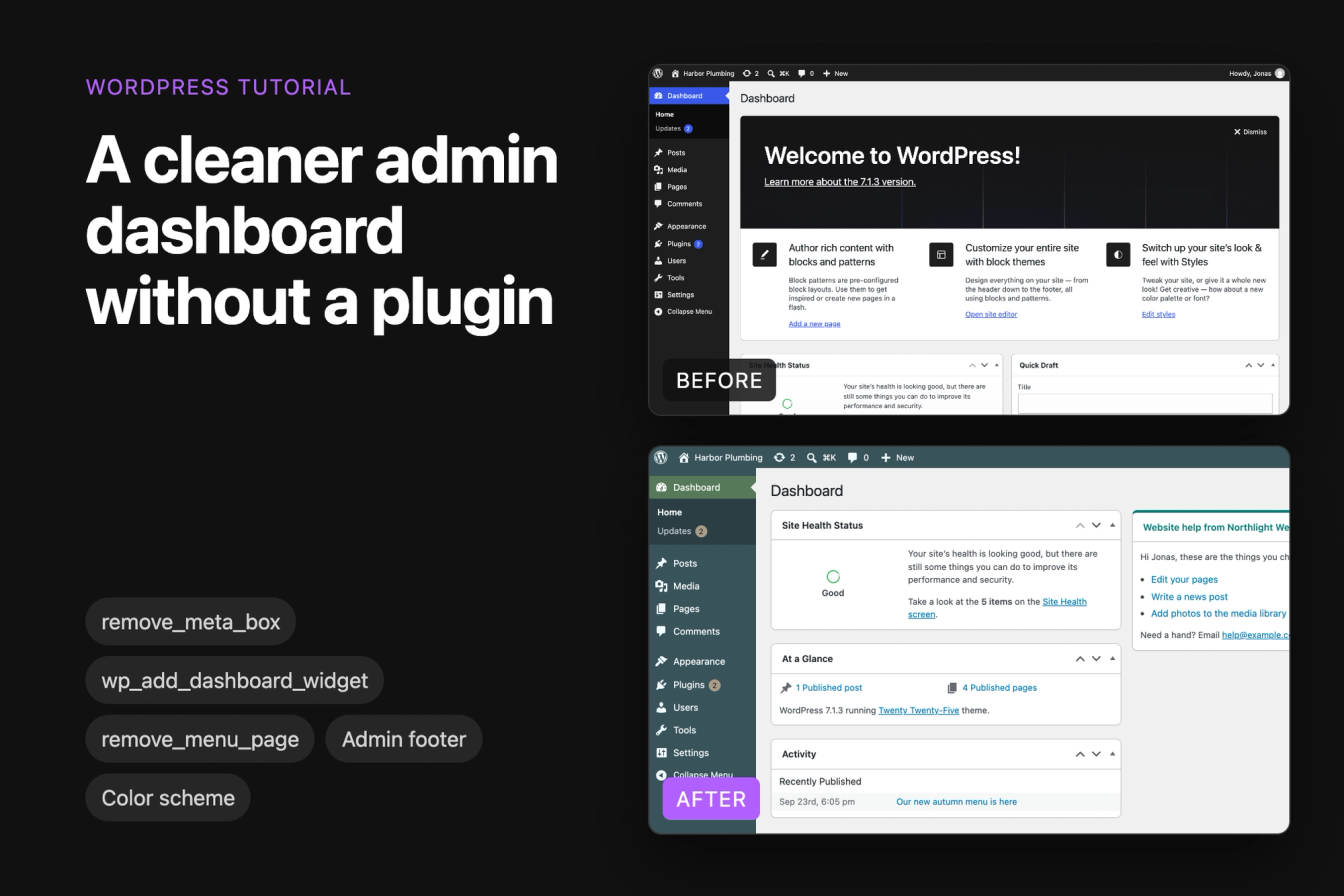
This tutorial tidies up the WordPress admin dashboard for a client site without a plugin: hiding boxes with Screen Options, removing dashboard widgets for everyone, adding your own help widget, hiding menu items from editors, changing the footer text, adding CSS and setting one color scheme for all users.
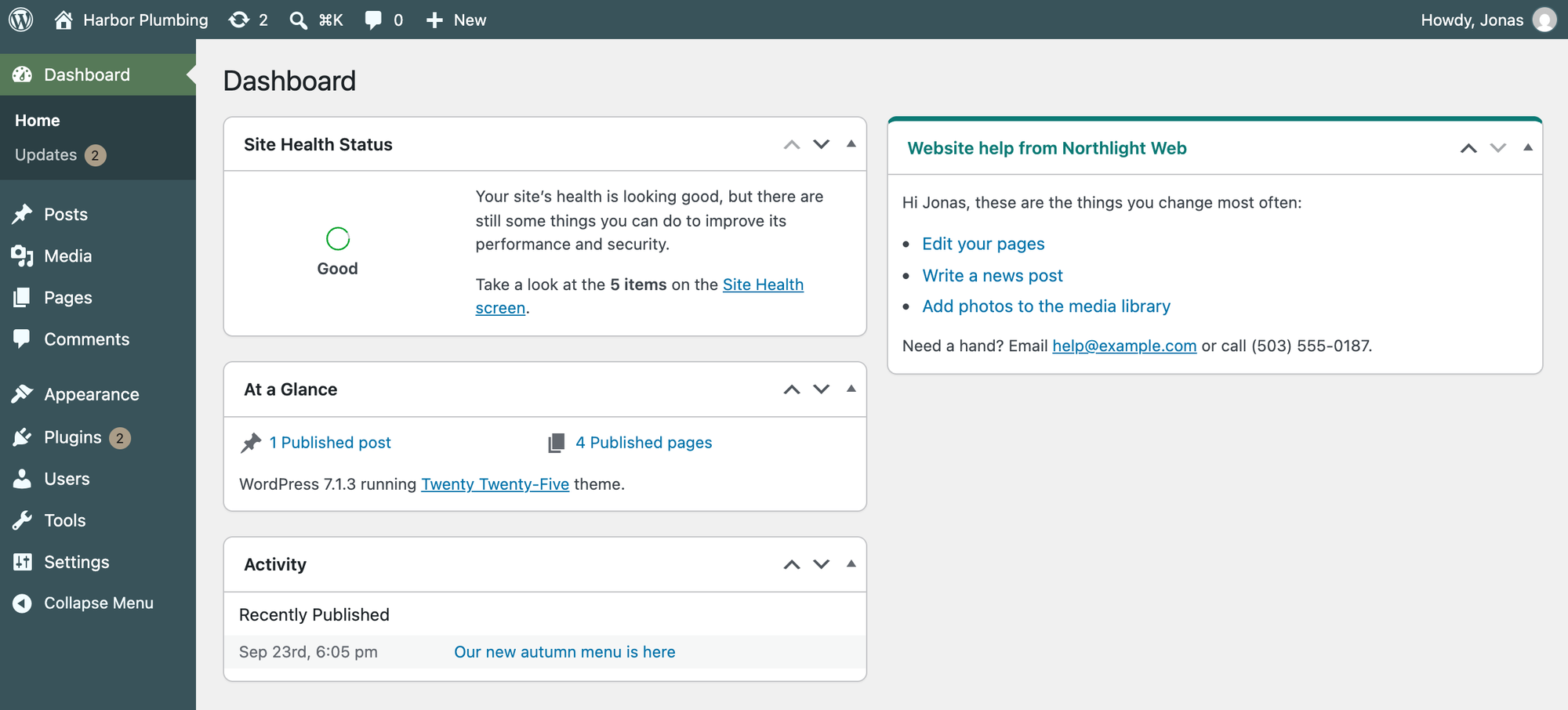
Every snippet was tested on WordPress 7.1.3 with the Twenty Twenty-Five theme, as an administrator and as a user with the Editor role. The example is the dashboard of a plumbing company's site, Harbor Plumbing, built by a fictional agency called Northlight Web.
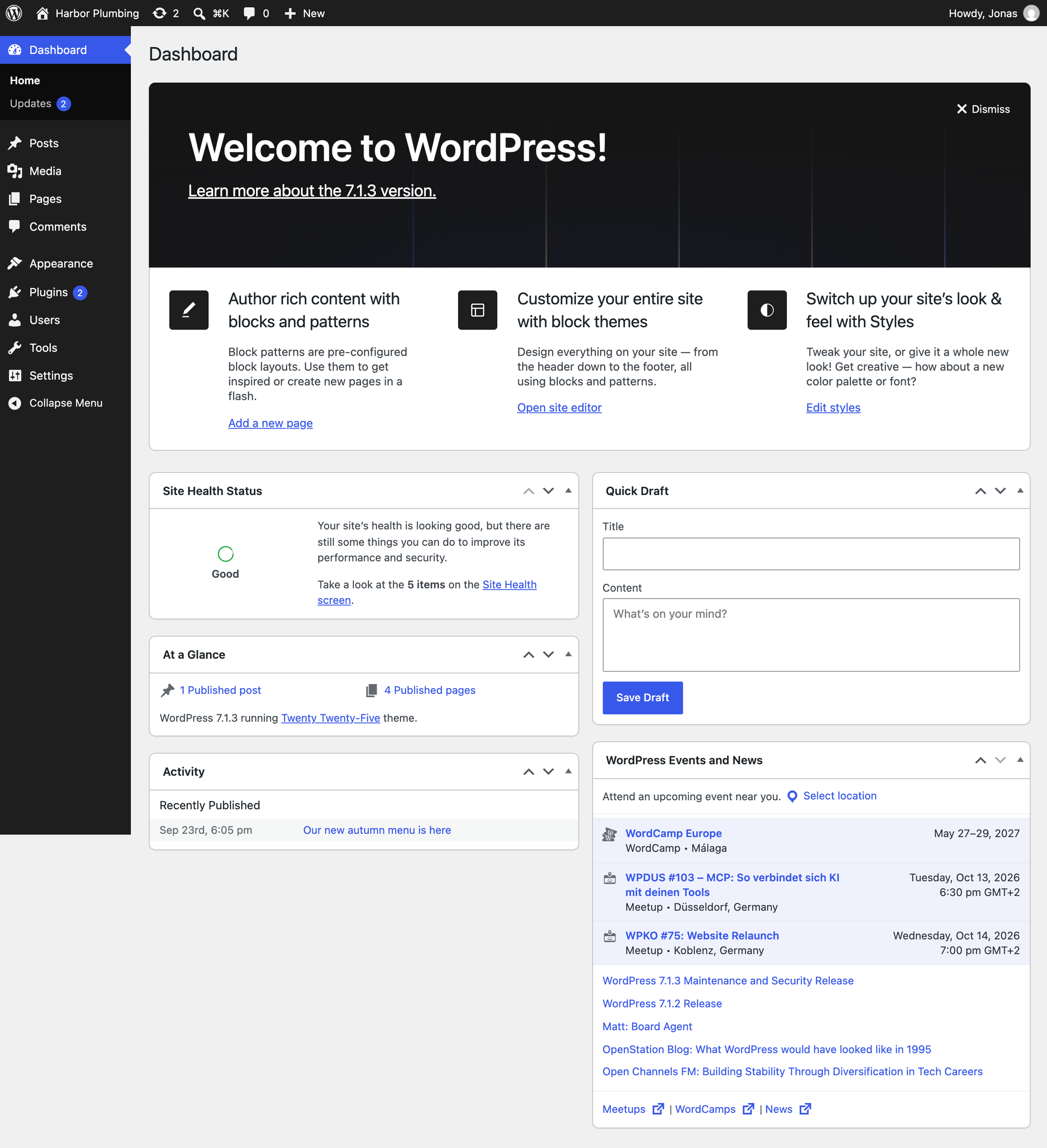
Where to put the code
Put the snippets in one file in wp-content/mu-plugins/, for example wp-content/mu-plugins/dashboard-tweaks.php. WordPress loads every PHP file directly in that folder on every request, so the changes stay when you or your client switch themes. The file needs a <?php line at the top; the complete file is at the end of this tutorial.
You can also paste the snippets at the end of a child theme's functions.php. Our tutorial on building a custom login page explains both places and why a file in a subfolder of mu-plugins does not load.
Hide dashboard boxes with Screen Options (no code)
If you only want a calmer dashboard for yourself, you don't need code at all:
- Go to Dashboard and click Screen Options in the top right corner.
- Uncheck the boxes you don't want, for example Quick Draft, WordPress Events and News and Welcome.
- Click Screen Options again to close the panel. The boxes disappear as soon as you uncheck them.

WordPress saves this choice for your user account only. In our test, the editor still saw Quick Draft after the administrator had hidden it. To change the dashboard for everyone who logs in, use the code below.
Remove dashboard widgets for every user
remove_meta_box() removes a dashboard box for all users. Call it from a function hooked to wp_dashboard_setup, which runs when the dashboard is built:
1function harbor_remove_dashboard_widgets() {
2    remove_meta_box( 'dashboard_quick_press', 'dashboard', 'side' ); // Quick Draft
3    remove_meta_box( 'dashboard_primary', 'dashboard', 'side' );     // WordPress Events and News
4
5    // The "Welcome to WordPress!" panel above the boxes
6    remove_action( 'welcome_panel', 'wp_welcome_panel' );
7}
8add_action( 'wp_dashboard_setup', 'harbor_remove_dashboard_widgets' );
The first argument is the box's ID, the second is the screen (dashboard), and the third is the column the box sits in. These are the core boxes in WordPress 7.1, with the column each one uses:
dashboard_site_health: Site Health Status,normal(administrators only)dashboard_right_now: At a Glance,normaldashboard_activity: Activity,normaldashboard_quick_press: Quick Draft,sidedashboard_primary: WordPress Events and News,side
The Welcome to WordPress! panel is not a box, so it has its own line: remove_action( 'welcome_panel', 'wp_welcome_panel' ). It sits inside the same function, which runs after WordPress has hooked up the panel. Removed boxes also disappear from Screen Options, so nobody can switch them back on.
Older snippets remove boxes by deleting entries from the global $wp_meta_boxes array. remove_meta_box() is the function WordPress provides for this, and it is easier to read.
Add a custom dashboard widget
wp_add_dashboard_widget() adds a box of your own. Agencies often use one to show clients where to find the things they edit most, and who to ask for help:
1function harbor_add_help_widget() {
2    wp_add_dashboard_widget(
3        'harbor_help_widget',               // widget ID, also the box's HTML id
4        'Website help from Northlight Web', // title
5        'harbor_help_widget_content',       // function that prints the content
6        null,                               // no settings form
7        null,                               // no extra arguments
8        'side',                             // second column
9        'high'                              // above the other boxes there
10    );
11}
12add_action( 'wp_dashboard_setup', 'harbor_add_help_widget' );
13
14function harbor_help_widget_content() {
15    $user = wp_get_current_user();
16    ?>
17    <p>Hi <?php echo esc_html( $user->display_name ); ?>, these are the things you change most often:</p>
18    <ul>
19        <li><a href="<?php echo esc_url( admin_url( 'edit.php?post_type=page' ) ); ?>">Edit your pages</a></li>
20        <li><a href="<?php echo esc_url( admin_url( 'post-new.php' ) ); ?>">Write a news post</a></li>
21        <li><a href="<?php echo esc_url( admin_url( 'upload.php' ) ); ?>">Add photos to the media library</a></li>
22    </ul>
23    <p>Need a hand? Email <a href="mailto:help@example.com">help@example.com</a> or call (503) 555-0187.</p>
24    <?php
25}
The first three arguments are the widget ID, the title and the function that prints the content. The last two choose the position: side puts the box in the second column and high puts it above the other boxes there. Both arguments exist since WordPress 5.6; the other columns are normal, column3 and column4, and the other priorities are core, default and low.
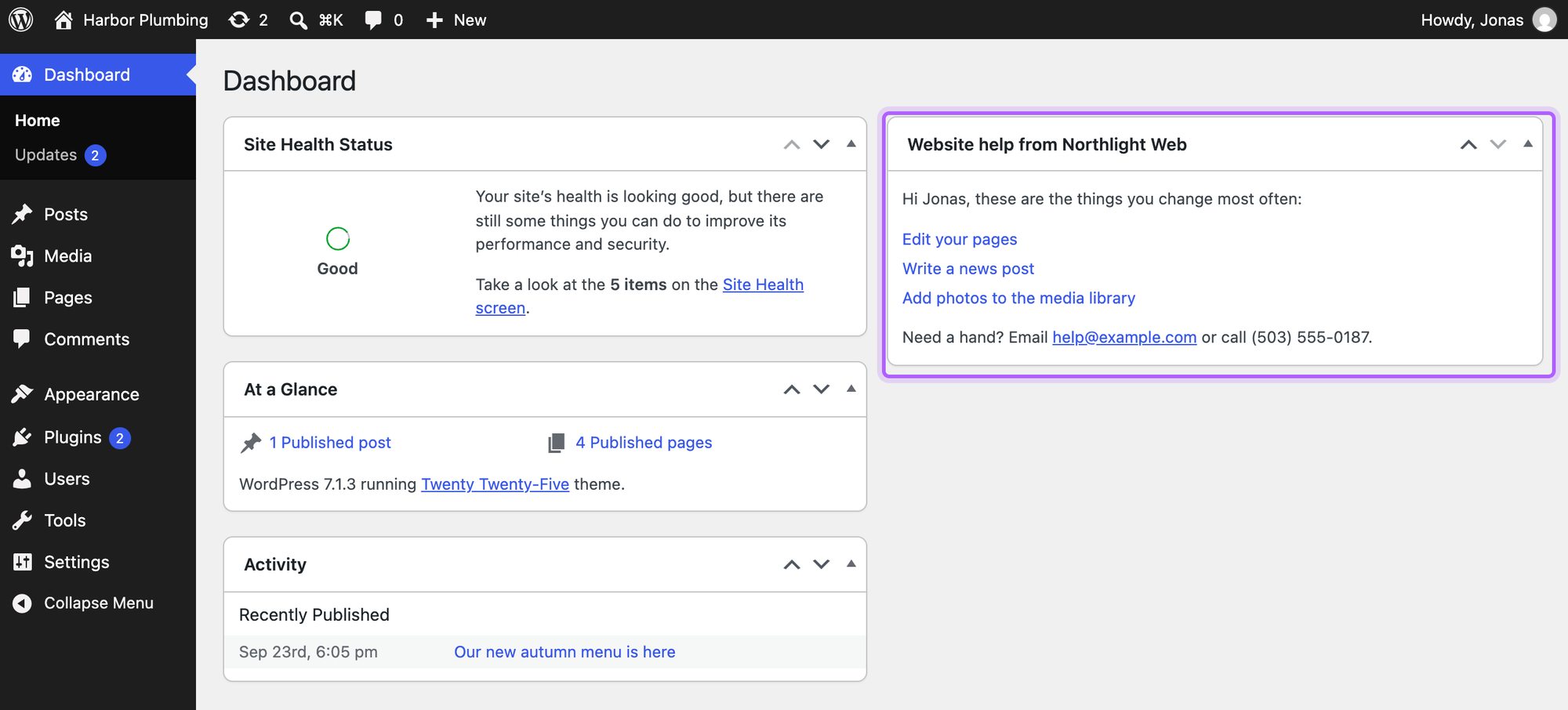
The box greets each user by their display name, so the editor saw "Hi Maria" and the administrator "Hi Jonas". Everything that comes from the database goes through esc_html() or esc_url() before it is printed. Every user who can open the dashboard sees the box; to show it only to some roles, wrap the wp_add_dashboard_widget() call in a current_user_can() check.
Dashboard widgets are different from the widgets in a classic theme's sidebar. For those, see creating custom WordPress widgets.
Hide admin menu items for clients
remove_menu_page() removes a top-level item from the admin menu. This snippet hides Comments and Tools from everyone who is not an administrator:
1function harbor_hide_admin_menus() {
2    if ( current_user_can( 'manage_options' ) ) {
3        return; // administrators keep the full menu
4    }
5    remove_menu_page( 'edit-comments.php' ); // Comments
6    remove_menu_page( 'tools.php' );         // Tools
7}
8add_action( 'admin_menu', 'harbor_hide_admin_menus', 999 );
The argument is the file name at the end of the menu item's link, such as edit-comments.php or tools.php. The function has to run on the admin_menu hook; priority 999 makes it run after most plugins have added their own menu items. For submenu items there is remove_submenu_page(), which takes the parent's file name and the submenu's.
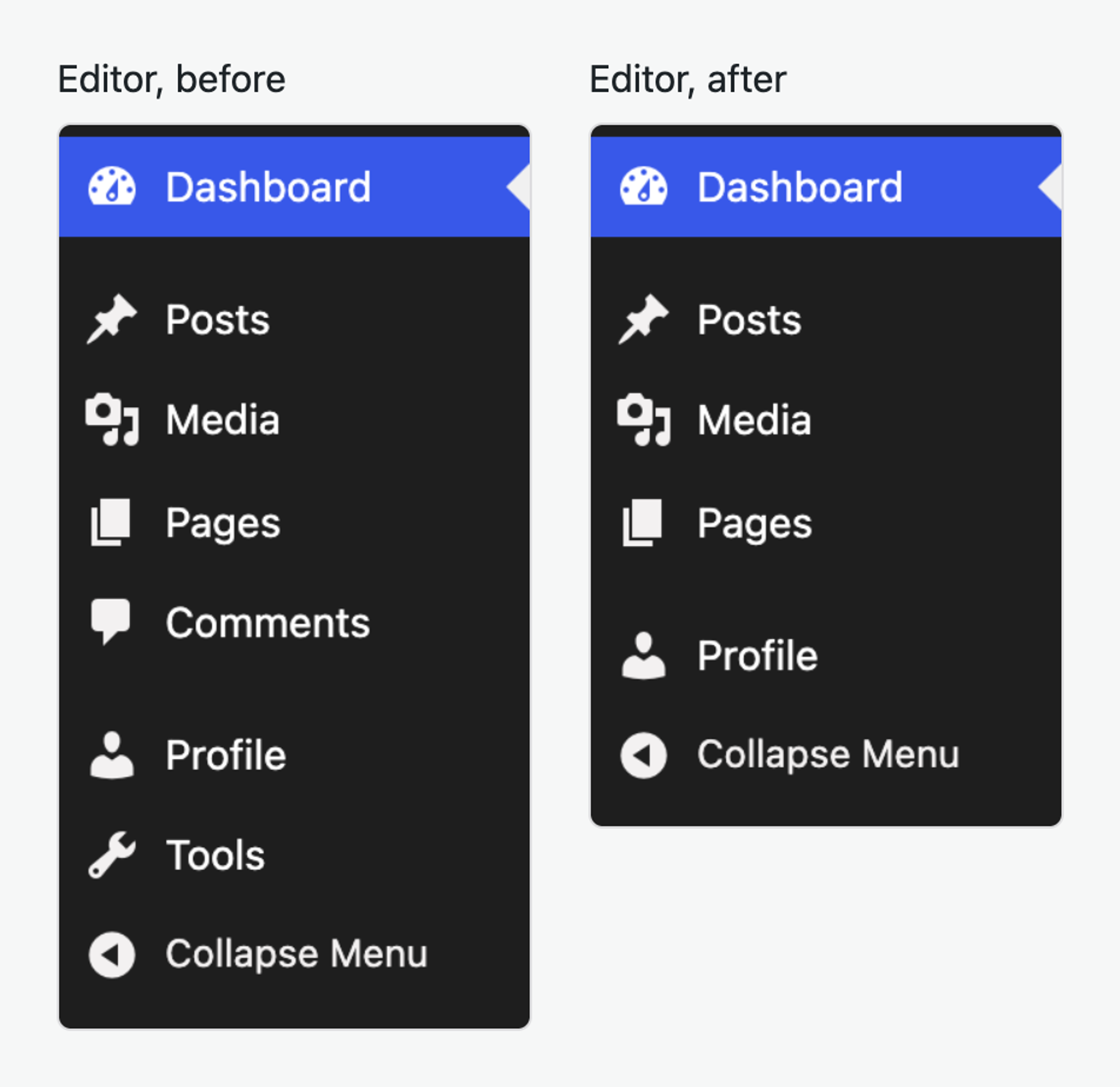
This hides the links only. In our test, the editor could still open /wp-admin/tools.php and /wp-admin/edit-comments.php by typing the address. To take away access, change what the role is allowed to do (its capabilities) instead.
Change the admin footer text
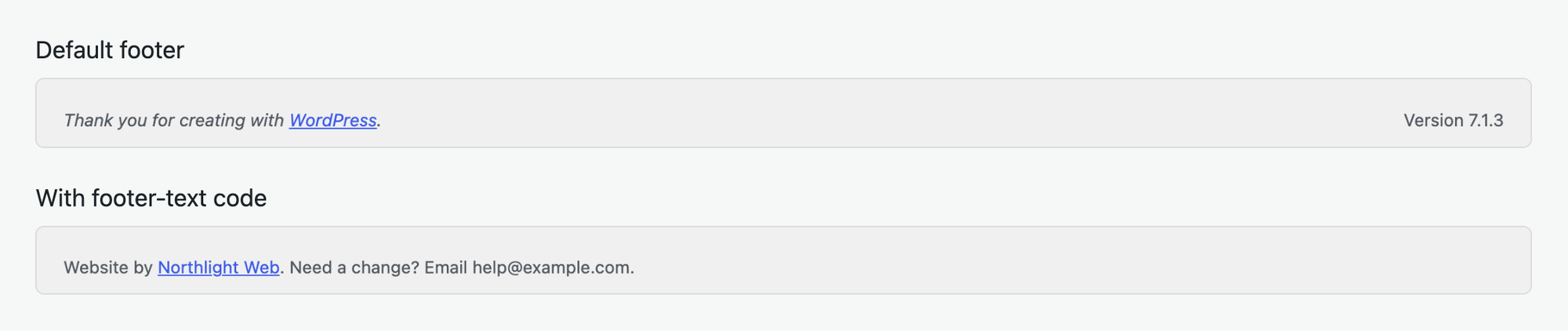
The footer of every admin screen says "Thank you for creating with WordPress." on the left and shows the WordPress version on the right. Two filters change them:
1function harbor_admin_footer_text() {
2    return 'Website by <a href="https://example.com/">Northlight Web</a>. Need a change? Email help@example.com.';
3}
4add_filter( 'admin_footer_text', 'harbor_admin_footer_text' );
5
6function harbor_admin_footer_version() {
7    return ''; // removes "Version 7.1.3" on the right
8}
9add_filter( 'update_footer', 'harbor_admin_footer_version', 11 );admin_footer_text changes the left side and update_footer the right side. A filter returns its new value, so use return, not echo. The update_footer filter runs at priority 11 because WordPress fills in the version at priority 10.
Style the admin with your own CSS
Load admin CSS with the admin_enqueue_scripts hook. wp_add_inline_style() attaches a few rules to WordPress's own wp-admin stylesheet, and the $hook_suffix argument tells you which screen is loading. On the dashboard it is index.php:
1function harbor_admin_css( $hook_suffix ) {
2    if ( 'index.php' !== $hook_suffix ) {
3        return; // only on the dashboard
4    }
5    $css = '
6        #harbor_help_widget { border-top: 4px solid #0b7a75; }
7        #harbor_help_widget .hndle { color: #0b7a75; }
8        #harbor_help_widget ul { margin-left: 1.25em; list-style: disc; }
9        #harbor_help_widget li { font-size: 14px; }
10    ';
11    wp_add_inline_style( 'wp-admin', $css );
12}
13add_action( 'admin_enqueue_scripts', 'harbor_admin_css' );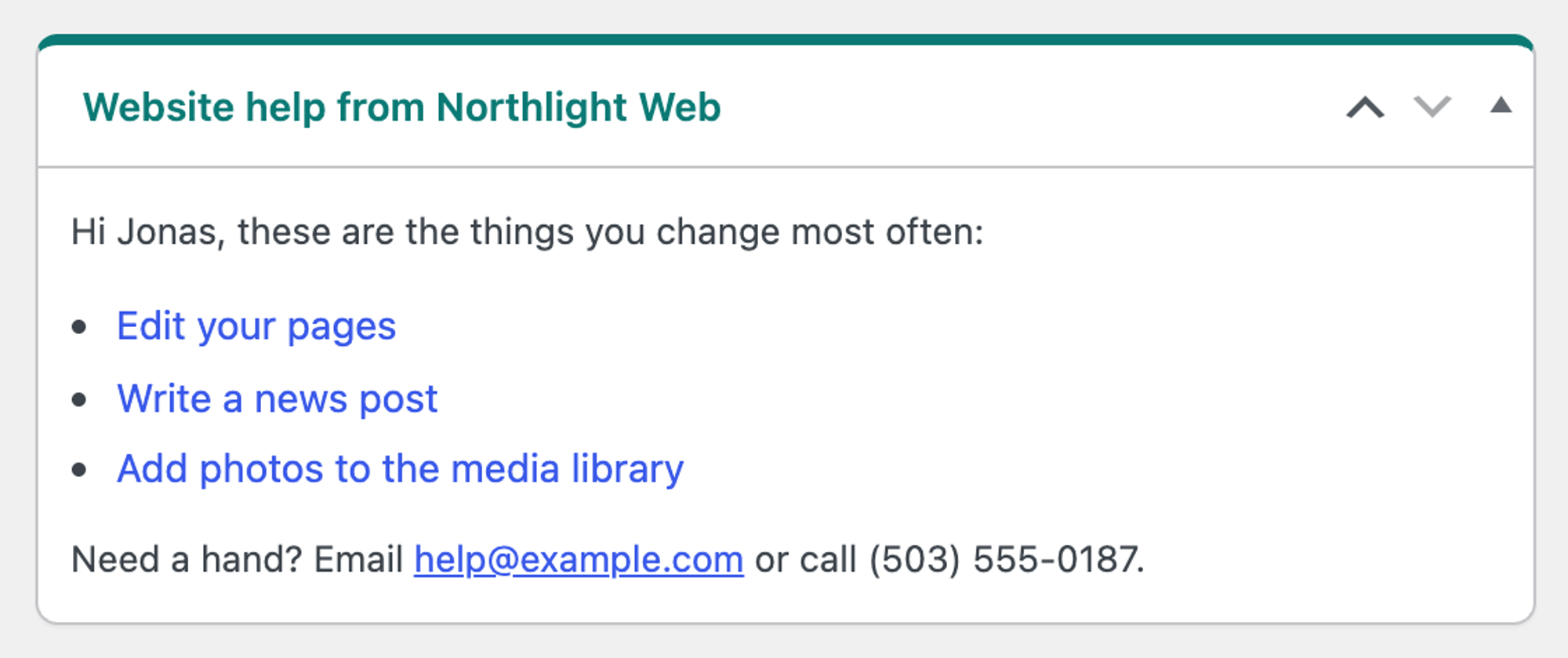
The rules use the widget ID from the previous step, which WordPress also uses as the box's HTML id. In our test the CSS appeared on the dashboard and not on the other admin screens. For more than a few lines, put the CSS in its own file and load it with wp_enqueue_style() in the same function.
Set one admin color scheme for everyone
Each user can pick a color scheme under Users > Profile > Admin Color Scheme. On WordPress 7.1 the default is Modern. To give every account the same scheme, for example to match a client's brand, filter the setting and remove the picker from the profile screen:
1function harbor_admin_color_scheme() {
2    return 'ocean'; // or modern, fresh, light, blue, coffee, ectoplasm, midnight, sunrise
3}
4add_filter( 'get_user_option_admin_color', 'harbor_admin_color_scheme' );
5
6function harbor_remove_color_picker() {
7    remove_action( 'admin_color_scheme_picker', 'admin_color_scheme_picker' );
8}
9add_action( 'admin_init', 'harbor_remove_color_picker' );
The get_user_option_admin_color filter replaces each user's saved choice. In our test, both the administrator and the editor got Ocean, and neither profile screen showed the Admin Color Scheme picker anymore.
The complete file
All snippets together, as one file in wp-content/mu-plugins/. We loaded exactly this file in the lab and checked every change again for the administrator and the editor:
1<?php
2/**
3 * Plugin Name: Dashboard tweaks
4 * Description: A tidier admin dashboard for the Harbor Plumbing site.
5 */
6
7// 1. Remove dashboard boxes and the welcome panel
8function harbor_remove_dashboard_widgets() {
9    remove_meta_box( 'dashboard_quick_press', 'dashboard', 'side' ); // Quick Draft
10    remove_meta_box( 'dashboard_primary', 'dashboard', 'side' );     // WordPress Events and News
11
12    // The "Welcome to WordPress!" panel above the boxes
13    remove_action( 'welcome_panel', 'wp_welcome_panel' );
14}
15add_action( 'wp_dashboard_setup', 'harbor_remove_dashboard_widgets' );
16
17// 2. Add a help box for the client
18function harbor_add_help_widget() {
19    wp_add_dashboard_widget(
20        'harbor_help_widget',               // widget ID, also the box's HTML id
21        'Website help from Northlight Web', // title
22        'harbor_help_widget_content',       // function that prints the content
23        null,                               // no settings form
24        null,                               // no extra arguments
25        'side',                             // second column
26        'high'                              // above the other boxes there
27    );
28}
29add_action( 'wp_dashboard_setup', 'harbor_add_help_widget' );
30
31function harbor_help_widget_content() {
32    $user = wp_get_current_user();
33    ?>
34    <p>Hi <?php echo esc_html( $user->display_name ); ?>, these are the things you change most often:</p>
35    <ul>
36        <li><a href="<?php echo esc_url( admin_url( 'edit.php?post_type=page' ) ); ?>">Edit your pages</a></li>
37        <li><a href="<?php echo esc_url( admin_url( 'post-new.php' ) ); ?>">Write a news post</a></li>
38        <li><a href="<?php echo esc_url( admin_url( 'upload.php' ) ); ?>">Add photos to the media library</a></li>
39    </ul>
40    <p>Need a hand? Email <a href="mailto:help@example.com">help@example.com</a> or call (503) 555-0187.</p>
41    <?php
42}
43
44// 3. Hide menu items from everyone except administrators
45function harbor_hide_admin_menus() {
46    if ( current_user_can( 'manage_options' ) ) {
47        return; // administrators keep the full menu
48    }
49    remove_menu_page( 'edit-comments.php' ); // Comments
50    remove_menu_page( 'tools.php' );         // Tools
51}
52add_action( 'admin_menu', 'harbor_hide_admin_menus', 999 );
53
54// 4. Change the footer text
55function harbor_admin_footer_text() {
56    return 'Website by <a href="https://example.com/">Northlight Web</a>. Need a change? Email help@example.com.';
57}
58add_filter( 'admin_footer_text', 'harbor_admin_footer_text' );
59
60function harbor_admin_footer_version() {
61    return ''; // removes "Version 7.1.3" on the right
62}
63add_filter( 'update_footer', 'harbor_admin_footer_version', 11 );
64
65// 5. Style the help box
66function harbor_admin_css( $hook_suffix ) {
67    if ( 'index.php' !== $hook_suffix ) {
68        return; // only on the dashboard
69    }
70    $css = '
71        #harbor_help_widget { border-top: 4px solid #0b7a75; }
72        #harbor_help_widget .hndle { color: #0b7a75; }
73        #harbor_help_widget ul { margin-left: 1.25em; list-style: disc; }
74        #harbor_help_widget li { font-size: 14px; }
75    ';
76    wp_add_inline_style( 'wp-admin', $css );
77}
78add_action( 'admin_enqueue_scripts', 'harbor_admin_css' );
79
80// 6. One color scheme for everyone
81function harbor_admin_color_scheme() {
82    return 'ocean'; // or modern, fresh, light, blue, coffee, ectoplasm, midnight, sunrise
83}
84add_filter( 'get_user_option_admin_color', 'harbor_admin_color_scheme' );
85
86function harbor_remove_color_picker() {
87    remove_action( 'admin_color_scheme_picker', 'admin_color_scheme_picker' );
88}
89add_action( 'admin_init', 'harbor_remove_color_picker' );
How do I find the ID of a dashboard widget?
Plugins add their own boxes, and their IDs are not listed anywhere. You can read the ID in two places: right-click the box, choose Inspect, and look at the id of the element with the class postbox. Or open Screen Options: each checkbox's id is the widget ID followed by -hide, for example dashboard_quick_press-hide.
Why does my change not show?
Check that the file sits directly in wp-content/mu-plugins/ and starts with <?php. A file in a subfolder is not loaded. If you work in functions.php, make sure it belongs to the active theme. WordPress also remembers the boxes each user hid in Screen Options, so a box that is missing for one user only may simply be unchecked there.
For more about the hooks used here, see the WordPress developer documentation on wp_add_dashboard_widget() and the administration chapter of the Plugin Handbook. If you build custom fields for the post editor next, the same box functions come back in adding custom meta boxes.
I've worked in SEO for more than ten years and helped over 100 businesses rank higher, mostly local businesses, e-commerce stores and SaaS companies. As co-founder of LPagery I work on local SEO, programmatic SEO and AI search visibility, and I test the strategies in these articles on our own sites and with our customers.