How to Add Custom Meta Boxes in WordPress Without a Plugin

Updated
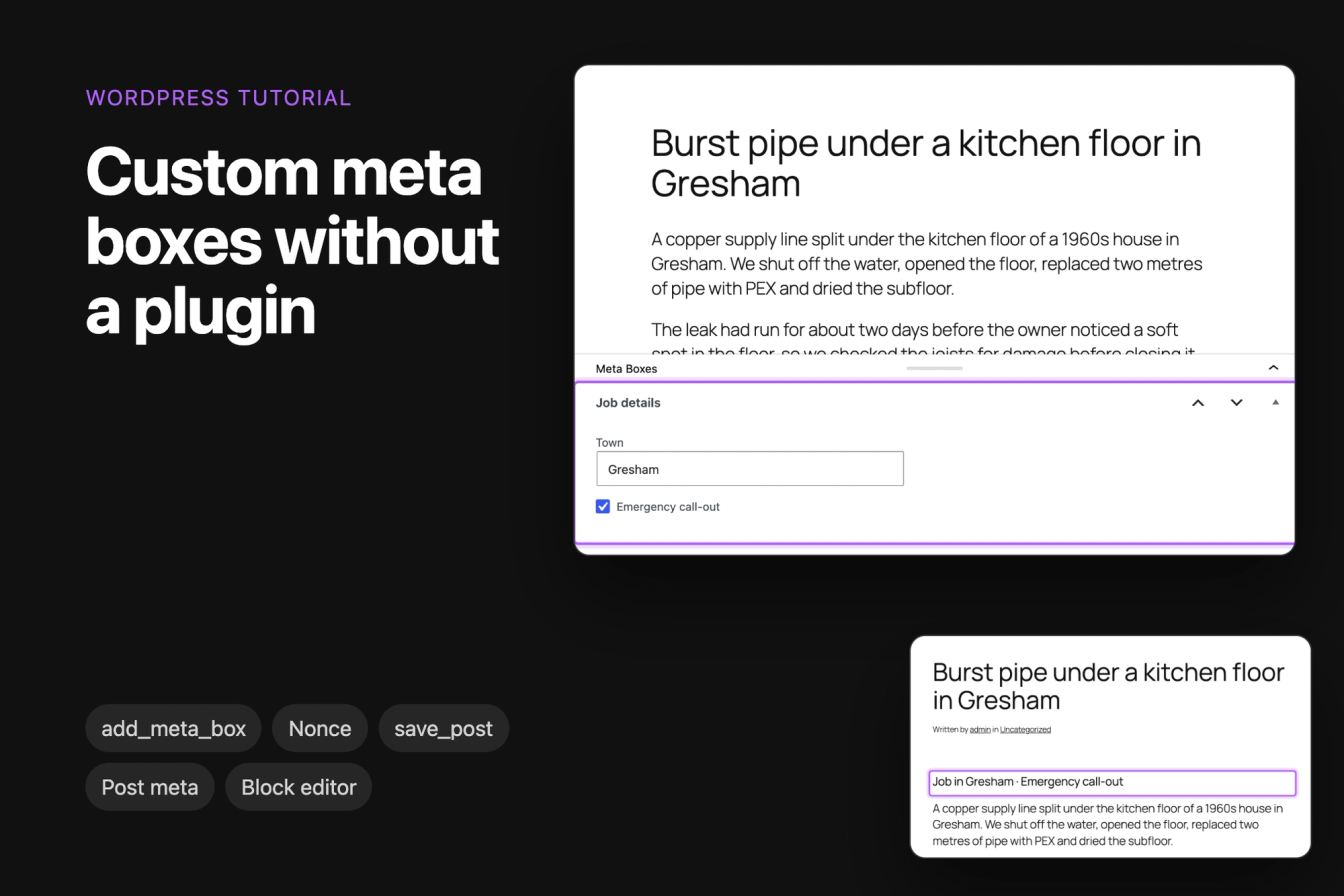
This tutorial adds a custom meta box to the WordPress post editor with a small PHP file and no plugin. It registers the box with add_meta_box(), adds a text field and a checkbox, saves them as post meta with a nonce and a permission check, and shows the saved values on the post for visitors.
All code was tested on WordPress 7.1.3 with the Twenty Twenty-Five theme, and the template snippet with Twenty Twenty-One.
What is a meta box?
A meta box is a panel on the post edit screen that holds extra fields for a post. Its values are saved as post meta (custom fields) in the wp_postmeta table, next to the post but separate from its content.
The example is a plumbing company that writes a blog post about each job. A Job details box gives every post a Town field and an Emergency call-out checkbox, and the post shows both above its text.
The block editor still supports meta boxes registered with add_meta_box(). They show in a panel below the post content, or in the settings sidebar for the side context.
Where to put the code
Put the code in a file in wp-content/mu-plugins/, for example wp-content/mu-plugins/harbor-job-details.php. WordPress loads every PHP file directly in that folder, and the meta box keeps working when you switch themes. A theme's functions.php works too, but the box and the front-end output disappear when you change the theme. Our tutorial on building a custom login page explains both places in more detail.
The four snippets below go into that one file. The complete file, with the <?php line it starts with, is further down.
Step 1: Register the meta box with add_meta_box()
Call add_meta_box() on the add_meta_boxes hook:
1function harbor_add_job_details_box() {
2    add_meta_box(
3        'harbor_job_details',        // ID of the box
4        'Job details',               // title shown in the editor
5        'harbor_render_job_details', // function that prints the fields
6        'post',                      // post type (or an array of post types)
7        'normal',                    // context: normal, side or advanced
8        'high'                       // priority within that context
9    );
10}
11add_action( 'add_meta_boxes', 'harbor_add_job_details_box' );
The parameters, in order:
$id: a unique ID. WordPress uses it as theidattribute of the box.$title: the heading of the box in the editor.$callback: the function that prints the fields (Step 2).$screen: the post type, or an array of post types. Leave it out and the box shows on the screen where the hook runs.$context:normaloradvancedputs the box below the content,sideputs it in the settings sidebar. The default isadvanced.$priority:high,core,defaultorlow, the order within the context.
A seventh parameter, $callback_args, passes an array to your callback as its second argument.
Step 2: Add the fields
The callback gets the post being edited and prints the fields. It reads the saved values with get_post_meta(), so the fields show what is already stored:
1function harbor_render_job_details( $post ) {
2    wp_nonce_field( 'harbor_save_job_details', 'harbor_job_details_nonce' );
3
4    $town      = get_post_meta( $post->ID, '_harbor_town', true );
5    $emergency = get_post_meta( $post->ID, '_harbor_emergency', true );
6    ?>
7    <p>
8        <label for="harbor_town">Town</label><br>
9        <input type="text" id="harbor_town" name="harbor_town" class="regular-text"
10            value="<?php echo esc_attr( $town ); ?>">
11    </p>
12    <p>
13        <label>
14            <input type="checkbox" name="harbor_emergency" value="1" <?php checked( $emergency, '1' ); ?>>
15            Emergency call-out
16        </label>
17    </p>
18    <?php
19}wp_nonce_field() adds a hidden field with a nonce, a token that proves the form came from this edit screen. Step 3 checks it. esc_attr() escapes the saved town before it goes into the value attribute, and checked() ticks the checkbox when the saved value is 1.
The meta keys start with _. WordPress treats keys like _harbor_town as protected and leaves them out of the Custom Fields panel, so editors only change them through your box.
Step 3: Save the meta box data
WordPress doesn't save the fields by itself. Hook a function into save_post that checks the request and then writes the values:
1function harbor_save_job_details( $post_id ) {
2    // Only run when the meta box form was sent, with a valid nonce.
3    if ( ! isset( $_POST['harbor_job_details_nonce'] ) ||
4        ! wp_verify_nonce( sanitize_text_field( wp_unslash( $_POST['harbor_job_details_nonce'] ) ), 'harbor_save_job_details' ) ) {
5        return;
6    }
7    // Autosaves do not include the meta box fields.
8    if ( defined( 'DOING_AUTOSAVE' ) && DOING_AUTOSAVE ) {
9        return;
10    }
11    // The user must be allowed to edit this post.
12    if ( ! current_user_can( 'edit_post', $post_id ) ) {
13        return;
14    }
15
16    $town = isset( $_POST['harbor_town'] ) ? sanitize_text_field( wp_unslash( $_POST['harbor_town'] ) ) : '';
17    if ( '' === $town ) {
18        delete_post_meta( $post_id, '_harbor_town' );
19    } else {
20        update_post_meta( $post_id, '_harbor_town', $town );
21    }
22
23    // An unticked checkbox is not sent at all.
24    if ( isset( $_POST['harbor_emergency'] ) ) {
25        update_post_meta( $post_id, '_harbor_emergency', '1' );
26    } else {
27        delete_post_meta( $post_id, '_harbor_emergency' );
28    }
29}
30add_action( 'save_post', 'harbor_save_job_details' );
Each check stops a different problem:
- The nonce check returns early when the request didn't come from the meta box form.
save_postalso runs for posts created in code, by the REST API or by other plugins, and those requests don't carry the nonce. - The autosave check skips autosaves, which don't send the meta box fields.
current_user_can( 'edit_post', $post_id )makes sure the user may edit this post. In our test, a Contributor with a valid nonce of their own could not change the box on the admin's post.wp_unslash()removes the slashes WordPress adds to$_POST, so a town like O'Hara is saved without a backslash.sanitize_text_field()strips HTML tags and extra spaces.
An unticked checkbox isn't part of the form data at all, so the function deletes the meta when the field is missing. The same goes for an empty town. Otherwise the post would keep the old value.
When you click Publish or Save in the block editor, it saves the post through the REST API first and then sends the meta box form in a second request to post.php. save_post runs for both. The first request has no nonce and returns early, and the second one saves your fields.
Step 4: Show the saved value on the front end
Twenty Twenty-Five and other block themes build their templates from blocks, so there is no single.php to edit. The the_content filter works in block themes and classic themes alike. This one puts the details above the post text:
1function harbor_show_job_details( $content ) {
2    if ( ! is_singular( 'post' ) || ! in_the_loop() || ! is_main_query() ) {
3        return $content;
4    }
5
6    $town      = get_post_meta( get_the_ID(), '_harbor_town', true );
7    $emergency = get_post_meta( get_the_ID(), '_harbor_emergency', true );
8    if ( '' === $town && '1' !== $emergency ) {
9        return $content;
10    }
11
12    $details = array();
13    if ( '' !== $town ) {
14        $details[] = 'Job in ' . esc_html( $town );
15    }
16    if ( '1' === $emergency ) {
17        $details[] = 'Emergency call-out';
18    }
19
20    $box = '<p class="harbor-job-details"><strong>' . implode( ' · ', $details ) . '</strong></p>';
21
22    return $box . $content;
23}
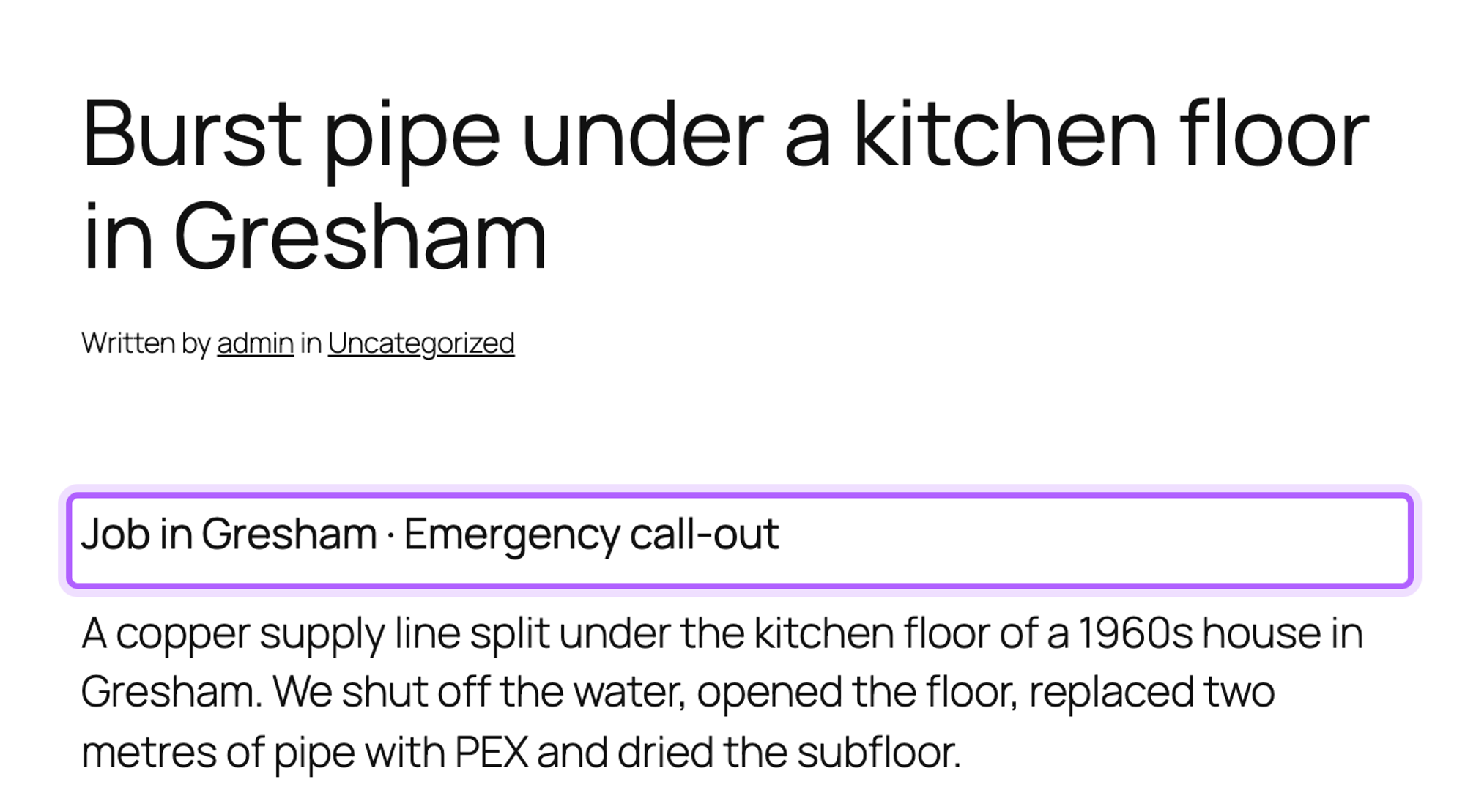
24add_filter( 'the_content', 'harbor_show_job_details' );is_singular( 'post' ) limits it to single posts, and in_the_loop() with is_main_query() keeps it out of other places that run the_content. esc_html() escapes the town on output. In our test, a town saved as <script>alert(1)</script>Gresham showed as plain text on the page.
Logged out, the post looks like this:
In a classic theme you can also print a value in the template itself, for example in single.php of a child theme, inside the loop:
1<?php
2$town = get_post_meta( get_the_ID(), '_harbor_town', true );
3if ( $town ) {
4    echo '<p class="harbor-job-details">Job in ' . esc_html( $town ) . '</p>';
5}
6?>
The complete file
Steps 1 to 4 together:
1<?php
2/**
3 * Plugin Name: Harbor Plumbing job details
4 * Description: A Job details meta box on posts, saved as post meta and shown on the post.
5 */
6
7// 1. Register the meta box
8function harbor_add_job_details_box() {
9    add_meta_box(
10        'harbor_job_details',        // ID of the box
11        'Job details',               // title shown in the editor
12        'harbor_render_job_details', // function that prints the fields
13        'post',                      // post type (or an array of post types)
14        'normal',                    // context: normal, side or advanced
15        'high'                       // priority within that context
16    );
17}
18add_action( 'add_meta_boxes', 'harbor_add_job_details_box' );
19
20// 2. Print its fields
21function harbor_render_job_details( $post ) {
22    wp_nonce_field( 'harbor_save_job_details', 'harbor_job_details_nonce' );
23
24    $town      = get_post_meta( $post->ID, '_harbor_town', true );
25    $emergency = get_post_meta( $post->ID, '_harbor_emergency', true );
26    ?>
27    <p>
28        <label for="harbor_town">Town</label><br>
29        <input type="text" id="harbor_town" name="harbor_town" class="regular-text"
30            value="<?php echo esc_attr( $town ); ?>">
31    </p>
32    <p>
33        <label>
34            <input type="checkbox" name="harbor_emergency" value="1" <?php checked( $emergency, '1' ); ?>>
35            Emergency call-out
36        </label>
37    </p>
38    <?php
39}
40
41// 3. Save the fields
42function harbor_save_job_details( $post_id ) {
43    // Only run when the meta box form was sent, with a valid nonce.
44    if ( ! isset( $_POST['harbor_job_details_nonce'] ) ||
45        ! wp_verify_nonce( sanitize_text_field( wp_unslash( $_POST['harbor_job_details_nonce'] ) ), 'harbor_save_job_details' ) ) {
46        return;
47    }
48    // Autosaves do not include the meta box fields.
49    if ( defined( 'DOING_AUTOSAVE' ) && DOING_AUTOSAVE ) {
50        return;
51    }
52    // The user must be allowed to edit this post.
53    if ( ! current_user_can( 'edit_post', $post_id ) ) {
54        return;
55    }
56
57    $town = isset( $_POST['harbor_town'] ) ? sanitize_text_field( wp_unslash( $_POST['harbor_town'] ) ) : '';
58    if ( '' === $town ) {
59        delete_post_meta( $post_id, '_harbor_town' );
60    } else {
61        update_post_meta( $post_id, '_harbor_town', $town );
62    }
63
64    // An unticked checkbox is not sent at all.
65    if ( isset( $_POST['harbor_emergency'] ) ) {
66        update_post_meta( $post_id, '_harbor_emergency', '1' );
67    } else {
68        delete_post_meta( $post_id, '_harbor_emergency' );
69    }
70}
71add_action( 'save_post', 'harbor_save_job_details' );
72
73// 4. Show the details on the post
74function harbor_show_job_details( $content ) {
75    if ( ! is_singular( 'post' ) || ! in_the_loop() || ! is_main_query() ) {
76        return $content;
77    }
78
79    $town      = get_post_meta( get_the_ID(), '_harbor_town', true );
80    $emergency = get_post_meta( get_the_ID(), '_harbor_emergency', true );
81    if ( '' === $town && '1' !== $emergency ) {
82        return $content;
83    }
84
85    $details = array();
86    if ( '' !== $town ) {
87        $details[] = 'Job in ' . esc_html( $town );
88    }
89    if ( '1' === $emergency ) {
90        $details[] = 'Emergency call-out';
91    }
92
93    $box = '<p class="harbor-job-details"><strong>' . implode( ' · ', $details ) . '</strong></p>';
94
95    return $box . $content;
96}
97add_filter( 'the_content', 'harbor_show_job_details' );
Once the file is saved, WordPress lists it under Plugins > Must-Use.
Where the meta box shows in the block editor
Open a post. In WordPress 7.1 the panel below the content starts closed, so at first you only see a Meta Boxes bar at the bottom of the editor:
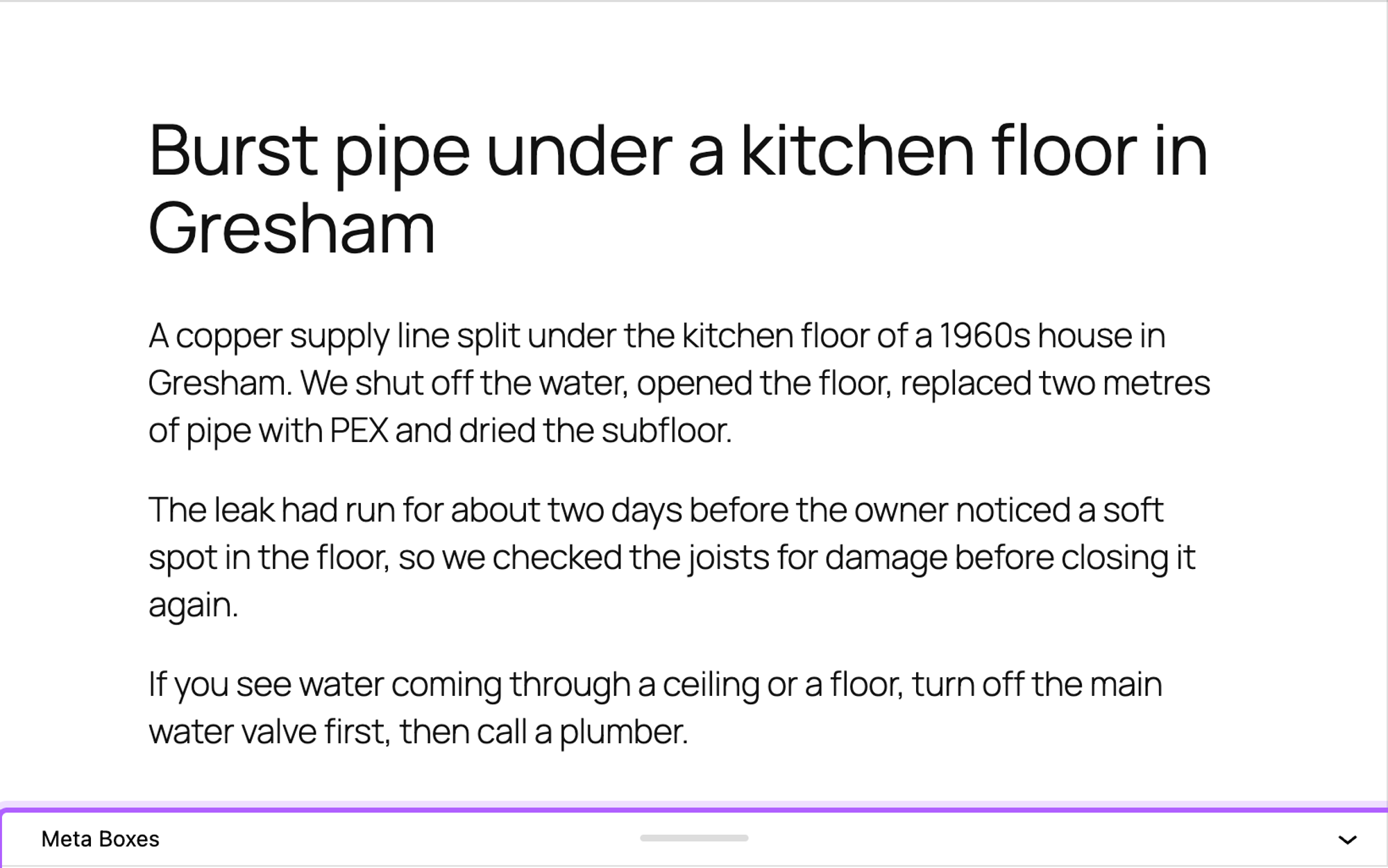
Click Meta Boxes to open the panel. You can then drag the handle in the middle of the bar to make it taller. In our test, the panel was still open after reloading the editor.
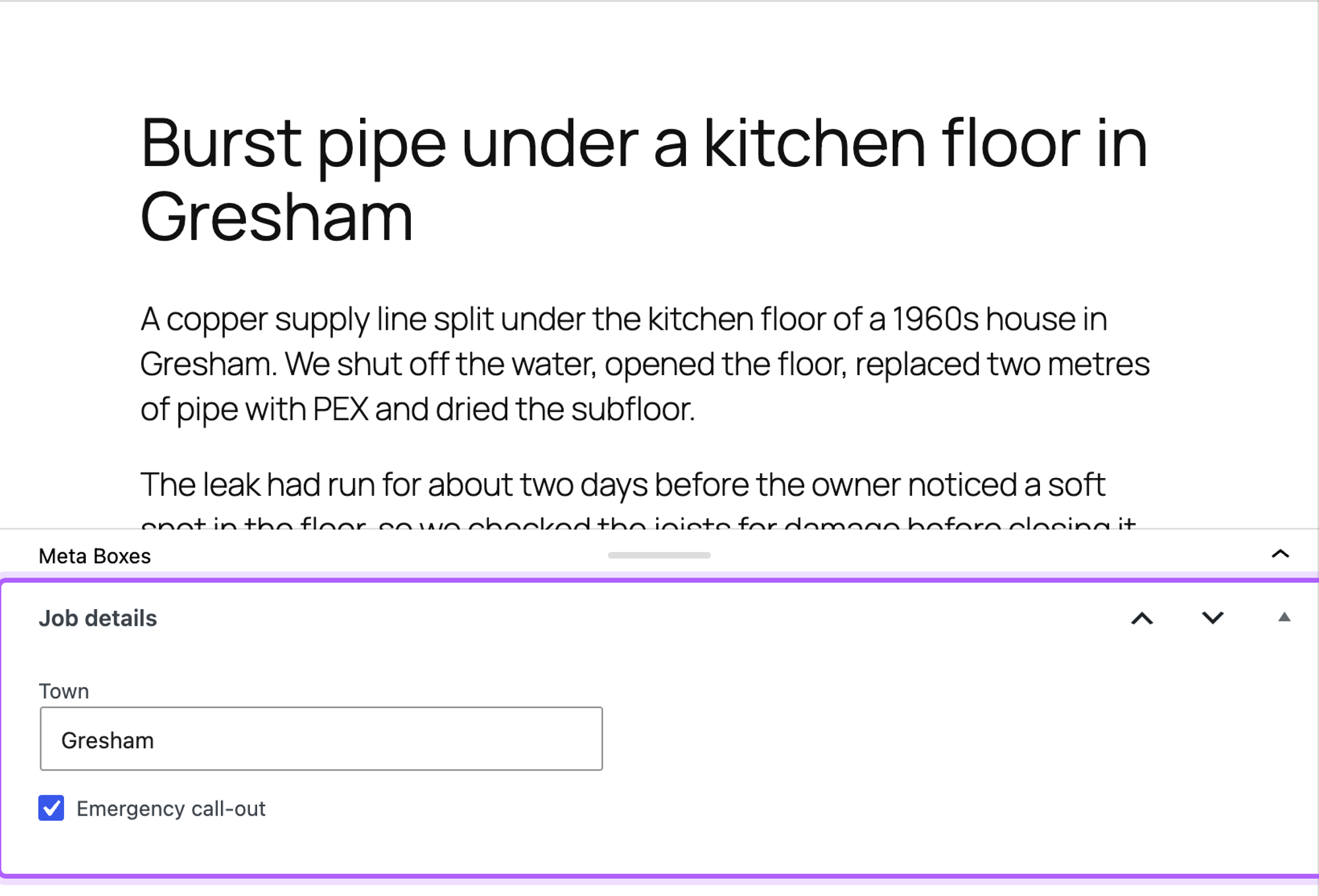
Fill in the fields and click Publish or Save. The values are saved with the post.
Add a meta box to a custom post type or to pages
Pass an array of post types as the fourth parameter. This version adds the box to posts, pages and a custom post type called service:
1function harbor_add_job_details_box() {
2    add_meta_box(
3        'harbor_job_details',
4        'Job details',
5        'harbor_render_job_details',
6        array( 'post', 'page', 'service' ), // every post type that gets the box
7        'normal',
8        'high'
9    );
10}
11add_action( 'add_meta_boxes', 'harbor_add_job_details_box' );
In our test, the box showed on new pages and on new service posts in the block editor. The save function in Step 3 works for every post type, because save_post runs for all of them. The front-end filter in Step 4 only runs on posts; change is_singular( 'post' ) to is_singular( array( 'post', 'service' ) ) to show the details on services too. If you still need to create the post type, see how to create a custom post type.
Put the meta box in the sidebar
With side as the context, the box moves into the block editor's settings sidebar, under the post's other settings:
add_meta_box( 'harbor_job_details', 'Job details', 'harbor_render_job_details', 'post', 'side' );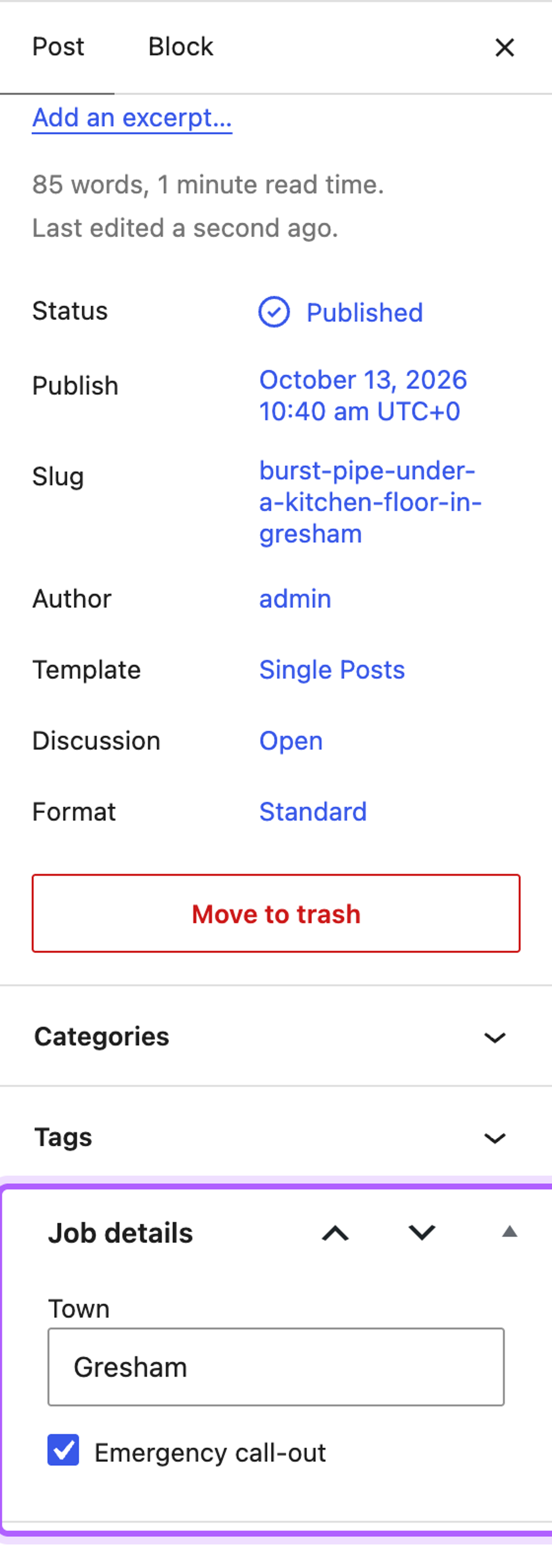
In the sidebar, give the text field class="widefat" instead of regular-text. In our test, regular-text made the field run about 95 pixels past the edge of the sidebar, and widefat fitted it to the box, as in the screenshot. The sidebar suits one or two short fields. For more fields, keep normal so the box has the width of the editor.
Show the value in the REST API with register_post_meta()
Meta saved by a meta box isn't part of the post's REST API response. In our test, /wp-json/wp/v2/posts/<id> listed no _harbor_town until we registered the key with register_post_meta() and show_in_rest:
1function harbor_register_job_meta() {
2    register_post_meta( 'post', '_harbor_town', array(
3        'type'          => 'string',
4        'single'        => true,
5        'show_in_rest'  => true,
6        'auth_callback' => function () {
7            return current_user_can( 'edit_posts' );
8        },
9    ) );
10}
11add_action( 'init', 'harbor_register_job_meta' );
After that, the response's meta object contained "_harbor_town": "Gresham", also for a visitor who wasn't logged in, because the post is public. The auth_callback controls who may change the value through the API. Registered meta is also what a block editor sidebar panel written in JavaScript reads and saves, which is the block editor's own way to edit post meta. A meta box needs no JavaScript, which is why this tutorial uses one. If you create posts in code, the same keys work in meta_input, as in our tutorial on creating WordPress posts programmatically.
The meta box doesn't show in the editor
Check that WordPress lists the file under Plugins > Must-Use, that the fourth parameter of add_meta_box() matches the post type you're editing, and that the function is hooked to add_meta_boxes. A file in a subfolder of mu-plugins isn't loaded.
The values don't save
Most often the nonce check fails. The action and field name in wp_nonce_field() must match the ones in wp_verify_nonce() and $_POST, letter for letter. In our test, a missing or wrong nonce saved nothing, without an error message. Then check that the name attributes of the inputs match the keys the save function reads from $_POST.
I've worked in SEO for more than ten years and helped over 100 businesses rank higher, mostly local businesses, e-commerce stores and SaaS companies. As co-founder of LPagery I work on local SEO, programmatic SEO and AI search visibility, and I test the strategies in these articles on our own sites and with our customers.