How to Create a Custom Login Page in WordPress Without a Plugin

This guide shows three ways to give your WordPress site its own login page without installing a plugin: restyle the default login screen, put a login form on any page with a core block, or build a full login page with wp_login_form() that also handles failed logins, logouts and the old wp-login.php address.
Every screenshot and every line of code comes from a fresh WordPress 7.1.2 install with the Twenty Twenty-Five theme (version 1.5). We also ran the code with the classic Twenty Twenty-One theme.
Which approach do you need?
- Your logo and colors on the normal login screen: change the look of wp-login.php with one short file.
- A login form inside a normal page, with no code at all: the Login/out block.
- A real login page at your own address, with its own error messages, that wp-login.php and wp-admin send visitors to:
wp_login_form()plus a few hooks.
You can combine them. Most sites that build their own login page also restyle wp-login.php, because the lost password and reset screens still use it.
Where to put the code
All snippets in this guide are saved as small files in wp-content/mu-plugins/. WordPress loads every PHP file in that folder automatically, on every request, and the code keeps working when you switch themes. If the folder doesn't exist yet, create it with your host's file manager or over FTP.
WordPress only loads files that sit directly in mu-plugins. In our test, the same file inside a subfolder (mu-plugins/custom-login/custom-login-page.php) did nothing at all.
You can also paste a snippet at the end of your child theme's functions.php, without the comment block at the top. We tested the styling snippet that way and it worked the same. Avoid editing a parent theme's functions.php, because a theme update overwrites it. If you don't have a child theme yet, our guide to building a custom WordPress theme covers when you need one.
Change the look of the default login page
The default login screen at /wp-login.php shows the WordPress logo, which links to wordpress.org. Save this file as wp-content/mu-plugins/login-style.php to show your own logo and colors instead:
1<?php
2/**
3 * Plugin Name: Login screen style
4 * Description: Your logo, colors and logo link on the default WordPress login screen.
5 */
6
7add_action( 'login_enqueue_scripts', function () {
8    $css = '
9        body.login {
10            background: #f6efe6;
11            --wp-admin-theme-color: #8a4b2a;
12            --wp-admin-theme-color-darker-10: #6f3a1f;
13            --wp-admin-theme-color-darker-20: #5b2f17;
14        }
15        .login form {
16            border: 0;
17            border-radius: 8px;
18            box-shadow: 0 4px 24px rgba(0, 0, 0, 0.08);
19        }
20        .login #nav a,
21        .login #backtoblog a {
22            color: #8a4b2a;
23        }
24    ';
25
26    // The logo you set in the Site Editor or the Customizer.
27    $logo_id = get_theme_mod( 'custom_logo' );
28    if ( $logo_id ) {
29        $css .= sprintf(
30            '#login h1 a { background-image: url(%s); background-size: contain; width: 240px; height: 90px; }',
31            esc_url( wp_get_attachment_image_url( $logo_id, 'medium' ) )
32        );
33    }
34
35    // Added after the login screen's own stylesheet, so these rules win.
36    wp_add_inline_style( 'login', $css );
37} );
38
39// The logo links to your home page instead of wordpress.org.
40add_filter( 'login_headerurl', function () {
41    return home_url( '/' );
42} );
43
44// The link text behind the logo, read by screen readers.
45add_filter( 'login_headertext', function () {
46    return get_bloginfo( 'name' );
47} );
The logo comes from your site settings: the logo you set in the Site Editor (block themes) or under Appearance > Customize > Site Identity (classic themes). If no logo is set, the WordPress logo stays. To use a different image, replace the wp_get_attachment_image_url() call with the URL of any image in your media library.
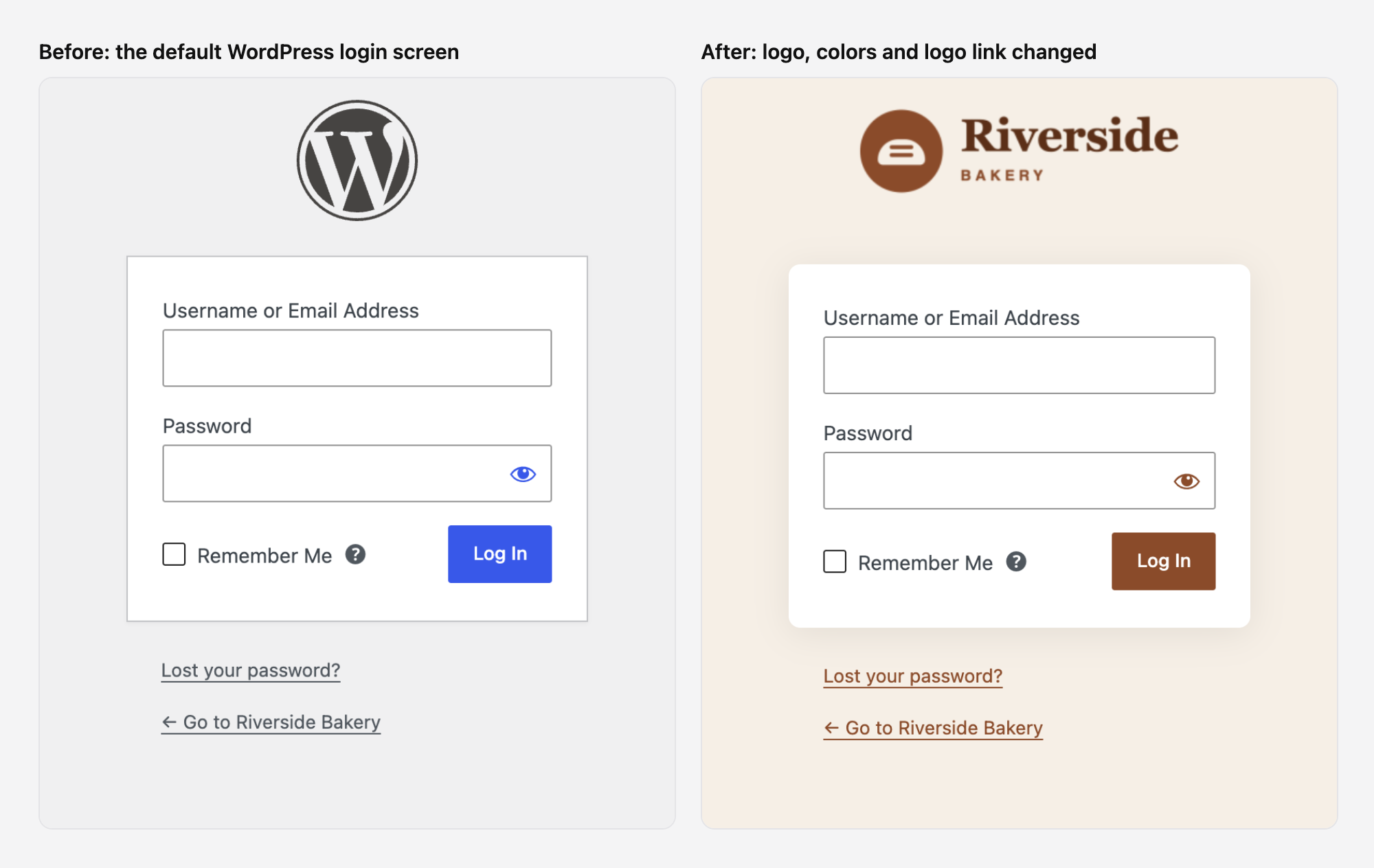
In WordPress 7.1, the login buttons and the password eye icon take their color from the --wp-admin-theme-color CSS variables, so setting those three variables recolors them all. The login_headerurl filter makes the logo link to your home page, and login_headertext sets the link's text for screen readers.
The styles apply to every screen wp-login.php shows. In our test, the lost password screen had the same colors.
Add a login form to any page with the Login/out block
Block themes such as Twenty Twenty-Five come with a Login/out block. It shows a login form to visitors and a logout link to anyone who is logged in.
- Go to Pages > Add New Page and give the page a title, for example "Wholesale orders".
- Click into the page, type
/loginand choose Login/out. - In the block settings on the right, turn on Display login as form.
- Click Publish.
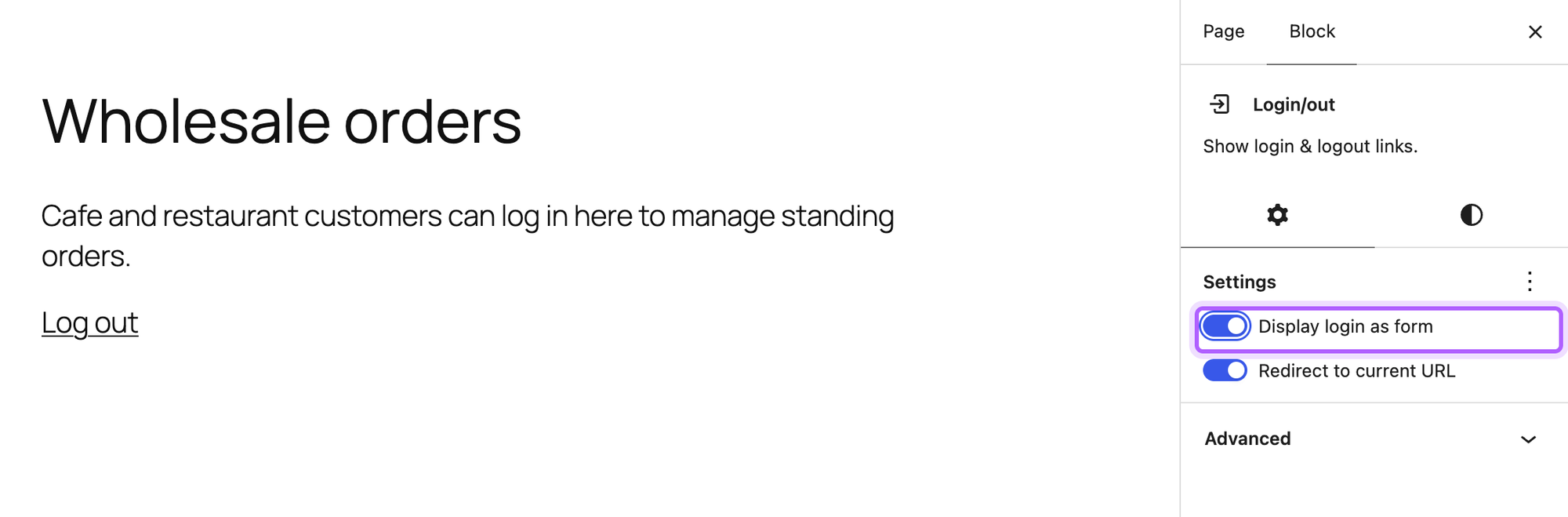
In the editor the block shows Log out, because you're logged in. Visitors see the form:
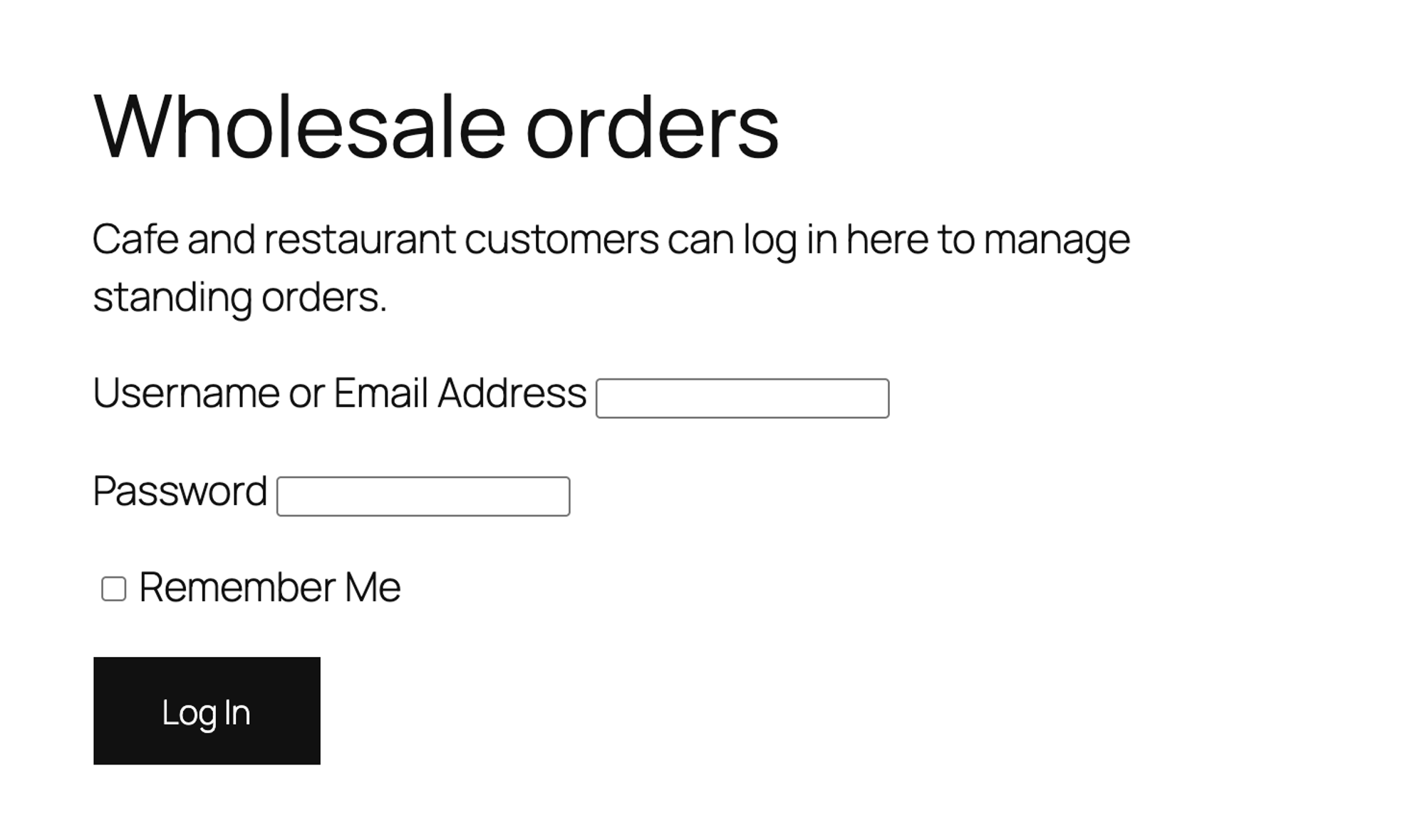
With Redirect to current URL on (the default), a visitor who logs in comes back to the same page. In our test that worked as expected.
The block has one limit: it has no error messages. When we entered a wrong password, WordPress sent us to the default wp-login.php screen to show the error. If that's fine for your site, you're done. If not, the next section fixes it, and the fix also covers this block.
Build your own login page with wp_login_form()
WordPress has a function that prints the same login form the block uses: wp_login_form(). The file below wraps it in a shortcode, shows a message after a failed login or a logout, and sends anyone who opens wp-login.php to your page instead.
Step 1: create the login page
Go to Pages > Add New Page, enter the title "Login", add any text you want above the form, then add a Shortcode block (type /shortcode) and enter [custom_login_form]. Publish the page. WordPress gives it the address /login/.
![The block editor with a page titled Login, a short intro paragraph and a Shortcode block containing [custom_login_form], highlighted](https://cdn.sanity.io/images/mjl6isa5/production/bb27a07eab69af9736bb49ed701409d8ebbcab07-1450x688.png?w=2000&auto=format)
Until the next step is done, the page shows [custom_login_form] as plain text. That's expected.
Step 2: add the code
Save this file as wp-content/mu-plugins/custom-login-page.php. If your page has a different address, change login in the first line of code to its slug.
1<?php
2/**
3 * Plugin Name: Custom login page
4 * Description: A login form on a normal page, with wp-login.php sending visitors there.
5 */
6
7// The slug of the page that holds the [custom_login_form] shortcode.
8const MY_LOGIN_PAGE_SLUG = 'login';
9
10function my_login_page_url( $args = array() ) {
11    return add_query_arg( $args, home_url( '/' . MY_LOGIN_PAGE_SLUG . '/' ) );
12}
13
14// 1. The login form, with a message after a failed login or a logout.
15add_shortcode( 'custom_login_form', function () {
16    if ( is_user_logged_in() ) {
17        return sprintf(
18            '<p>You are logged in as %s. <a href="%s">Log out</a></p>',
19            esc_html( wp_get_current_user()->display_name ),
20            esc_url( wp_logout_url() )
21        );
22    }
23
24    $messages = array(
25        'failed'     => 'The username or password is incorrect. Please try again.',
26        'empty'      => 'Please enter your username and password.',
27        'loggedout'  => 'You are now logged out.',
28        'checkemail' => 'Check your email for a link to reset your password.',
29    );
30    $status = isset( $_GET['login'] ) ? sanitize_key( $_GET['login'] ) : '';
31
32    $html = '';
33    if ( isset( $messages[ $status ] ) ) {
34        $html .= '<p class="custom-login-message">' . esc_html( $messages[ $status ] ) . '</p>';
35    }
36
37    // After logging in, go back to the page that asked for a login, or to the dashboard.
38    $redirect = ! empty( $_GET['redirect_to'] ) ? wp_unslash( $_GET['redirect_to'] ) : admin_url();
39
40    $html .= wp_login_form( array(
41        'echo'     => false,
42        'redirect' => esc_url_raw( $redirect ),
43        'form_id'  => 'custom-login-form',
44    ) );
45    $html .= sprintf( '<p><a href="%s">Lost your password?</a></p>', esc_url( wp_lostpassword_url() ) );
46
47    return '<div class="custom-login">' . $html . '</div>';
48} );
49
50// 2. Send visitors who open wp-login.php to the login page. Only the plain login screen is
51// redirected: logging in, logging out, lost passwords and the session-expired popup in
52// wp-admin keep working through wp-login.php.
53add_action( 'login_init', function () {
54    $action = isset( $_REQUEST['action'] ) ? $_REQUEST['action'] : 'login';
55
56    if ( 'GET' !== $_SERVER['REQUEST_METHOD'] || 'login' !== $action
57        || isset( $_REQUEST['interim-login'] ) || isset( $_GET['key'] ) ) {
58        return;
59    }
60
61    $args = array();
62    if ( isset( $_GET['checkemail'] ) ) {
63        $args['login'] = 'checkemail';
64    }
65    if ( ! empty( $_GET['redirect_to'] ) ) {
66        $args['redirect_to'] = rawurlencode( wp_unslash( $_GET['redirect_to'] ) );
67    }
68
69    wp_safe_redirect( my_login_page_url( $args ) );
70    exit;
71} );
72
73// 3. A failed login goes back to the login page with a message, instead of the default screen.
74add_filter( 'authenticate', function ( $user ) {
75    $is_form_post = 'wp-login.php' === $GLOBALS['pagenow'] && 'POST' === $_SERVER['REQUEST_METHOD'];
76
77    if ( is_wp_error( $user ) && $is_form_post && empty( $_REQUEST['interim-login'] ) ) {
78        $empty = array_intersect( $user->get_error_codes(), array( 'empty_username', 'empty_password' ) );
79        $args  = array( 'login' => $empty ? 'empty' : 'failed' );
80        if ( ! empty( $_POST['redirect_to'] ) ) {
81            $args['redirect_to'] = rawurlencode( wp_unslash( $_POST['redirect_to'] ) );
82        }
83        wp_safe_redirect( my_login_page_url( $args ) );
84        exit;
85    }
86
87    return $user;
88}, 100 );
89
90// 4. After logging out, show the login page with a message.
91add_filter( 'logout_redirect', function ( $redirect_to, $requested_redirect_to ) {
92    return $requested_redirect_to ? $redirect_to : my_login_page_url( array( 'login' => 'loggedout' ) );
93}, 10, 2 );
94
95// 5. Basic styles for the form, only on the login page. Colors come from your theme.
96add_action( 'wp_head', function () {
97    if ( ! is_page( MY_LOGIN_PAGE_SLUG ) ) {
98        return;
99    }
100    ?>
101    <style>
102        #custom-login-form label {
103            display: block;
104            margin-bottom: 6px;
105        }
106        #custom-login-form input[type="text"],
107        #custom-login-form input[type="password"] {
108            box-sizing: border-box;
109            width: 100%;
110            max-width: 380px;
111            padding: 10px 12px;
112            border: 1px solid #c3c4c7;
113            border-radius: 4px;
114            font-size: 1rem;
115        }
116        #custom-login-form .login-remember label {
117            display: inline;
118        }
119        #custom-login-form input[type="submit"] {
120            padding: 12px 28px;
121            border: 0;
122            border-radius: 4px;
123            background: var(--wp--preset--color--contrast, #111);
124            color: var(--wp--preset--color--base, #fff);
125            font-size: 1rem;
126            cursor: pointer;
127        }
128        .custom-login-message {
129            max-width: 380px;
130            padding: 12px 16px;
131            border-left: 4px solid currentColor;
132            background: rgba(0, 0, 0, 0.04);
133        }
134    </style>
135    <?php
136} );
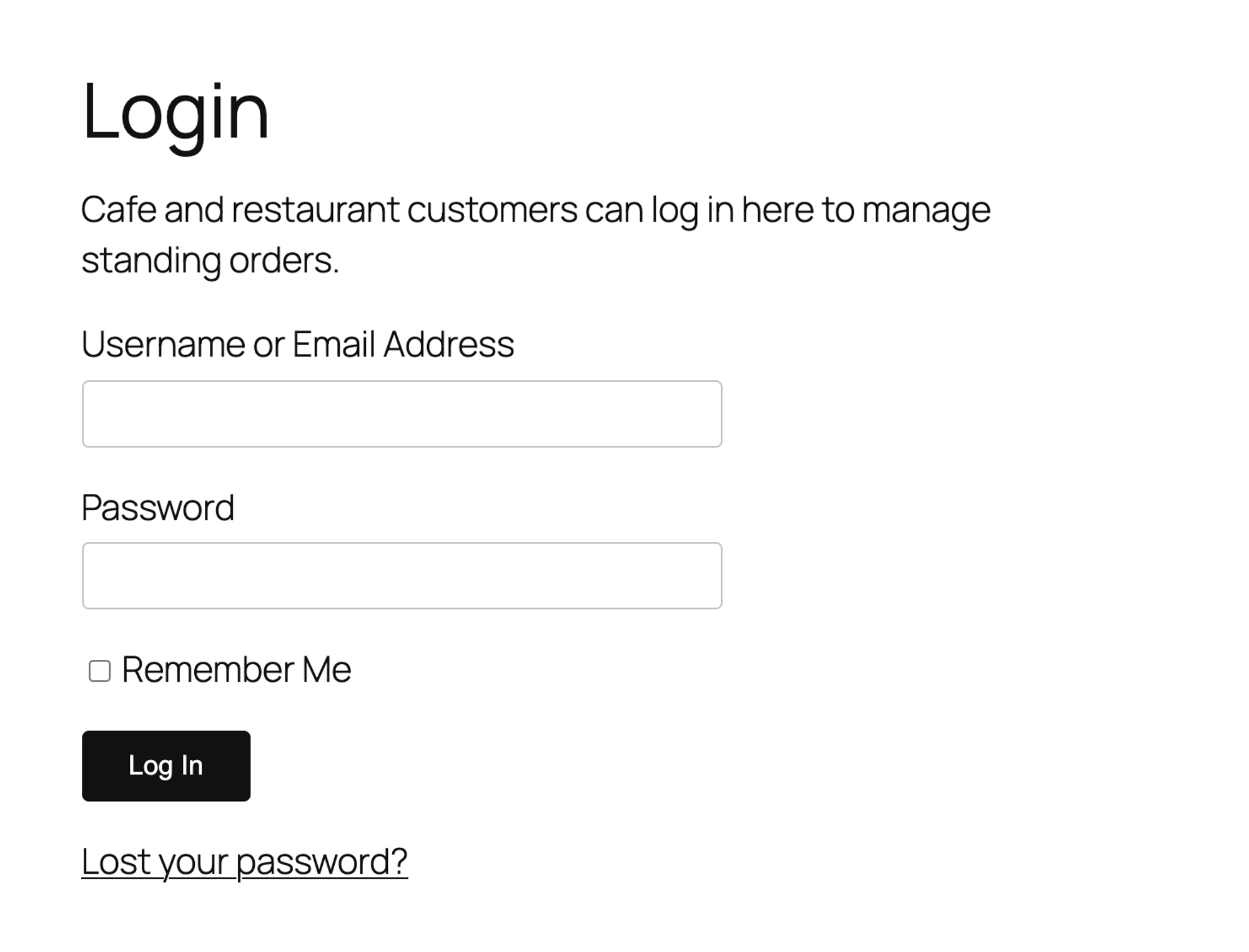
Open your login page in a private browser window. The form now shows with your theme's fonts and colors:
If you want to know how the shortcode part works, see how to create a custom shortcode in WordPress.
What the code does
Part 1 is the form. The form still sends the username and password to wp-login.php, which checks them and sets the login cookie, so WordPress's own login handling stays in charge. Logged-in visitors see who they're logged in as and a logout link instead of the form.
Part 2 sends visitors from wp-login.php to your page. It only redirects the plain login screen. Logging in, logging out, the lost password and reset screens, the registration screen and the "session expired" popup in wp-admin all keep using wp-login.php. We checked each of them. A visitor who opens a wp-admin page while logged out lands on /login/ and, after logging in, on the wp-admin page they asked for.
Part 3 handles failed logins. A wrong username or password sends the visitor back to your page with a message, and empty fields get their own message. This also covers the Login/out block from the previous section: with the file in place, a wrong password in that block's form showed the message on /login/ too.
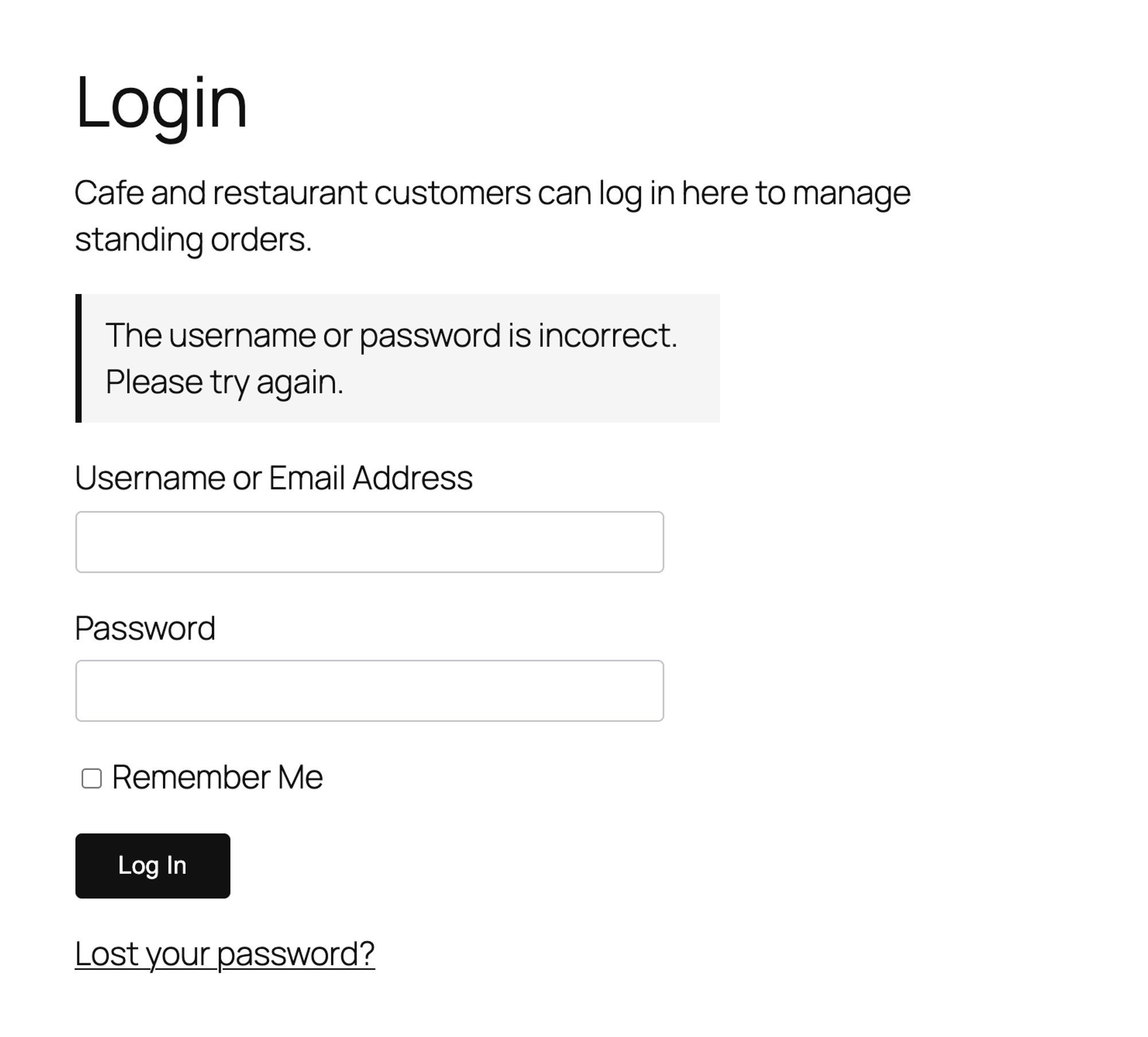
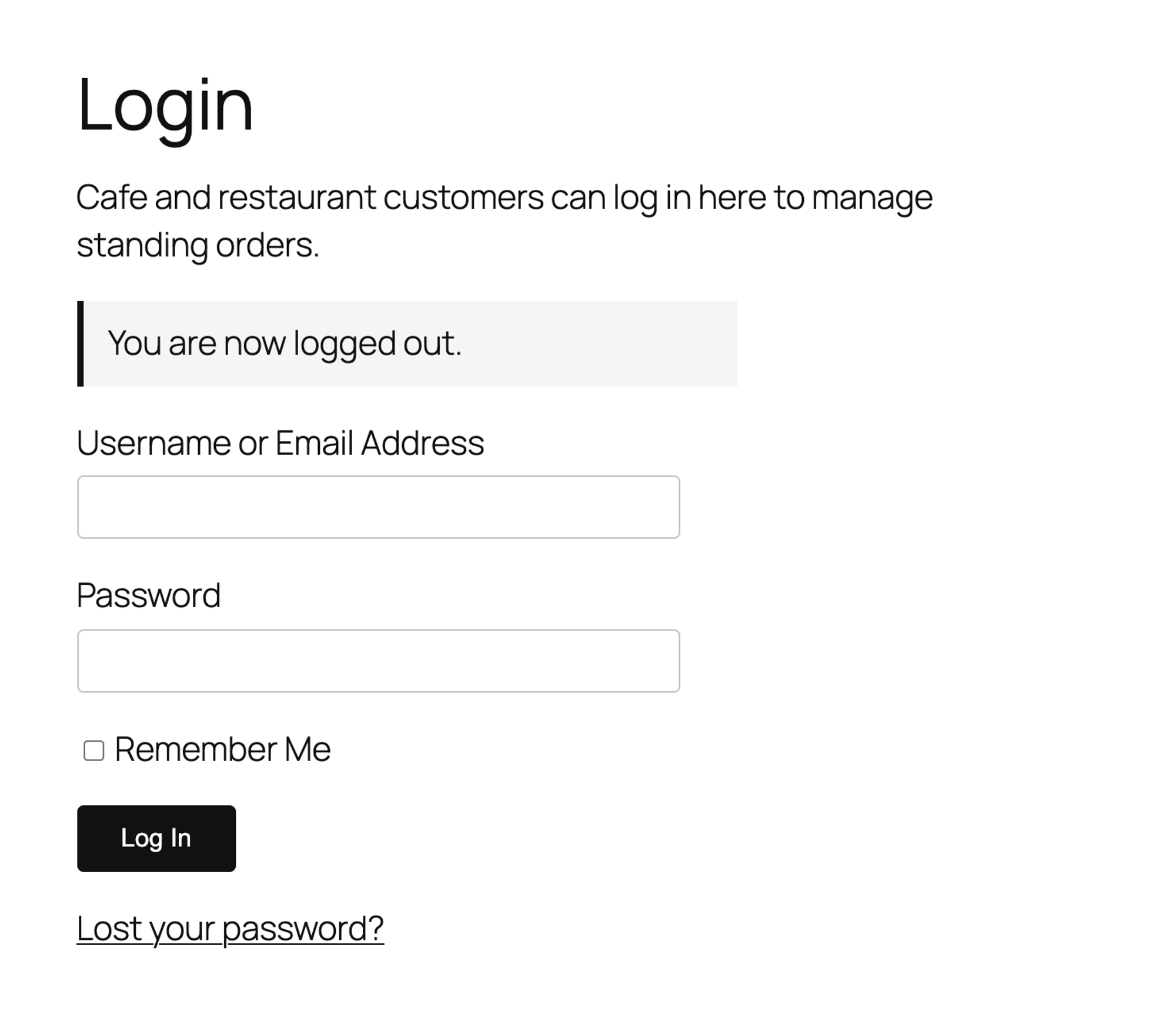
Part 4 sends visitors to your login page after they log out, with a short confirmation:
After a lost password request, WordPress normally shows a "check your email" note on wp-login.php. Part 2 turns that into a message on your page as well. Part 5 adds basic styles for the form, only on the login page.
The code doesn't change WordPress's login_url filter, on purpose. WordPress builds the link to its six-monthly "Is this still your admin email?" screen from that URL. When we added a login_url filter pointing to /login/, administrators were sent to the login page instead of that screen. Without the filter, the screen worked normally.
Send customers somewhere other than wp-admin after login
By default, users who can't edit posts (subscribers and customer accounts) land on their profile in wp-admin after logging in. To send them to your home page instead, save this as wp-content/mu-plugins/login-redirect.php:
1<?php
2/**
3 * Plugin Name: Login redirect
4 * Description: Users who can't edit posts go to the home page after logging in.
5 */
6
7add_filter( 'login_redirect', function ( $redirect_to, $requested_redirect_to, $user ) {
8    $asked_for_dashboard = ! $requested_redirect_to || admin_url() === $requested_redirect_to;
9
10    if ( $user instanceof WP_User && ! $user->has_cap( 'edit_posts' ) && $asked_for_dashboard ) {
11        return home_url( '/' );
12    }
13
14    return $redirect_to;
15}, 10, 3 );
In our test, a subscriber went to the home page after logging in on /login/, while an administrator still landed in wp-admin. When the subscriber had opened a specific page first, such as their profile, they went back to that page. Change home_url( '/' ) to any address on your site, for example home_url( '/order-online/' ).
Does a custom login page make WordPress more secure?
Not by itself. The form on your page still sends logins to wp-login.php, and in our test a login sent straight to wp-login.php was still processed. Bots that try passwords do exactly that. To protect the login, use strong passwords, two-factor authentication or a plugin that limits login attempts.
I can't log in after adding the code
Delete or rename wp-content/mu-plugins/custom-login-page.php with your host's file manager or over FTP. WordPress stops loading it straight away, and wp-login.php shows its normal login screen again. Then check that the slug in the file matches your login page.
The login page shows [custom_login_form] as text
WordPress isn't loading the file. Check that it's saved directly in wp-content/mu-plugins/ and not in a subfolder, that its name ends in .php, and that it starts with <?php. You can see loaded files under Plugins > Must-Use in wp-admin.
The login screen is blank, or Lost your password goes back to the login page
Some guides redirect wp-login.php with wp_redirect() inside the login_enqueue_scripts hook. That hook runs after wp-login.php has started sending the page, so the result depends on your server. In our lab, with PHP's output buffering off, the login screen turned into a blank page. With output buffering on, every wp-login.php screen redirected, so the lost password link led back to the login page and failed logins came back without an error.
Remove that snippet and use the login_init version from this guide, which runs before anything is sent. We tested it with output buffering on and off.
The form looks different in my theme
The styles in part 5 are kept short so they fit most themes. The button uses your theme's text and background colors where the theme defines them, as Twenty Twenty-Five does, and black and white otherwise. In the classic Twenty Twenty-One theme the form, the redirects and the error message worked the same. Adjust the CSS in part 5 to match your design, or remove it if your theme already styles forms.
I've worked in SEO for more than ten years and helped over 100 businesses rank higher, mostly local businesses, e-commerce stores and SaaS companies. As co-founder of LPagery I work on local SEO, programmatic SEO and AI search visibility, and I test the strategies in these articles on our own sites and with our customers.