How to Create a Custom WordPress Theme (Step-by-Step Guide)

Updated
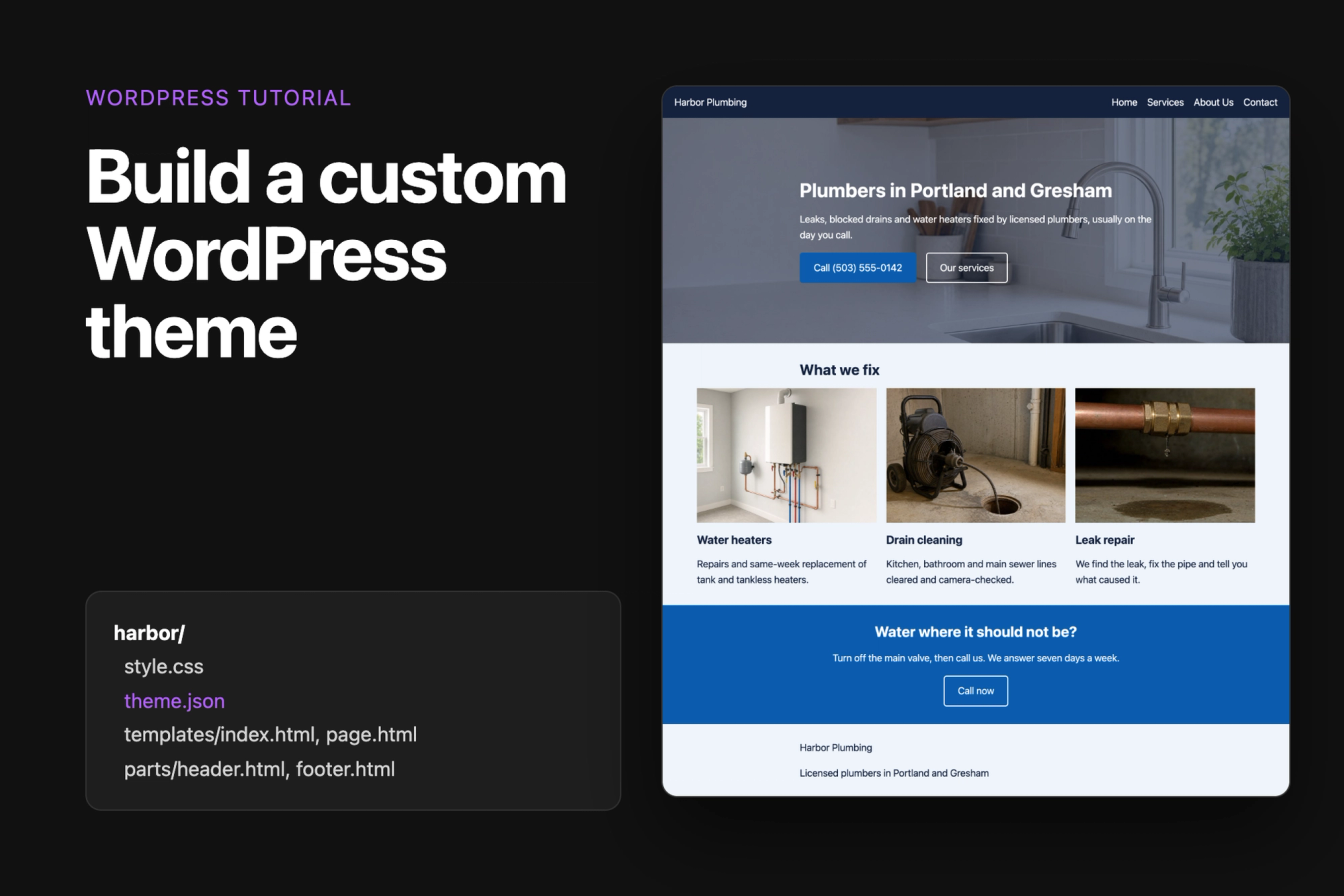
This tutorial builds a custom WordPress theme from scratch for a small plumbing company: a block theme with style.css, theme.json, templates and template parts, which is how WordPress themes are built today. It then shows the same site as a classic theme with index.php and functions.php, for when you need one.
Every file below was installed and activated on WordPress 7.1.3, and every screenshot comes from that site. Twenty Twenty-Five was the theme before the switch.
Block theme or classic theme?
A block theme builds every page from block markup in HTML files. You can edit its header, footer and templates in Appearance > Editor (the Site Editor), and its colors, fonts and spacing come from theme.json. All default themes since Twenty Twenty-Two are block themes, including Twenty Twenty-Five.
A classic theme builds pages with PHP template files such as index.php and header.php. You get menus under Appearance > Menus and no Site Editor. Pick a classic theme when you maintain an older site built that way or need full PHP control over the markup. For a new site, start with a block theme.
If you only want to change a few things about an existing theme, a child theme is less work than a theme of your own.
Before you start
Build the theme on a local WordPress install or a staging site, never on the live site. A syntax error in a theme file can take every page down. Local, wp-env or a Docker container all work; we used Docker. You need access to the wp-content/themes/ folder and a code editor.
The theme in this tutorial is called Harbor. Its finished folder looks like this:
1harbor/
2├── style.css
3├── theme.json
4├── screenshot.png
5├── parts/
6│   ├── header.html
7│   └── footer.html
8└── templates/
9    ├── index.html
10    ├── page.html
11    └── front-page.html
Step 1: Create the theme folder and style.css
Create a folder in wp-content/themes/, for example harbor, and add a file called style.css with this header:
1/*
2Theme Name: Harbor
3Author: Harbor Plumbing
4Description: A small block theme for the Harbor Plumbing website.
5Version: 1.0.0
6Requires at least: 6.6
7Tested up to: 7.1
8Requires PHP: 7.4
9License: GNU General Public License v2 or later
10License URI: https://www.gnu.org/licenses/gpl-2.0.html
11Text Domain: harbor
12*/
WordPress reads the theme's name, description and version from this comment and shows them on Appearance > Themes. The WordPress.org theme directory requires all of these fields, and Requires at least and Requires PHP stop the theme from being activated on sites that are too old. We set Requires at least to 6.6 because the theme.json below uses version 3 of its format, which WordPress 6.6 introduced.
In a block theme, style.css holds only this header. WordPress does not load the file on the front end, so styles you put in it have no effect. Colors, fonts and spacing go into theme.json.
Step 2: Add theme.json for colors, fonts and layout
theme.json in the theme folder sets the design for the editor and the front end at once. settings decides which colors, fonts and sizes the editor offers, and styles applies them to the site:
1{
2    "$schema": "https://schemas.wp.org/trunk/theme.json",
3    "version": 3,
4    "settings": {
5        "appearanceTools": true,
6        "layout": {
7            "contentSize": "720px",
8            "wideSize": "1140px"
9        },
10        "color": {
11            "palette": [
12                { "slug": "base", "color": "#ffffff", "name": "Base" },
13                { "slug": "contrast", "color": "#14213d", "name": "Contrast" },
14                { "slug": "primary", "color": "#0b5cad", "name": "Primary" },
15                { "slug": "surface", "color": "#eef4fa", "name": "Surface" }
16            ]
17        },
18        "typography": {
19            "fontFamilies": [
20                {
21                    "slug": "system",
22                    "name": "System",
23                    "fontFamily": "-apple-system, BlinkMacSystemFont, 'Segoe UI', Roboto, Helvetica, Arial, sans-serif"
24                }
25            ],
26            "fontSizes": [
27                { "slug": "small", "size": "0.9rem", "name": "Small" },
28                { "slug": "medium", "size": "1.1rem", "name": "Medium" },
29                { "slug": "large", "size": "1.75rem", "name": "Large" },
30                { "slug": "x-large", "size": "2.75rem", "name": "Extra large" }
31            ]
32        }
33    },
34    "styles": {
35        "css": ":where(.wp-site-blocks) > * { margin-block-start: 0; } .wp-block-post-content > .alignfull { margin-block-start: 0; }",
36        "color": {
37            "background": "var(--wp--preset--color--base)",
38            "text": "var(--wp--preset--color--contrast)"
39        },
40        "typography": {
41            "fontFamily": "var(--wp--preset--font-family--system)",
42            "fontSize": "var(--wp--preset--font-size--medium)",
43            "lineHeight": "1.6"
44        },
45        "spacing": {
46            "blockGap": "1.25rem"
47        },
48        "elements": {
49            "link": {
50                "color": { "text": "var(--wp--preset--color--primary)" }
51            },
52            "heading": {
53                "typography": { "fontWeight": "700", "lineHeight": "1.2" }
54            },
55            "button": {
56                "color": {
57                    "background": "var(--wp--preset--color--primary)",
58                    "text": "var(--wp--preset--color--base)"
59                },
60                "border": { "radius": "6px" }
61            }
62        }
63    },
64    "templateParts": [
65        { "name": "header", "title": "Header", "area": "header" },
66        { "name": "footer", "title": "Footer", "area": "footer" }
67    ]
68}appearanceToolsturns on the editor's border, spacing and typography controls.layoutsets the width of normal content (720px) and of blocks set to wide width (1140px).- The four palette colors show up in every color picker, and WordPress turns each into a CSS variable such as
--wp--preset--color--primary. elementsstyles all links, headings and buttons at once.cssholds the little CSS the settings cannot express. Ours removes the gap WordPress puts between the header, the content and the footer, and between full-width sections, so they sit flush.templatePartsnames the header and footer parts and puts them in the Header and Footer areas of the Site Editor.
On the front end, WordPress prints these settings as CSS in the page's head. In our lab, the CTA section with the Primary background rendered in #0b5cad, read from the palette.
Step 3: Add the header and footer template parts
Template parts are pieces of block markup that several templates share. Create a parts folder with two files. The header shows the site title and the navigation menu on a dark bar:
1<!-- wp:group {"align":"full","style":{"spacing":{"padding":{"top":"1rem","bottom":"1rem","left":"1.5rem","right":"1.5rem"}}},"backgroundColor":"contrast","textColor":"base","layout":{"type":"flex","justifyContent":"space-between"}} -->
2<div class="wp-block-group alignfull has-base-color has-contrast-background-color has-text-color has-background" style="padding-top:1rem;padding-right:1.5rem;padding-bottom:1rem;padding-left:1.5rem">
3    <!-- wp:site-title {"level":0,"style":{"elements":{"link":{"color":{"text":"var:preset|color|base"}}}}} /-->
4    <!-- wp:navigation {"textColor":"base","overlayBackgroundColor":"contrast","overlayTextColor":"base"} /-->
5</div>
6<!-- /wp:group -->
The footer shows the site title and the tagline from Settings > General:
1<!-- wp:group {"align":"full","style":{"spacing":{"padding":{"top":"2rem","bottom":"2rem","left":"1.5rem","right":"1.5rem"}}},"backgroundColor":"surface","layout":{"type":"constrained"}} -->
2<div class="wp-block-group alignfull has-surface-background-color has-background" style="padding-top:2rem;padding-right:1.5rem;padding-bottom:2rem;padding-left:1.5rem">
3    <!-- wp:site-title {"level":0} /-->
4    <!-- wp:site-tagline /-->
5</div>
6<!-- /wp:group -->
The comments such as <!-- wp:site-title /--> are blocks. WordPress replaces each one with its output when it renders the page, so the site title always matches what you set in the settings. The Navigation block shows the site's navigation menu, which you can edit in the Site Editor.
You don't have to type block markup by hand. Build the section in the block editor, open the Options menu, choose Code editor, and copy the markup into the file.
Step 4: Add the templates
Templates go into a templates folder. index.html is the one a block theme must have: WordPress uses it for every view that has no more specific template. Ours shows a list of posts between the header and the footer:
1<!-- wp:template-part {"slug":"header","tagName":"header"} /-->
2
3<!-- wp:group {"tagName":"main","style":{"spacing":{"padding":{"top":"3rem","bottom":"3rem","left":"1.5rem","right":"1.5rem"}}},"layout":{"type":"constrained"}} -->
4<main class="wp-block-group" style="padding-top:3rem;padding-right:1.5rem;padding-bottom:3rem;padding-left:1.5rem">
5    <!-- wp:query {"queryId":1,"query":{"inherit":true,"perPage":10}} -->
6    <div class="wp-block-query">
7        <!-- wp:post-template -->
8            <!-- wp:post-title {"isLink":true} /-->
9            <!-- wp:post-date /-->
10            <!-- wp:post-excerpt /-->
11        <!-- /wp:post-template -->
12        <!-- wp:query-pagination -->
13            <!-- wp:query-pagination-previous /-->
14            <!-- wp:query-pagination-next /-->
15        <!-- /wp:query-pagination -->
16        <!-- wp:query-no-results -->
17            <!-- wp:paragraph -->
18            <p>Nothing found.</p>
19            <!-- /wp:paragraph -->
20        <!-- /wp:query-no-results -->
21    </div>
22    <!-- /wp:query -->
23</main>
24<!-- /wp:group -->
25
26<!-- wp:template-part {"slug":"footer","tagName":"footer"} /-->page.html is used for pages. It prints the page title as a heading, then the content:
1<!-- wp:template-part {"slug":"header","tagName":"header"} /-->
2
3<!-- wp:group {"tagName":"main","style":{"spacing":{"padding":{"top":"3rem","bottom":"3rem","left":"1.5rem","right":"1.5rem"}}},"layout":{"type":"constrained"}} -->
4<main class="wp-block-group" style="padding-top:3rem;padding-right:1.5rem;padding-bottom:3rem;padding-left:1.5rem">
5    <!-- wp:post-title {"level":1} /-->
6    <!-- wp:post-content {"layout":{"type":"constrained"}} /-->
7</main>
8<!-- /wp:group -->
9
10<!-- wp:template-part {"slug":"footer","tagName":"footer"} /-->front-page.html is used for the home page. It leaves out the title, so a full-width Cover block can open the page:
1<!-- wp:template-part {"slug":"header","tagName":"header"} /-->
2
3<!-- wp:group {"tagName":"main","layout":{"type":"constrained"}} -->
4<main class="wp-block-group">
5    <!-- wp:post-content {"align":"full","layout":{"type":"constrained"}} /-->
6</main>
7<!-- /wp:group -->
8
9<!-- wp:template-part {"slug":"footer","tagName":"footer"} /-->
WordPress picks the most specific template that exists, following the template hierarchy: front-page.html for the home page, page.html for other pages, and index.html for everything else. In the lab, the home page opened with the Cover block and no title, and the Services page showed Services as its heading. You can add single.html for posts, archive.html for category pages or 404.html the same way.
Step 5: Add a screenshot and activate the theme
WordPress shows screenshot.png from the theme folder as the theme's preview image. The handbook recommends 1200 by 900 pixels. We took a screenshot of the finished home page at that size.
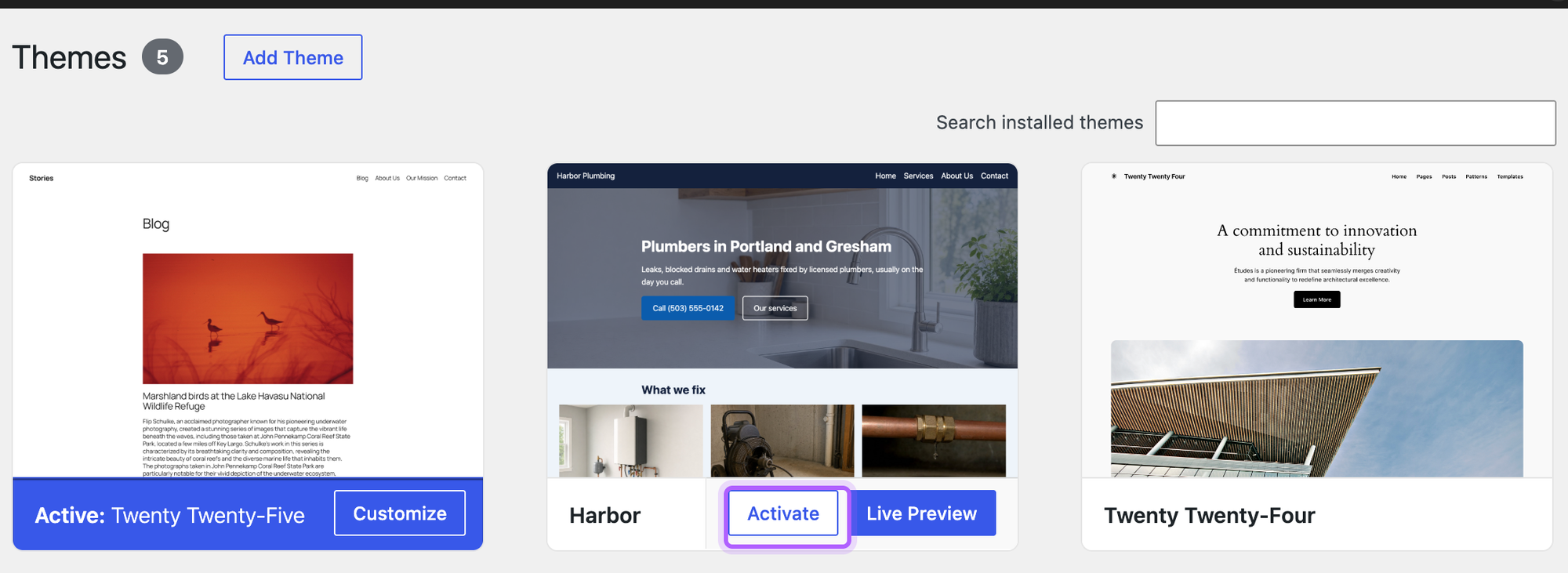
Go to Appearance > Themes, hover over your theme's card and click Activate:
Step 6: Check the theme on the front end
Open the site in a private window, where you are logged out. Our home page shows the header part, the content of the Home page, and the footer part:
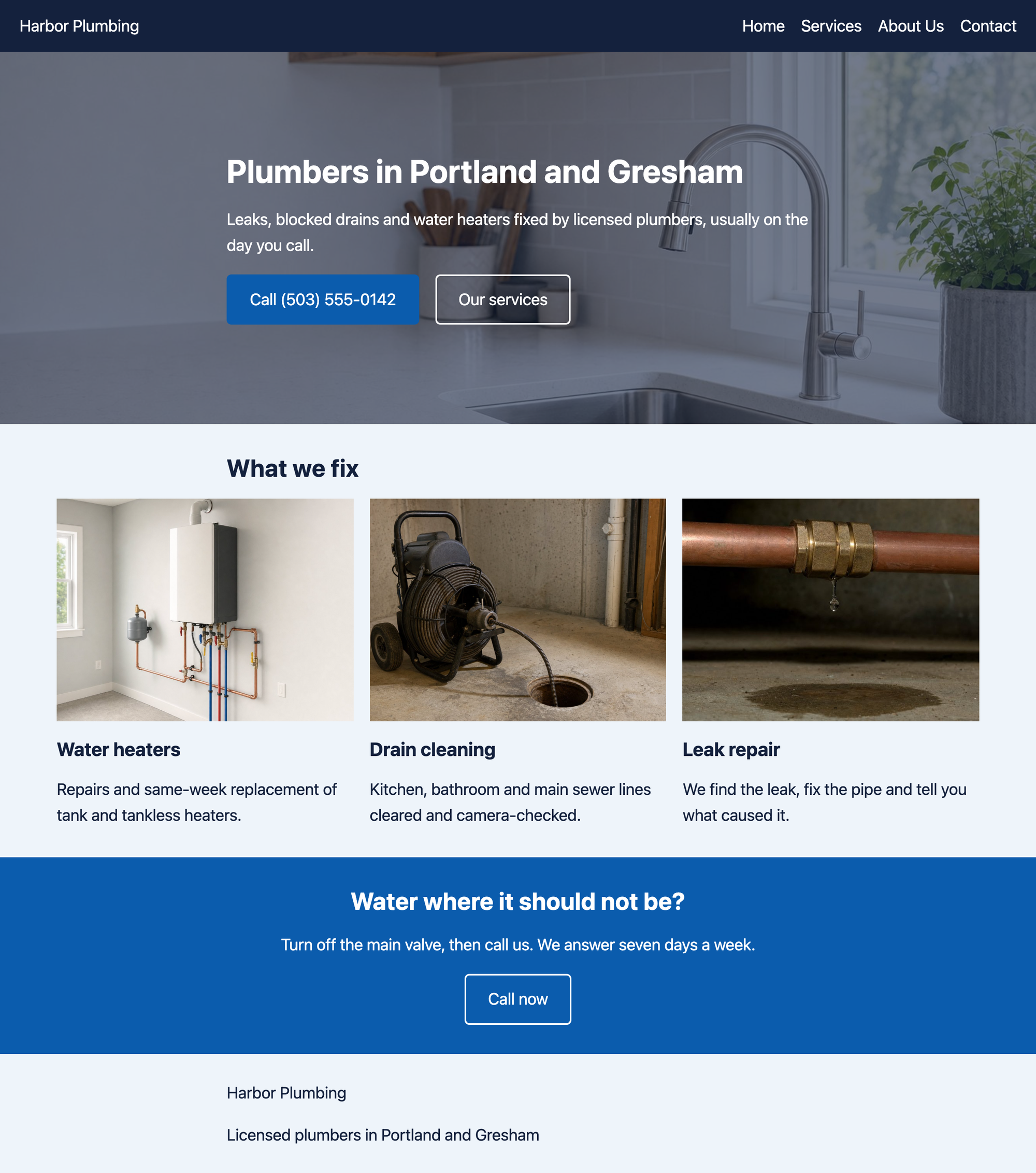
The colors, fonts and widths all come from theme.json. If something looks off, check the browser's developer tools for the --wp--preset-- variables WordPress generated from it.
Edit the theme in the Site Editor
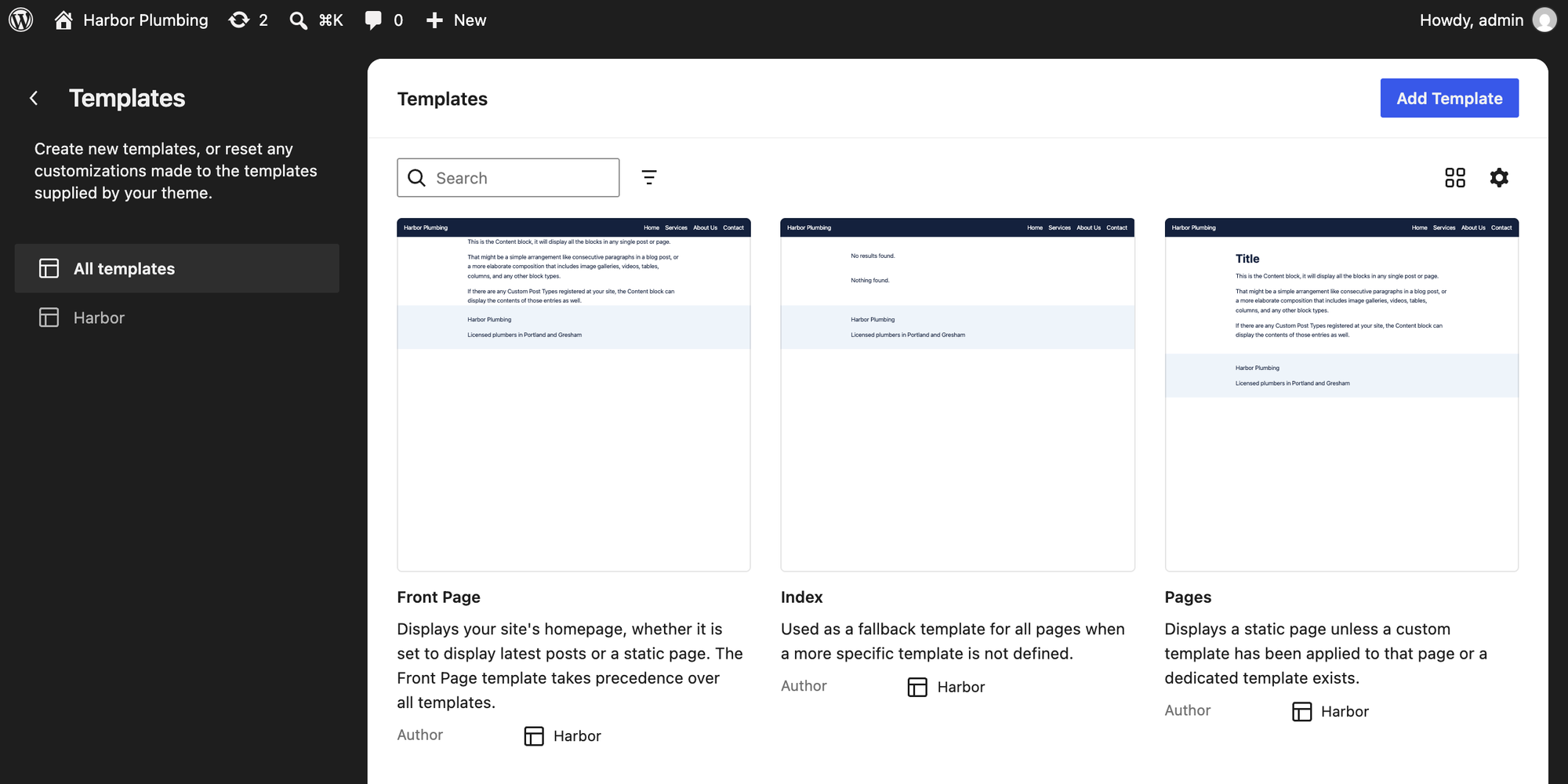
Because Harbor is a block theme, Appearance > Editor now opens the Site Editor. Under Templates it lists the theme's templates, and you can change any of them with blocks:
Changes you save in the Site Editor are stored in the database and override the theme's files from then on. Editing a file afterwards does not change a template you already customized in the editor. To put an editor change back into the theme, open the template in the Code editor, copy its markup into the file, and then reset the template in the editor.
The same theme as a classic theme
A classic theme needs style.css and index.php. Most add functions.php, header.php and footer.php as well. Here is the Harbor site as a classic theme, in a folder called harbor-classic.
style.css has the same header as above, but here the file also holds the CSS:
1/*
2Theme Name: Harbor Classic
3Author: Harbor Plumbing
4Description: A small classic theme for the Harbor Plumbing website.
5Version: 1.0.0
6Requires at least: 6.6
7Tested up to: 7.1
8Requires PHP: 7.4
9License: GNU General Public License v2 or later
10License URI: https://www.gnu.org/licenses/gpl-2.0.html
11Text Domain: harbor-classic
12*/
13
14body {
15    margin: 0;
16    font-family: -apple-system, BlinkMacSystemFont, "Segoe UI", Roboto, Helvetica, Arial, sans-serif;
17    line-height: 1.6;
18    color: #14213d;
19}
20
21.site-header {
22    display: flex;
23    justify-content: space-between;
24    align-items: center;
25    padding: 1rem 1.5rem;
26    background: #14213d;
27}
28
29.site-header a {
30    color: #fff;
31    text-decoration: none;
32}
33
34.site-title {
35    font-weight: 700;
36}
37
38.primary-menu {
39    display: flex;
40    gap: 1.5rem;
41    margin: 0;
42    padding: 0;
43    list-style: none;
44}
45
46.site-main {
47    max-width: 720px;
48    margin: 0 auto;
49    padding: 3rem 1.5rem;
50}
51
52.site-footer {
53    padding: 2rem 1.5rem;
54    background: #eef4fa;
55}functions.php turns on theme features, registers a menu location and loads style.css. A classic theme does not load its stylesheet by itself: without the wp_enqueue_style() call, our test page rendered with no styles at all.
1<?php
2function harbor_classic_setup() {
3    add_theme_support( 'title-tag' );
4    add_theme_support( 'post-thumbnails' );
5    add_theme_support( 'html5', array( 'search-form', 'gallery', 'caption', 'style', 'script' ) );
6
7    register_nav_menus(
8        array(
9            'primary' => __( 'Primary menu', 'harbor-classic' ),
10        )
11    );
12}
13add_action( 'after_setup_theme', 'harbor_classic_setup' );
14
15function harbor_classic_assets() {
16    wp_enqueue_style(
17        'harbor-classic',
18        get_stylesheet_uri(),
19        array(),
20        wp_get_theme()->get( 'Version' )
21    );
22}
23add_action( 'wp_enqueue_scripts', 'harbor_classic_assets' );add_theme_support( 'title-tag' ) lets WordPress print the page's <title>. Without it, our classic theme's pages had no title in the browser tab. post-thumbnails turns on featured images; our tutorial on adding a featured image without a plugin shows how to display them.
header.php opens the page. wp_head() and wp_body_open() let WordPress and plugins add their styles, scripts and meta tags, so keep both:
1<!DOCTYPE html>
2<html <?php language_attributes(); ?>>
3<head>
4    <meta charset="<?php bloginfo( 'charset' ); ?>">
5    <meta name="viewport" content="width=device-width, initial-scale=1">
6    <?php wp_head(); ?>
7</head>
8<body <?php body_class(); ?>>
9<?php wp_body_open(); ?>
10<header class="site-header">
11    <a class="site-title" href="<?php echo esc_url( home_url( '/' ) ); ?>"><?php bloginfo( 'name' ); ?></a>
12    <?php
13    wp_nav_menu(
14        array(
15            'theme_location' => 'primary',
16            'menu_class'     => 'primary-menu',
17            'container'      => 'nav',
18            'fallback_cb'    => false,
19        )
20    );
21    ?>
22</header>footer.php closes it. wp_footer() prints the scripts that load at the end of the page, including the admin bar:
1<footer class="site-footer">
2 <p>© <?php echo esc_html( wp_date( 'Y' ) ); ?> <?php bloginfo( 'name' ); ?></p>
3</footer>
4<?php wp_footer(); ?>
5</body>
6</html>index.php loads the header, runs the loop and loads the footer. On a single page or post it shows the title and the full content, everywhere else a list of titles with excerpts:
1<?php get_header(); ?>
2
3<main class="site-main">
4    <?php
5    if ( have_posts() ) :
6        while ( have_posts() ) :
7            the_post();
8            ?>
9            <article <?php post_class(); ?>>
10                <?php
11                if ( is_singular() ) {
12                    the_title( '<h1>', '</h1>' );
13                    the_content();
14                } else {
15                    the_title( '<h2><a href="' . esc_url( get_permalink() ) . '">', '</a></h2>' );
16                    the_excerpt();
17                }
18                ?>
19            </article>
20            <?php
21        endwhile;
22        the_posts_pagination();
23    else :
24        echo '<p>' . esc_html__( 'Nothing found.', 'harbor-classic' ) . '</p>';
25    endif;
26    ?>
27</main>
28
29<?php get_footer(); ?>
After activating the theme, go to Appearance > Menus, create a menu, and tick Primary menu under Menu Settings. Our Services page in the classic theme:
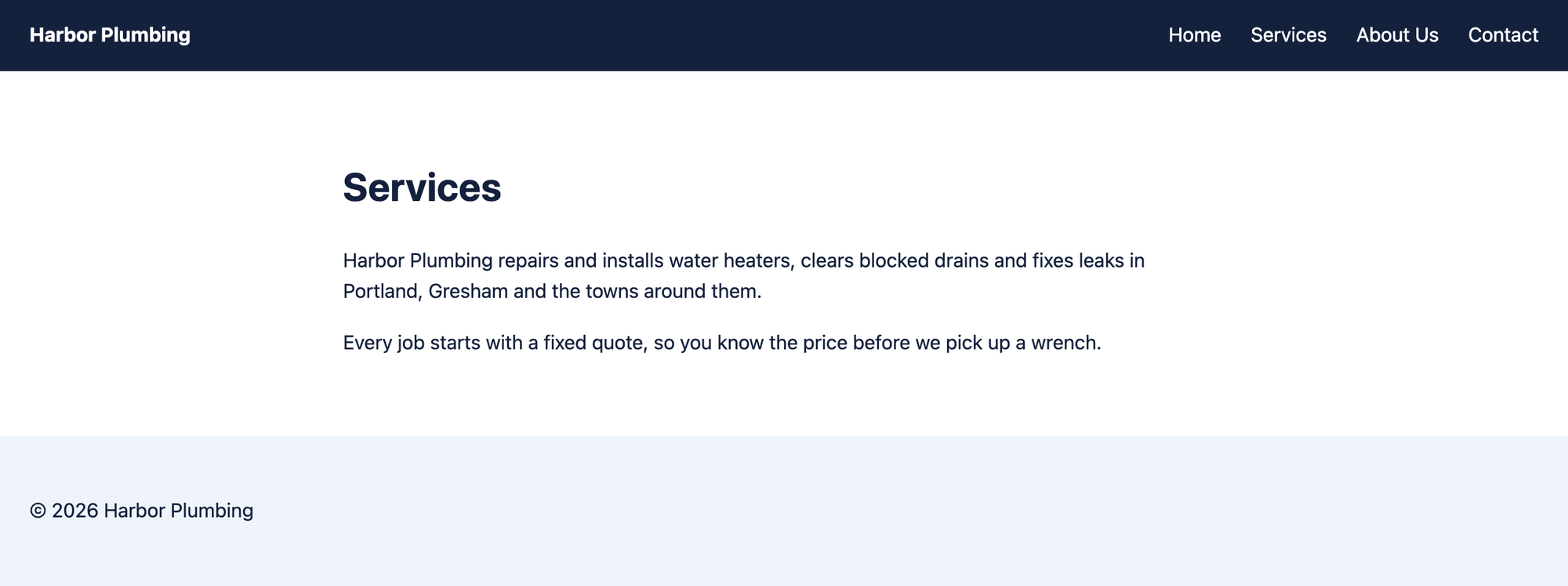
Like page.html in the block theme, you can add page.php, single.php or 404.php next to index.php, and WordPress uses them by the same template hierarchy.
The theme shows under Broken Themes
WordPress lists a theme under Broken Themes when it finds no template to render pages with. Our test theme without templates/index.html got the message Template is missing. Check that a block theme has templates/index.html (with an "s" in templates) or that a classic theme has index.php in the theme's main folder, next to style.css.
Styles in style.css do not show up
In a block theme, WordPress does not load style.css. Move the styles into theme.json, or load the file yourself with wp_enqueue_style() in a functions.php. In a classic theme, the harbor_classic_assets() function above is what loads it: check that it is there and hooked to wp_enqueue_scripts.
My template file changes have no effect
When you have saved the same template in the Site Editor, WordPress uses the saved copy from the database. Open the template in Appearance > Editor, and use Reset in its actions menu to go back to the theme's file.
Move the theme to your live site
Zip the theme folder, then go to Appearance > Themes on the live site, click Add Theme, then Upload Theme, and choose the zip file. Activate it once the upload finishes. Before you switch, check every page type you use (home page, pages, posts, the 404 page) on your test site, with WP_DEBUG set to true in wp-config.php so PHP notices show up.
Code that should keep working when you change themes, such as shortcodes, belongs in a plugin or a file in mu-plugins instead of the theme. Our tutorials on custom shortcodes and custom blocks without a plugin show both.
Further reading
The Theme Handbook covers every template and theme feature, and the theme.json reference lists every setting and style you can use.
I've worked in SEO for more than ten years and helped over 100 businesses rank higher, mostly local businesses, e-commerce stores and SaaS companies. As co-founder of LPagery I work on local SEO, programmatic SEO and AI search visibility, and I test the strategies in these articles on our own sites and with our customers.