How to Add a Featured Image in WordPress Without a Plugin

Updated
A featured image is the main picture of a post or page. This tutorial sets one in the block editor, shows where a block theme displays it, and then covers the code: turning on featured images in a classic theme, printing them in a template, getting their URL and setting them with PHP.
The screenshots and code come from WordPress 7.1.3 with the Twenty Twenty-Five theme (version 1.5). The classic-theme code was tested with a small classic theme in the same install.
What is a featured image?
Each post or page can have one featured image. WordPress stores it as a setting of the post, the ID of an image in your media library, and the theme decides where it appears: usually at the top of the post and next to the post on the blog page and in archives. In code, featured images are called post thumbnails, which is why the functions below have post_thumbnail in their names.
You don't need a plugin for any of this. Every block theme supports featured images out of the box, and a classic theme needs one line of code.
How to add a featured image in the block editor
- Open the post or page in the editor. In the sidebar on the right, select the Post tab (or Page for a page). If the sidebar is hidden, click the Settings icon in the top right corner.
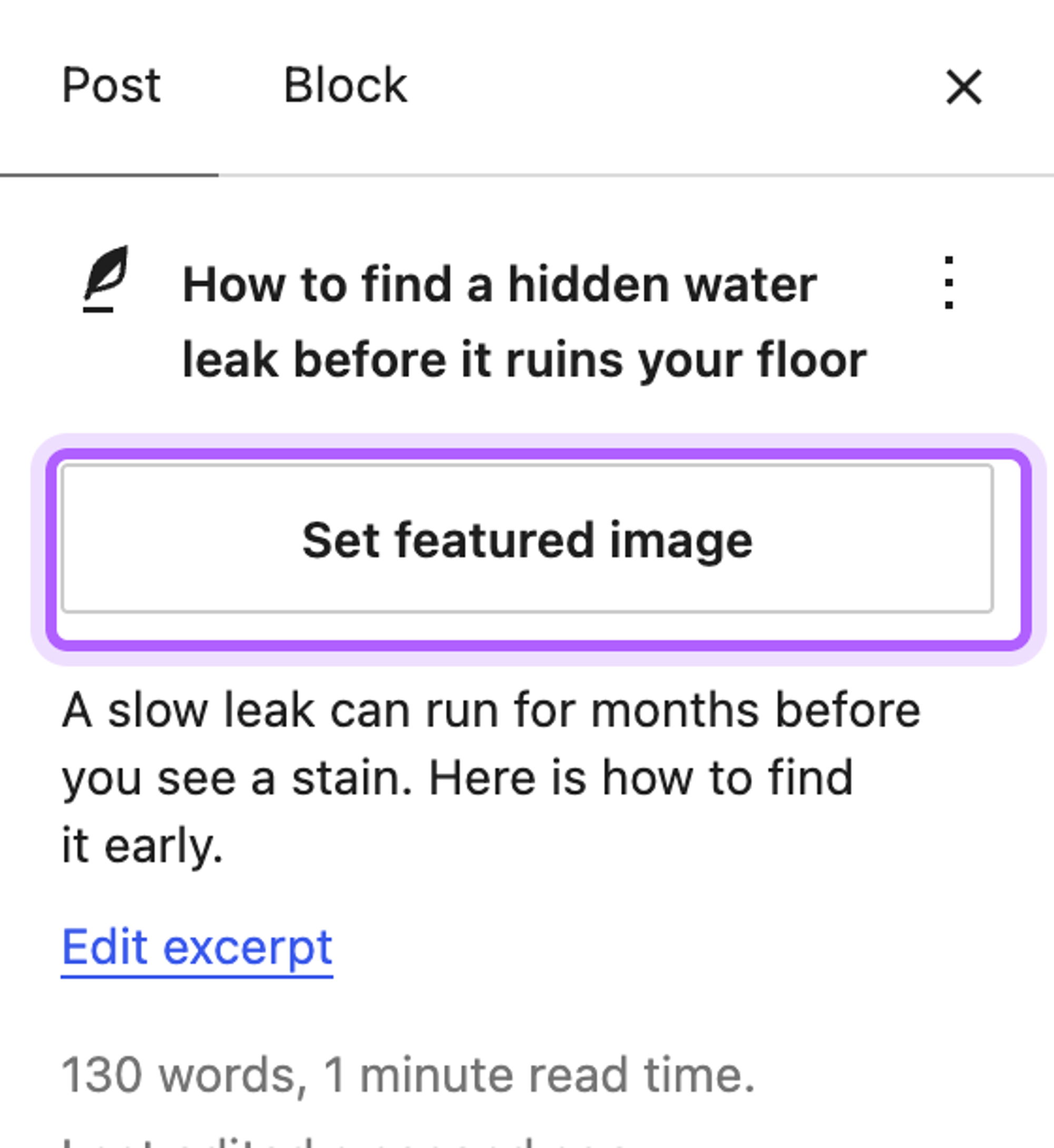
- Click Set featured image under the title.
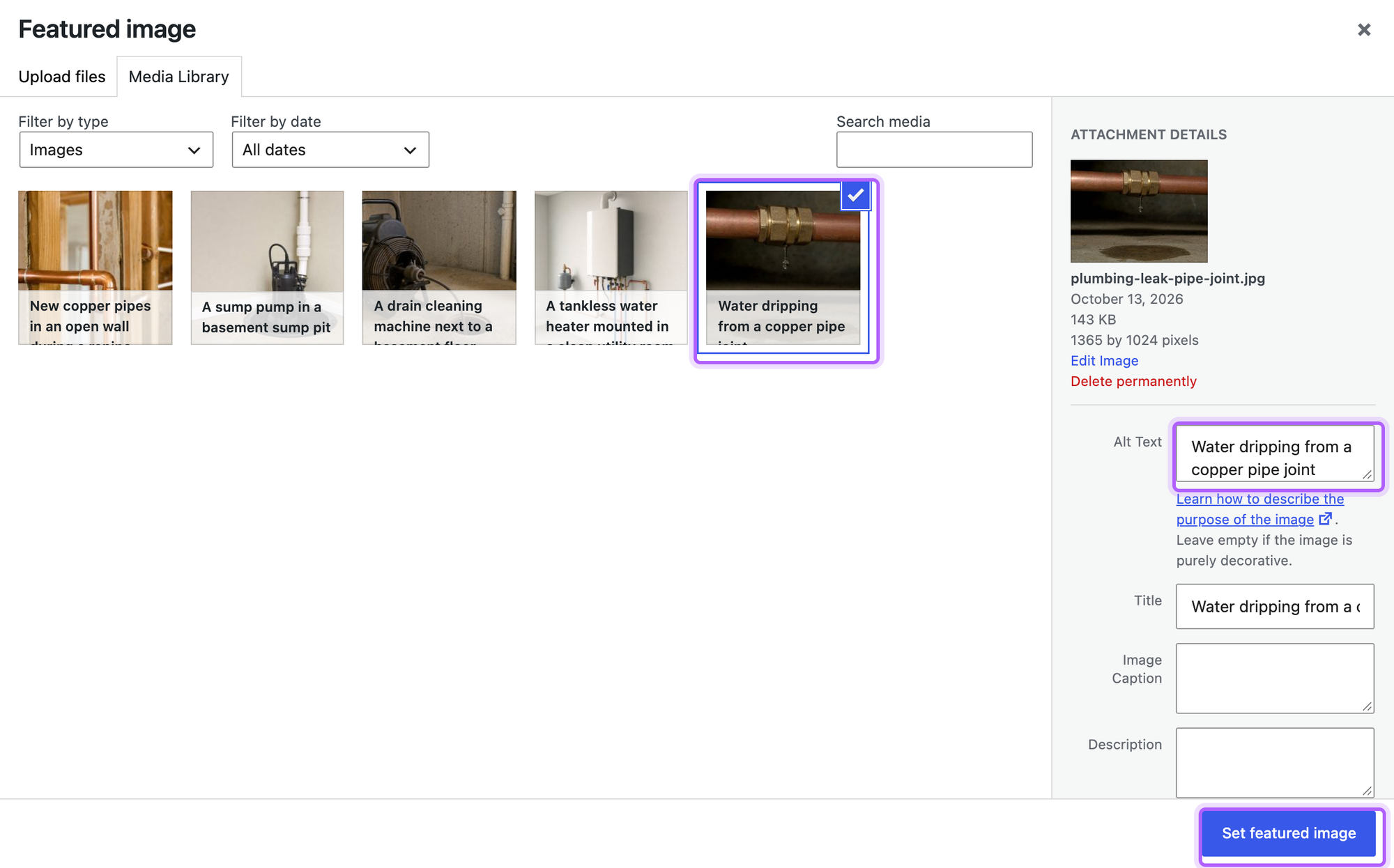
- In the Featured image window, pick an image on the Media Library tab, or upload a new one on the Upload files tab.
- Check the Alt Text field on the right. Twenty Twenty-Five uses it as the image's alt text on the page, so describe what the picture shows.
- Click Set featured image in the bottom right corner.
- Click Publish, or Save on a post that is already live, to save the featured image with the post.
The Set featured image button sits in the sidebar under the post title:
This is the Featured image window with the photo selected. Its Alt Text comes from the media library, and you can edit it here:
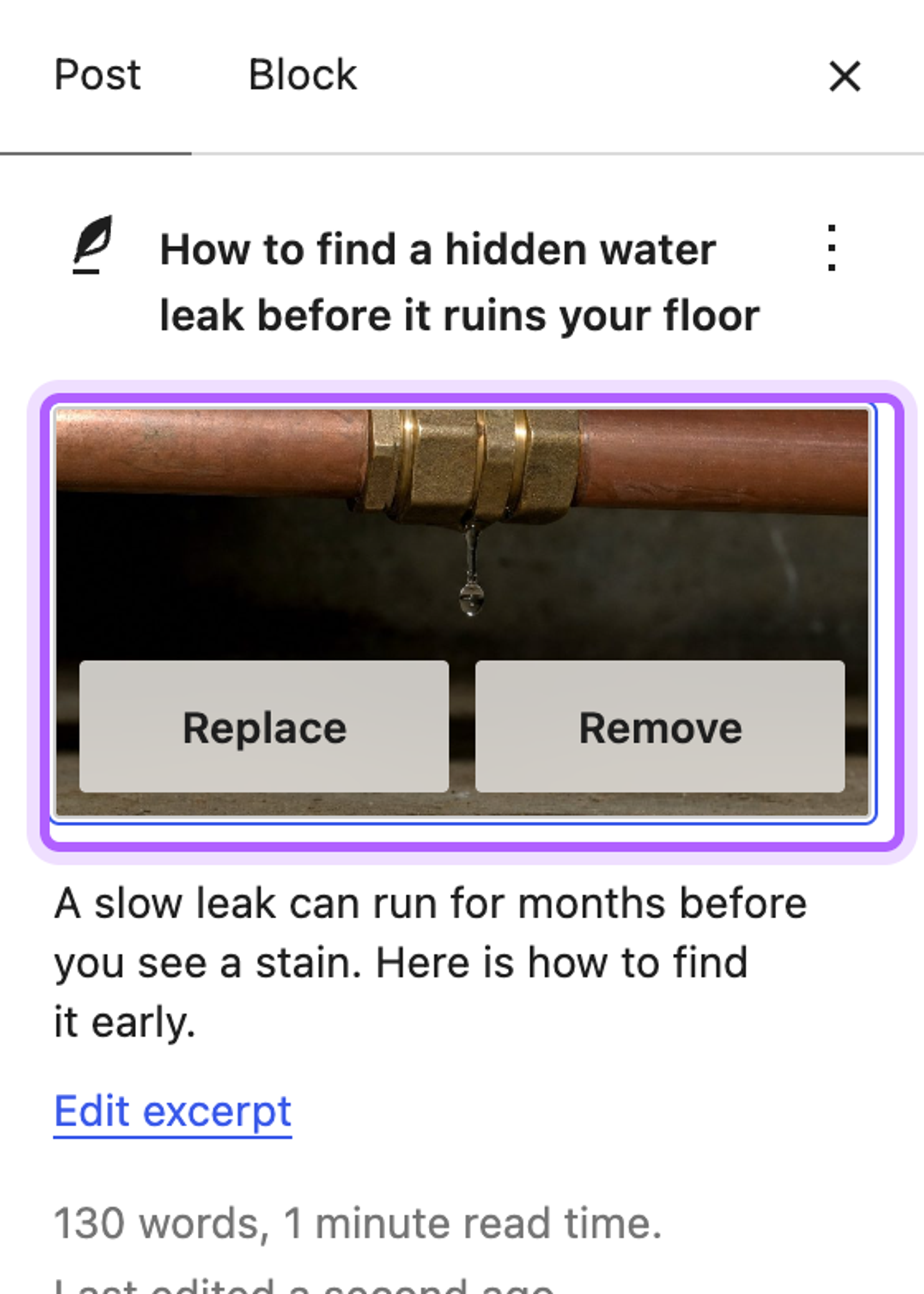
The sidebar then shows the image, with Replace and Remove buttons to change it later.
Where the featured image shows in Twenty Twenty-Five
Twenty Twenty-Five's Single Posts template has a Featured Image block under the title, so a visitor sees the image at the top of the post. The block crops it to a 3:2 frame: our 1365 by 1024 pixel photo filled a 645 by 430 pixel box, with the top and bottom cut off.

On the blog page and in archives, every post shows its featured image above its title. The Pages template prints a page's featured image too.

Change the crop in the Site Editor
To change how the image looks on every post, go to Appearance > Editor > Templates, open Single Posts and click the featured image area (the template shows a placeholder, since it isn't tied to one post). In the block sidebar, open the Styles tab. Under Dimensions, Aspect ratio offers Original, which shows the whole image, as well as fixed shapes such as Square - 1:1 and Wide - 16:9. On the Settings tab, Make image a link links the image to the post, which is useful on the blog page template.
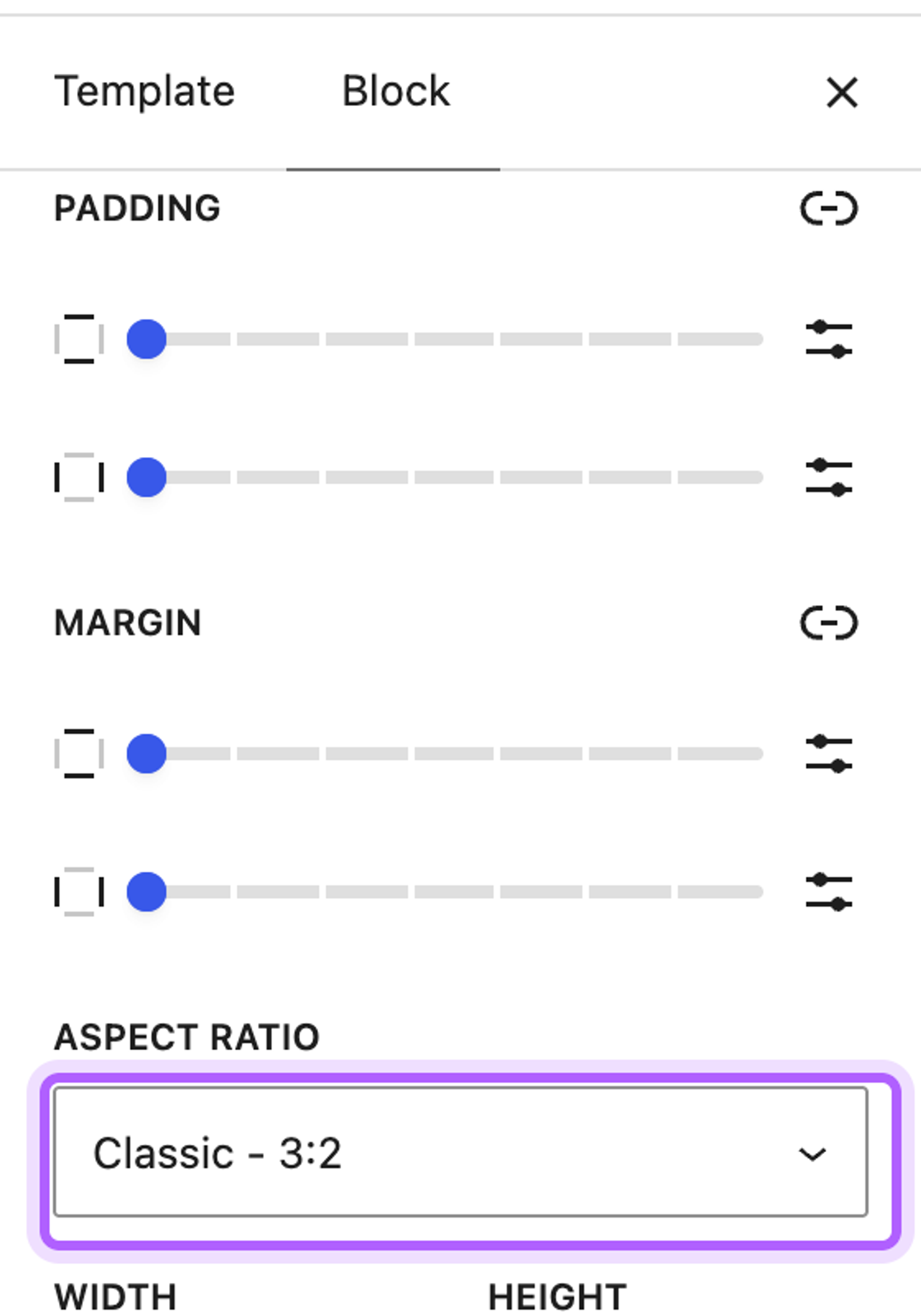
Save the template when you're done. The change applies to every post that uses it.
Why is there no featured image option?
The block editor only shows Set featured image when two things are true: the theme supports featured images, and the post type supports them. Block themes always pass the first check, because WordPress adds the support for every block theme itself. Twenty Twenty-Five's own files don't mention it.
Classic themes have to declare it. In our test, a classic theme without the line below had no featured image panel in the editor. A featured image set earlier was still stored with the post; the theme just had no way to set or show it.
Turn on featured images in a classic theme
Add this to your theme's functions.php:
1function harbor_theme_setup() {
2    // Adds the Featured image panel to posts and pages.
3    add_theme_support( 'post-thumbnails' );
4
5    // Optional: the size the_post_thumbnail() uses when you give it no size.
6    set_post_thumbnail_size( 1200, 800, true );
7}
8add_action( 'after_setup_theme', 'harbor_theme_setup' );
The panel appeared in the editor as soon as the file was saved. set_post_thumbnail_size() is optional: it sets the size the_post_thumbnail() uses when you call it without a size, and true crops images to exactly 1200 by 800 pixels. To allow featured images on some post types only, pass them as a second argument, for example add_theme_support( 'post-thumbnails', array( 'post' ) ).
If the theme comes from wordpress.org or a theme shop, an update replaces its functions.php. Put the code in a child theme instead, or in a file in wp-content/mu-plugins/, which our custom shortcode tutorial explains.
Custom post types need 'thumbnail' in supports
Posts and pages support featured images by default. A custom post type only does when thumbnail is in its supports list:
1function harbor_register_projects() {
2    register_post_type( 'harbor_project', array(
3        'label'        => 'Projects',
4        'public'       => true,
5        'show_in_rest' => true, // the block editor needs this
6        'supports'     => array( 'title', 'editor', 'thumbnail' ),
7    ) );
8}
9add_action( 'init', 'harbor_register_projects' );
With thumbnail removed from the list, the editor for this post type had no featured image panel in our test. Our tutorial on creating a custom post type explains the other register_post_type() options.
Show the featured image in a classic theme template
In a block theme, you add a Featured Image block to the template in the Site Editor. In a classic theme, you print it with PHP. Add this inside the loop in single.php, or in whichever template file shows your posts:
<?php if ( has_post_thumbnail() ) : ?>
    <figure class="post-image">
        <?php the_post_thumbnail( 'large' ); ?>
    </figure>
<?php endif; ?>has_post_thumbnail() checks that the post has a featured image, so posts without one don't get an empty <figure>. the_post_thumbnail() prints a complete <img> tag with srcset and the alt text from the media library. In our test it printed the 1024 pixel wide large version of the photo.
The first argument is the size: 'thumbnail', 'medium', 'large', 'full' for the original upload, a custom size (see below), or an array of width and height such as array( 400, 300 ). Without an argument it uses 'post-thumbnail', the size from set_post_thumbnail_size(). A second, optional argument adds HTML attributes to the <img> tag, for example array( 'class' => 'post-hero' ).
Get the featured image URL
When you need the image's address instead of an <img> tag, use get_the_post_thumbnail_url(). It takes the post (or null for the current one) and a size, and returns the URL or false when the post has no featured image. This snippet uses it to tell social networks which image to show when someone shares a post:
1function harbor_og_image() {
2    if ( ! is_singular() || ! has_post_thumbnail() ) {
3        return;
4    }
5    $url = get_the_post_thumbnail_url( null, 'large' );
6    echo '<meta property="og:image" content="' . esc_url( $url ) . '">' . "\n";
7}
8add_action( 'wp_head', 'harbor_og_image' );
On our test post it printed the large image's URL in the page's <head>, and on the blog page it printed nothing. If an SEO plugin already adds og:image tags to your site, leave this out, or the page ends up with two.
Set a featured image with code
set_post_thumbnail( $post, $attachment_id ) makes an image from the media library the featured image of a post, and delete_post_thumbnail( $post ) removes it. A common use: posts that already have a photo in the text but no featured image. This snippet uses the first Image block of a post when the post is saved without a featured image:
1function harbor_auto_featured_image( $post_id, $post ) {
2    if ( wp_is_post_revision( $post_id ) || has_post_thumbnail( $post_id ) ) {
3        return;
4    }
5    // Use the first Image block that holds an image from the media library.
6    foreach ( parse_blocks( $post->post_content ) as $block ) {
7        if ( 'core/image' === $block['blockName'] && ! empty( $block['attrs']['id'] ) ) {
8            set_post_thumbnail( $post_id, $block['attrs']['id'] );
9            return;
10        }
11    }
12}
13add_action( 'save_post_post', 'harbor_auto_featured_image', 10, 2 );
We tested it by saving posts through the REST API, the same way the block editor saves them. A post with an Image block got that image as its featured image, and visitors saw it at the top of the post. A featured image chosen in the editor was kept, and a post with text only stayed without one. The hook runs only for posts; for pages, use save_post_page.
To set featured images from outside WordPress, see uploading an image with the REST API, which ends with making the upload a post's featured image. When you create posts with wp_insert_post(), our tutorial on creating posts programmatically sets the featured image in the same script.
Add a custom image size for featured images
If your blog cards need images of one exact size, register it. WordPress then creates a file in that size for every image you upload:
function harbor_image_sizes() {
    add_image_size( 'harbor-card', 600, 400, true ); // 600 x 400, cropped to fit
}
add_action( 'after_setup_theme', 'harbor_image_sizes' );
Then print it with the_post_thumbnail( 'harbor-card' ). In our test that printed a 600 by 400 pixel file.
WordPress only creates image sizes when an image is uploaded. A photo uploaded before we added the code had no 600 by 400 file until we ran wp media regenerate with WP-CLI, which creates the missing sizes for images already in the media library.
Make a featured post with the Sticky option
Sometimes "featured post" means a post that stays at the top of the blog instead of a post's image. WordPress has this built in. In the editor's Post tab, click the post's status next to Status and tick Sticky, then save the post.
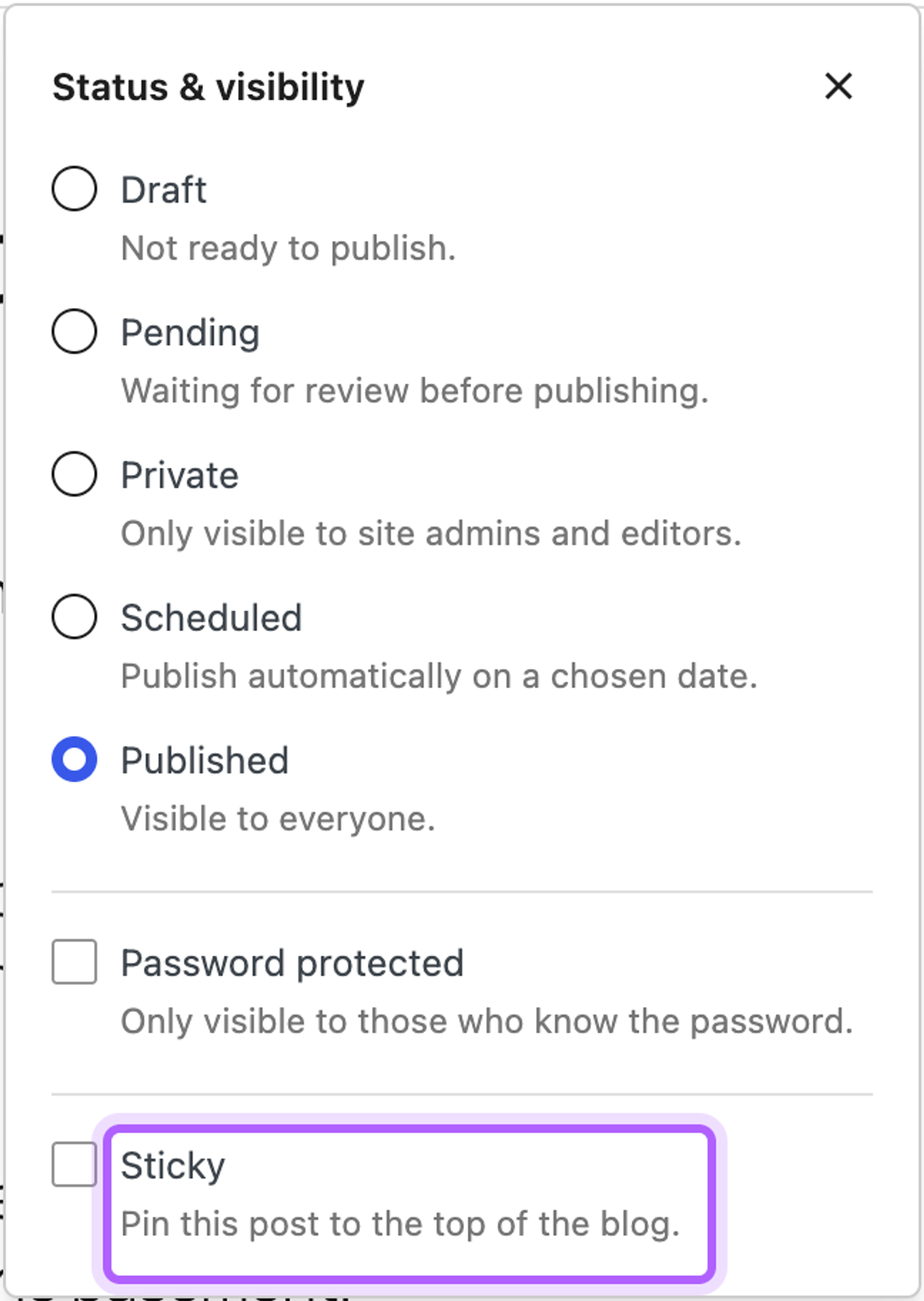
In our test, the sticky post was the oldest of four posts, and Twenty Twenty-Five's blog page still listed it first.
The featured image doesn't show on my site
When the image is set in the editor but visitors don't see it, the template is missing it. In a block theme, open the template in the Site Editor and add a Featured Image block where it should appear. In a classic theme, add the template code above to the file that shows the post. If the template has it, clear your page cache and check again.
The featured image is cut off
Twenty Twenty-Five crops featured images on single posts to 3:2. Set Aspect ratio to Original on the template's Featured Image block, as shown above, to show the whole image. In a classic theme, a size registered with true as the crop argument cuts the image to exactly that size; register it with false to scale it down without cropping.
Reference
- the_post_thumbnail() on developer.wordpress.org
- add_theme_support() on developer.wordpress.org
- set_post_thumbnail() on developer.wordpress.org
I've worked in SEO for more than ten years and helped over 100 businesses rank higher, mostly local businesses, e-commerce stores and SaaS companies. As co-founder of LPagery I work on local SEO, programmatic SEO and AI search visibility, and I test the strategies in these articles on our own sites and with our customers.