
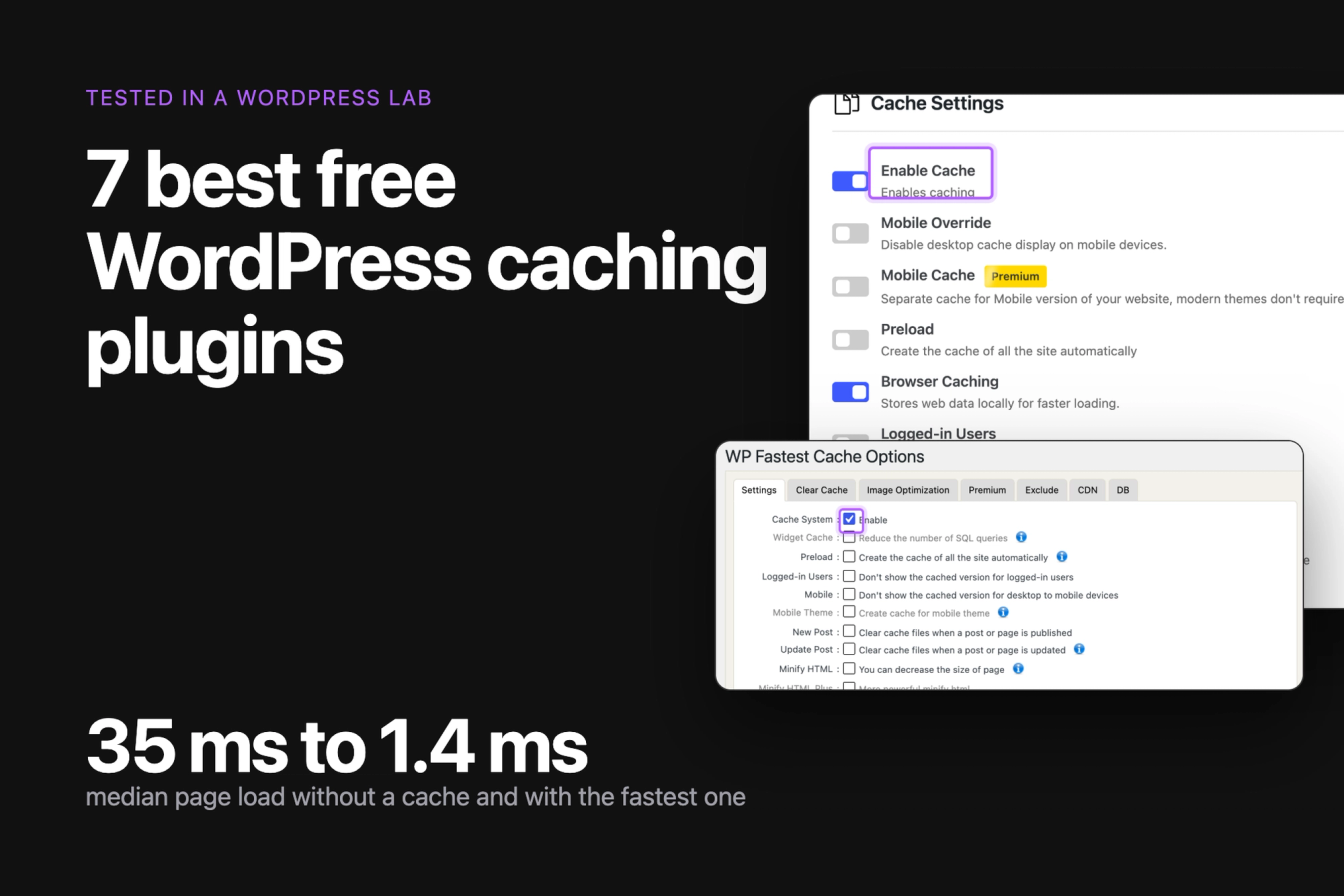
A caching plugin saves a finished copy of each page, so WordPress does not rebuild it for every visitor. We installed eight free caching plugins in a lab, gave each the same page, and measured how fast the page loads, how many steps it takes to turn caching on, and whether a page edit shows up for visitors right away.
Best overall: WP Fastest Cache, with four steps, a 1.8 ms page load and an edit that shows in under 0.1 seconds. Easiest: Cache Enabler, which starts caching when you activate it. Browser caching and Gzip already on: SpeedyCache and Breeze. Most settings: W3 Total Cache.
Last tested 11 October 2026 on WordPress 7.1.3. We make LPagery, a plugin that creates pages in bulk. We are not affiliated with any plugin on this list, and nobody paid to be included.
Plugin | Best for | Median page load | Steps to turn on | Active installs |
|---|---|---|---|---|
WP Fastest Cache | Most sites | 1.8 ms | 4 | 1M+ |
WP Super Cache | A short settings screen | 2.2 ms | 4 | 1M+ |
Cache Enabler | No setup | 2.3 ms | 1 | 100k+ |
SpeedyCache | Browser caching by default | 2.4 ms | 5 | 500k+ |
Breeze | Sensible defaults | 3.8 ms | 1 | 300k+ |
WP-Optimize | Cache plus database cleanup | 2.5 ms | 6 | 1M+ |
W3 Total Cache | Most control | 1.4 ms | 7 | 900k+ |
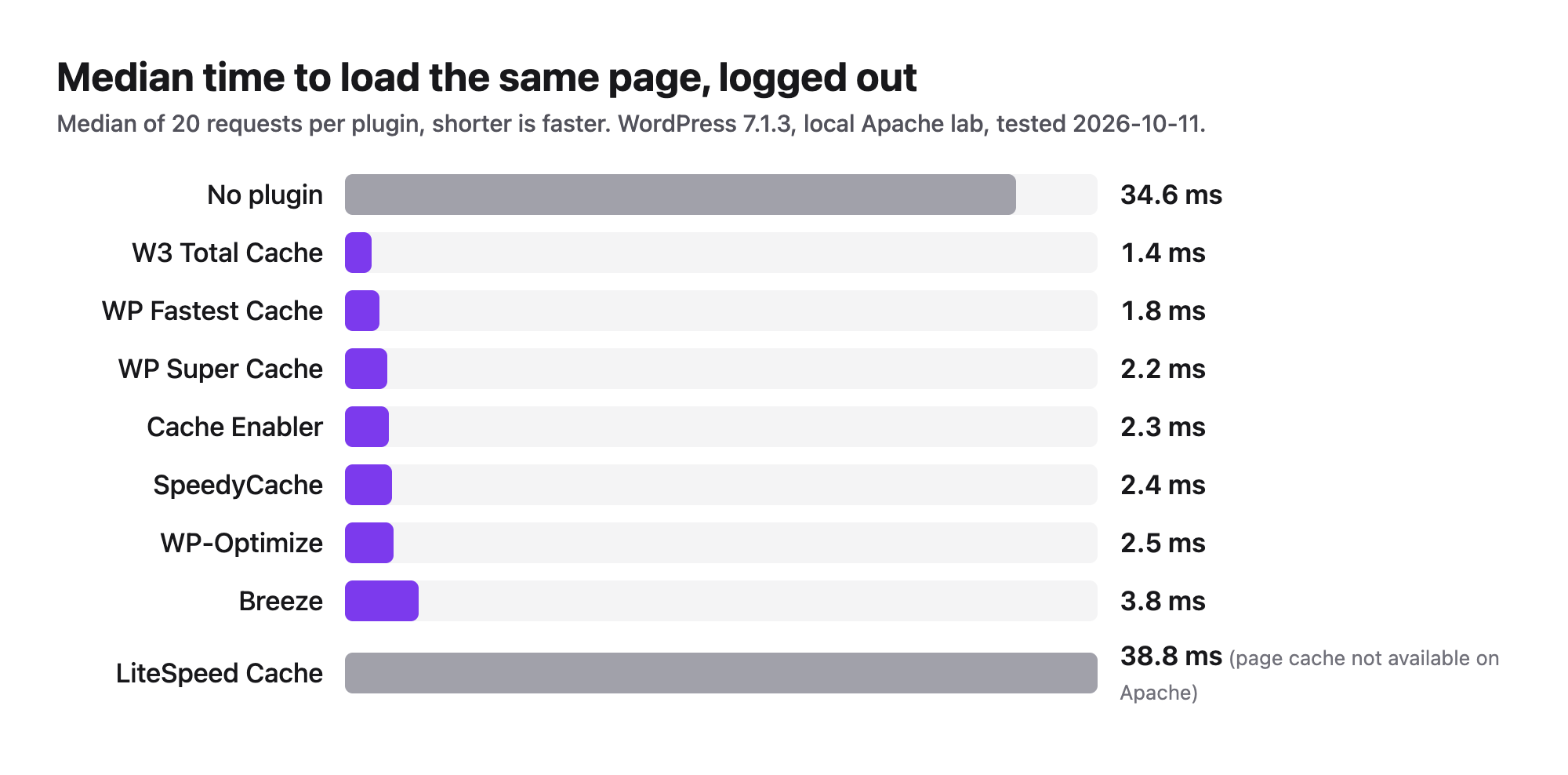
Without a plugin, the same page loaded in 34.6 ms. LiteSpeed Cache is covered after the list, because its page cache needs a LiteSpeed server.
How we tested
We installed eight plugins and listed the seven whose page cache worked on the lab's Apache server. The lab runs WordPress 7.1.3 with the Twenty Twenty-Five theme. The test page has a hero image, six service cards and nine photos, so the test uses a real page. Each plugin ran alone, on a fresh install.
For every plugin we turned page caching on with the plugin's own screens and counted each click and screen from activation to a cached page. Then we measured three things as a logged-out visitor:
- The median time to load the page over 20 requests.
- How long a page edit took to show up for visitors. We saved the edit through the same REST call the block editor's Update button makes, then asked for the page every two seconds.
- Whether the theme's stylesheet came with browser cache headers.
The numbers come from a local Docker lab, so use them to compare plugins with each other. Your own site will load at a different speed. Differences of a millisecond or two between the working caches are noise. What separates them is the setup, the way edits show up, and the defaults.
1. WP Fastest Cache
WP Fastest Cache is the plugin to pick when you want caching on with the fewest decisions.
Caching is one checkbox. We activated the plugin, opened WP Fastest Cache, ticked Enable next to Cache System and clicked Submit. The page then loaded in 1.8 ms, and the page source carried a comment saying the cache file was created.
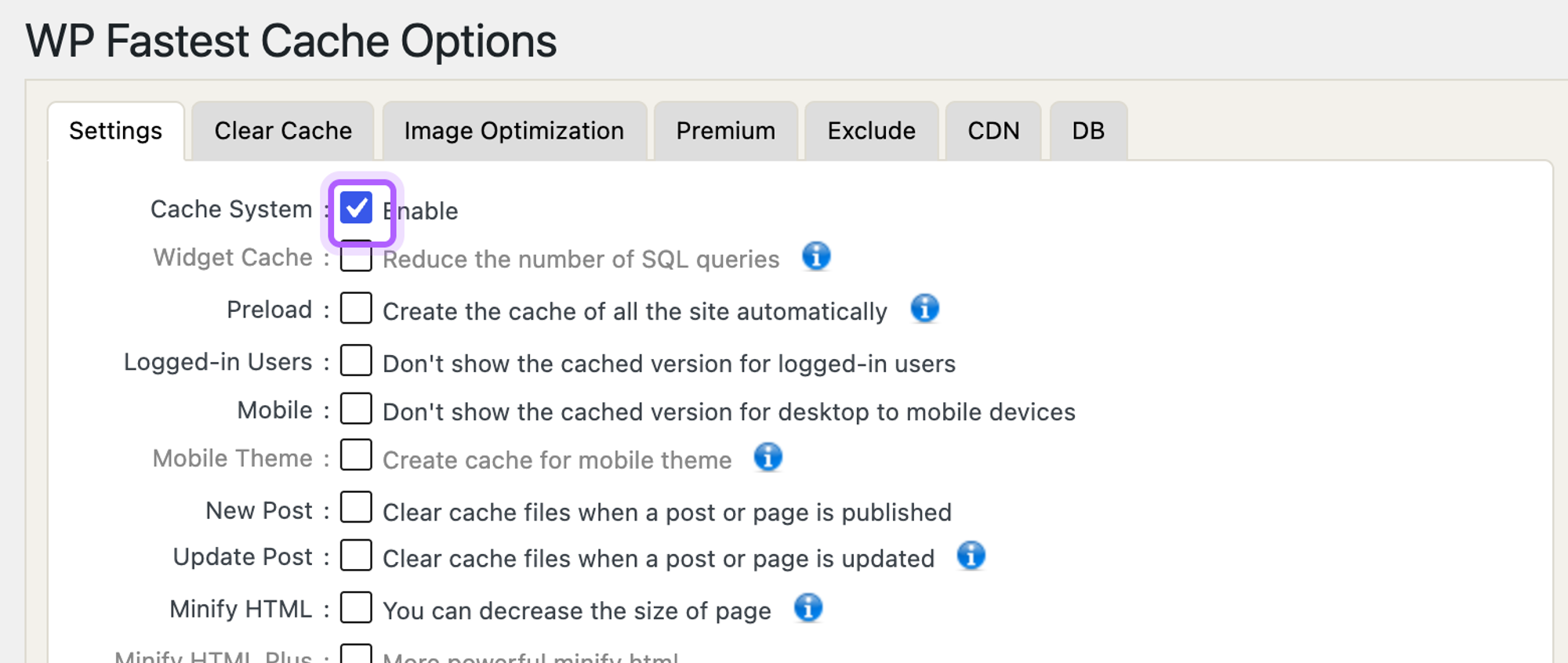
- Setup: 4 steps (activate, open the plugin, tick Enable, click Submit).
- Median page load: 1.8 ms, against 34.6 ms without a plugin (19.2x faster). Best of 20: 1.3 ms.
- After an edit in the editor, visitors saw the new text in under 0.1 seconds.
- The theme stylesheet came back without cache headers, so browser caching is a separate setting you turn on yourself.
- Several options on the screen are greyed out and need Premium, among them Widget Cache, Mobile Theme and Minify HTML Plus.
Pros
- One checkbox turns caching on.
- 1.8 ms median page load.
- An edit showed up for visitors in under 0.1 seconds.
Cons
- Browser caching is not on after setup.
- The settings screen lists many options, and some of them need Premium.
Premium costs $49 once for one site, read on the vendor's site on 11 October 2026. It adds Mobile Cache, Widget Cache, Minify HTML Plus, image optimization and Delay JS.
WP Fastest Cache on WordPress.org and the WP Fastest Cache site.
2. WP Super Cache
WP Super Cache is the plugin for readers who want one short screen with a switch for caching and nothing else to decide.
The Easy tab has two options, Caching On (Recommended) and Caching Off. We chose the first, clicked Update Status, and the page was cached. The screen lists the settings it enables, such as caching disabled for logged-in visitors and cache lifetime of 30 minutes.
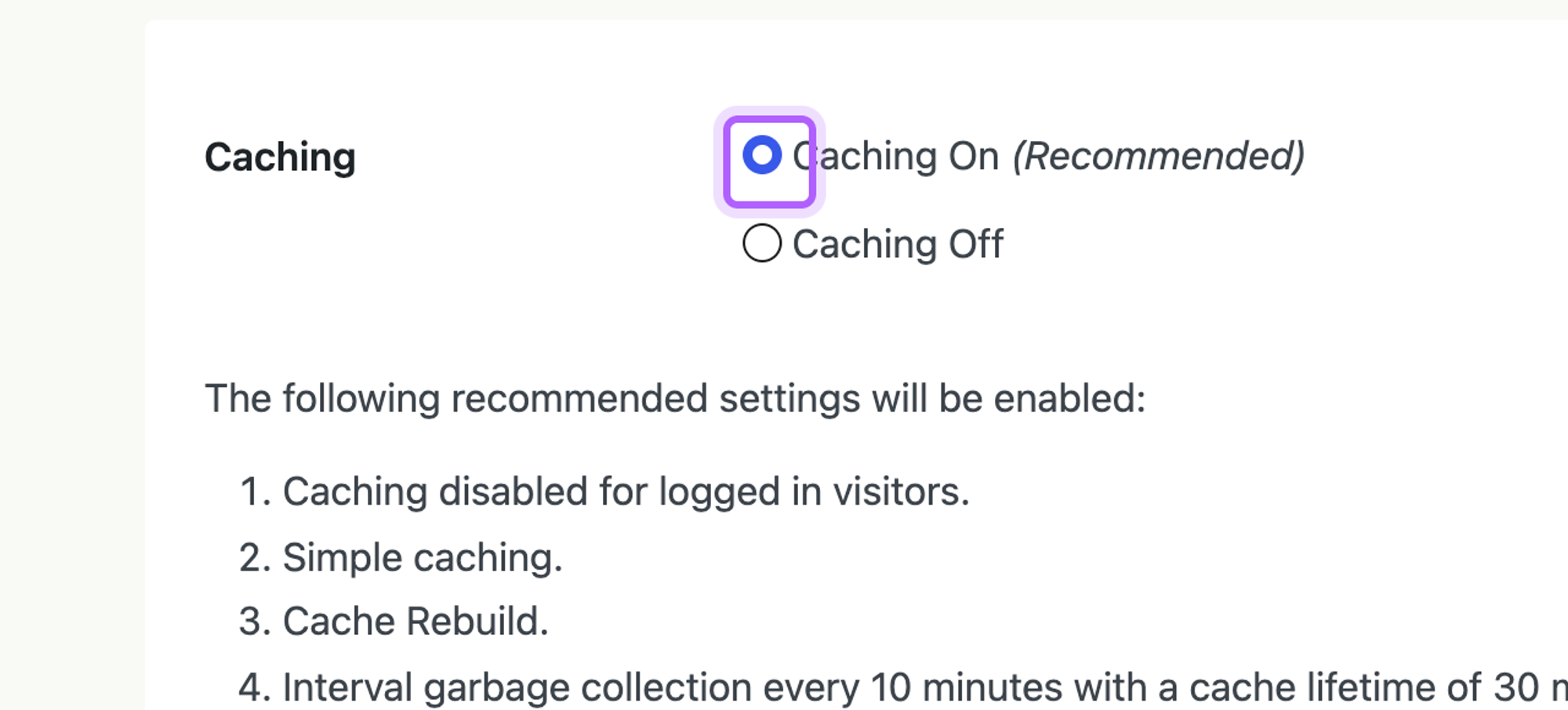
- Setup: 4 steps (activate, open Settings > WP Super Cache, choose Caching On, click Update Status).
- Median page load: 2.2 ms, against 34.6 ms without a plugin (15.7x faster). Best of 20: 1.7 ms.
- After an edit in the editor, visitors saw the new text in under 0.1 seconds.
- The theme stylesheet came back without cache headers. The page itself was sent with a three-second browser cache and a revalidate rule.
Pros
- The Easy tab explains what it will enable before you click.
- 2.2 ms median page load.
- An edit showed up for visitors in under 0.1 seconds.
Cons
- A large Jetpack Boost promotion sits above the settings.
- The theme stylesheet got no browser cache header.
WP Super Cache has no paid version. It is made by Automattic, and its screen points to Jetpack Boost for more speed features.
WP Super Cache on WordPress.org and the WP Super Cache site.
3. Cache Enabler
Cache Enabler is the plugin to pick when you do not want to set anything up.
There is no switch for caching. The plugin cached the page as soon as we activated it, and the page loaded in 2.3 ms. The settings screen only holds options for how and when the cache is cleared, plus WebP, mobile and Gzip versions. The admin bar gets a Clear Site Cache link.
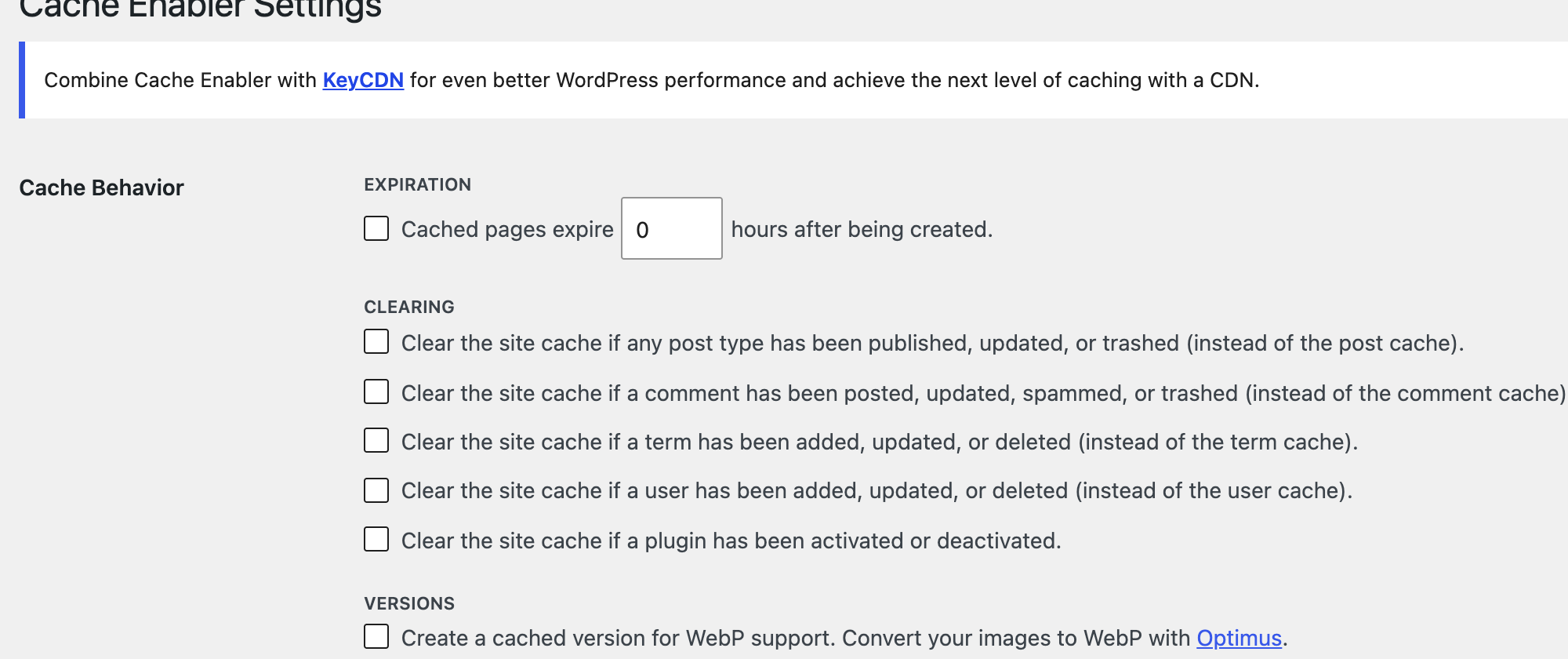
- Setup: 1 step (activate). Opening Settings > Cache Enabler is optional.
- Median page load: 2.3 ms, against 34.6 ms without a plugin (15.0x faster). Best of 20: 1.6 ms.
- After an edit in the editor, visitors saw the new text in under 0.1 seconds.
- The theme stylesheet came back without cache headers, and the plugin has no setting for them.
Pros
- Caching starts on activation.
- Clear Site Cache sits in the admin bar.
- An edit showed up for visitors in under 0.1 seconds.
Cons
- The settings screen has no option for browser cache headers.
- A notice at the top of the settings screen suggests KeyCDN.
Cache Enabler is free, and the screens we used had no Premium labels.
Cache Enabler on WordPress.org and the Cache Enabler site.
4. SpeedyCache
SpeedyCache is the plugin for readers who want browser caching and Gzip already on when caching starts.
The dashboard opens with File Cache: Disabled. We opened the Cache tab, switched on Enable Cache and clicked Save Settings. Browser Caching and GZIP Compressions were already on, and the theme stylesheet came back with a one-year cache header.
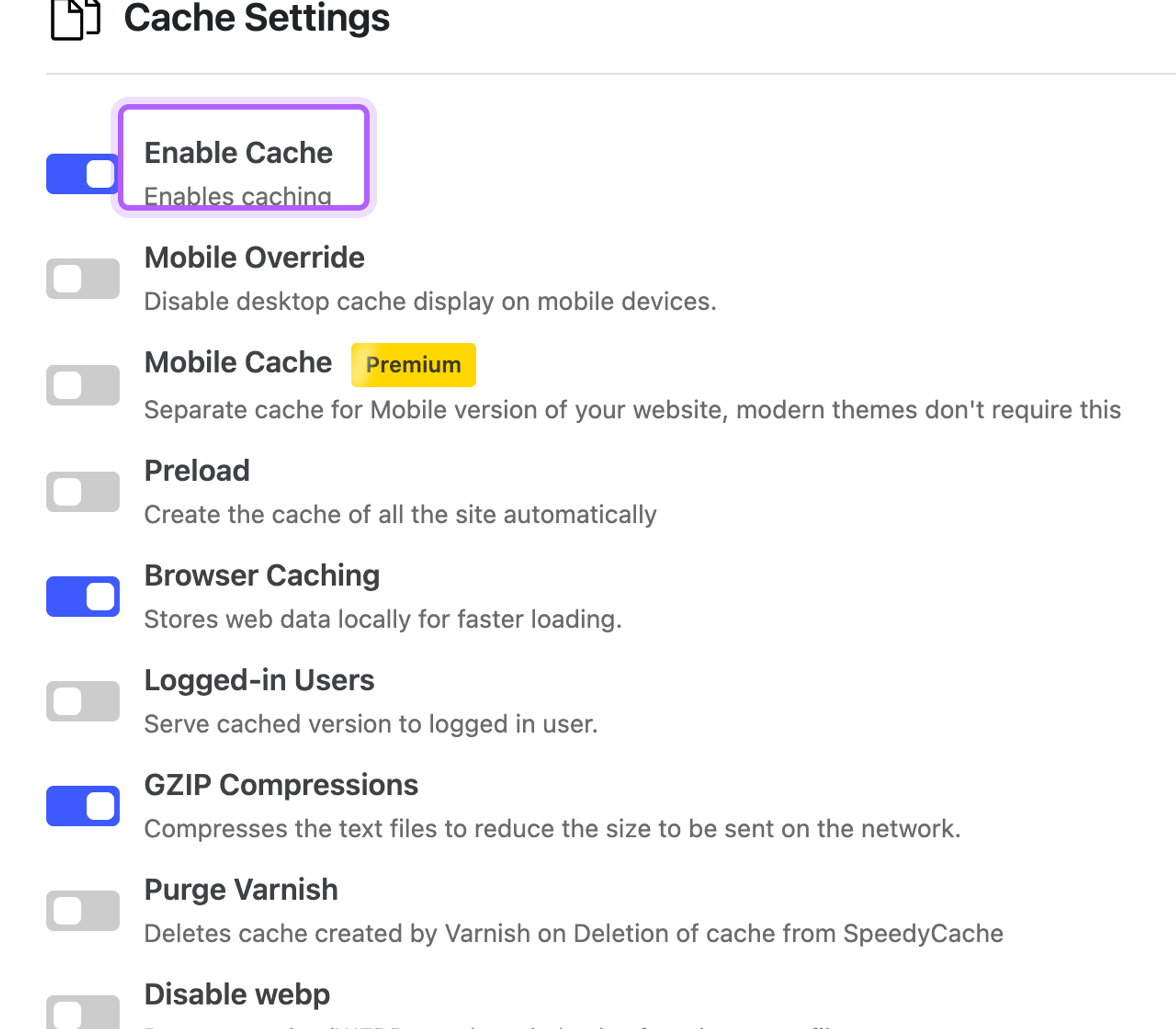
- Setup: 5 steps (activate, open SpeedyCache, open the Cache tab, switch on Enable Cache, click Save Settings).
- Median page load: 2.4 ms, against 34.6 ms without a plugin (14.4x faster). Best of 20: 1.8 ms.
- After an edit in the editor, visitors saw the new text in under 0.1 seconds.
- The theme stylesheet came back with a one-year cache header and an Expires date.
- Mobile Cache is marked Premium.
Pros
- Browser caching and Gzip are on by default.
- A clear list of switches, each with a one-line description.
Cons
- Caching is off until you find the Cache tab.
- The dashboard shows a Performance Score of 0 until you run an analysis.
SpeedyCache Pro costs from $39 a year for one site, read on the vendor's site on 11 October 2026. The plugin's own panel lists Delay JS Execution, Defer JS Loading, Lazy Load Iframes, Database Cleanup and Critical CSS.
SpeedyCache on WordPress.org and the SpeedyCache site.
5. Breeze
Breeze is the plugin for readers who want sensible defaults without touching a setting.
After activation the Basic Options tab already shows Cache System, Gzip Compression and Browser Cache switched on. We changed nothing, and the page loaded in 3.8 ms. Mobile Cache is also on, although the text beside it says to use it only with a dedicated mobile theme.
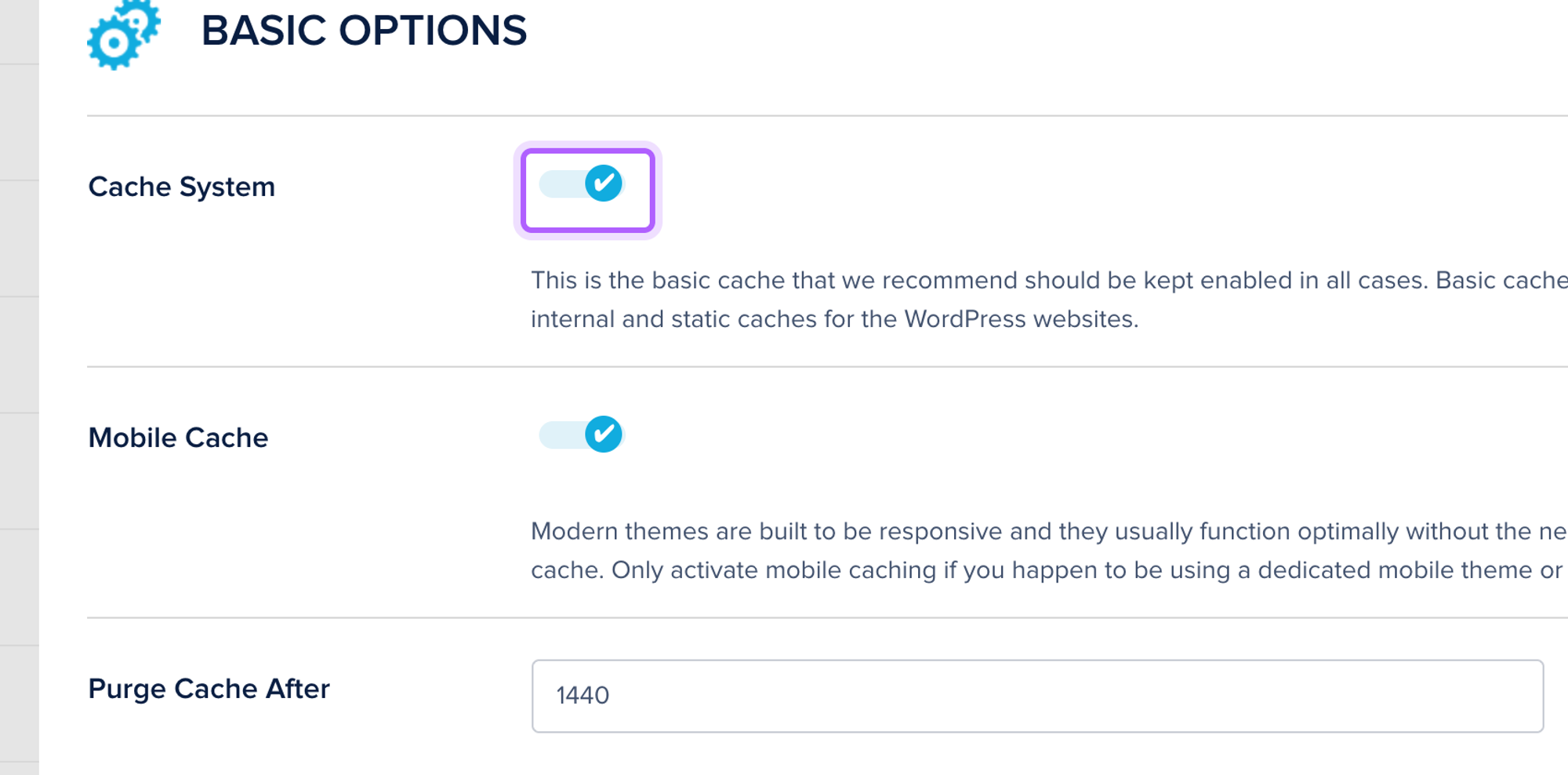
- Setup: 1 step (activate). Opening Settings > Breeze is optional.
- Median page load: 3.8 ms, against 34.6 ms without a plugin (9.1x faster). Best of 20: 2.6 ms.
- After an edit in the editor, visitors saw the new text in under 0.1 seconds.
- The theme stylesheet came back with a 30-day cache header and an Expires date.
Pros
- Caching, Gzip and browser caching are on after activation.
- An edit showed up for visitors in under 0.1 seconds.
Cons
- The slowest median of the seven working caches, at 3.8 ms.
- The lowest wordpress.org rating on this list, 3.6 from 126 ratings.
Breeze is free, and the screens we used had no Premium labels.
Breeze on WordPress.org and the Breeze site.
6. WP-Optimize
WP-Optimize is the plugin for readers who also want database cleanup and image compression from the same screen.
The first screen is a welcome wizard that offers to switch on page caching, minify and image compression in one click. We left it with Exit setup to measure page caching alone. Enable page caching was not ticked afterwards, so we ticked it on the Cache screen and clicked Save changes.
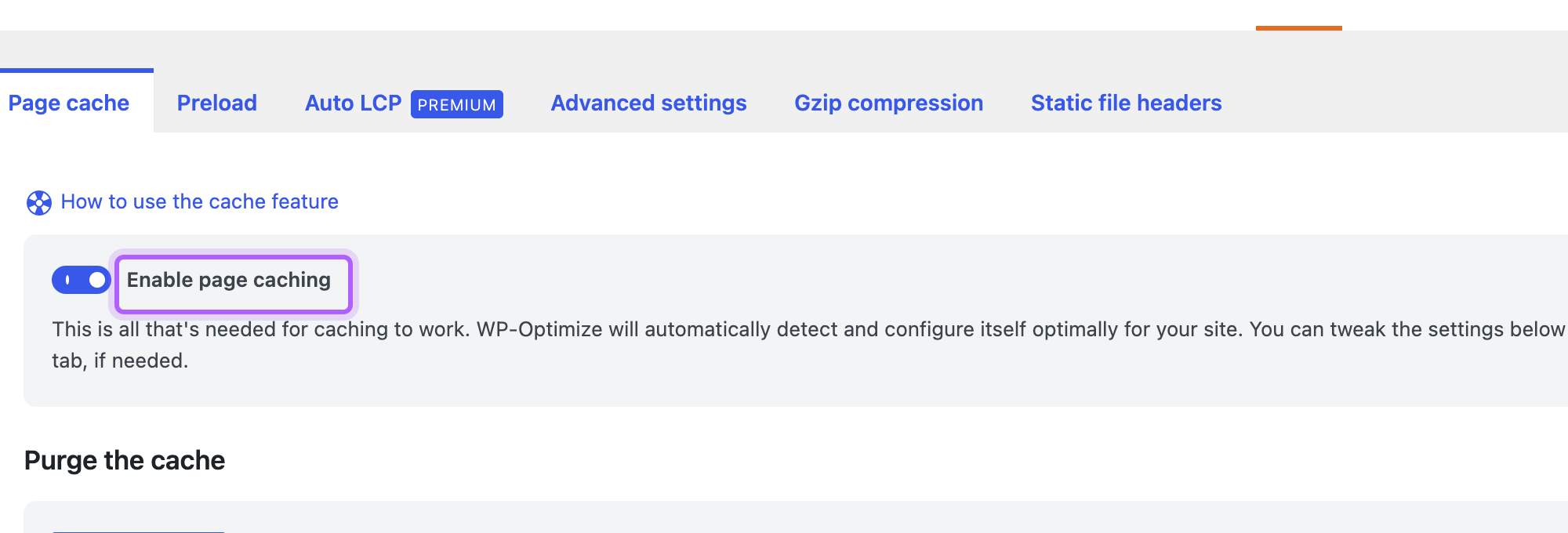
- Setup: 6 steps (activate, the welcome wizard opens, click Exit setup, open the Cache screen, tick Enable page caching, click Save changes).
- Median page load: 2.5 ms, against 34.6 ms without a plugin (13.8x faster). Best of 20: 1.2 ms.
- After an edit in the editor, visitors saw the new text in under 0.1 seconds.
- The theme stylesheet came back without cache headers, and the page was sent with a no-cache header while the plugin's own header said the page was cached.
- Auto LCP is marked Premium.
Pros
- The Cache screen has a Purge the cache button and a preload option.
- An edit showed up for visitors in under 0.1 seconds.
Cons
- The wizard says it enabled these settings, yet Enable page caching was not ticked after we left it.
- Six steps, the second most on the list.
WP-Optimize Premium costs from $58.31 a year for two sites, read on the vendor's site on 11 October 2026. It adds lazy loading, cache preloading, WebP conversion and minification.
WP-Optimize on WordPress.org and the WP-Optimize site.
7. W3 Total Cache
W3 Total Cache is the plugin for readers who want to choose how every kind of cache works.
The first run opens a Setup Guide that asks whether W3 Total Cache may collect usage data. We chose Decline, clicked Skip, then ticked Enable under Page Cache in General Settings and clicked Save all settings. The page loaded in 1.4 ms, the fastest median in the test.
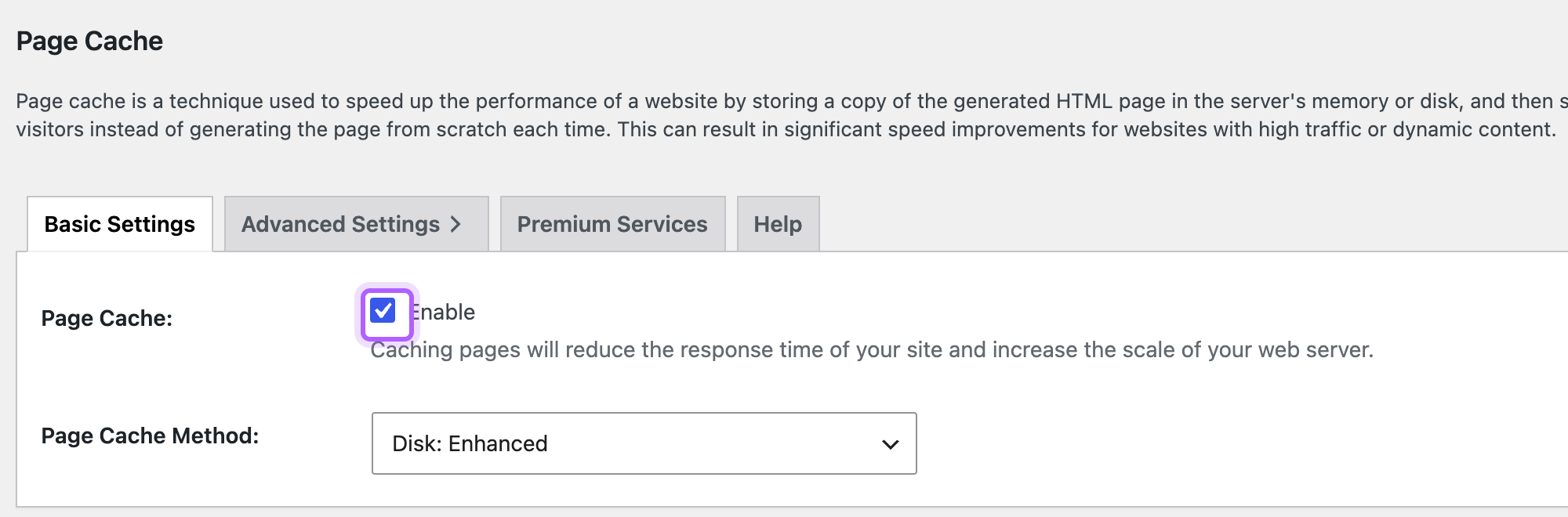
- Setup: 7 steps (activate, the Setup Guide opens, answer the data-collection question, click Skip, open General Settings, tick Enable, click Save all settings).
- Median page load: 1.4 ms, against 34.6 ms without a plugin (24.7x faster). Best of 20: 0.9 ms.
- After an edit in the editor, visitors saw the new text in 26.5 seconds.
- The theme stylesheet came back with a one-year cache header and an Expires date.
Pros
- The fastest median page load, 1.4 ms.
- Browser caching headers set after setup.
- Separate screens for page, database, object and browser caches.
Cons
- After an edit in the editor, visitors kept seeing the old page for 26.5 seconds.
- The page source carries a comment with a link to the vendor.
W3 Total Cache Pro costs $99 a year for one site, read on the vendor's site on 11 October 2026. It adds Full Site Delivery, Delay Scripts, statistics, and Redis and Memcached support.
W3 Total Cache on WordPress.org and the W3 Total Cache site.
LiteSpeed Cache
LiteSpeed Cache is the plugin to use on hosting that runs a LiteSpeed server. It has 7M+ active installs and a 4.8 rating on wordpress.org.
We activated it on the lab's Apache server. The settings screen showed a warning that caching functions on the page are unavailable, and that you need a LiteSpeed web server or QUIC.cloud CDN to use them. The page loaded in 38.8 ms, against 34.6 ms without a plugin, so it served no cached page.
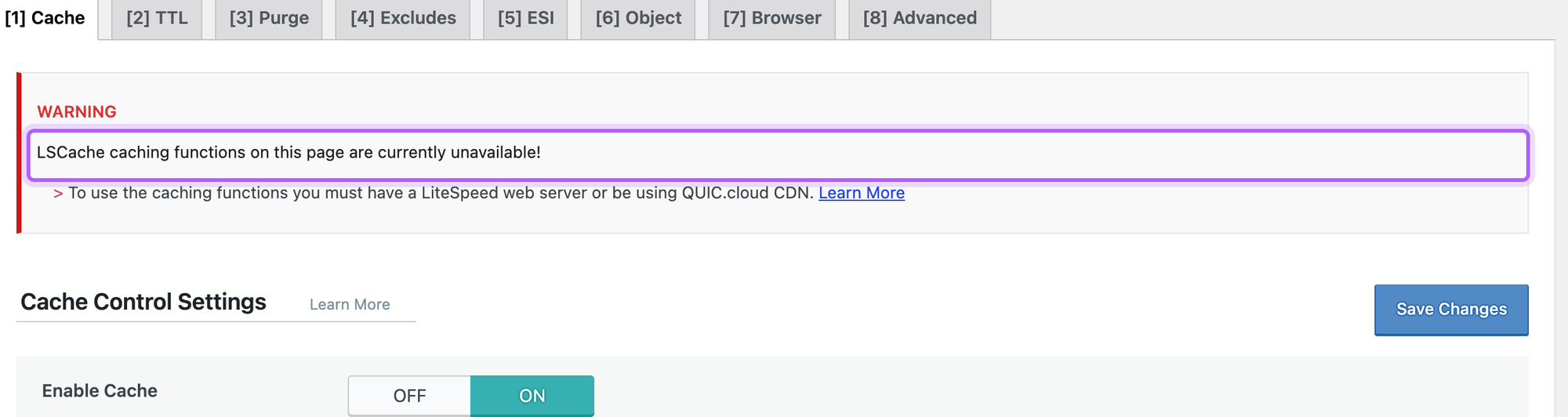
We did not test it on a LiteSpeed server or with QUIC.cloud, so this list has no speed number for it. If your host runs LiteSpeed, check with your host first.
Test results side by side
Plugin | Median | Best of 20 | Steps | Edit shows up | Stylesheet cache header |
|---|---|---|---|---|---|
W3 Total Cache | 1.4 ms | 0.9 ms | 7 | 26.5 s | 1 year |
WP Fastest Cache | 1.8 ms | 1.3 ms | 4 | < 0.1 s | None |
WP Super Cache | 2.2 ms | 1.7 ms | 4 | < 0.1 s | None |
Cache Enabler | 2.3 ms | 1.6 ms | 1 | < 0.1 s | None |
SpeedyCache | 2.4 ms | 1.8 ms | 5 | < 0.1 s | 1 year |
WP-Optimize | 2.5 ms | 1.2 ms | 6 | < 0.1 s | None |
Breeze | 3.8 ms | 2.6 ms | 1 | < 0.1 s | 30 days |
No plugin | 34.6 ms | 27.4 ms | 0 | n/a | None |
LiteSpeed Cache | 38.8 ms | 27.9 ms | 2 | n/a | None |
Which caching plugin should you choose?
- Choose WP Fastest Cache if you want one checkbox and a fast result.
- Choose WP Super Cache if you want a screen that says what it will enable before you click.
- Choose Cache Enabler if you do not want to set anything up.
- Choose SpeedyCache or Breeze if you want browser caching and Gzip on from the start.
- Choose WP-Optimize if you also want database cleanup from the same plugin.
- Choose W3 Total Cache if you want to control every cache, and you can live with a short delay before an edit shows up.
- Choose LiteSpeed Cache if your host runs a LiteSpeed server.
Plugins we did not test
SiteGround Speed Optimizer works with SiteGround hosting, so it cannot run the same test on our lab. Autoptimize minifies and combines files and is not a page cache. WP Rocket is paid only, and this list covers free plugins.
FAQ
Do I need a caching plugin?
A cached page loaded in 1.4 to 3.8 ms in our lab against 34.6 ms without one, and page speed is one of the things that affects how your pages do in search. Some hosts already cache pages for you, so check your host before you install one.
Can I run two caching plugins at once?
No. Breeze shows a notice after activation that says to use only one caching plugin at a time. Deactivate the first plugin before you try the next.
Do these plugins cache pages for logged-in users?
Not by default. WP Super Cache lists caching disabled for logged-in visitors among its recommended settings, WP-Optimize leaves Serve cached pages to logged in users unticked, and SpeedyCache has Logged-in Users switched off.
How do I clear the cache after a change?
Each plugin has a clear or purge button, and most put one in the admin bar. Our guide to clearing the cache in WordPress shows where to find it, including the cache at your host and in your browser.
Which free caching plugin is the fastest?
W3 Total Cache had the lowest median at 1.4 ms, and WP Fastest Cache and WP Super Cache followed at 1.8 and 2.2 ms. The gaps between the working caches are small enough to be noise, so choose by setup and by how edits show up.
I've worked in SEO for more than ten years and helped over 100 businesses rank higher, mostly local businesses, e-commerce stores and SaaS companies. As co-founder of LPagery I work on local SEO, programmatic SEO and AI search visibility, and I test the strategies in these articles on our own sites and with our customers.
I've worked in SEO for more than ten years and helped over 100 businesses rank higher, mostly local businesses, e-commerce stores and SaaS companies. As co-founder of LPagery I work on local SEO, programmatic SEO and AI search visibility, and I test the strategies in these articles on our own sites and with our customers.