Embedding PDFs in WordPress is a simple way to share documents like menus, guides, or brochures without requiring downloads. Here are the three main methods to do it:
- WordPress Media Library: Upload and embed PDFs directly using WordPress’s built-in features. Best for quick setups but limited in customization.
- PDF Plugins: Use tools like PDF Embedder or EmbedPress for advanced features like responsive design, clickable links, and navigation controls.
- Custom HTML: Add an iframe to your content for full control over display and better performance, but requires basic coding skills.
Quick Comparison
Method | Ease of Use | Features | Best For |
|---|---|---|---|
Media Library | Easy | Basic embedding | Simple setups |
PDF Plugins | Moderate | Advanced customization | Interactive documents |
Custom HTML | Advanced | Full control | Performance optimization |
Choose the method that fits your needs, whether you prioritize simplicity, interactivity, or customization.
Method 1: WordPress Media Library
The WordPress Media Library is a straightforward way to embed PDFs into your website. It’s a built-in feature, so you don’t need plugins or technical expertise, making it a quick option for small businesses to share documents.
How to Upload and Add PDFs
Adding a PDF through the Media Library is a simple process:
- Upload Your PDF: Go to the Media Library in your WordPress dashboard, click "Add New", and upload your PDF by either dragging and dropping it or browsing your files.
- Embed the PDF in Your Content:
- Block Editor: Use the ‘PDF Embedder’ block in the Gutenberg editor to embed your PDF directly into the page or post [2].
- Classic Editor: Click ‘Add Media’ above the editor, select your PDF from the Media Library, and insert it into your content [4].
Aspect | Media Library Details |
|---|---|
Maximum File Size | Depends on hosting (usually 2-50MB) |
Supported Formats | PDF files only |
Default Display | Opens in a new window or as a download link |
Mobile Support | Basic, not optimized for responsiveness |
Media Library Method Drawbacks
While this method is easy to use, there are a few downsides that might affect user experience:
- Limited Customization: PDFs open in a new window and lack advanced display options or navigation controls [1].
- Display and Security Concerns: Mobile viewing can be problematic, and there’s no protection against unauthorized sharing [3].
- No Tracking: You won’t be able to see how users interact with your PDFs.
If your business needs features like responsive design, analytics, or better customization, a dedicated PDF plugin might be a better choice. These limitations make the Media Library method less suitable for businesses with more advanced requirements.
Method 2: PDF WordPress Plugins
If the basic features of the Media Library aren’t enough, plugins can give you more control over embedding PDFs. Two popular options in 2025 are PDF Embedder and EmbedPress.
Setting Up the PDF Embedder Plugin
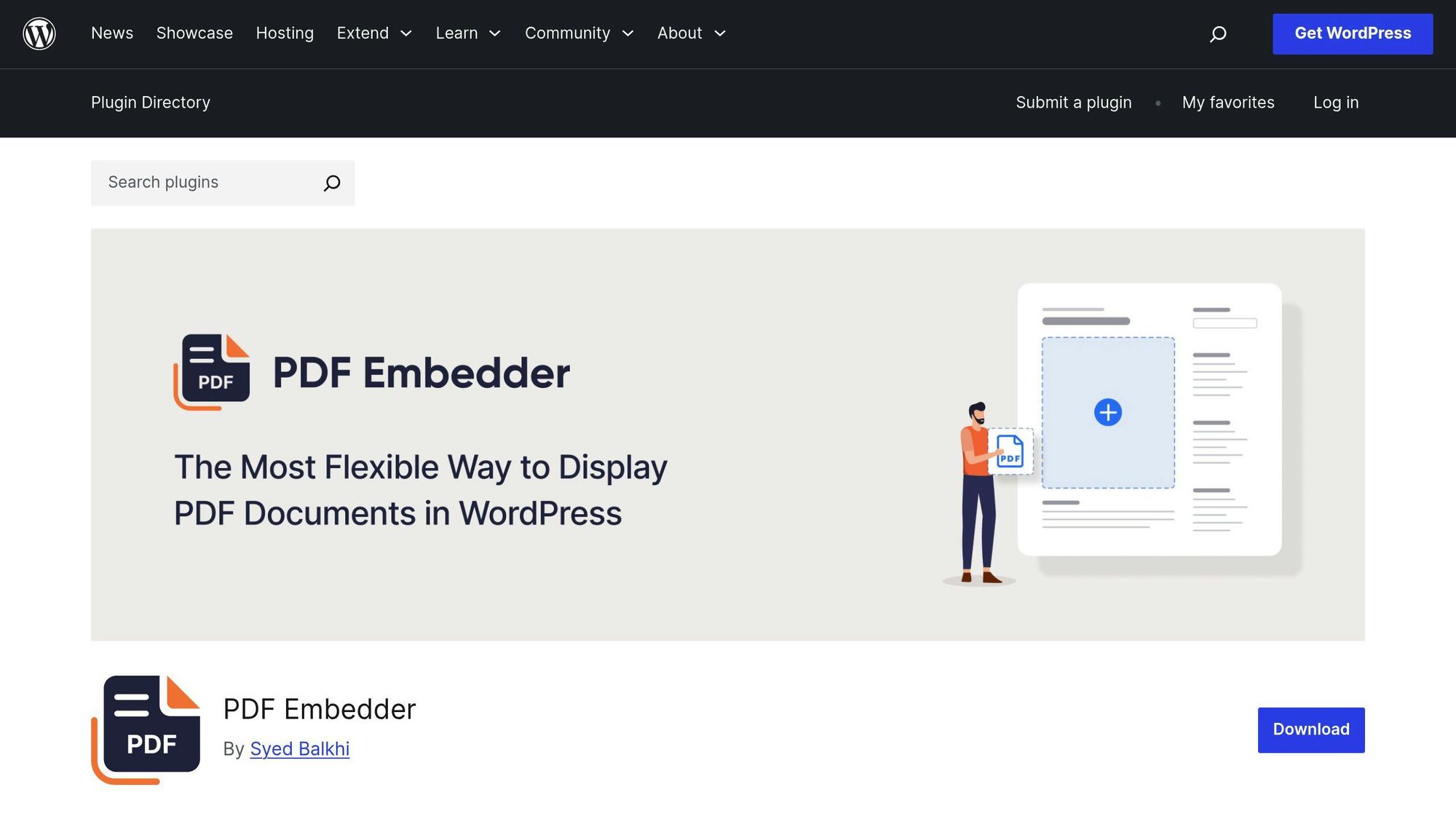
Getting started with PDF Embedder is simple:
- Go to "Plugins > Add New" in your WordPress dashboard.
- Search for "PDF Embedder" and click Install.
- Activate the plugin and adjust the settings as needed.
The free version includes automatic sizing and a basic navigation toolbar. For $29.50/year, the premium version adds features like download buttons and clickable links within PDFs [1].
PDF Embedder is great if you’re looking for a plugin focused on PDFs. However, if you need a tool that handles other media types too, EmbedPress might be a better fit.
Using EmbedPress
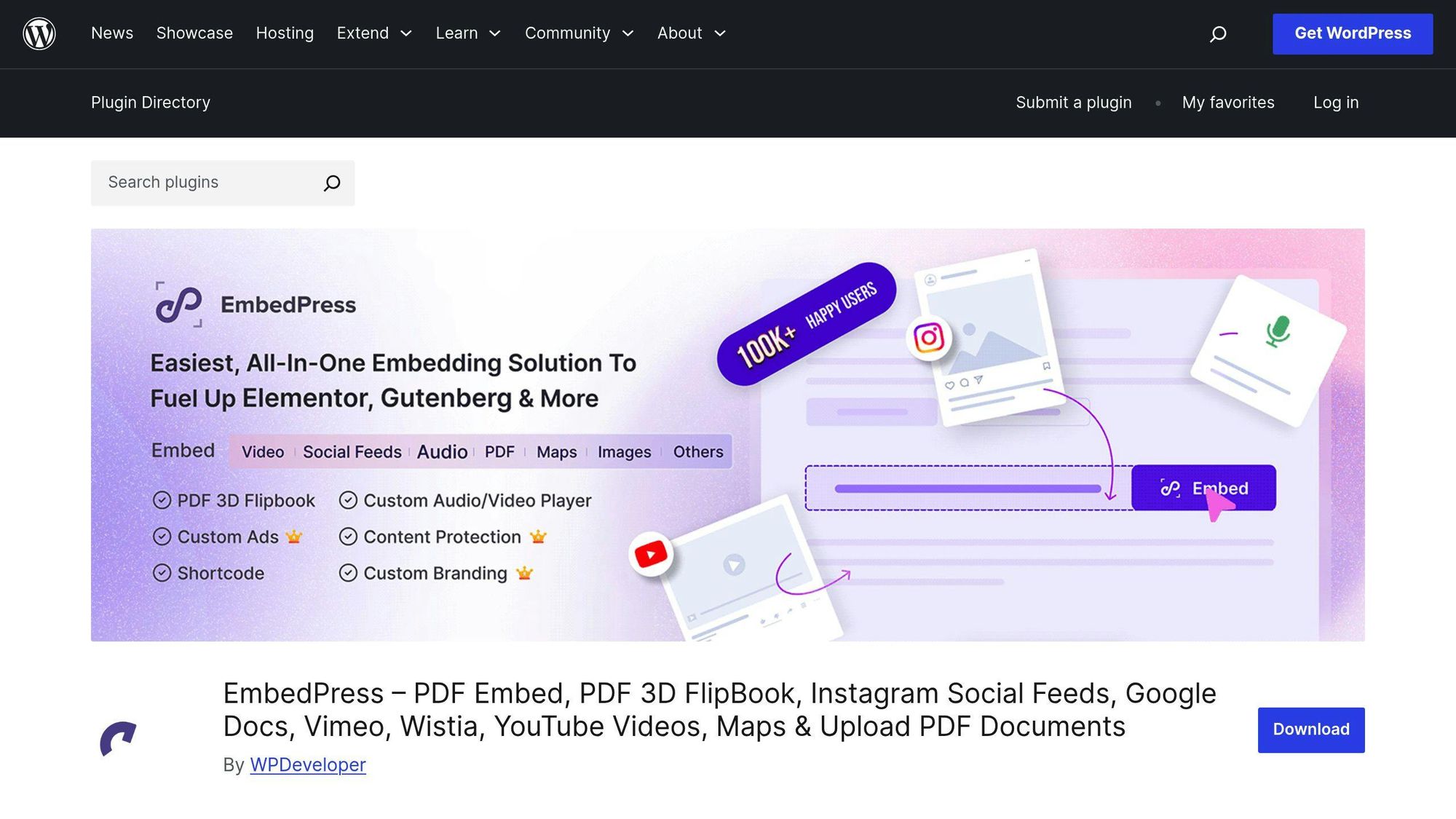
EmbedPress works seamlessly with page builders like Elementor and Divi. It offers responsive design, one-click embedding, and supports WPML for translation. This makes it a solid choice for businesses that manage different types of media, not just PDFs.
Comparing PDF Embedder and EmbedPress
Feature | PDF Embedder Free | PDF Embedder Premium | EmbedPress Free | EmbedPress Pro |
|---|---|---|---|---|
Core Features | Basic navigation, Responsive design | Advanced navigation, Download button, Responsive design | Basic embedding, Responsive design | Advanced embedding, Download options, Responsive design |
Hyperlink Support | No | Yes | No | Yes |
Page Builder Integration | No | No | Yes | Yes |
Custom Branding | No | No | No | Yes |
Security Features | Basic | Advanced PDF protection | Basic | Advanced |
Pricing | Free | From $29.50/year | Free | Custom plans |
For small businesses that want full control over PDF embedding, PDF Embedder Premium is a straightforward option. If you require support for other media types, EmbedPress offers more flexibility [3].
"The specific needs of your website and the types of content you plan to embed should guide your choice. PDF Embedder excels in PDF-specific features, while EmbedPress offers broader media support." [3]
Premium versions of both plugins also include advanced security to protect your PDFs from being shared or printed without permission [3].
Method 3: HTML Code for PDFs
Using HTML to embed PDFs gives you direct control over how the document appears on your site. It can also improve page performance since no plugins are required.
Steps to Embed a PDF with HTML
- Upload Your PDF: Add your PDF to the Media Library (refer to Method 1 for instructions).
- Add the Code: Insert the following iframe code into your WordPress page or post’s HTML editor:
<code class="language-html"><iframe src="https://example.com/wp-content/uploads/2024/01/your-pdf.pdf" width="100%" height="500" frameborder="0" scrolling="no" sandbox="allow-same-origin allow-scripts" loading="lazy"> </iframe> </code>
Optional Attributes:
- sandbox: Adds an extra layer of security by restricting certain actions within the iframe.
- loading="lazy": Delays the loading of the PDF until it’s needed, improving page speed.
- scrolling: Adjusts whether users can scroll within the embedded frame.
Pros and Cons of the HTML Method
Aspect | Benefits | Drawbacks |
|---|---|---|
Performance | No plugin overhead, faster loading | Limited interactivity |
Customization | Full control over size and appearance | Requires basic HTML knowledge |
Security | Direct control over file hosting | Manual security measures are required |
Mobile Support | Can be made responsive with CSS | May need extra tweaks for mobile views |
Features | Easy to set up | Lacks built-in navigation tools |
Tips for Better Implementation
- Use HTTPS to ensure secure file delivery and test the PDF on various devices for compatibility.
- Keep file sizes under 5MB to avoid slow loading times.
- Use CSS media queries to improve the display on smaller screens.
- Be mindful of browser support when adding custom features.
While embedding PDFs with HTML provides flexibility and control, fine-tuning the document’s design and user experience is key. Next, we’ll explore how to optimize PDFs for both usability and search engines.
sbb-itb-4893451
PDF Embedding Tips and Standards
Reduce PDF File Sizes
Large PDFs can hurt your site’s performance. Google research shows that even a 1-second delay in page load time can reduce conversions by 7% [1].
To shrink your PDF files in Adobe Acrobat, navigate to File > Save As Other > Reduced Size PDF, choose compatibility (Acrobat 10.0 or later), and save. Alternatively, online tools like SmallPDF (reduces file size by up to 70%) and PDFCrowd (achieves 40-60% reduction) can help with quick compression.
After resizing, make sure your PDFs display smoothly across all devices.
Mobile PDF Display
With more than half of web traffic coming from mobile devices, ensuring PDFs are mobile-friendly is a must. Here’s how to make them work seamlessly on smartphones and tablets:
- Use a 100% width iframe to let PDFs adjust to different screen sizes.
- Check if your WordPress theme includes responsive meta tags for proper scaling on mobile.
For an even better experience, tools like PDF Embedder Premium offer features such as:
- Continuous scrolling for easier reading
- Touch-friendly navigation
- Adjustable zoom controls for better visibility
Optimizing for mobile is just one part of the equation. Making your PDFs accessible to everyone is equally important.
PDF Accessibility Setup
Accessible PDFs help ensure all users, including those with disabilities, can interact with your content effectively. This is especially important for businesses that want to serve a diverse audience.
Key Practices for Accessibility:
- Use fonts that are easy to read (12pt or larger) and maintain good color contrast.
- Add alternative text for all images.
- Enable tags in the document to support screen readers.
Improving navigation is also critical. Include bookmarks, a table of contents, and set a logical reading order.
Accessibility Feature | Purpose | How to Implement |
|---|---|---|
Document Tags | Enables screen reader use | Add tags via Adobe Acrobat’s Tags panel |
Alt Text | Describes images for visually impaired users | Add through document properties |
Reading Order | Ensures logical content flow | Adjust in Advanced Tools > Reading Order |
Conclusion: Choose the Best PDF Embedding Method
Selecting the right method for embedding PDFs depends on your needs and technical know-how. Here’s a breakdown to help you decide:
The WordPress Media Library is a simple option if you:
- Have basic PDFs without interactive features.
- Don’t need advanced viewing options.
- Want to skip installing plugins.
If you need more features, PDF plugins are a great choice. They work well if you:
- Want professional-looking PDF displays.
- Need clickable hyperlinks and mobile-friendly viewing.
- Prefer an easy-to-use interface.
For those comfortable with coding, the Custom HTML method is a good fit. It’s ideal for users who:
- Have coding skills.
- Want full control over how PDFs are displayed.
- Want to reduce reliance on plugins.
- Focus on optimizing site performance.
Here’s a quick comparison to make things clearer:
Feature Need | Method | Benefits |
|---|---|---|
Basic Display & Setup | Media Library | No plugins, uses WordPress’s built-in tools. |
Interactive Documents | PDF Plugins | Includes navigation, zoom, and indexing. |
Custom Implementation | Custom HTML | Full control and improved performance. |
Each method serves a specific purpose, helping you embed PDFs while improving user experience and supporting SEO [1]. For most businesses, PDF plugins strike the right balance between ease of use and functionality, offering features like automatic resizing and navigation controls.
Choose the method that best fits your site’s needs. If you manage multiple PDFs, such as menus or catalogs, premium plugins can simplify updates and add a polished touch.
FAQs
Here are answers to some common questions about embedding PDFs, so you can get the most out of your setup.
How do I display a PDF in WordPress without plugins?
You can upload your PDF using the ‘Add Media’ option in the editor, copy the file URL, and paste it into your content. While simple, this method doesn’t offer advanced features like in-page viewing, zooming, or navigation tools [2].
What’s the difference between PDF plugin options?
PDF Embedder and EmbedPress cater to different needs. Here’s a quick comparison:
Feature | PDF Embedder | EmbedPress |
|---|---|---|
Core Function | PDF-focused display | Multi-media support |
Navigation | Built-in controls | Basic controls |
Premium Features | Clickable links | More media options |
Mobile Support | Fully responsive | Responsive design |
Focus Area | PDF display | Versatile embedding |
What are the key security considerations?
Whether you use plugins or custom HTML, keep your PDFs secure by uploading only from trusted sources, updating plugins regularly, and limiting access based on user roles.
How can I track PDF engagement?
You can track PDF interaction using tools like Google Analytics, plugin-specific metrics, or WordPress download stats. These insights can help you refine your content strategy and improve user experience.
What’s the best way to optimize PDFs for mobile viewing?
To ensure smooth performance on mobile devices, compress PDFs to under 5MB, use responsive plugins, and ensure text scales properly. This keeps your documents easy to read without sacrificing quality.

I’m an experienced SEO professional with over a decade of helping over 100 businesses rank higher online, especially local businesses, e-commerce stores and SaaS. As the co-founder of LPagery, I specialize in practical, proven strategies for regular SEO and Local SEO success.
This post may contain affiliate links which we earn a commission on when purchasing a given product.
I’m an experienced SEO professional with over a decade of helping over 100 businesses rank higher online, especially local businesses, e-commerce stores and SaaS. As the co-founder of LPagery, I specialize in practical, proven strategies for regular SEO and Local SEO success.