How to Create a Custom Post Type and Enable it for Elementor

Oppdatert
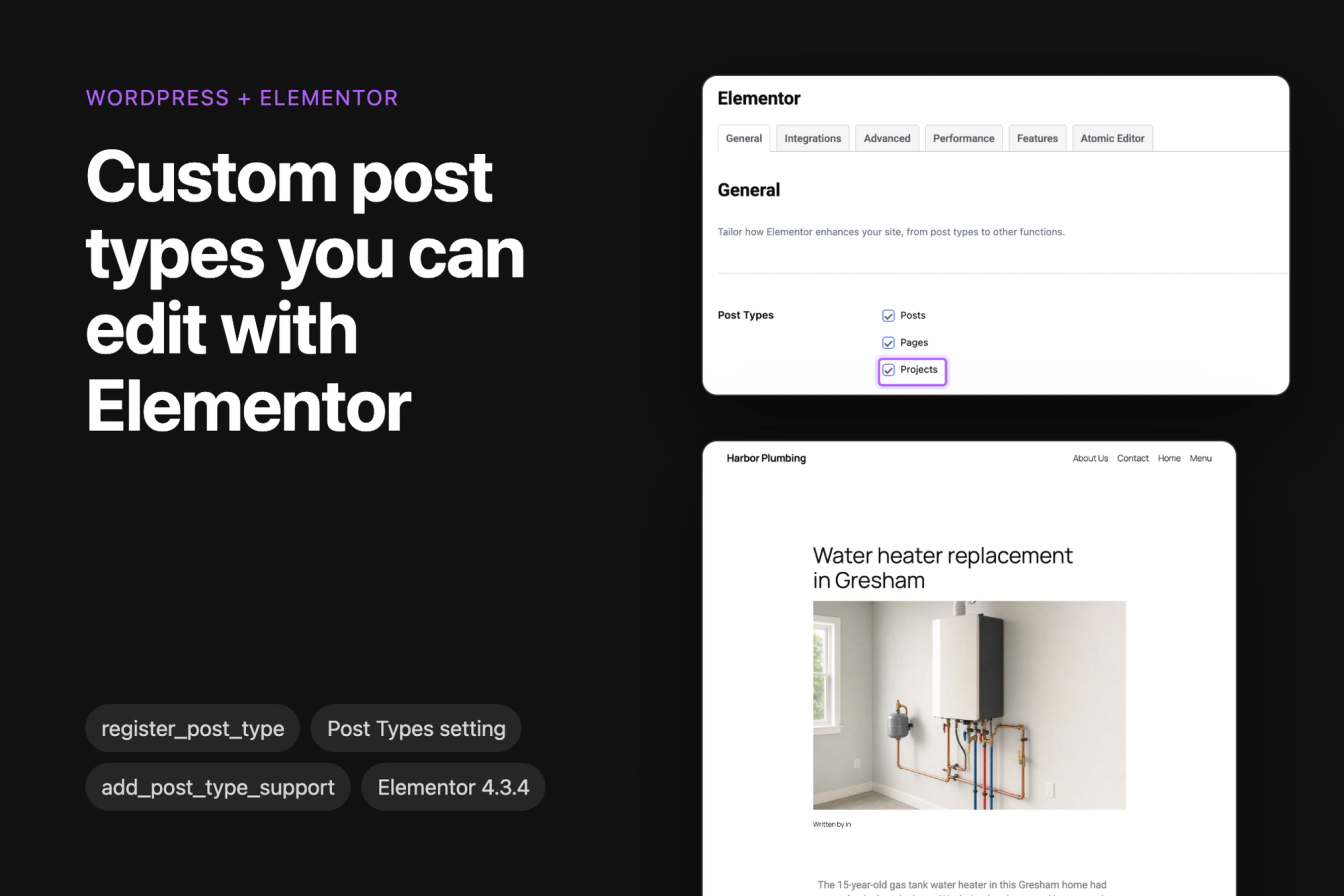
This tutorial registers a custom post type called Projects for a plumbing company's website, then makes it editable with Elementor, first through Elementor's settings and then with one line of code. It ends with what Elementor Pro adds and the problems you can run into.
The screenshots come from WordPress 7.1.3 with the Twenty Twenty-Five theme and Elementor 4.3.4, the free version from wordpress.org.
What is a custom post type?
WordPress stores posts and pages as post types. A custom post type adds another one, such as projects, team members or case studies, with its own menu in wp-admin, its own URLs and, if you want it, its own archive page. Elementor only offers its editor for post types that you enable for it, so a new post type needs both steps below.
Step 1: Register the custom post type
Create the file wp-content/mu-plugins/harbor-projects.php (create the mu-plugins folder if it doesn't exist) and add this code:
1<?php
2/**
3 * Plugin Name: Harbor Plumbing projects
4 * Description: Registers the Projects post type.
5 */
6
7add_action( 'init', 'harbor_register_project_post_type' );
8
9function harbor_register_project_post_type() {
10    register_post_type(
11        'harbor_project',
12        array(
13            'labels'       => array(
14                'name'          => __( 'Projects', 'harbor' ),
15                'singular_name' => __( 'Project', 'harbor' ),
16                'add_new_item'  => __( 'Add New Project', 'harbor' ),
17                'edit_item'     => __( 'Edit Project', 'harbor' ),
18                'view_item'     => __( 'View Project', 'harbor' ),
19                'all_items'     => __( 'All Projects', 'harbor' ),
20                'search_items'  => __( 'Search Projects', 'harbor' ),
21                'not_found'     => __( 'No projects found.', 'harbor' ),
22            ),
23            'public'       => true,
24            'show_in_rest' => true,
25            'has_archive'  => true,
26            'rewrite'      => array( 'slug' => 'projects' ),
27            'menu_icon'    => 'dashicons-hammer',
28            'supports'     => array( 'title', 'editor', 'thumbnail', 'excerpt' ),
29        )
30    );
31}
WordPress loads every PHP file in mu-plugins on every request, so the post type keeps working when you switch themes. You can put the same code in your theme's functions.php, but then the projects disappear from wp-admin and their URLs return 404 as soon as you change the theme. Our custom shortcode tutorial explains both places.
What the arguments do:
publicmakes the projects visible on the site and in wp-admin. Elementor's Post Types setting only lists public post types.show_in_restmakes the post type available in the REST API, which the block editor needs. Without it, projects open in the classic editor.has_archiveadds a page that lists all projects, at/projects/here.rewritesets the URL base, so a project lives at/projects/water-heater-replacement-gresham/.supportsturns on the title, the content editor, the featured image and the excerpt.
Keep the post type key (harbor_project) short, lowercase and prefixed with something of your own. WordPress allows at most 20 characters, and a prefix avoids clashes with post types that plugins register.
Step 2: Refresh the permalinks
WordPress keeps its URL rules in the database and doesn't rebuild them when a new post type appears. In our test, a published project returned a 404 until we opened Settings > Permalinks. Opening that screen rebuilds the rules, so you don't need to change anything or click Save Changes.
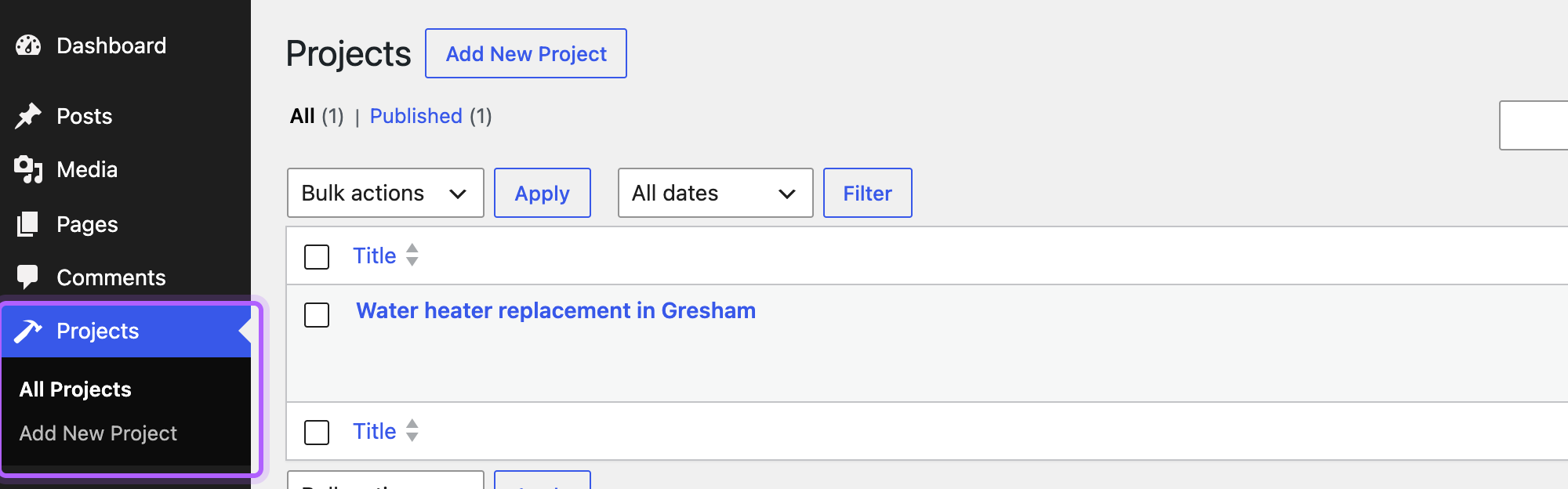
The Projects menu now shows in wp-admin:
Step 3: Enable the post type in Elementor
Install and activate Elementor from Plugins > Add New Plugin if it isn't on the site yet. Right after activation, Elementor opens its setup screens. Nothing in this tutorial needs them or an Elementor account, so you can go straight to the settings.
- Go to Elementor > Editor, then click Settings in Elementor's sidebar.
- On the General tab, tick Projects under Post Types. Posts and Pages are ticked by default.
- Click Save Changes.
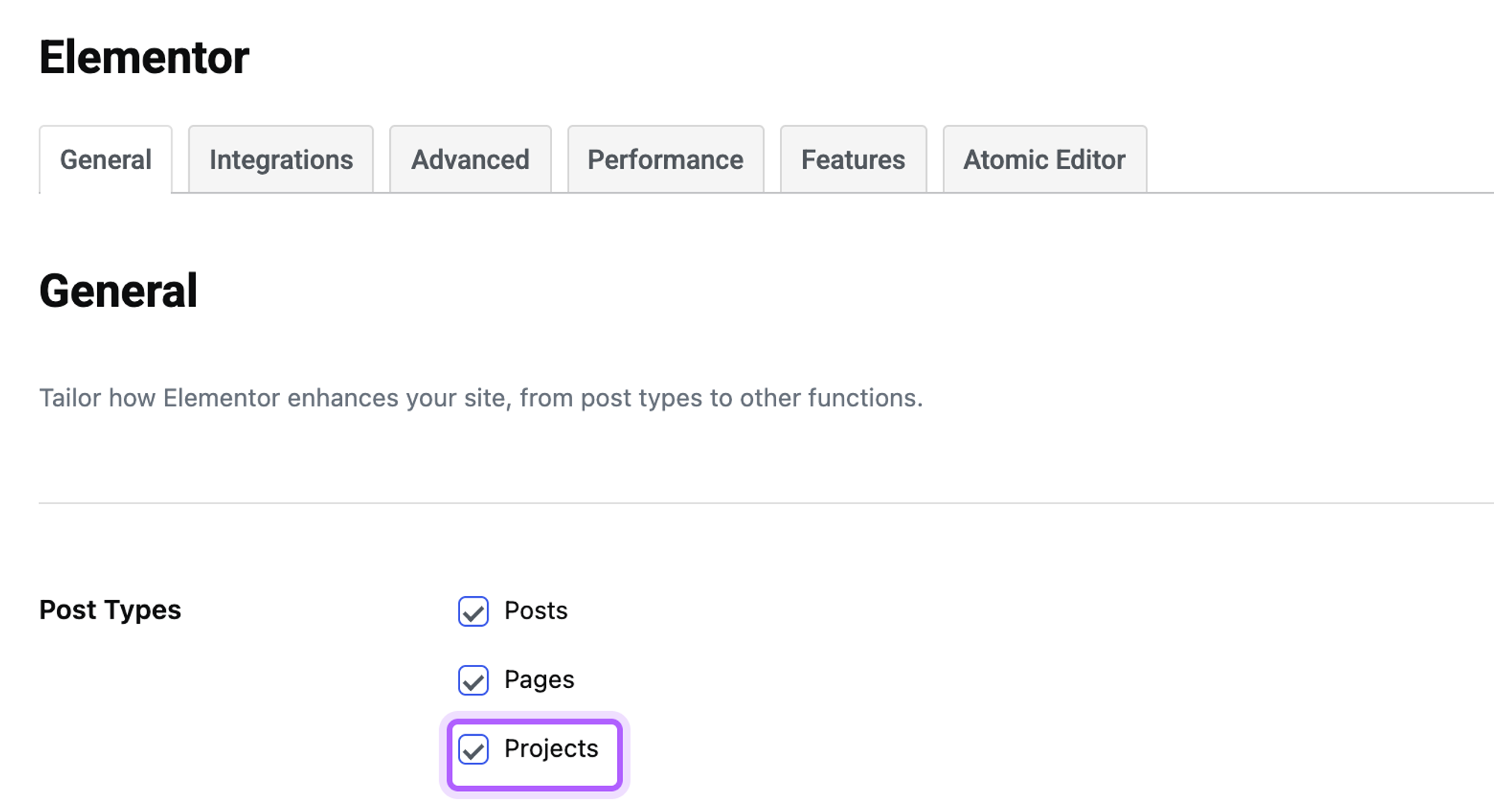
Elementor lists each post type by its name label from Step 1, so the setting shows Projects for harbor_project.
Step 4: Edit a project with Elementor
Open a project, or add one under Projects > Add New Project. The block editor now has an Edit with Elementor button at the top:
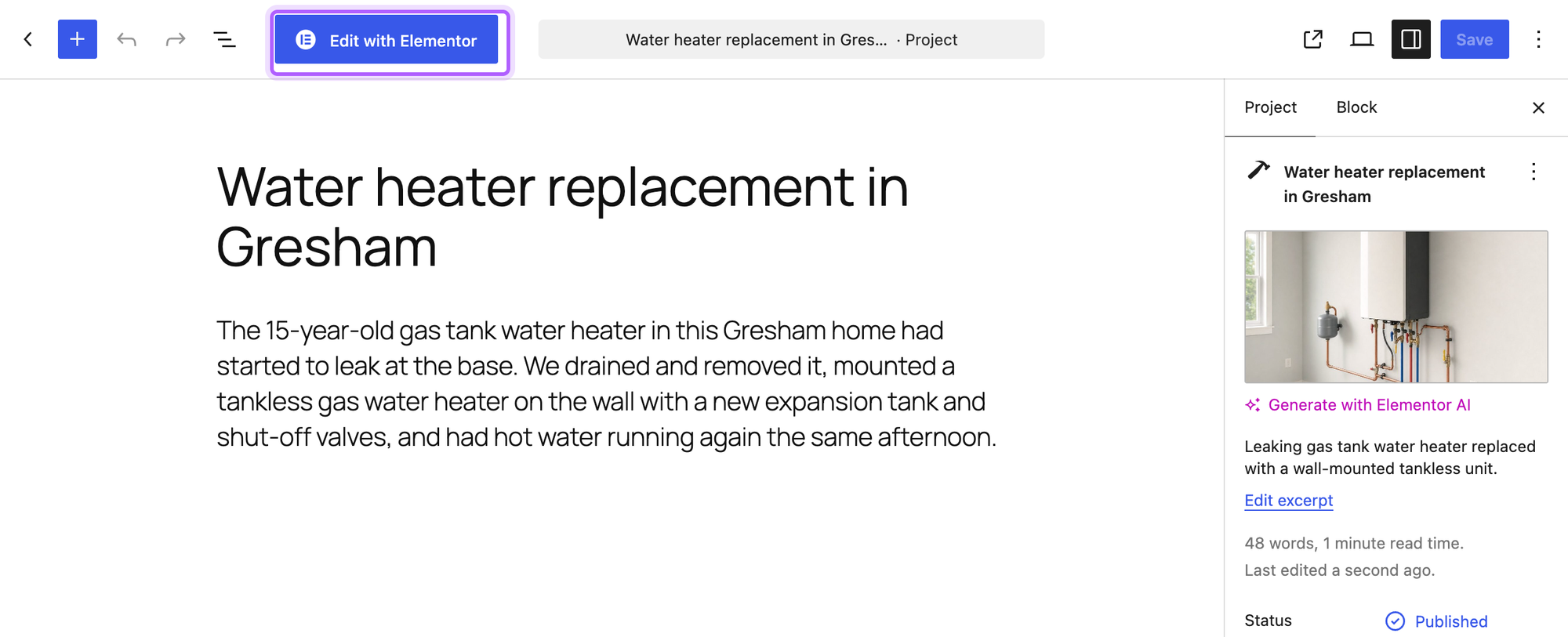
Click it, and the project opens in Elementor. Whatever you wrote in the block editor comes along, and you can add widgets below it. We dragged a Heading widget onto the page and changed its title:
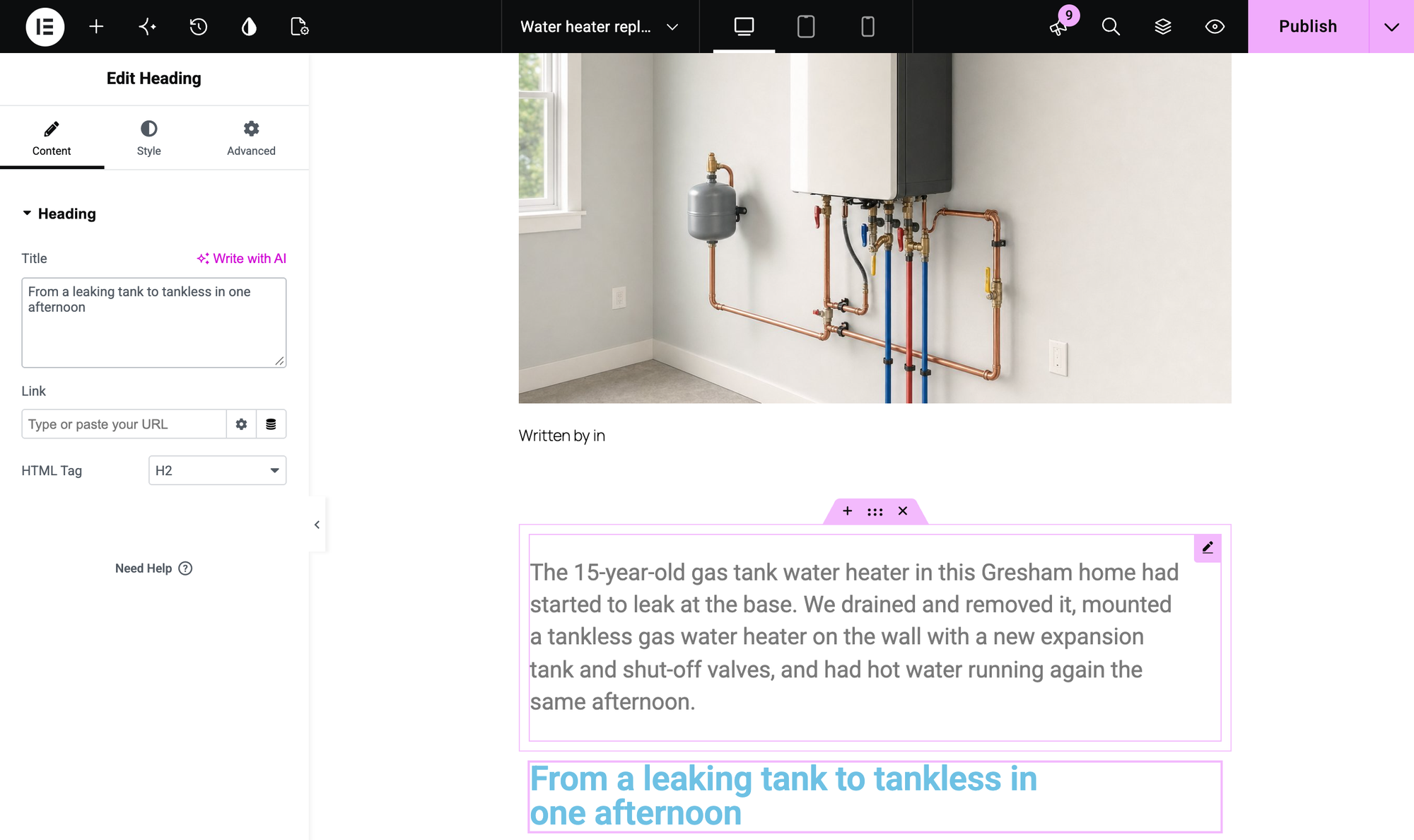
Click Publish in Elementor's top bar to save. After the first save in Elementor, the project list also shows an Edit with Elementor link when you hover over the project, and an Elementor label next to its title:

Step 5: Check the project on the site
Open the project's URL in a private window. In our test, a logged-out visitor saw the project with its featured image, the text from the block editor and the heading added in Elementor. The archive at /projects/ listed it too.
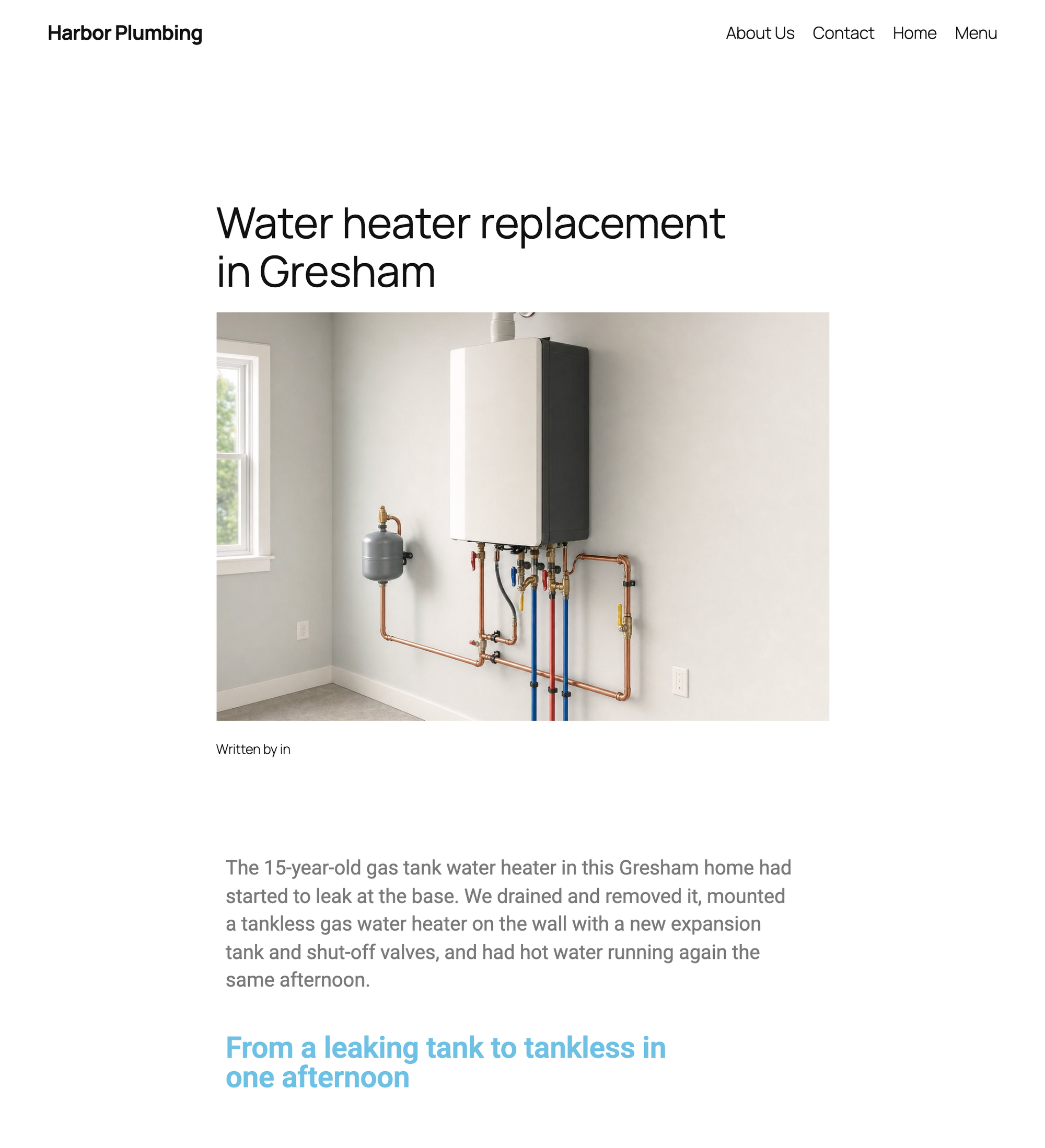
Twenty Twenty-Five shows projects with its Single Posts template, the same one it uses for blog posts. Its "Written by ... in ..." line stays empty for projects, because the post type has no author support and no categories. Add 'author' to supports if you want the name to show.
Enable Elementor for a custom post type in code
The setting in Step 3 is stored in the database, so anyone with access to Elementor's settings can untick it again. To keep Elementor enabled from code, add this below the code from Step 1:
add_action( 'init', 'harbor_enable_elementor_for_projects' );

function harbor_enable_elementor_for_projects() {
    add_post_type_support( 'harbor_project', 'elementor' );
}add_post_type_support() is what Elementor's setting does for every ticked post type. In our test, the Edit with Elementor button appeared without the setting, and Projects stayed unticked under Post Types, because the setting only shows what is saved in the database. You can also add 'elementor' to the supports array in Step 1, which has the same effect.
Templates for all projects need Elementor Pro
With the free version, you design each project on its own. A single template that every project uses, or a template for the /projects/ archive, comes from Elementor's Theme Builder, which is part of Elementor Pro. In the free version, Elementor > Theme Builder shows the site parts, such as Single Post and Archive, with an Upgrade Now button.
In Pro, you create a Single Post template and pick Projects in its display conditions. Elementor's docs note that the template only applies to entries that keep Default Template in their page settings. Our tutorial on custom Elementor conditions shows how those conditions work in code.
My custom post type isn't listed under Post Types
Elementor only lists public post types. In our test, a post type registered with 'public' => false was missing from the list, even though it had its own menu in wp-admin. Set public to true, or enable Elementor in code as shown above. If the post type is missing from wp-admin too, check that the file is listed under Plugins > Must-Use.
The project page shows a 404 error
The URL rules weren't rebuilt after you registered the post type or changed its rewrite slug. Open Settings > Permalinks once, then reload the project.
There's no Edit with Elementor button
Check that Projects is ticked under Post Types and that you clicked Save Changes. In our test, the block editor showed no button until then. The link in the project list only appears after a project has been saved in Elementor once, so use the button in the editor for a new project.
The project opens in the classic editor
The post type was registered without 'show_in_rest' => true. In our test, Elementor still worked: the classic editor showed an Edit with Elementor button above the content. Set show_in_rest to true if you want the block editor for the parts you don't build in Elementor.
Next steps
Projects often need fields of their own, such as the town or the job date. Our tutorial on custom meta boxes adds them without a plugin. To add your own widget to Elementor's panel, see how to build a custom Elementor widget.
Sources: register_post_type() in the WordPress developer reference and Elementor's guide to Single Post templates.
I've worked in SEO for more than ten years and helped over 100 businesses rank higher, mostly local businesses, e-commerce stores and SaaS companies. As co-founder of LPagery I work on local SEO, programmatic SEO and AI search visibility, and I test the strategies in these articles on our own sites and with our customers.