
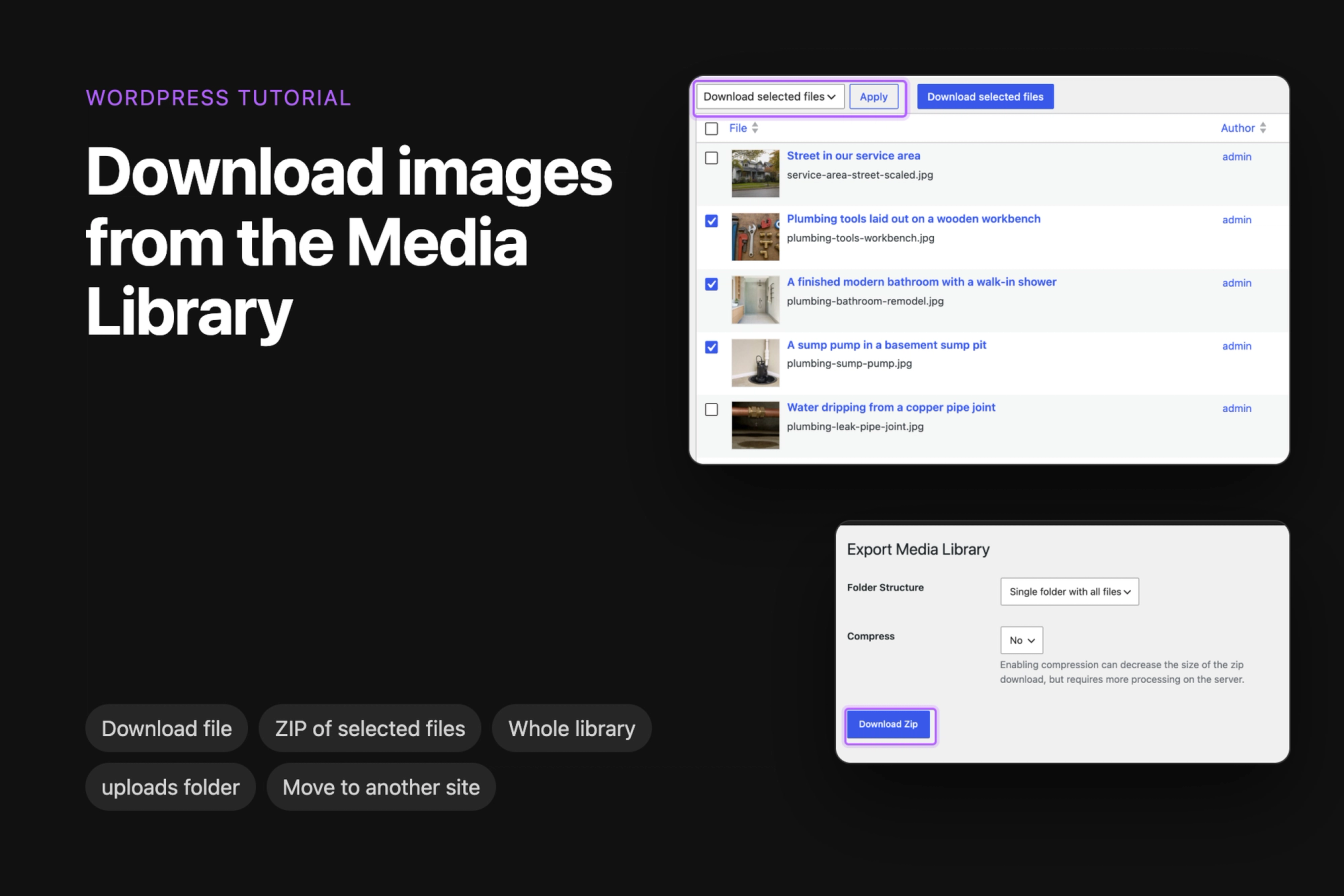
This tutorial covers every way to get images out of the WordPress Media Library: one image, a few images as a ZIP file, the whole library, the original files of large images, and all your media moved to another WordPress site.
Everything was tested on WordPress 7.1.3 with Media Library Downloader 1.4.3, Export Media Library 4.0.2 and WordPress Importer 0.9.6. The example is a plumbing company's site with nine photos in its Media Library.
Which method do you need?
- One image: the Download file link built into WordPress.
- A few images as one ZIP file: the free Media Library Downloader plugin.
- The whole Media Library as one ZIP file: the free Export Media Library plugin, or the uploads folder on your server.
- Only the original files, with a script: the REST API.
- All media into another WordPress site: Tools > Export and the WordPress Importer.
Download one image
- Go to Media > Library and click the image.
- In the attachment details, click Download file.
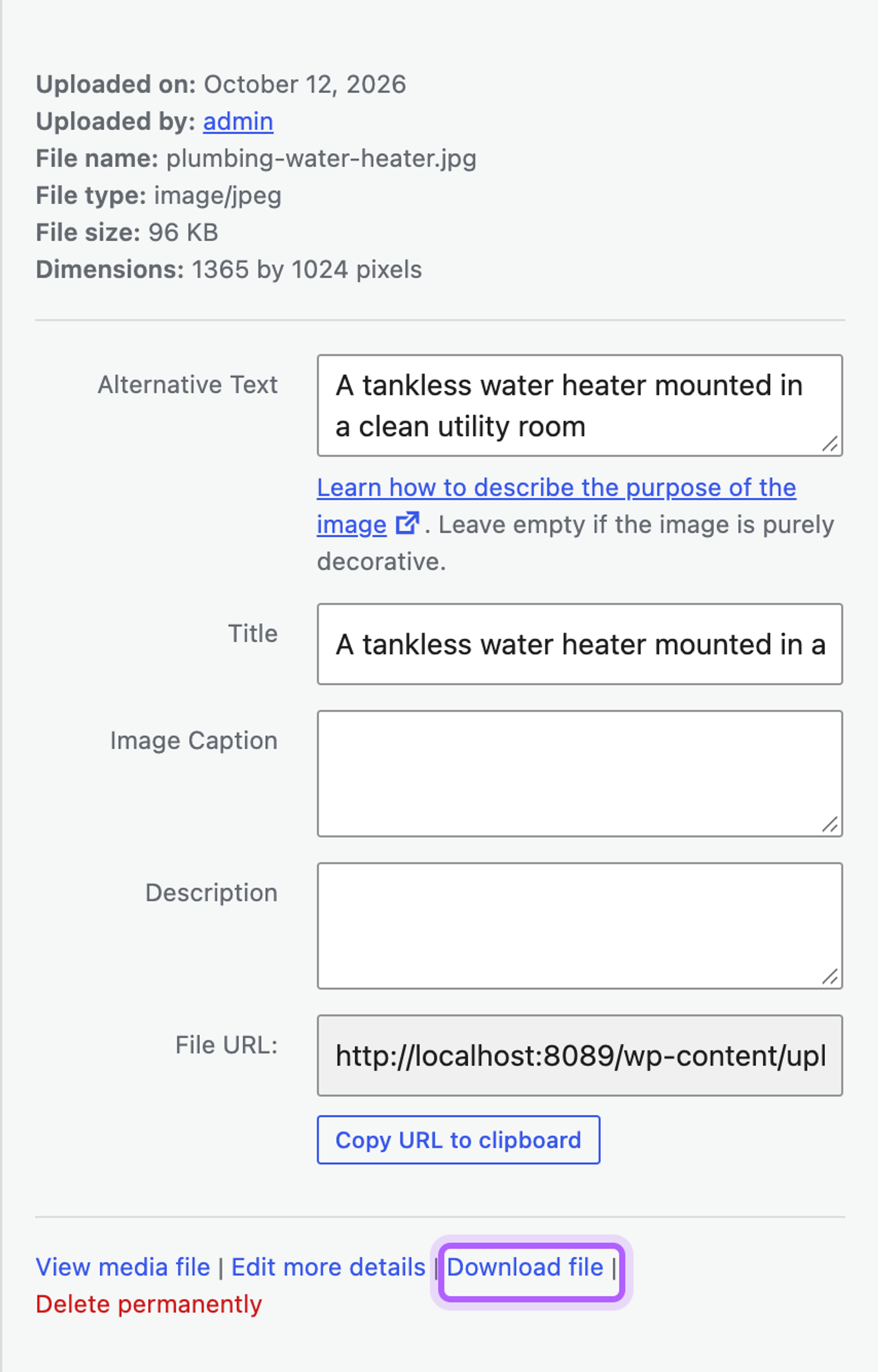
Your browser saves the file under its own name. In our test, the downloaded file was identical to the one we had uploaded. In the list view of Media > Library, the same Download file link shows when you hover over a row:
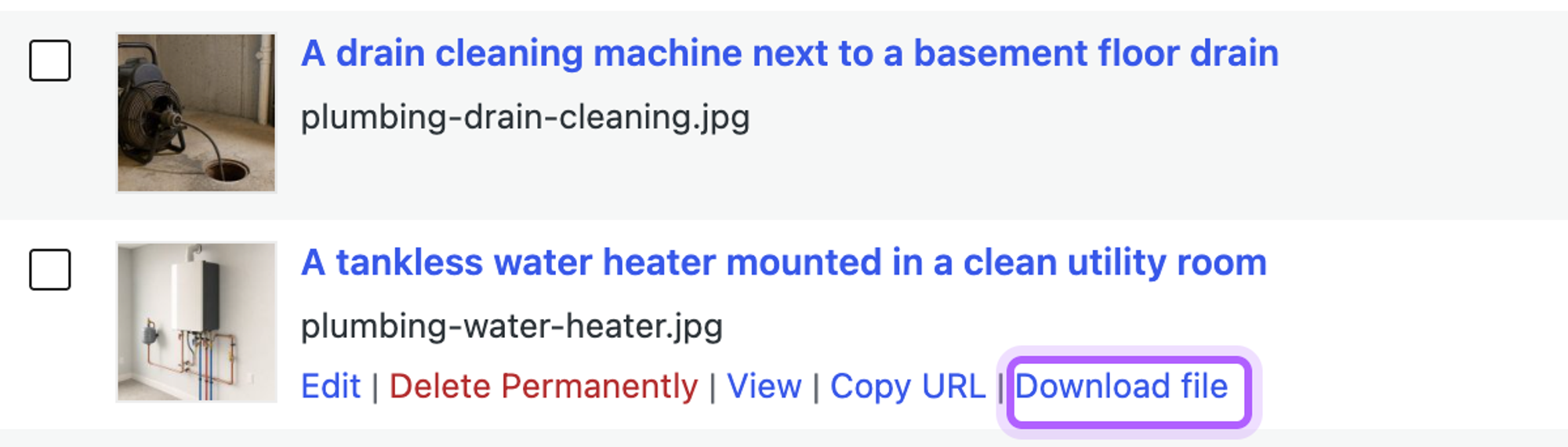
Images wider than 2560 pixels are the exception. WordPress keeps the file you uploaded, but uses a copy scaled down to 2560 pixels on your pages, with -scaled in its name, and Download file gives you that copy. See "The downloaded image is smaller than the one I uploaded" below for how to get the original.
Download several images as a ZIP file
WordPress has no bulk download: under Bulk actions, the only choice is Delete permanently. The free Media Library Downloader plugin adds one.
- Install and activate Media Library Downloader under Plugins > Add Plugin.
- Go to Media > Library and switch to the list view.
- Tick the images you want.
- Under Bulk actions, choose Download selected files and click Apply.
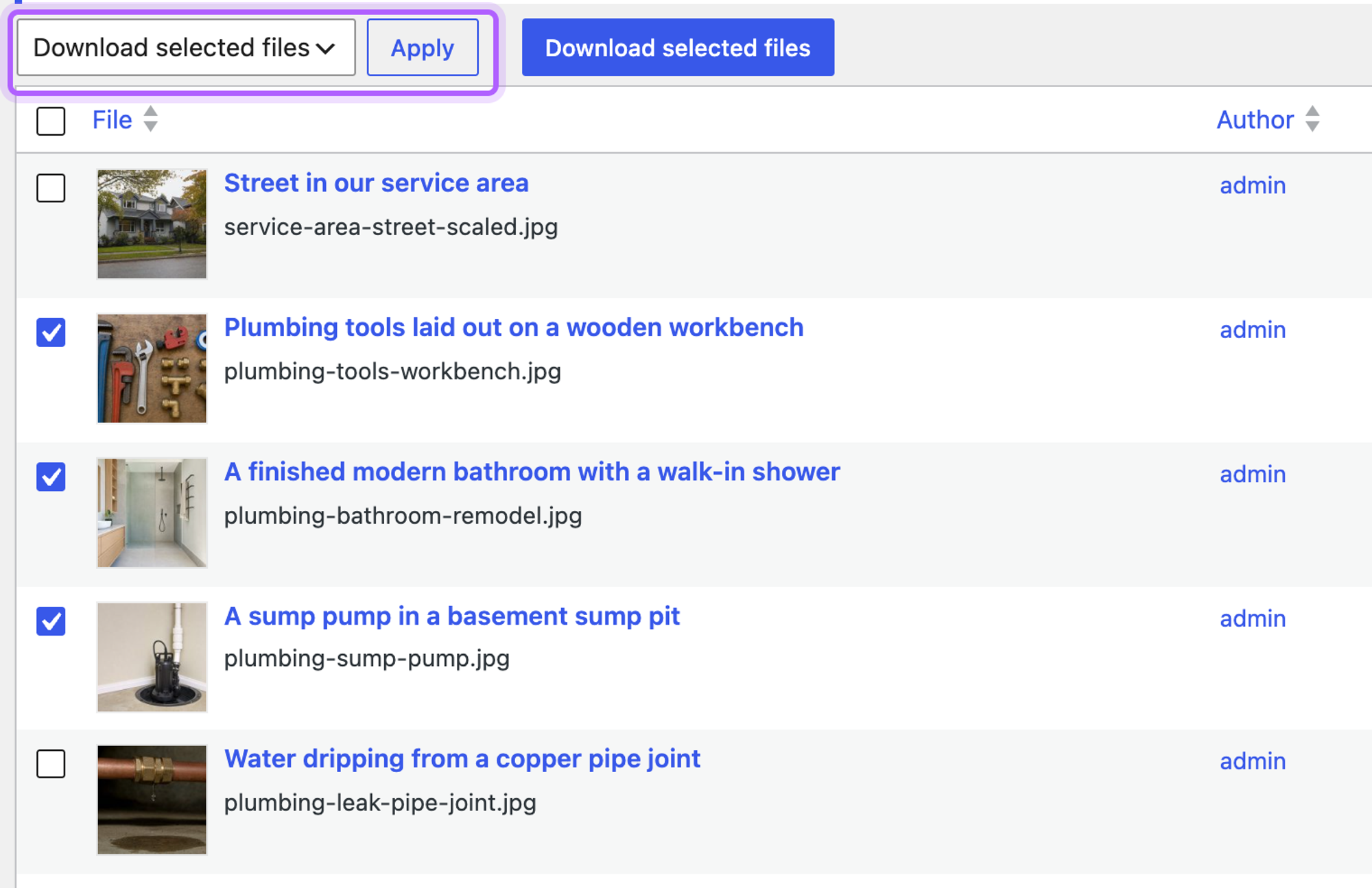
The plugin also adds a Download selected files button next to Apply, which does the same. In the grid view, click Bulk select first and the button appears in the toolbar.
Your browser then downloads a ZIP file with the files you picked. In our test, it held the original uploads, one file per image, without the smaller sizes WordPress creates.
Ticking the box at the top of the list selects only the images on the current page. To download more at once, open Screen Options at the top right of the Media Library and raise Number of items per page.
When you select a single image, the plugin opens it in a new browser tab instead of making a ZIP file. For single images, use Download file.
The ZIP file also has a size limit. The plugin stops adding files at 100 MB or at twice your site's maximum upload size, whichever is smaller, and doesn't list the files it left out. In our test with the limit set to 1 MB, it showed "Prepared ZIP with 1 files" for nine selected images. If the number is lower than what you selected, raise Maximum Download Size (MB) under Settings > Media Downloader. It can't go above twice the upload limit, so on a site with a small upload limit, download in smaller batches.
Download the whole Media Library as one ZIP file
The free Export Media Library plugin puts every file of the Media Library into one ZIP file. It was last updated in April 2023 and is marked as tested up to WordPress 6.2, but it worked in our test on WordPress 7.1.3 with PHP 8.3.
- Install and activate Export Media Library.
- Go to Media > Export.
- Under Folder Structure, choose Single folder with all files, or Nested folders to keep the year and month folders WordPress uses.
- Click Download Zip.
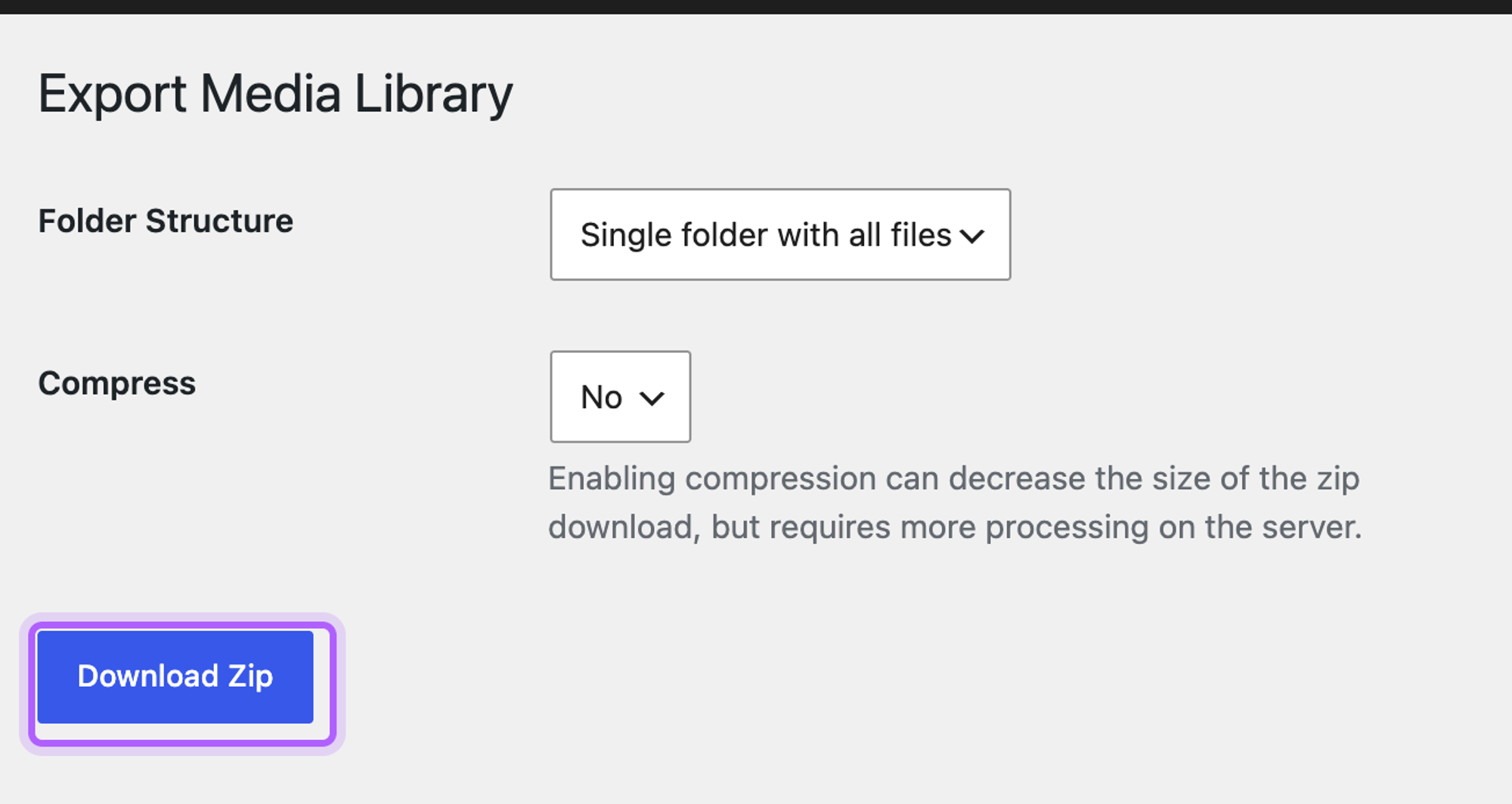
In our test, the ZIP file held all nine images of the Media Library, one file each, and no smaller sizes. Like Download file, it contains the -scaled copy of images wider than 2560 pixels.
Download the uploads folder from your server
WordPress stores every file of the Media Library in wp-content/uploads, in one folder per year and month, such as wp-content/uploads/2026/10/. You can download that folder with an SFTP or FTP program such as FileZilla, or with the file manager in your hosting control panel.
The folder holds more files than the Media Library shows, because WordPress saves several smaller sizes of every image next to the original. In our test, one 1365 by 1024 pixel photo was five files:
plumbing-water-heater.jpg
plumbing-water-heater-1024x768.jpg
plumbing-water-heater-768x576.jpg
plumbing-water-heater-300x225.jpg
plumbing-water-heater-150x150.jpg
A 4000-pixel photo was eight files: the original, the -scaled copy and six sizes. Apart from the REST API script below, the folder is the only place in this tutorial where you get the full-size originals of large images.
With SSH access, you can pack the folder into one file on the server and download that. Replace the path with your site's folder:
cd /path/to/wordpress
tar -czf media-library.tar.gz -C wp-content uploads
In our test, the archive held every file of the uploads folder, 48 files for nine images.
Download only the original files with the REST API
This script asks the WordPress REST API for every image in the Media Library and downloads the original of each one, without the smaller sizes. It needs curl and jq. Set your site's address in the first line, then run it in an empty folder:
1SITE="https://example.com"
2
3mkdir -p media-library && cd media-library
4page=1
5while :; do
6  urls=$(curl -s "$SITE/wp-json/wp/v2/media?media_type=image&per_page=100&page=$page" |
7    jq -r 'if type == "array" then .[] | if .media_details.original_image
8      then (.source_url | sub("[^/]+$"; "")) + .media_details.original_image
9      else .source_url end else empty end')
10  [ -z "$urls" ] && break
11  echo "$urls" | xargs -n 1 curl -s -O
12  page=$((page + 1))
13done
14ls | wc -l
It fetches 100 images per request until WordPress has no more pages, then prints the number of files. For images WordPress has scaled, it downloads the original instead of the -scaled copy. In our test, it downloaded eight originals, including the 4000-pixel photo at full size.
Without a login, the REST API only lists images that visitors can see, so an image attached to a draft post was missing in our test. To include those, add --user "your-username:your-application-password" after curl -s in the line with wp-json. Our tutorial on uploading images with the WordPress REST API shows how to create an application password. With it, the script downloaded all nine images.
Move the Media Library to another WordPress site
Tools > Export doesn't download your images. It creates an XML file that lists each file with its details, such as the title and alt text. The WordPress Importer on the new site then downloads every file from the old site, so the old site has to stay online until the import is done.
On the old site:
- Go to Tools > Export.
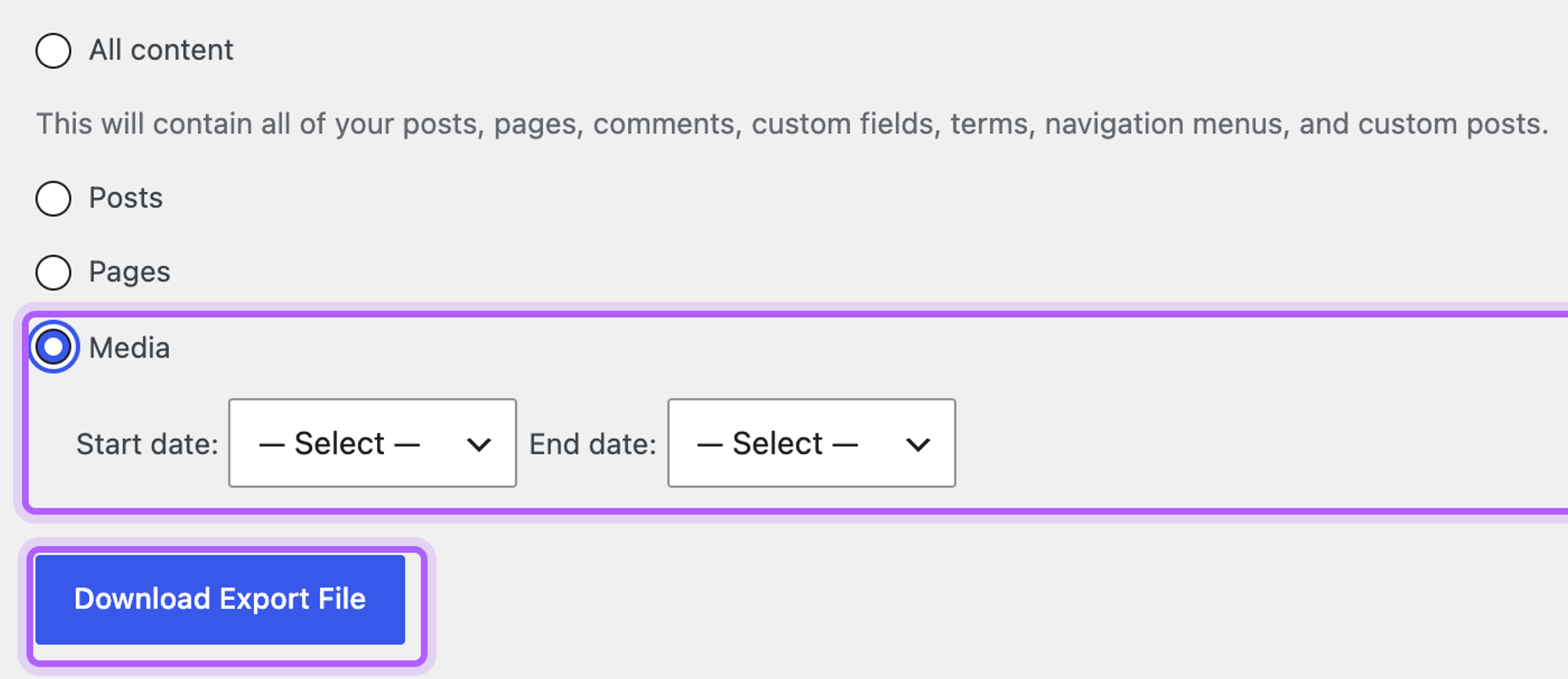
- Choose Media. To export only part of the library, pick a Start date and an End date.
- Click Download Export File.
On the new site:
- Go to Tools > Import and click Install Now under WordPress, then Run Importer.
- Choose the XML file and click Upload file and import.
- Under Assign Authors, pick a user in or assign posts to an existing user.
- Tick Download and import file attachments and click Submit.
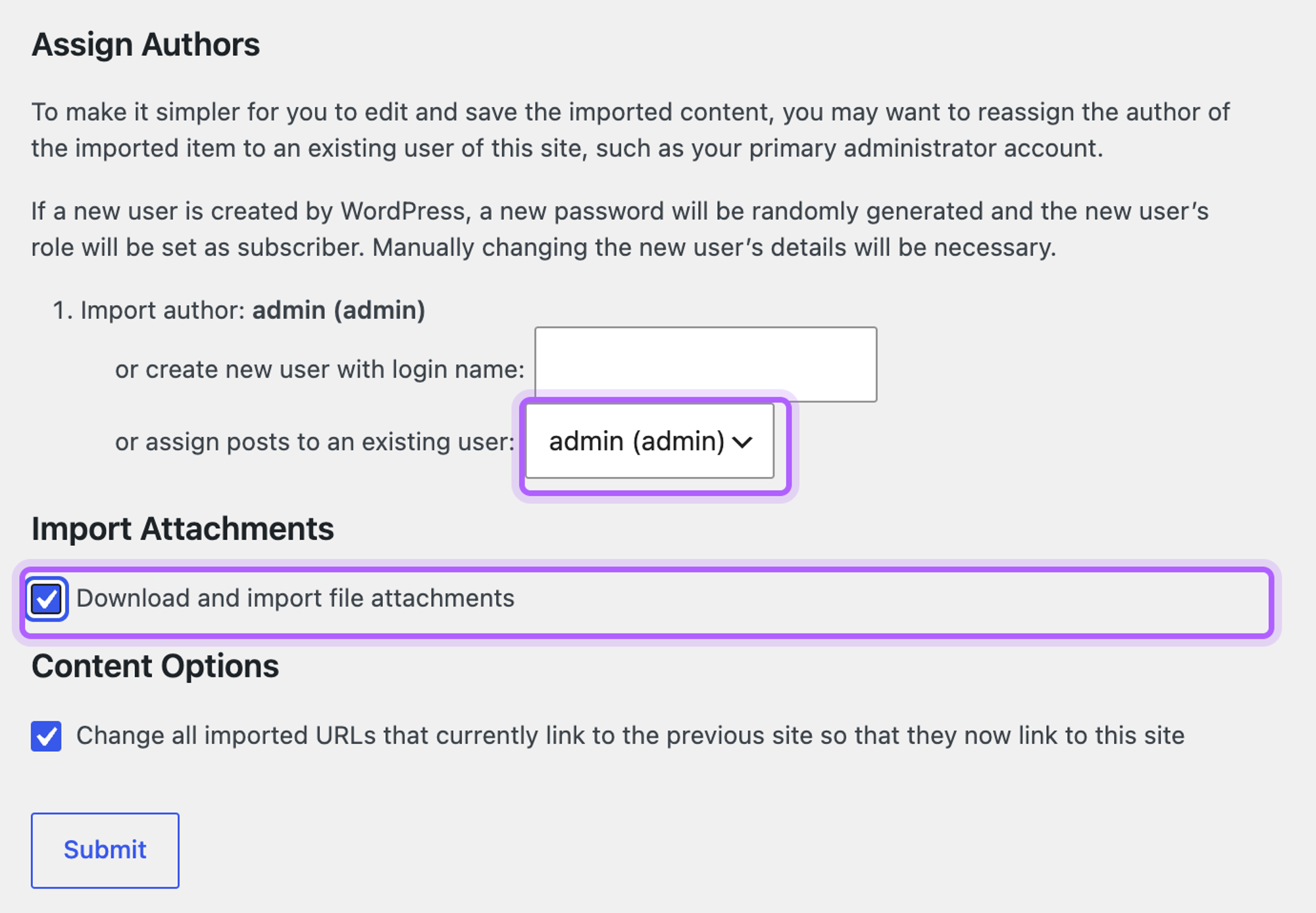
In our test, the importer downloaded all nine images from the old address, created the smaller sizes again and finished with "All done. Have fun!". The images kept their titles and alt text.
Tools > Export gave me an XML file, not my images
That's how the export works: the XML file lists your media with links to the files, and only the WordPress Importer downloads them. To get the image files themselves, use one of the other methods in this tutorial.
The downloaded image is smaller than the one I uploaded
WordPress scales images wider than 2560 pixels down to 2560 pixels and uses that copy everywhere, including Download file, Media Library Downloader and Export Media Library. In our test, a 4000-pixel photo downloaded at 2560 pixels with these three, and its attachment details listed the full-size file under Original image. You can get the original from the uploads folder on your server, where it sits next to the -scaled file, or with the REST API script above.
Download file opens the image instead of downloading it
Browsers only download a link automatically when the file is on the same domain as the page. If your images are served from another domain, for example through a CDN or a plugin that moves media to cloud storage, the browser opens the image instead. In our test in Chrome, with the images on a second address, Download file opened the image in the same tab. Right-click the image and choose Save Image As, or use one of the other methods.
The ZIP file has fewer images than I selected
Media Library Downloader stops adding files when it reaches its size limit, and selecting all only covers the current page. Check the number in the "Prepared ZIP with" message, then download the rest in a second batch or raise the limits as described in the Media Library Downloader section above.
The importer says "Failed to import Media"
The importer couldn't download the file from the old site. In our test, every image failed this way when the old address no longer existed, and none was added to the Media Library. Keep the old site online until the import is done. If it's already gone, upload the images from the uploads folder of a backup instead.
I've worked in SEO for more than ten years and helped over 100 businesses rank higher, mostly local businesses, e-commerce stores and SaaS companies. As co-founder of LPagery I work on local SEO, programmatic SEO and AI search visibility, and I test the strategies in these articles on our own sites and with our customers.