How to Create a Custom WordPress Block Without Plugins

Opdateret
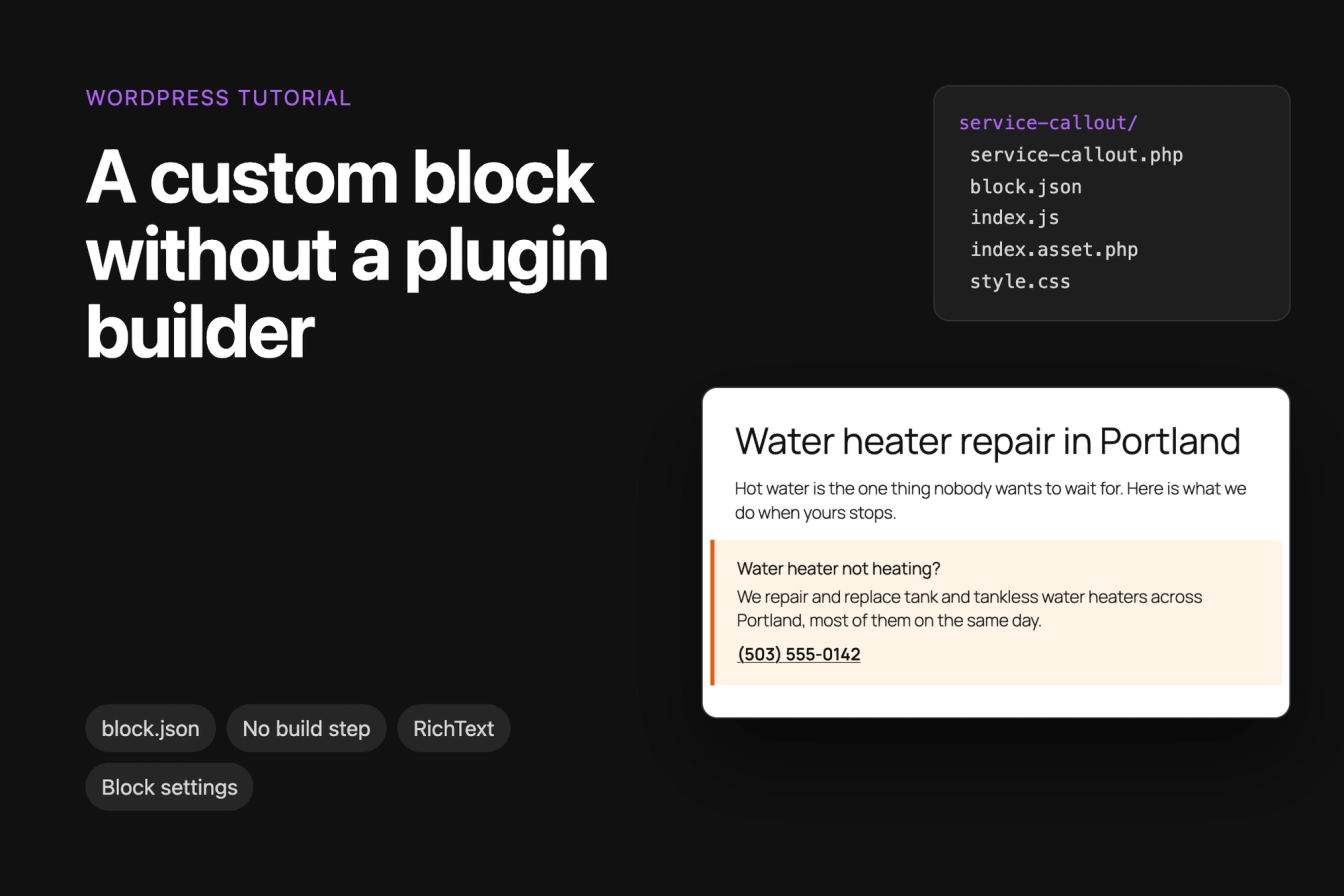
This tutorial builds a custom block for the WordPress block editor (Gutenberg) without a block builder plugin and without Node.js or a build step. The block is a service callout for a plumbing company's website: a box with a heading, a short text, a phone link and a phone number setting in the sidebar.
Everything was tested on WordPress 7.1.3 with the Twenty Twenty-Five theme. The block comes as a small plugin of your own with five files.
The five files
1wp-content/plugins/service-callout/
2    service-callout.php    registers the block
3    block.json             describes the block
4    index.asset.php        lists the scripts index.js needs
5    index.js               the block in the editor and its saved HTML
6    style.css              styles for the page and the editor
Most block tutorials use the @wordpress/scripts package and JSX, which need Node.js and a build step before WordPress can load the code. This one uses plain JavaScript that WordPress loads as it is, so you can write every file in a text editor and upload the folder over FTP or SFTP.
Step 1: Create the plugin file
Create the folder wp-content/plugins/service-callout/ and save this as service-callout.php inside it:
1<?php
2/**
3 * Plugin Name: Service Callout Block
4 * Description: A callout block with a heading, a short text and a phone link.
5 * Version: 1.0.0
6 */
7
8if ( ! defined( 'ABSPATH' ) ) {
9    exit;
10}
11
12function harbor_register_service_callout_block() {
13    register_block_type( __DIR__ );
14}
15add_action( 'init', 'harbor_register_service_callout_block' );register_block_type( __DIR__ ) reads block.json from the same folder and registers the block with everything it lists.
Step 2: Describe the block in block.json
1{
2    "$schema": "https://schemas.wp.org/trunk/block.json",
3    "apiVersion": 3,
4    "name": "harbor/service-callout",
5    "title": "Service callout",
6    "category": "design",
7    "icon": "phone",
8    "description": "A highlighted box with a heading, a short text and a phone link.",
9    "keywords": [ "callout", "phone", "emergency" ],
10    "attributes": {
11        "heading": {
12            "type": "string",
13            "source": "html",
14            "selector": "h3"
15        },
16        "text": {
17            "type": "string",
18            "source": "html",
19            "selector": "p"
20        },
21        "phone": {
22            "type": "string",
23            "default": "(503) 555-0142"
24        }
25    },
26    "supports": {
27        "html": false,
28        "color": {
29            "background": true,
30            "text": true
31        },
32        "spacing": {
33            "padding": true
34        }
35    },
36    "textdomain": "service-callout",
37    "editorScript": "file:./index.js",
38    "style": "file:./style.css"
39}name is a prefix of your own and the block's name, in lowercase. WordPress turns it into the CSS class wp-block-harbor-service-callout. title, icon and category decide how the block shows in the inserter; design puts it in the Design group.
The attributes are the block's data. heading and text are read back from the saved HTML: source and selector tell WordPress to take them from the h3 and the p. phone has a default and is only stored in the post when someone changes it.
supports adds the editor's own settings without any code: here, text and background colors and padding. editorScript and style point to the other files; file:./ means "in this folder".
Step 3: List the script's dependencies in index.asset.php
<?php
return array(
    'dependencies' => array( 'wp-blocks', 'wp-element', 'wp-block-editor', 'wp-components', 'wp-i18n' ),
    'version'      => '1.0.0',
);
This file tells WordPress which of its own scripts index.js uses, so they're loaded first. Without it, our block didn't load at all: the browser console showed "Cannot read properties of undefined (reading 'blocks')", because index.js ran before WordPress's block functions were there.
WordPress adds the version to the script's address (index.js?ver=1.0.0). Raise it every time you change index.js, so browsers download the new file instead of using the copy they have.
Step 4: Write the block in index.js
1( function ( blocks, element, blockEditor, components, i18n ) {
2    const el = element.createElement;
3    const { useBlockProps, RichText, InspectorControls } = blockEditor;
4    const { PanelBody, TextControl } = components;
5    const __ = i18n.__;
6
7    // The phone number as a link that starts a call on phones
8    function phoneLink( phone ) {
9        return el( 'a', { className: 'service-callout__phone', href: 'tel:' + phone.replace( /[^0-9+]/g, '' ) }, phone );
10    }
11
12    blocks.registerBlockType( 'harbor/service-callout', {
13        edit: function ( props ) {
14            const { heading, text, phone } = props.attributes;
15            return el(
16                'div',
17                useBlockProps(),
18                el(
19                    InspectorControls,
20                    null,
21                    el(
22                        PanelBody,
23                        { title: __( 'Phone number', 'service-callout' ) },
24                        el( TextControl, {
25                            label: __( 'Phone', 'service-callout' ),
26                            value: phone,
27                            onChange: function ( value ) {
28                                props.setAttributes( { phone: value } );
29                            },
30                        } )
31                    )
32                ),
33                el( RichText, {
34                    tagName: 'h3',
35                    value: heading,
36                    placeholder: __( 'Heading', 'service-callout' ),
37                    onChange: function ( value ) {
38                        props.setAttributes( { heading: value } );
39                    },
40                } ),
41                el( RichText, {
42                    tagName: 'p',
43                    value: text,
44                    placeholder: __( 'A short text', 'service-callout' ),
45                    onChange: function ( value ) {
46                        props.setAttributes( { text: value } );
47                    },
48                } ),
49                phoneLink( phone )
50            );
51        },
52
53        save: function ( props ) {
54            const { heading, text, phone } = props.attributes;
55            return el(
56                'div',
57                useBlockProps.save(),
58                el( RichText.Content, { tagName: 'h3', value: heading } ),
59                el( RichText.Content, { tagName: 'p', value: text } ),
60                phoneLink( phone )
61            );
62        },
63    } );
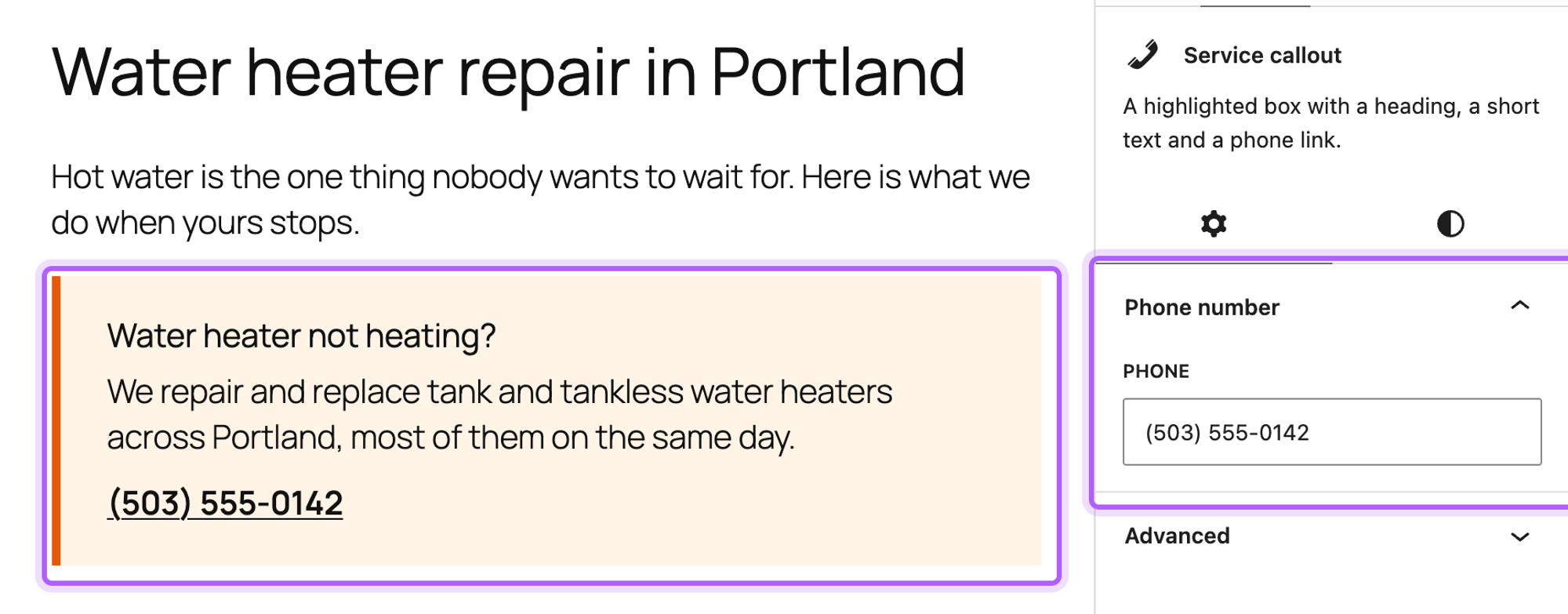
64} )( window.wp.blocks, window.wp.element, window.wp.blockEditor, window.wp.components, window.wp.i18n );edit is what you see and work with in the editor. The two RichText fields are editable in place, and InspectorControls adds a Phone number panel to the block settings in the sidebar. save returns the HTML that WordPress stores in the post and shows to visitors.
el is a short name for createElement, which builds the same elements JSX does, without a build step. useBlockProps() adds the block's class name and the attributes the editor needs, including the classes for the color and padding settings.
Step 5: Add the styles
1.wp-block-harbor-service-callout {
2    padding: 1.5rem 1.75rem;
3    border-left: 5px solid #e8590c;
4    background: #fff4e6;
5}
6
7.wp-block-harbor-service-callout h3 {
8    margin: 0 0 0.5rem;
9}
10
11.wp-block-harbor-service-callout p {
12    margin: 0 0 0.75rem;
13}
14
15.wp-block-harbor-service-callout .service-callout__phone {
16    font-weight: 600;
17}
Because block.json lists this file under style, WordPress loads it on the site and in the editor, so the callout looks the same in both.
Step 6: Activate the plugin and add the block
- Upload the
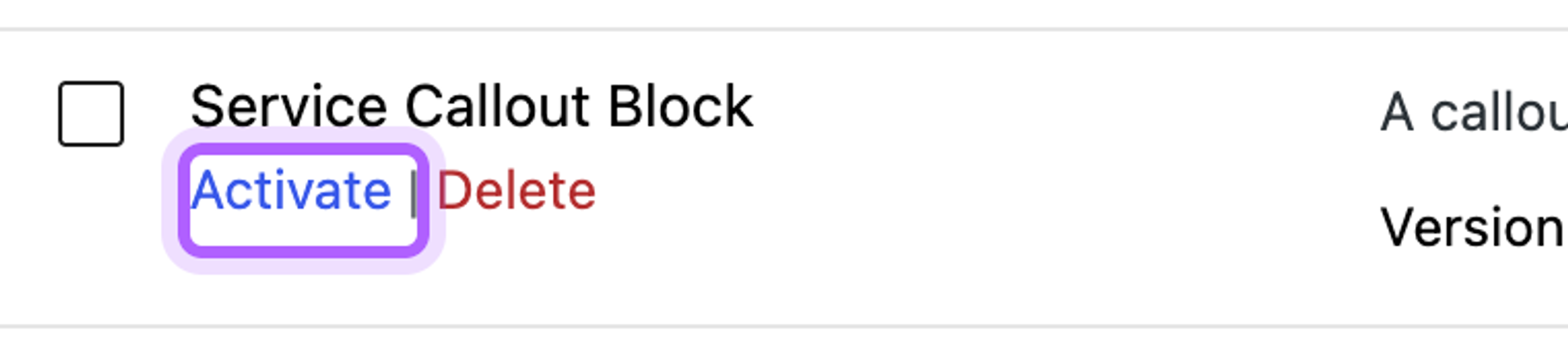
service-calloutfolder towp-content/plugins/. - In wp-admin, go to Plugins and click Activate under Service Callout Block.
- Open a page in the editor and click the Block Inserter button (the plus sign at the top left).
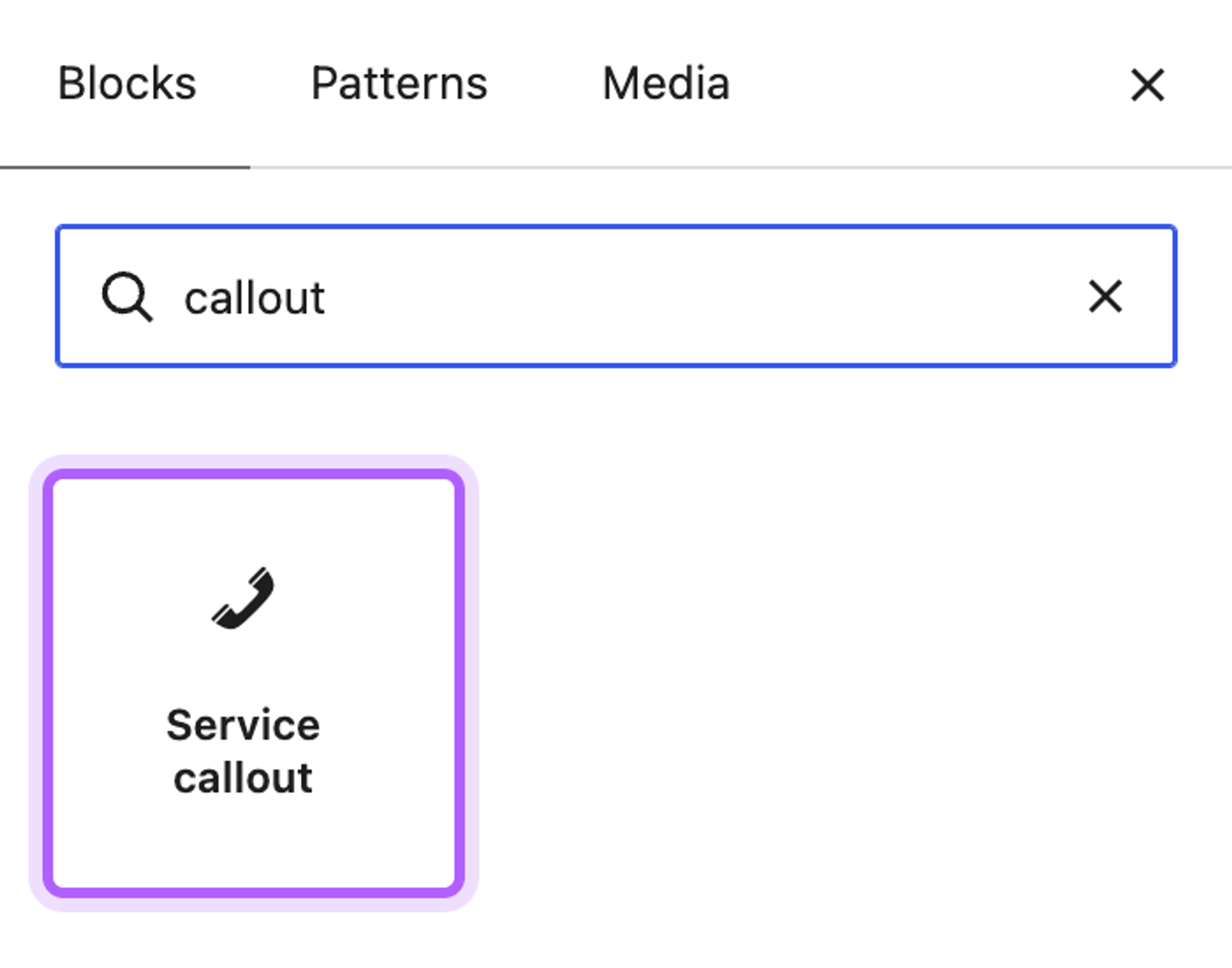
- Search for "callout" and click Service callout.
Click into the box to type the heading and the text. The phone number is in the sidebar, on the Block tab, under Phone number:
After you publish, visitors see the callout with its phone link:

When we opened the page in the editor again, the block loaded without a warning and the browser console showed no errors. If you only need a small piece of dynamic text inside a paragraph, a custom shortcode is quicker to build.
What happens to the content if you deactivate the plugin?
The content stays. WordPress stores the HTML from save in the post, so in our test the page still showed the heading, the text and the phone link after we deactivated the plugin. Only the styles from style.css were gone. In the editor, the block then shows "Your site doesn't include support for the "harbor/service-callout" block." with a Keep as HTML button.
"Block contains unexpected or invalid content."
The editor compares each saved block with what save returns now. If you change save after the block is in use, older blocks no longer match. In our test, changing the heading in save from h3 to h2 made every existing callout show this warning, while the published page kept the old h3 until the page was saved again:

The warning offers Attempt recovery. To change the saved HTML of a block that's already on many pages, keep the old save as a deprecated version, as described in the block deprecation guide in the Block Editor Handbook.
The block doesn't show up in the inserter
Open the browser console (F12, then Console) on the editor screen. If it shows "Unexpected token '<'", the script contains JSX, such as <RichText ... />, which browsers can't read without a build step. That's what happened in our test with the code from an older version of this tutorial. Write the elements with createElement, as in Step 4, or set up a build with @wordpress/scripts.
If the console shows "Cannot read properties of undefined (reading 'blocks')", WordPress didn't find index.asset.php. Check that it's in the same folder as index.js and has the same name with .asset.php at the end.
Changes to index.js don't show in the editor
The browser is still using its copy of the old file. Raise the version in index.asset.php, then reload the editor.
I've worked in SEO for more than ten years and helped over 100 businesses rank higher, mostly local businesses, e-commerce stores and SaaS companies. As co-founder of LPagery I work on local SEO, programmatic SEO and AI search visibility, and I test the strategies in these articles on our own sites and with our customers.